

Email filters handle incoming mail for you, for example moving invoices to a folder or deleting mail from a sender. Set them up in cPanel, Email Filters.
Create a filter for one mailbox
Log in to cPanel (see Log in to cPanel from the client area) and click Email Filters in the Email section.
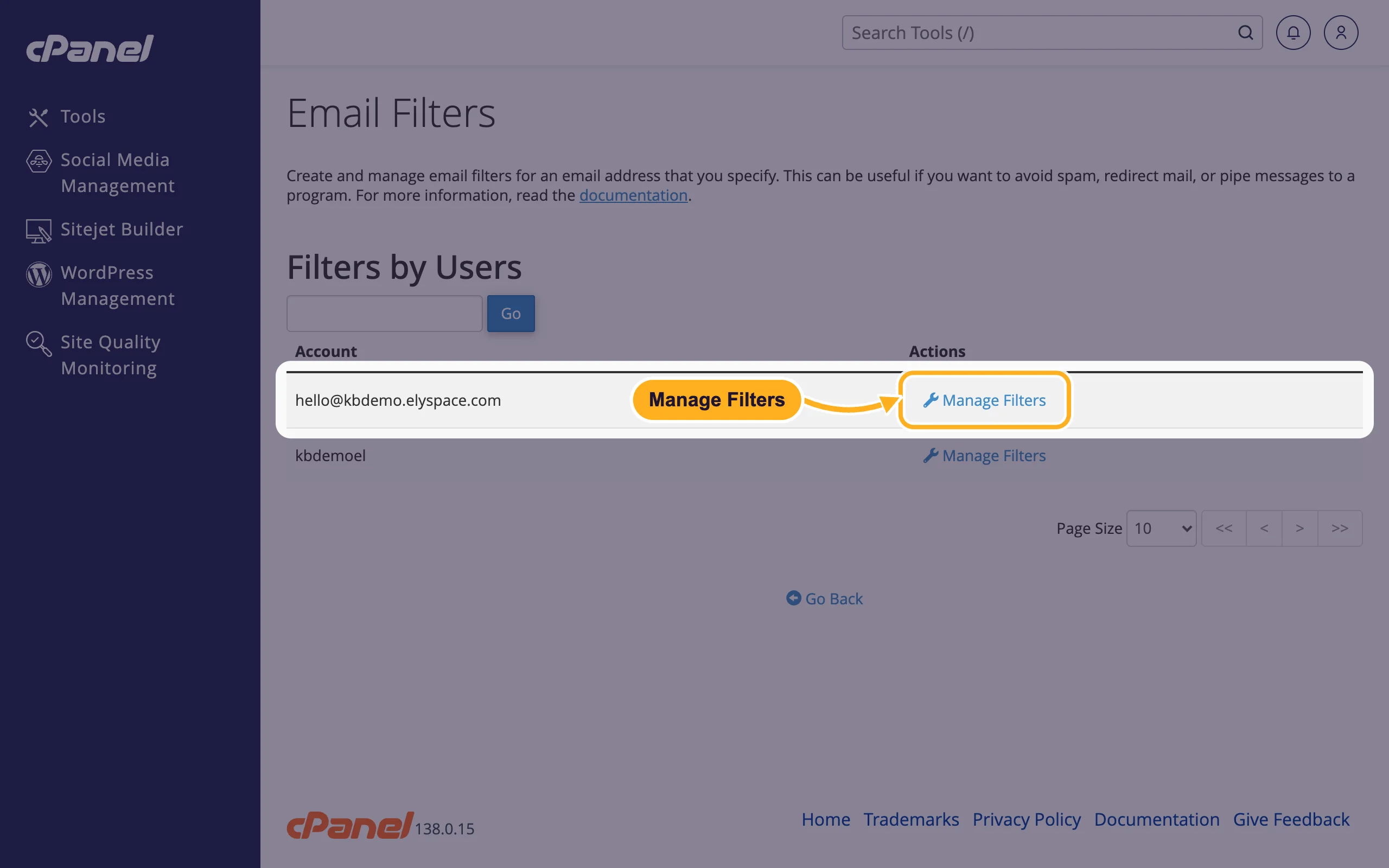
Click Manage Filters next to the address.
Click Create a New Filter.
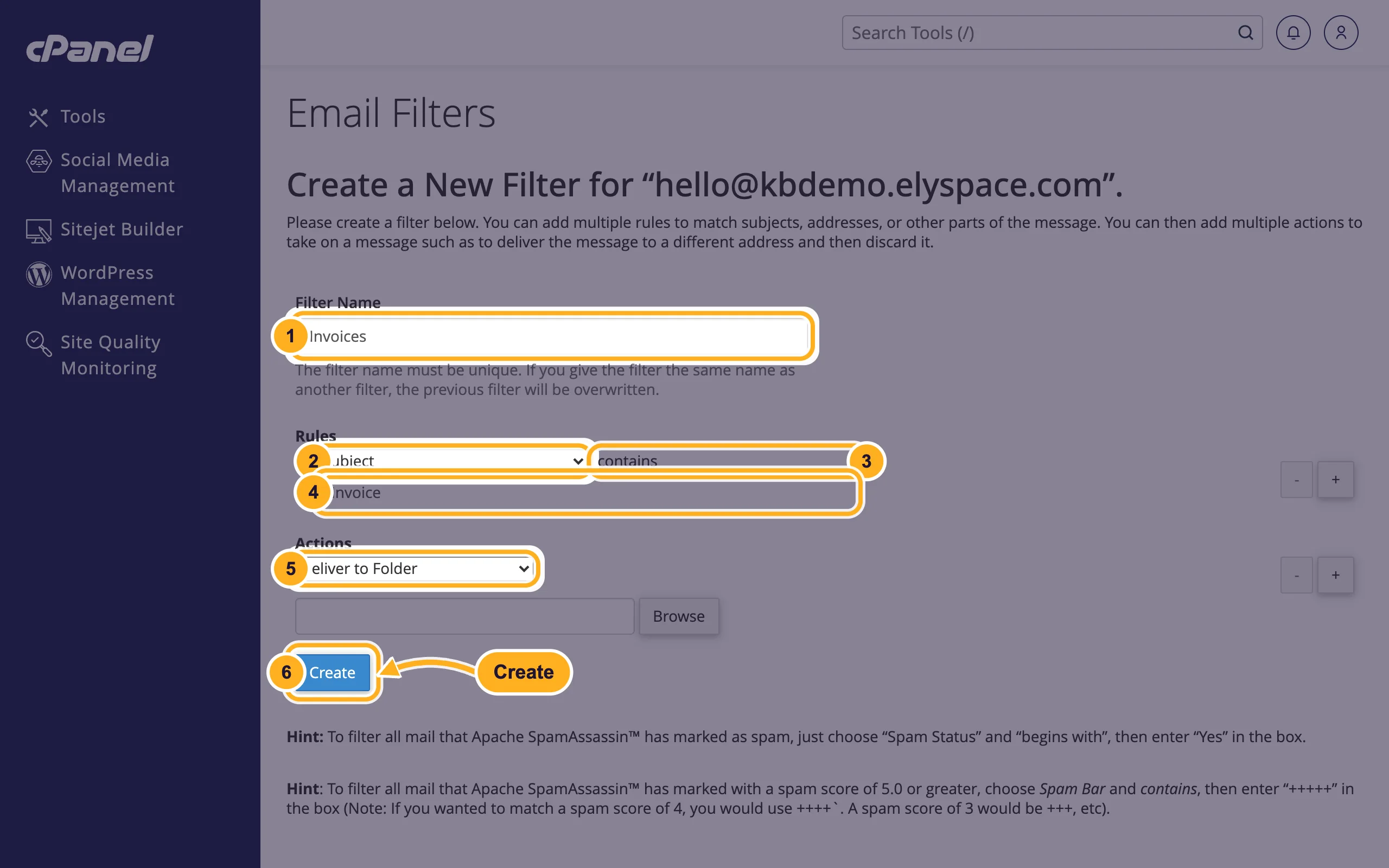
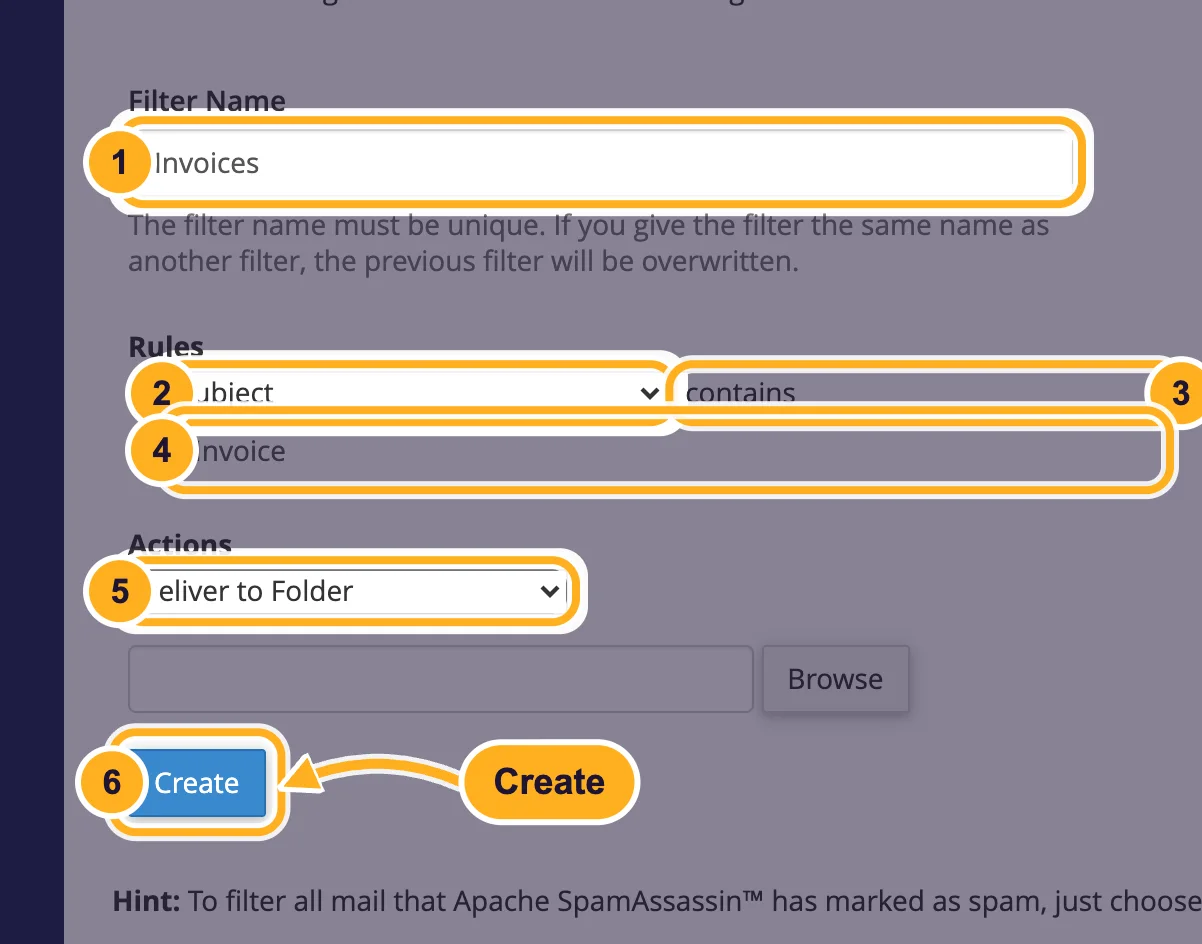
Fill in the form. In this example, all mail with "Invoice" in the subject goes to a folder:
- Filter Name: a name you'll recognize, for example
Invoices. It must be unique, or it replaces the filter with the same name. - Under Rules, choose what to check: From, Subject, To, Body and more.
- Choose how to compare: contains, equals, begins with and others.
- Type the text to look for, for example
Invoice. The + button next to the rule adds another rule. - Under Actions, choose what happens. With Deliver to Folder, click Browse and pick the folder.
- Click Create.
- Filter Name: a name you'll recognize, for example
Filters run from the top of the list down, on new mail only. Messages already in the mailbox aren't moved.
Actions you can choose
| Action | What it does |
|---|---|
| Discard Message | Deletes the message. The sender isn't told. |
| Redirect to Email | Sends the message on to another address. |
| Fail With Message | Bounces the message with your text. |
| Stop Processing Rules | Skips all filters below this one. |
| Deliver to Folder | Puts the message in a folder of the mailbox. |
| Pipe to a Program | Passes the message to a script (for developers). |
cPanel's hints on the form show two useful spam rules: Spam Status begins with Yes matches everything SpamAssassin marked as spam, and Spam Bar contains +++++ matches a spam score of 5 or more.
Filters for all addresses
Global Email Filters in the Email section works the same way but applies to all mail for your cPanel account, not one mailbox. Mailbox users can manage their own filters in webmail under Email Filters.
Common problems
The filter doesn't catch anything
Check the spelling and the rule type. "contains" is the safest choice; "equals" only matches when the whole field is exactly your text.
Mail disappeared
A filter with Discard Message may be catching more than you wanted. Open Manage Filters, edit or delete the filter, and prefer Deliver to Folder while you test.
Related articles
Still stuck? Open a support ticket and we'll help.
