

Click Log in to control panel next to your hosting plan in the client area. cPanel opens and you're already logged in, without a separate password.
Open cPanel
Log in to the client area and go to Services > My Services.
Click Log in to control panel next to the plan. The same button is on the dashboard under All hosting.
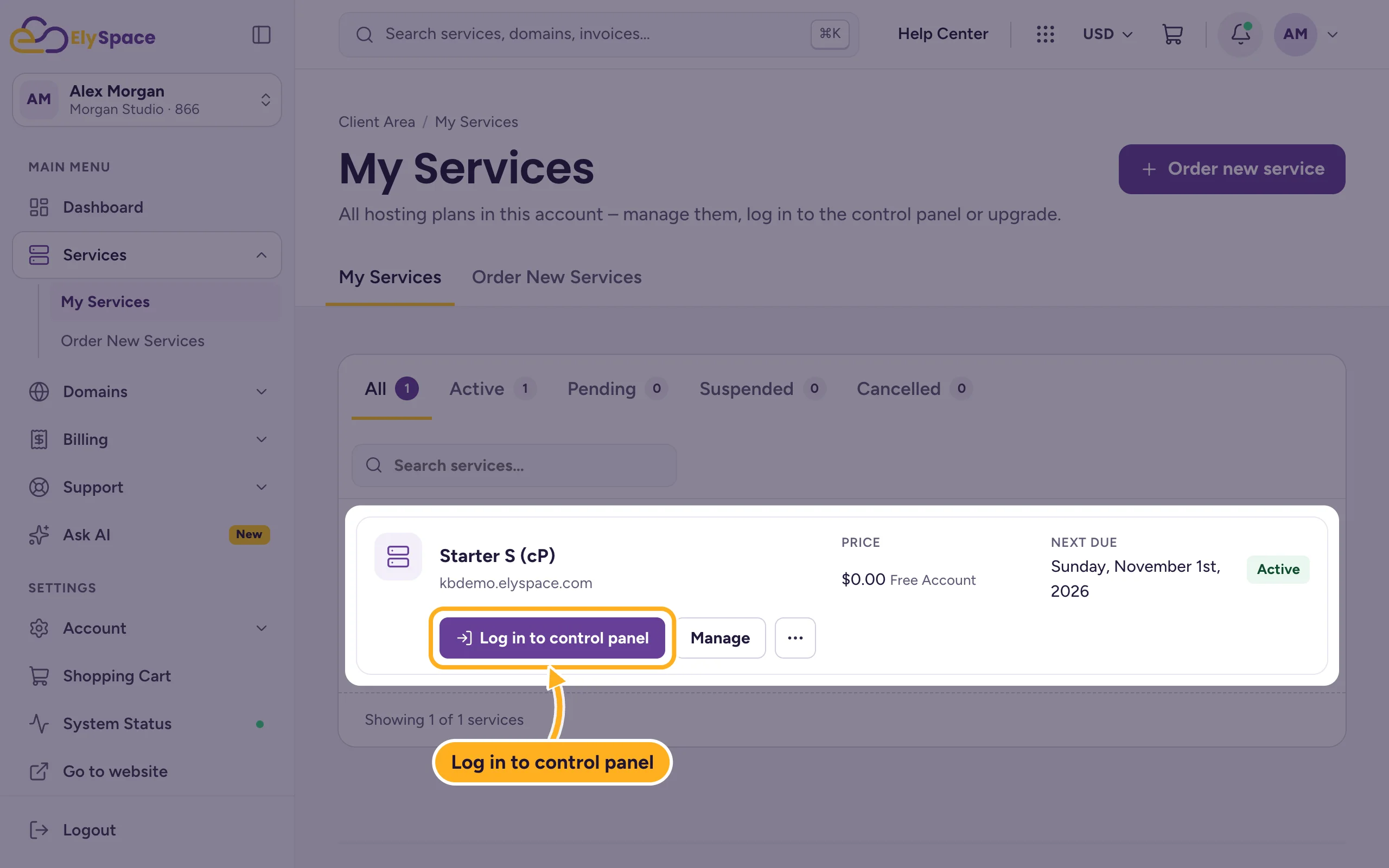
cPanel opens on its home page. You're logged in as your cPanel user.
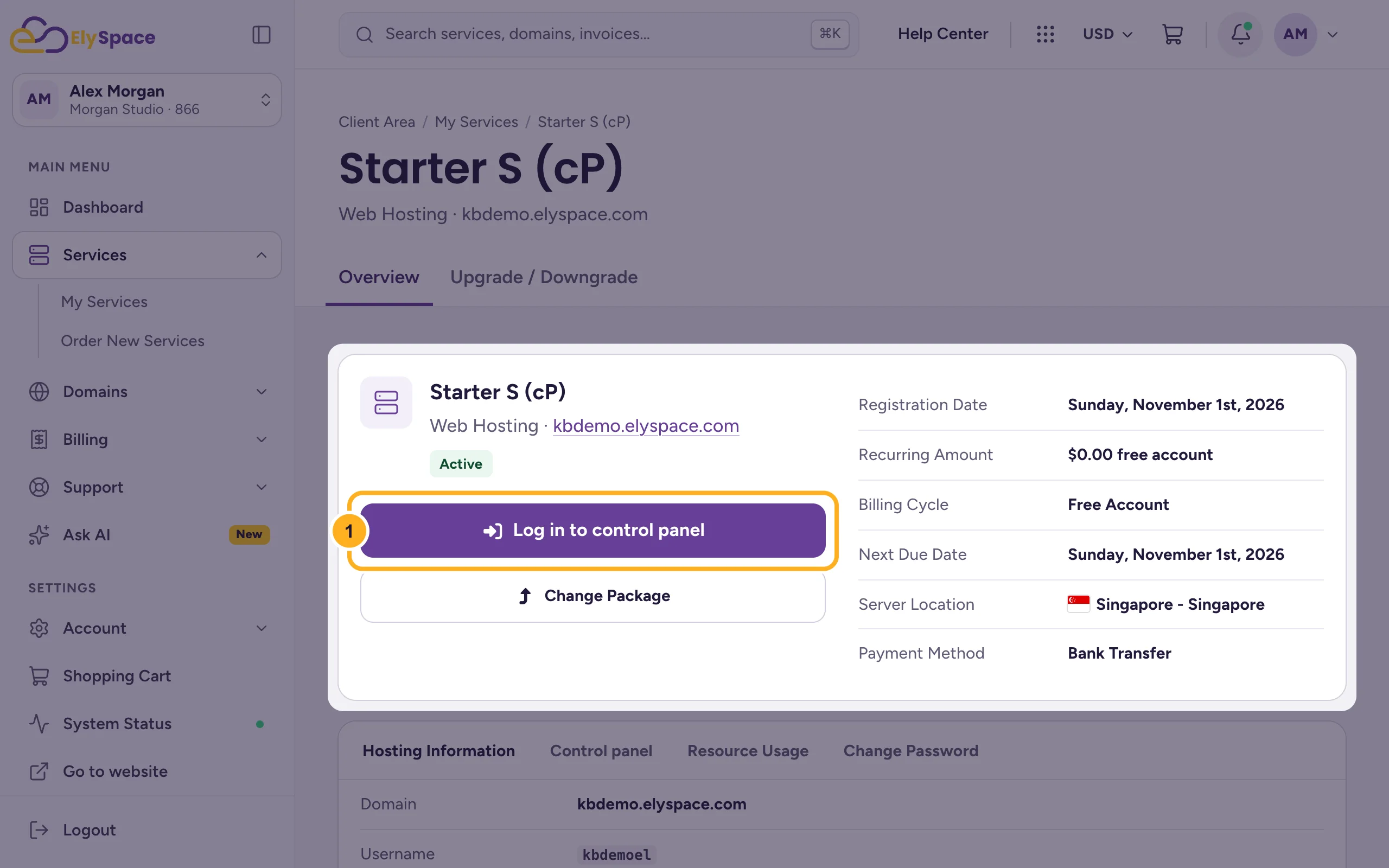
You can also open the plan with Manage and click the large Log in to control panel button on the service page:
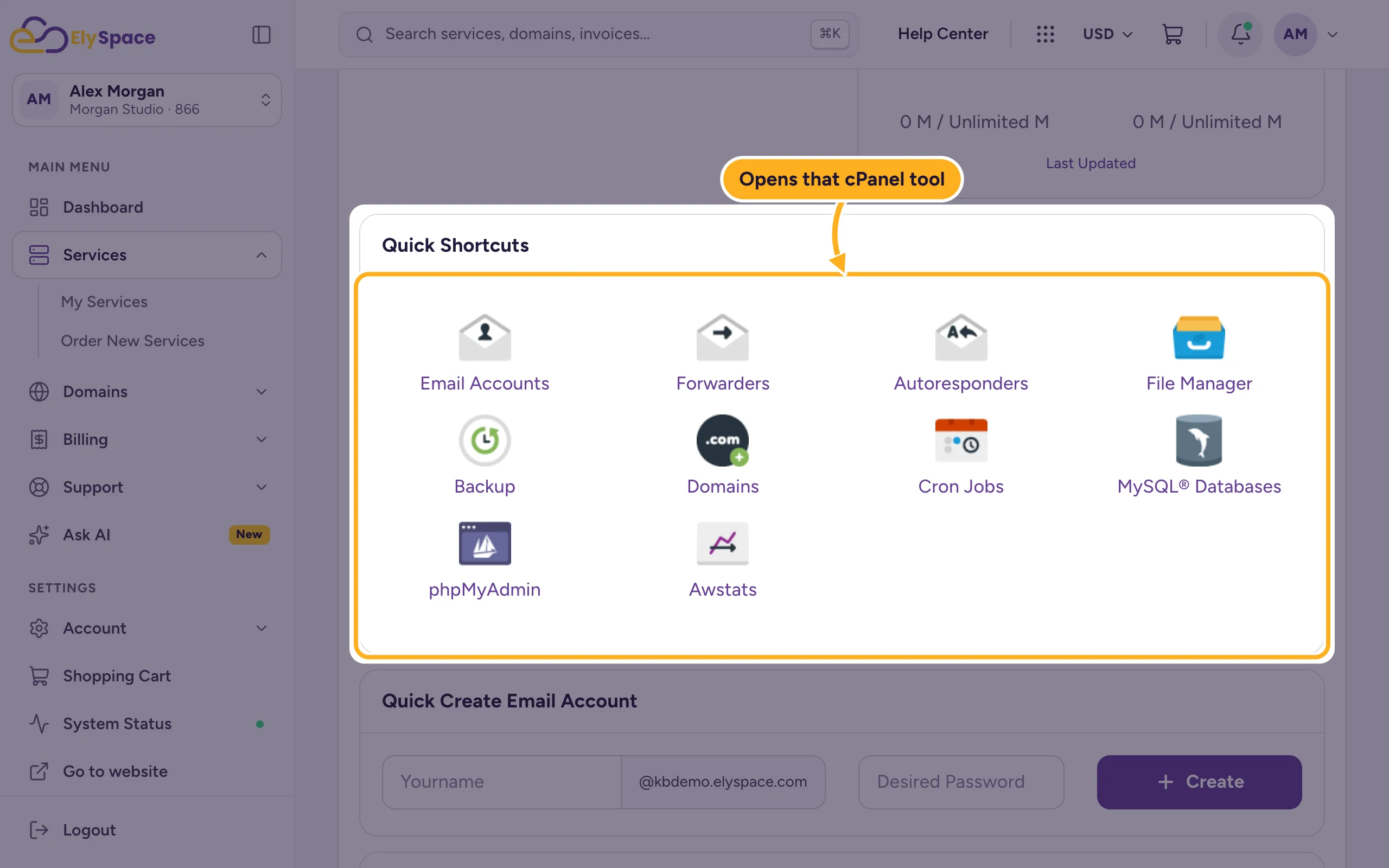
Go straight to a cPanel tool
On the service page, open the Control panel tab. Under Quick Shortcuts, click a tool such as Email Accounts, File Manager or phpMyAdmin: cPanel opens directly on that tool.
Log in to cPanel directly
If you prefer, you can log in at cPanel's own login page with your cPanel username and password. You find the username on the Hosting Information tab. See Log in to cPanel and, if you don't know the password, Change or reset your cPanel password.
Common problems
"Your IP address has changed. Please log in again"
Your internet connection switched IP address during the session. Go back to the client area and click Log in to control panel again. See Fix "Your IP address has changed. Please log in again".
The button is missing
The service isn't active yet, or it's suspended. Check its status under My Services. See Manage your services.
Related articles
Still stuck? Open a support ticket and we'll help.
