

Create a mailbox such as [email protected] in cPanel under Email Accounts: pick a name, set a password and click Create. It works right away.
Create the email account
Log in to cPanel. The easiest way is from the client area: open your hosting service and click Log in to control panel (see Log in to cPanel from the client area).
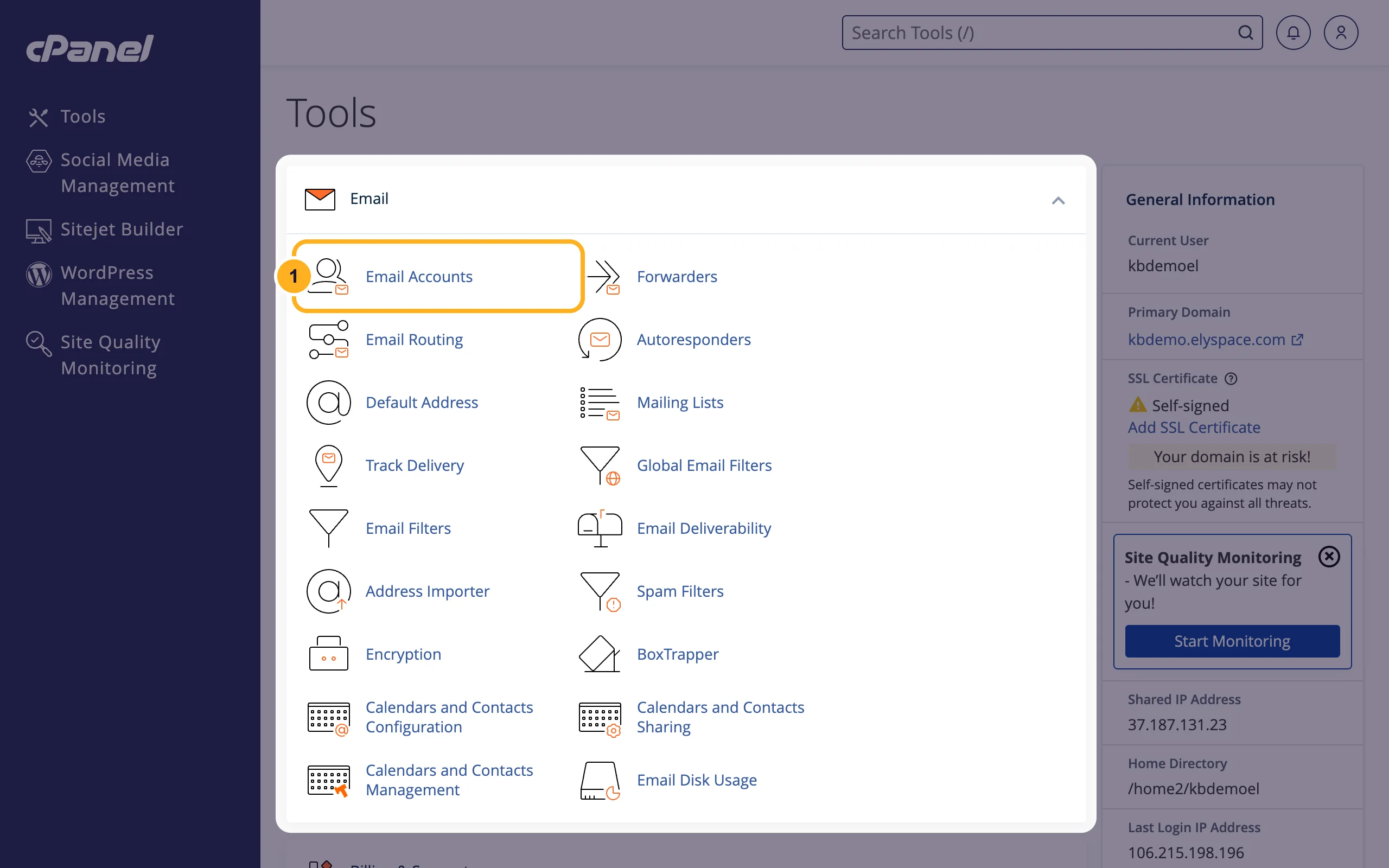
In the Email section, click Email Accounts.
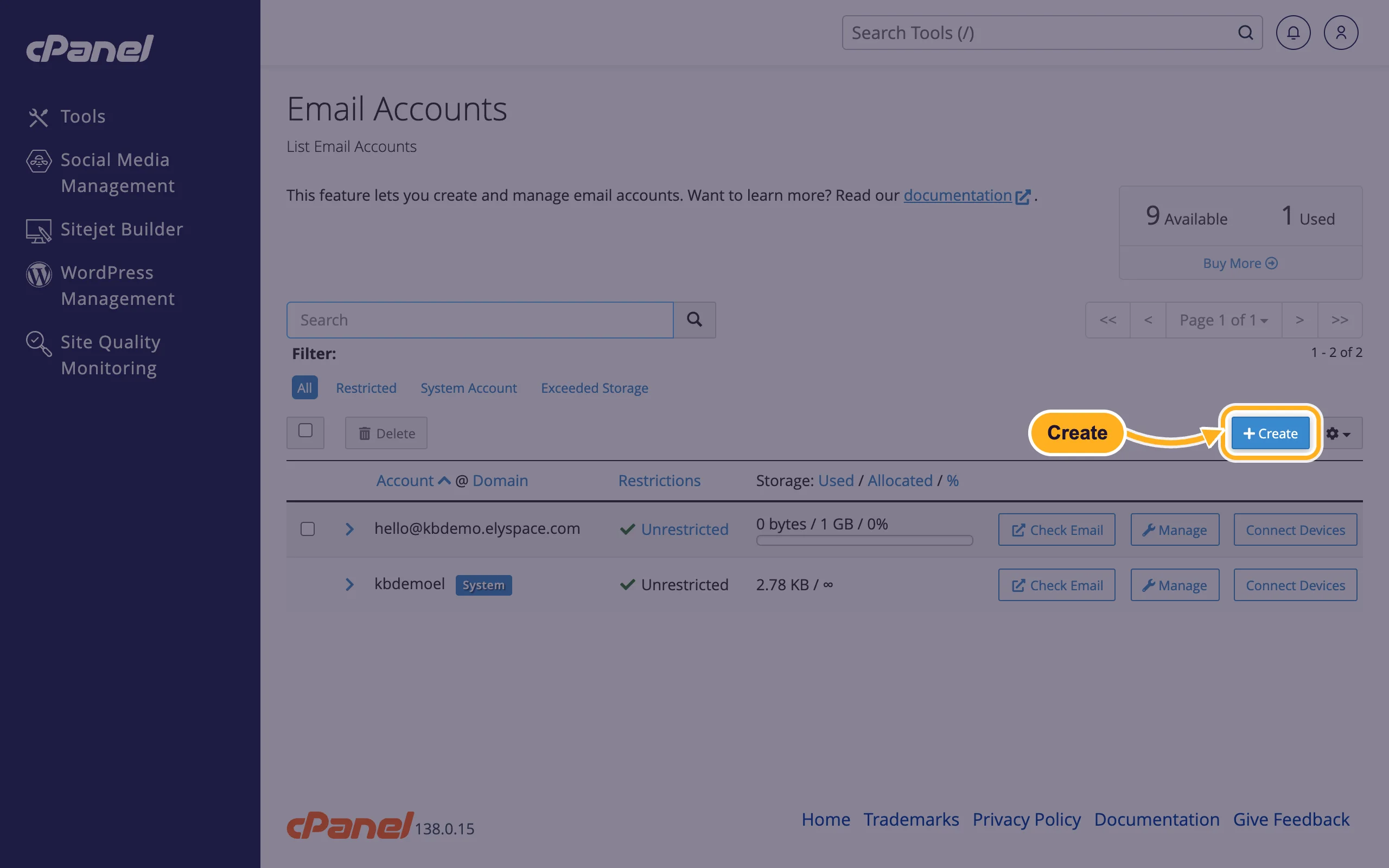
Click Create. The box at the top right shows how many email accounts your plan still has (Available) and how many you use.
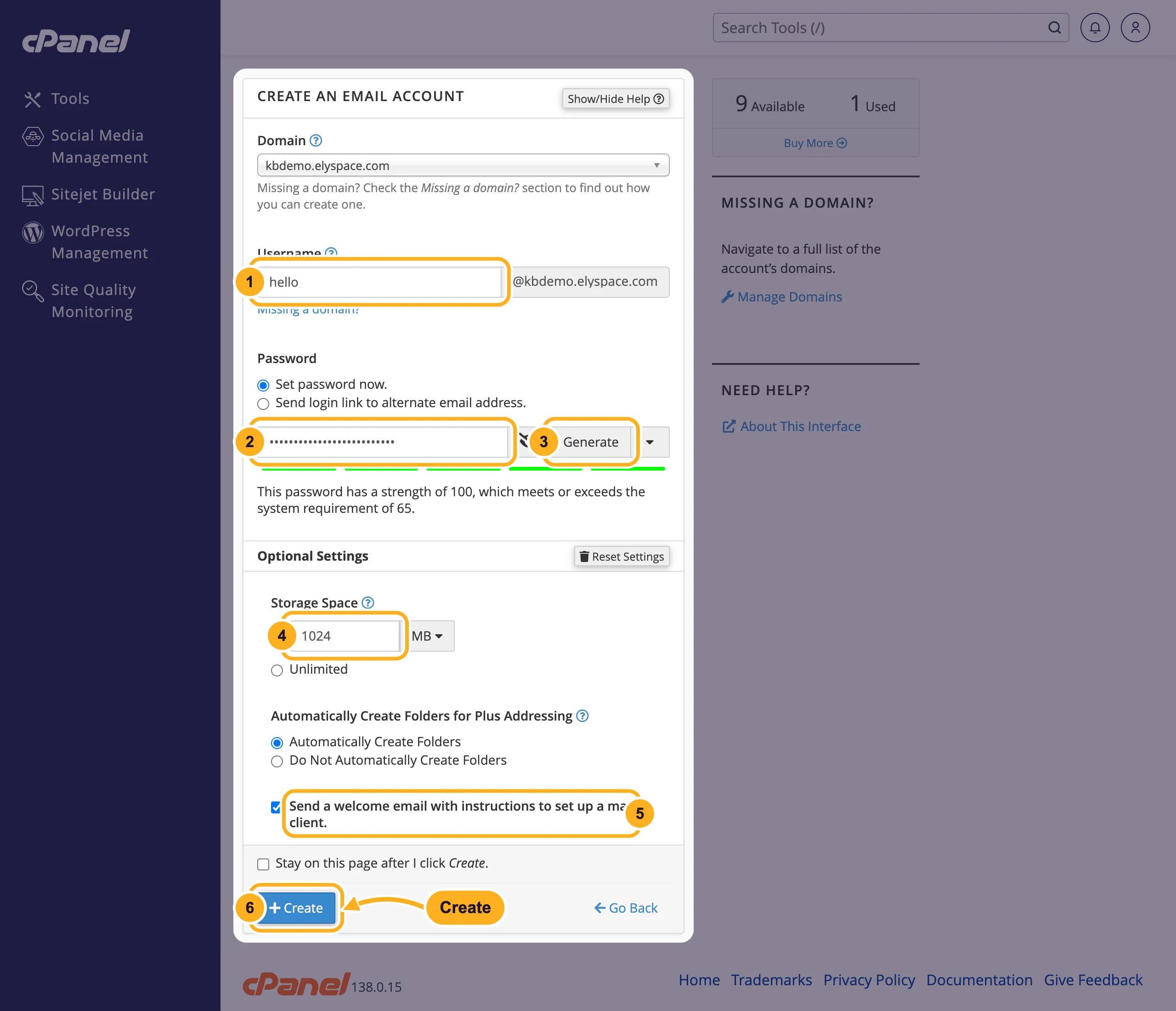
Fill in the form:
- Username: the part before the @, for example
helloorinfo. If your hosting has more than one domain, choose the right one in Domain above it. - Password: keep Set password now. selected and type a strong password. The bar under the field turns green when cPanel accepts it.
- Generate creates a random password for you. Copy it somewhere safe before you continue, because you'll need it in your mail app.
- Storage Space (under Optional Settings, click Edit Settings to see it): the mailbox size in MB.
1024MB is the default. You can change it later, see Change the storage space of a mailbox. - Send a welcome email with instructions to set up a mail client.: leave it ticked if you want the setup details in the new inbox.
- Click Create.
- Username: the part before the @, for example
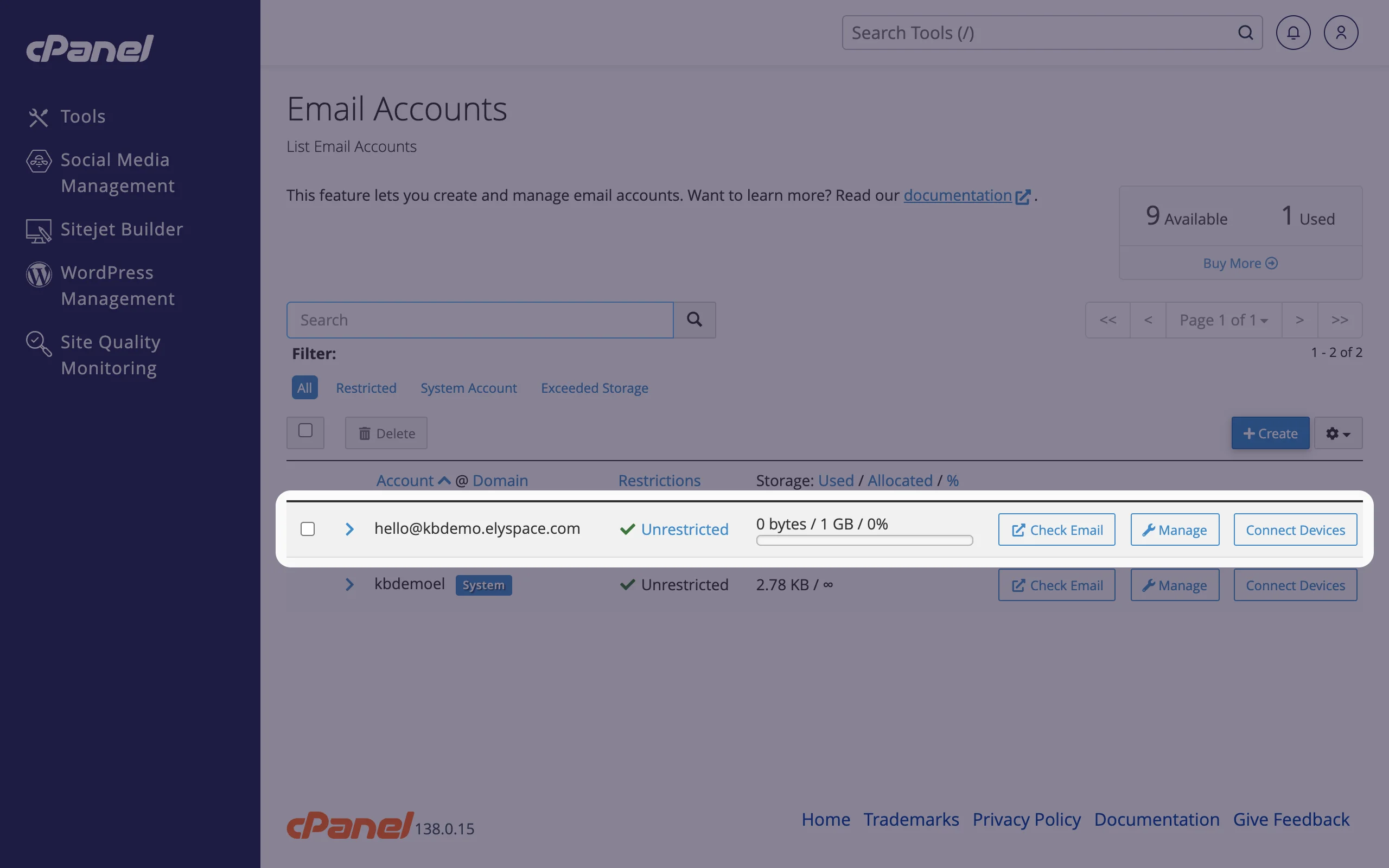
cPanel shows Success and the new address appears in the list. From here you can open it with Check Email, change it with Manage or get the settings for your phone with Connect Devices.
Start using the new address
- In the browser: Log in to webmail.
- On your phone or computer: Email server settings and ports (IMAP, POP3, SMTP), then the guide for your device.
The account named after your cPanel username with the System label is created automatically. It collects system messages; use your own addresses for everyday mail.
Common problems
"The account … already exists!"
The address is already set up, maybe on another page of the list or under another domain. See Fix "the email account already exists".
cPanel says the password is too weak
Under the field cPanel shows the password's strength and the system requirement (65). Make the password longer and mix upper and lower case letters, numbers and symbols, or click Generate.
No accounts left
When Available shows 0, your plan's limit is reached. Delete an address you no longer need, or move to a bigger plan (see Upgrade or downgrade your hosting plan).
Mail to the new address doesn't arrive
Your domain must point its email (MX record) to our server. If you use the domain with Google Workspace or another mail service, mail goes there instead. See Add or change MX records.
Related articles
- Change an email account password
- Log in to webmail
- Email server settings and ports (IMAP, POP3, SMTP)
- Forward email to another address
Still stuck? Open a support ticket and we'll help.
