

Reach a home server or camera by name, even when your home IP address changes: create a Dynamic DNS subdomain in cPanel and let your device call its update URL.
Create the Dynamic DNS domain
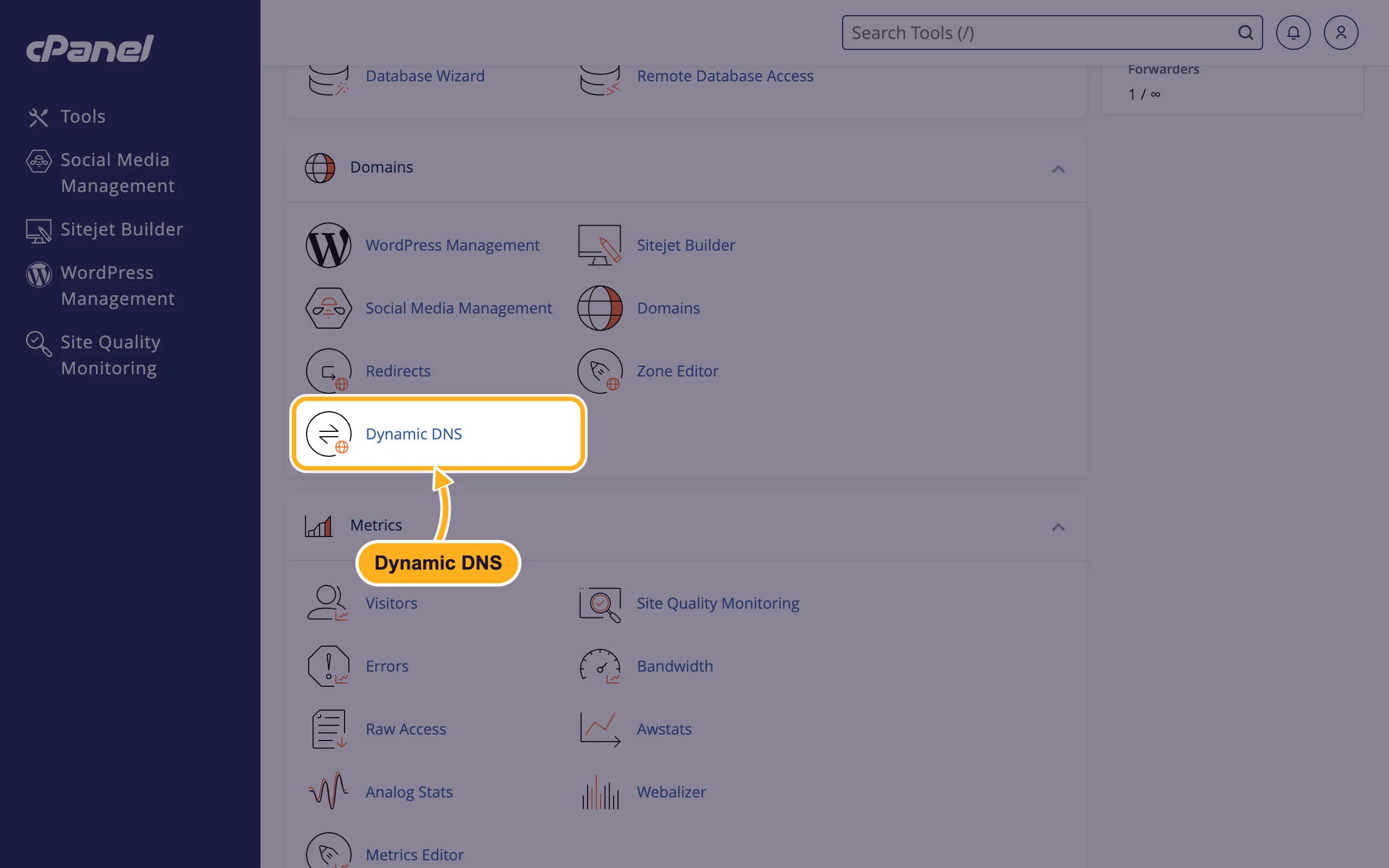
Log in to cPanel and click Dynamic DNS in the Domains section. Then click Create.
Fill in the form:
- Dynamic DNS Domain: type a subdomain prefix, for example
home, and pick your domain on the right. The result is an address like home.yourdomain.com. - Description (optional): a name that tells you what it's for, for example "Home Router".
- Click Create.
Under Manually Enter An IP Address (Optional) you can set a starting IP address. Usually you leave it empty: the first update call fills it in.
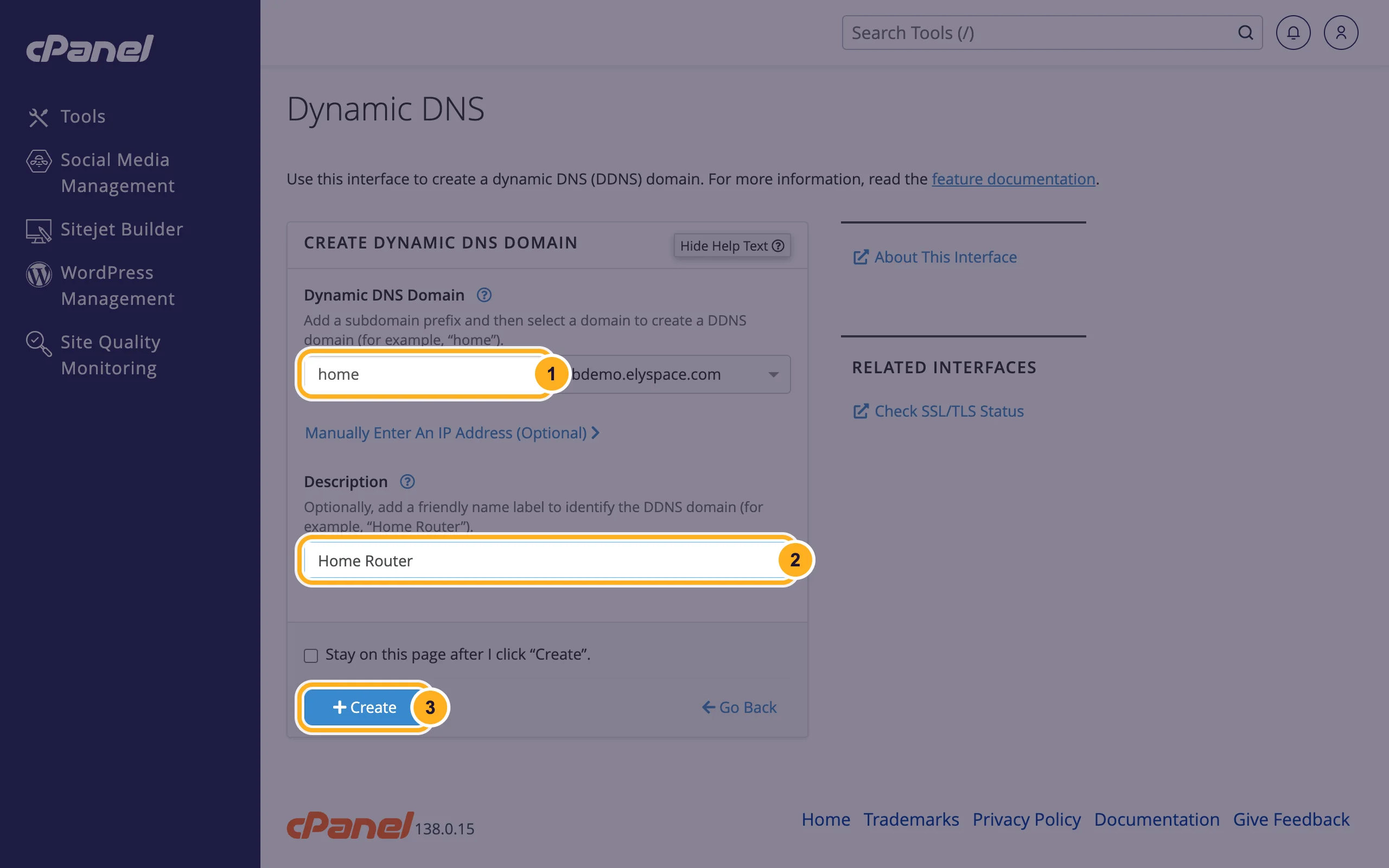
- Dynamic DNS Domain: type a subdomain prefix, for example
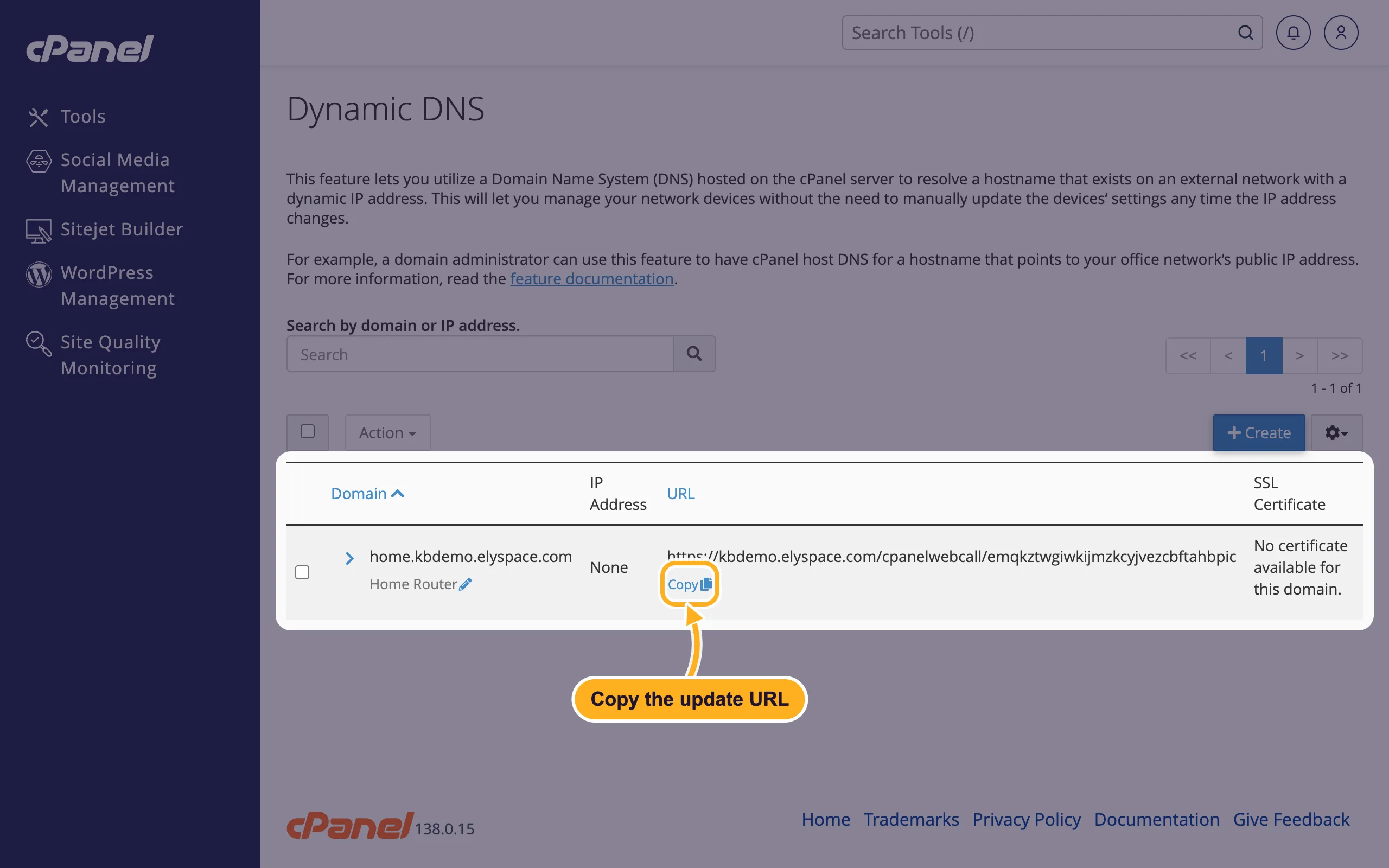
The new entry appears in the list with its URL. This update URL contains a secret key. Click Copy to copy it. IP Address shows None until the URL is called for the first time.
Let your device update the address
Each time the URL is opened, cPanel sets the subdomain to the IP address the request comes from and answers with that address, for example ipv4: 203.0.113.25. Call the URL from a device inside your home network:
- Router or NAS: if its Dynamic DNS settings accept a custom update URL, paste the URL there. Many routers only offer a fixed list of DDNS providers; then use a computer or NAS as below.
- Linux, macOS or a Raspberry Pi: add a cron job that calls the URL every few minutes, for example:
*/10 * * * * curl -s https://yourdomain.com/cpanelwebcall/YOUR-KEY > /dev/null - Windows: create a task in Task Scheduler that runs
curl -s https://yourdomain.com/cpanelwebcall/YOUR-KEYon a schedule.
Replace the example with the URL you copied. Open the entry's arrow in the list to see Last Update Time (when the IP address last changed) and Last Run Time (when the URL was last called).
Delete a Dynamic DNS domain
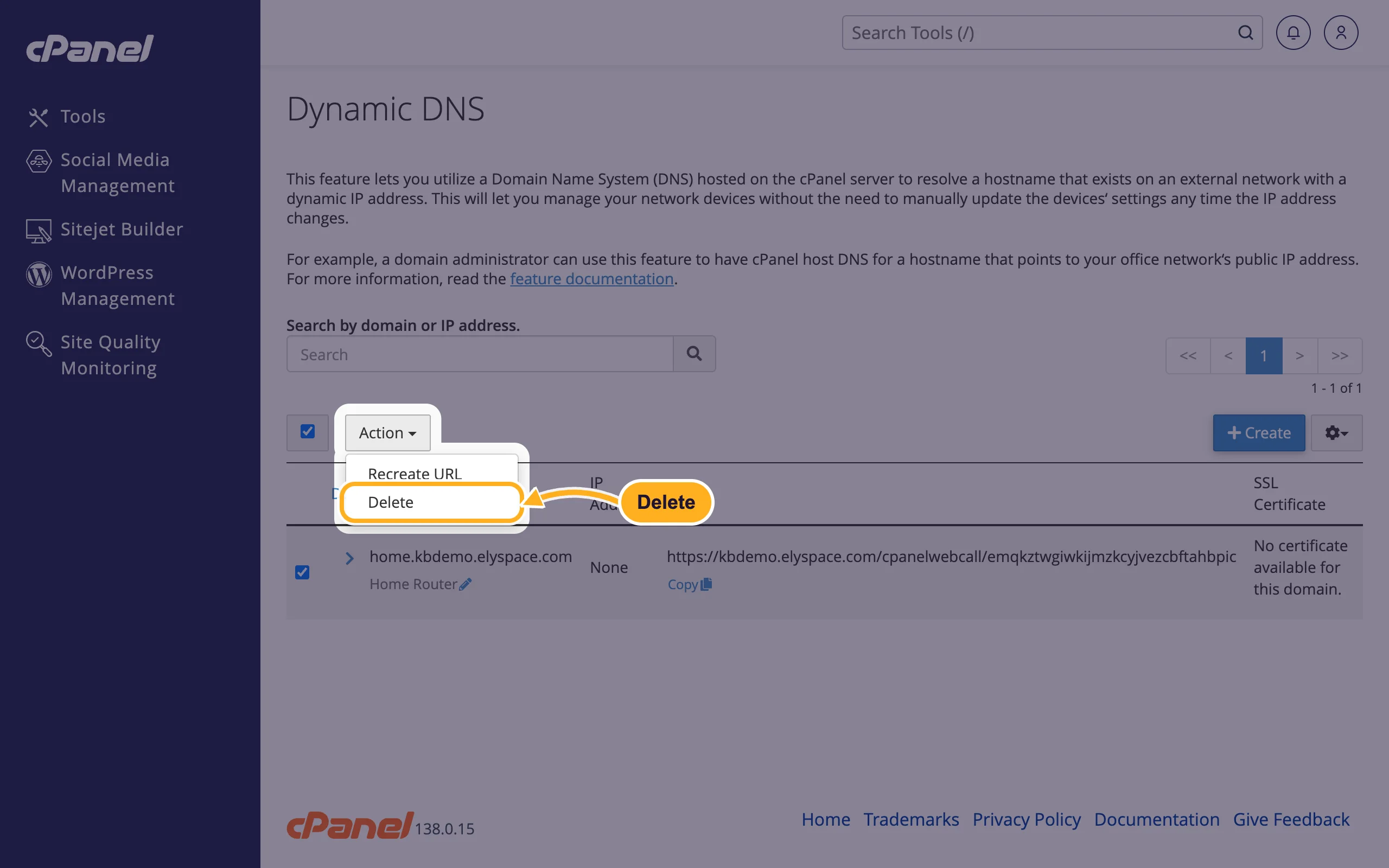
Tick the entry, click Action and choose Delete, then confirm. The update URL stops working.
Common problems
The update URL gives an SSL error
The URL uses your domain with HTTPS, so your domain needs a working SSL certificate (see Free SSL: check and fix your certificate).
The subdomain shows your old IP address
Check Last Run Time: if it's old, your device isn't calling the URL. If it's recent, wait a few minutes; DNS changes need a little time to spread, and your computer may cache the old address (see Clear your DNS cache).
The address is right, but nothing answers
Dynamic DNS only finds your home connection. Your router must forward the port (for example 443) to the device, and some internet providers block incoming connections. Check with your provider.
Related articles
- Edit DNS records in cPanel (A, CNAME, TXT)
- Create a subdomain
- Find your server name, IP address and nameservers
Still stuck? Open a support ticket and we'll help.
