

Add, change or delete your domain's DNS records (A, CNAME, TXT and more) in cPanel under Domains > Zone Editor > Manage.
Open the zone of your domain
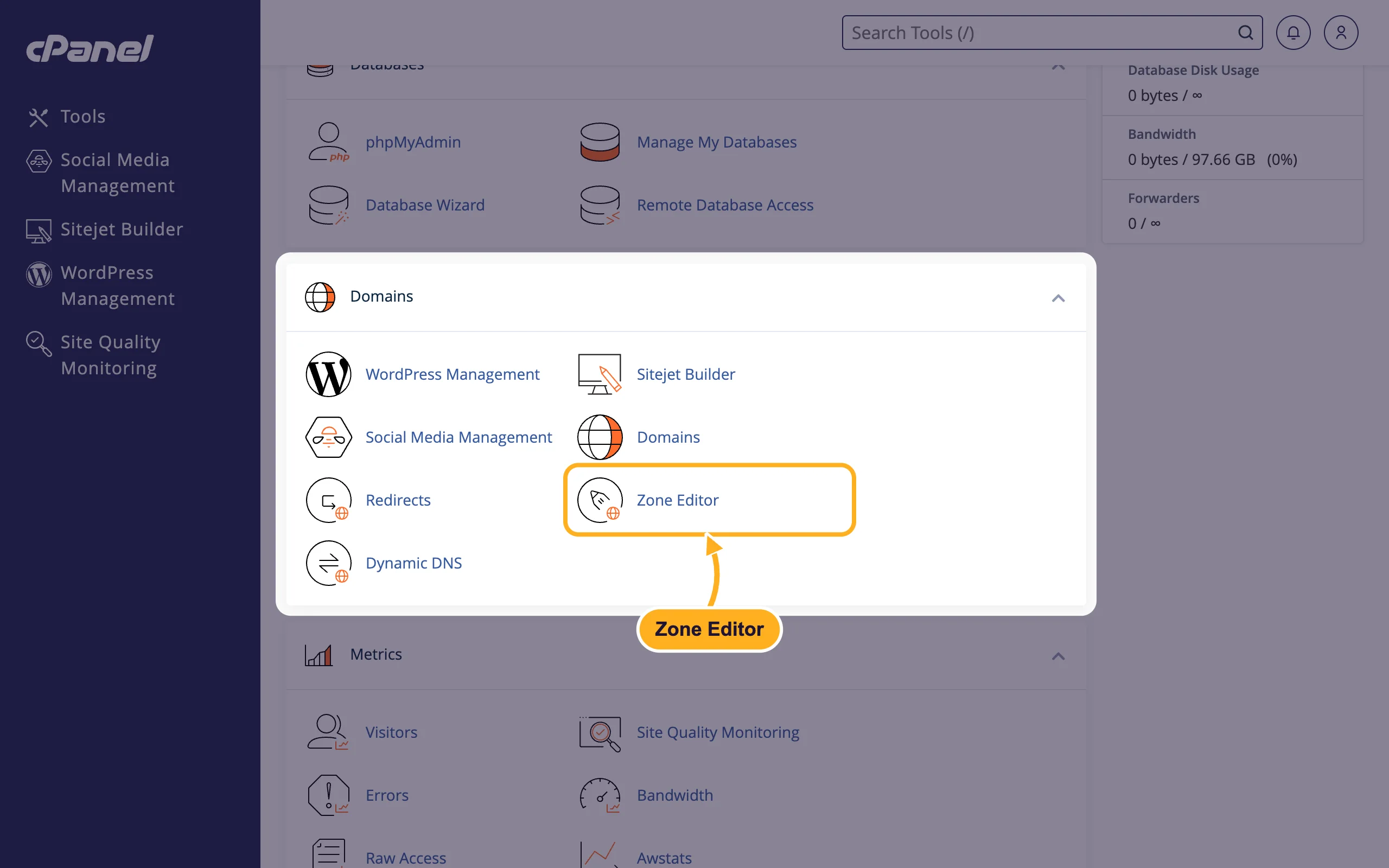
Log in to cPanel (see Log in to cPanel from the client area). In the Domains section, click Zone Editor.
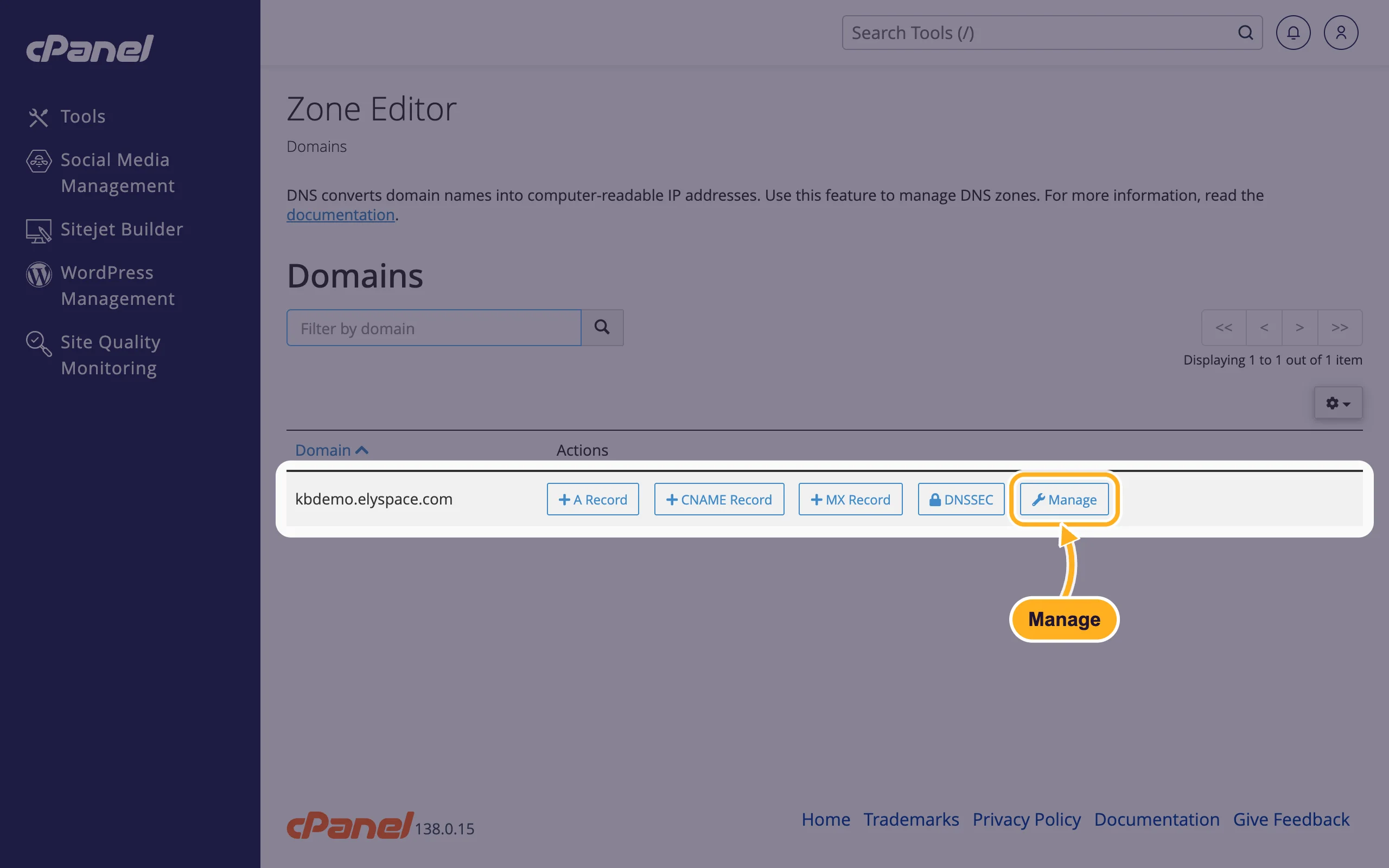
Click Manage next to your domain. The quick buttons A Record, CNAME Record and MX Record next to it open a short form for one record.
The page lists every record of the domain with Name, TTL, Type and Record. Many are created by cPanel for your website and email, such as www, mail and webmail. Leave those as they are unless you know you need a change.
Add an A record (point a name to an IP address)
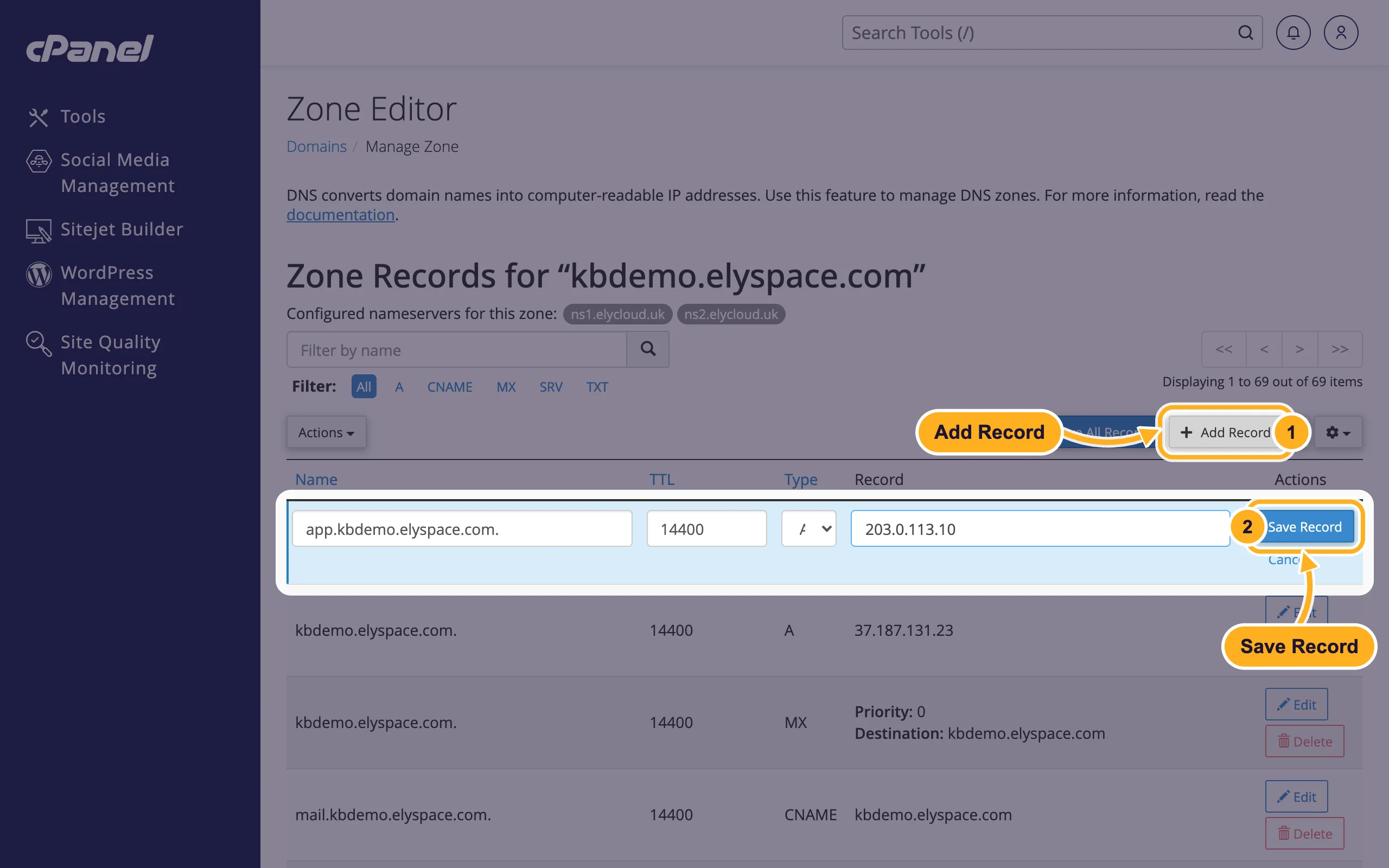
Click Add Record. A new row opens at the top of the list.
Fill in the row:
- Name: the subdomain, for example
app. cPanel completes it toapp.yourdomain.com.when you leave the field. - TTL: keep the value that is filled in.
- Type: A.
- Record: the IPv4 address, for example
203.0.113.10.
- Name: the subdomain, for example
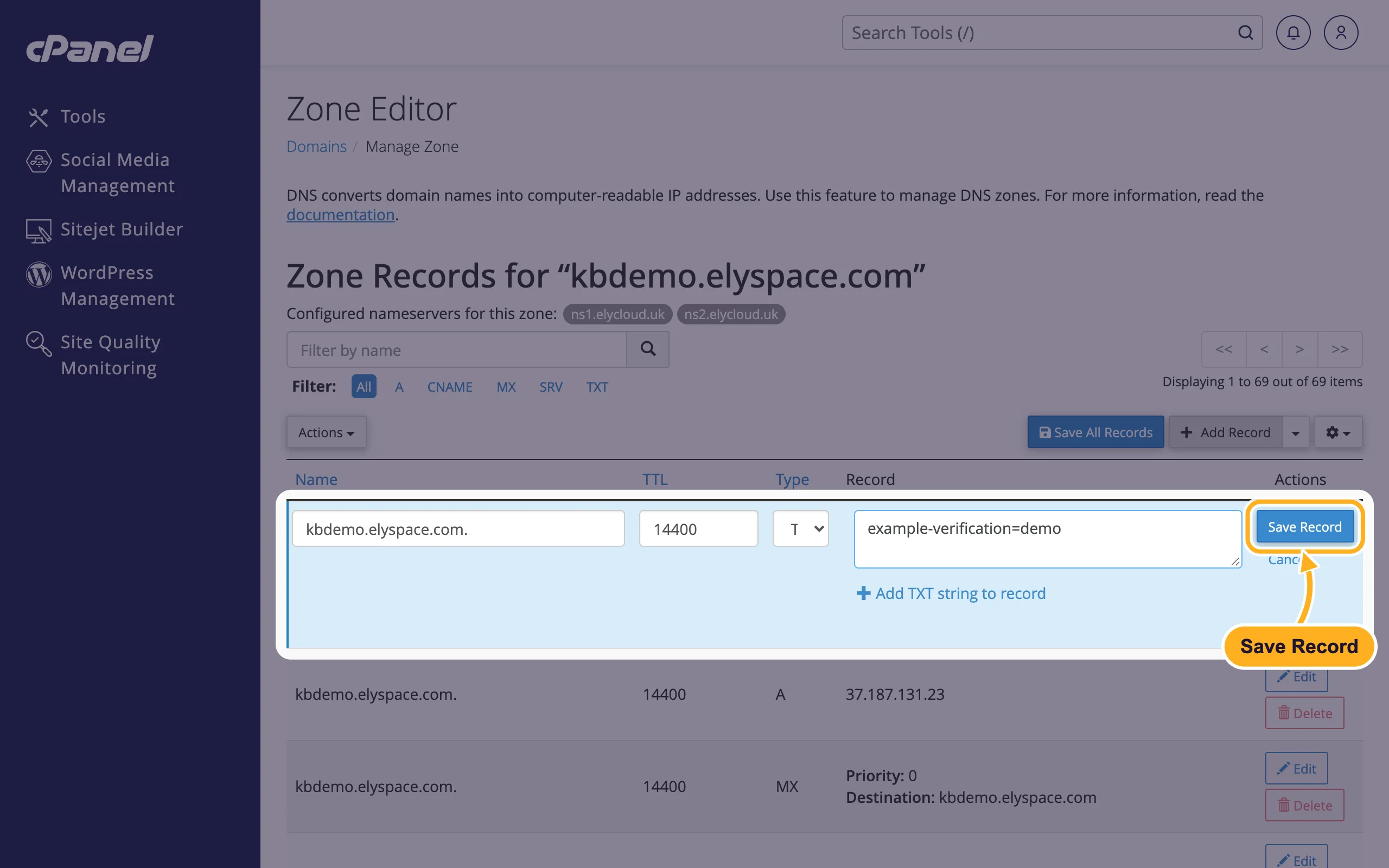
Click Save Record. A green message confirms it.
Add a CNAME record (an alias of another name)
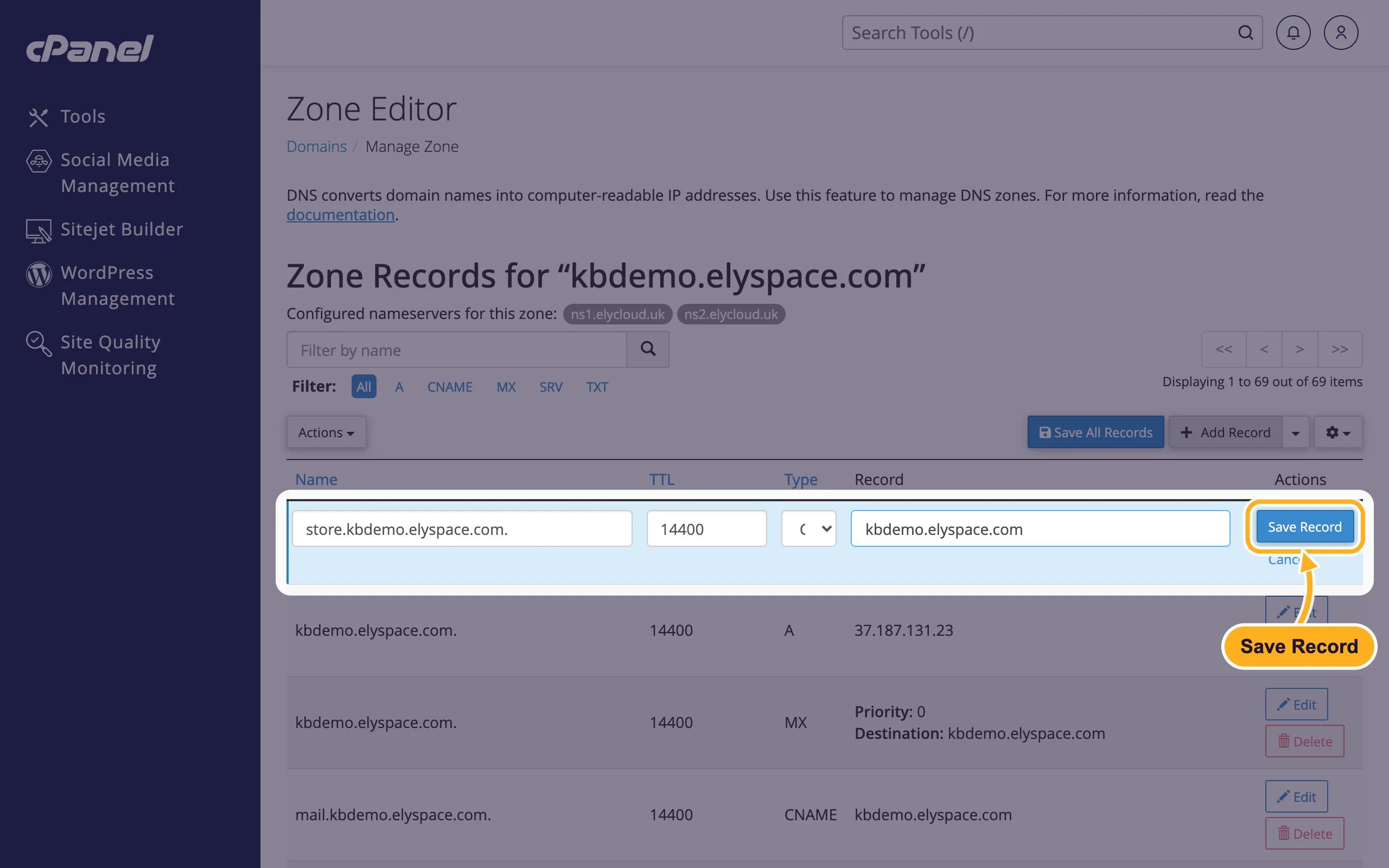
Click Add Record, choose CNAME as Type, enter the alias in Name (for example store) and the target name in Record (for example yourdomain.com or the address a service gives you). Click Save Record.
Add a TXT record (verification, SPF)
Services such as Google, Microsoft or a payment provider often ask you to add a TXT record to prove the domain is yours. Click Add Record, choose TXT, enter the name the service asks for (for the main domain, your domain with a dot at the end, such as yourdomain.com.) and paste the text into Record. Click Save Record.
Your domain already has an SPF record (a TXT record that starts with v=spf1). Don't add a second one, edit the existing one instead (see Fix email going to spam: SPF, DKIM and DMARC).
Change or delete a record
Find the record:
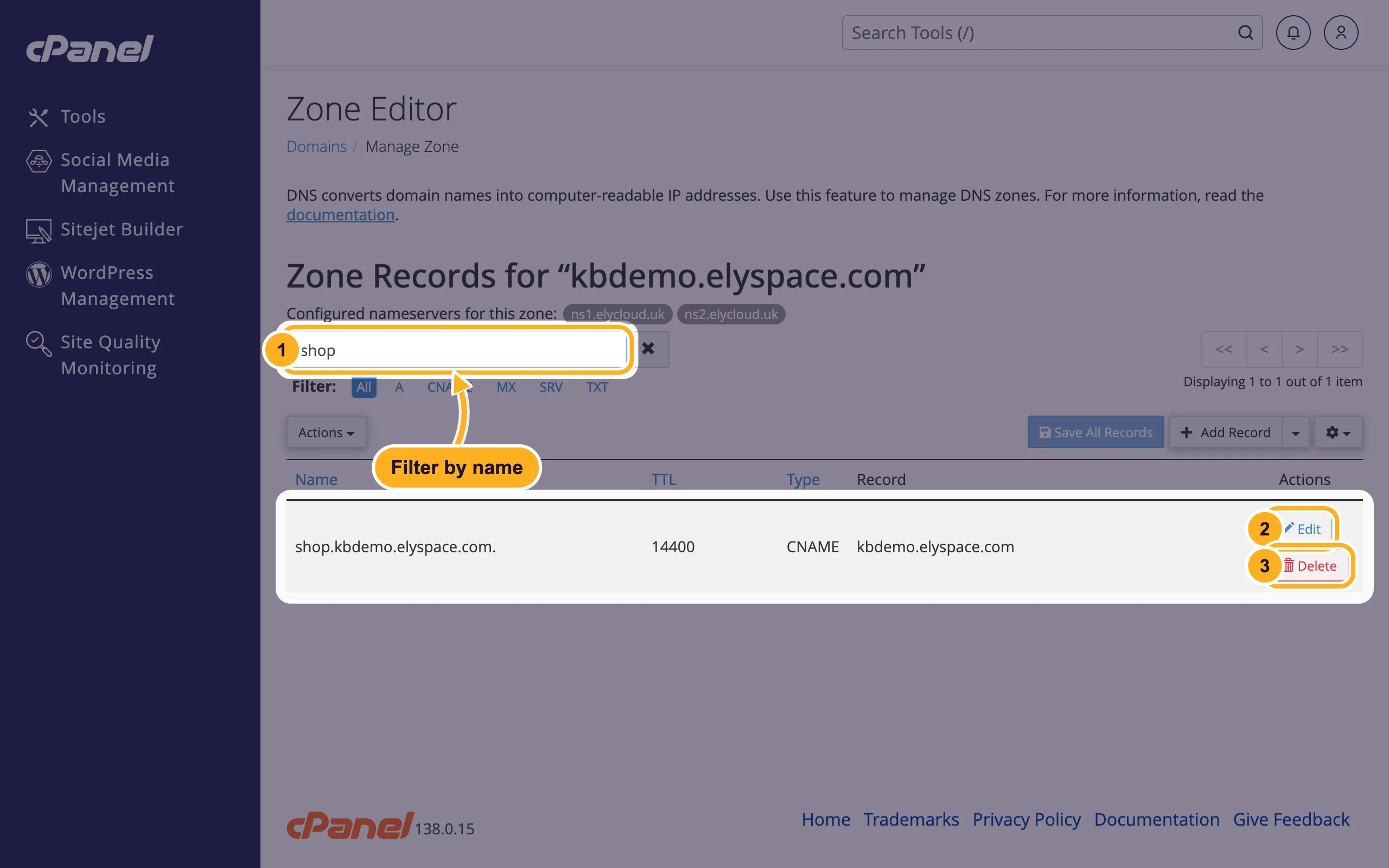
- Type part of its name in Filter by name, or click a type next to Filter.
- Click Edit, change the values and click Save Record.
- Or click Delete and confirm with Continue.
How long until a change works?
Each record has a TTL (time to live) in seconds. The default here is 14400, which is 4 hours: other DNS servers may keep the old value that long. New records usually work sooner. To check your own computer, clear your DNS cache.
Common problems
The record is saved but nothing changes
Check that the domain uses our nameservers. The line "Configured nameservers for this zone" at the top of the zone should match the nameservers your domain really uses.
A CNAME record can't be saved
A name with a CNAME can't have any other record. Delete the old A or CNAME record with the same name first, then add the new one.
Your domain is registered with us but has no hosting
Then there's no Zone Editor for it. If the domain has the DNS Host Record Management addon, edit its records in the client area on the domain page under DNS Management. Otherwise open a ticket in Domains Support.
Related articles
Still stuck? Open a support ticket and we'll help.
