

Sitejet Builder in cPanel lets you build a website with drag and drop: start from a template or the AI Website Generator, edit it, then click Publish.
Start a website
Log in to cPanel (see Log in to cPanel from the client area).
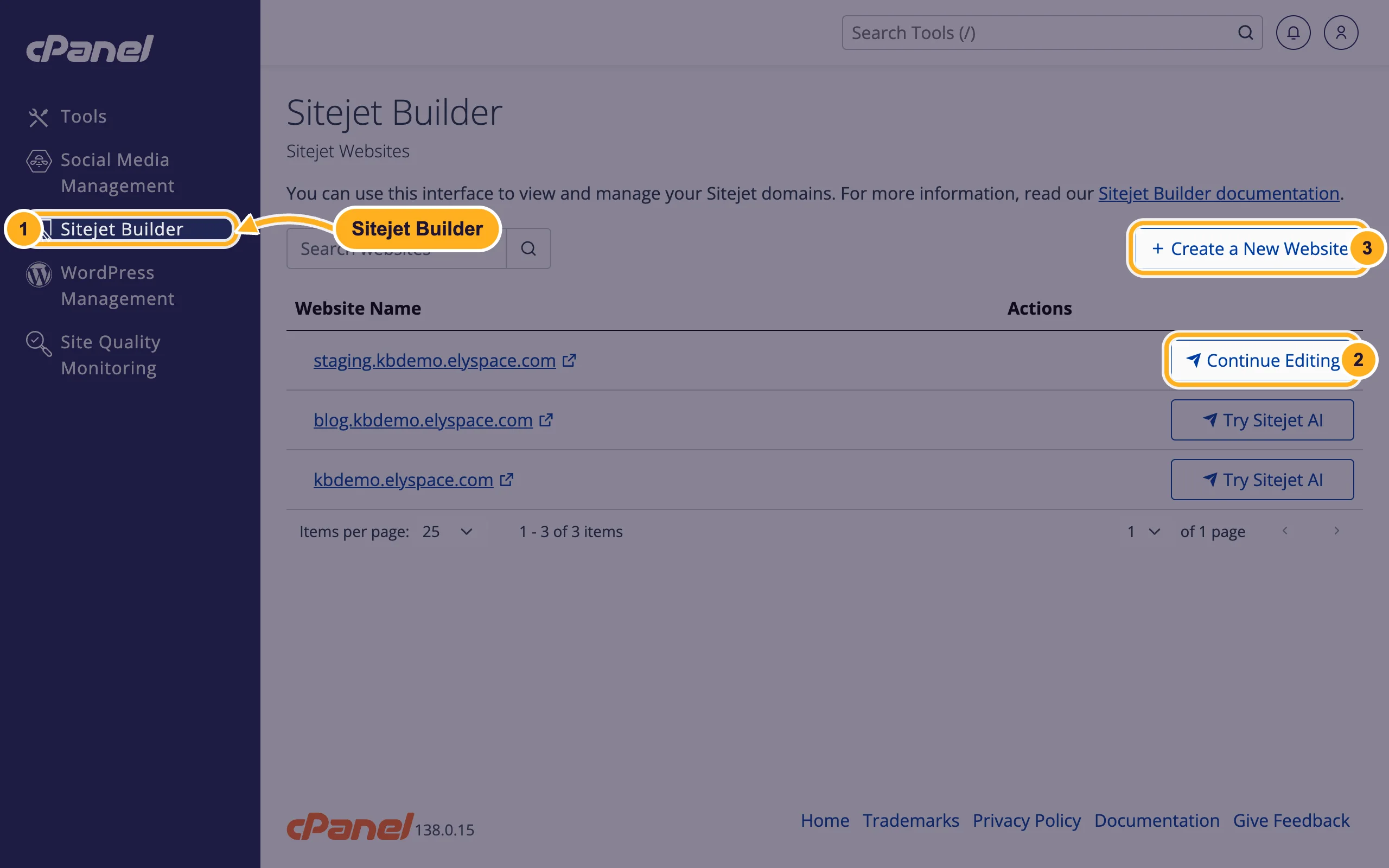
Open Sitejet Builder. Sitejet Websites lists your domains:
- Click Sitejet Builder in the menu.
- Next to a domain, click Try Sitejet AI to start building on it. Once you've started, the button reads Continue Editing.
- Create a New Website adds a domain first. You can use a Registered Domain (how many extra domains you can add depends on your plan), or Choose a domain later to build on a temporary address and connect your domain when you're ready.
The editor opens with Create a new website. Choose your starting point:
- AI Website Generator: describe your business and Sitejet creates a first version based on your input.
- Template selection: pick one of the templates. Filter them by type (for example Business, Portfolio or Gastronomy), use Preview to look at one and Choose to start with it.
Edit and publish
Click any text or picture on the page to change it. The bar on the left adds new parts, such as Elements, Images, Forms, Header and Footer. In the top bar, Pages manages your pages, Theme sets colors and fonts, and the eye icon shows a preview.
Click the save icon (or press Ctrl+S) as you work.
When the site is ready, click Publish (the rocket icon at the top right) to put it online on your domain.
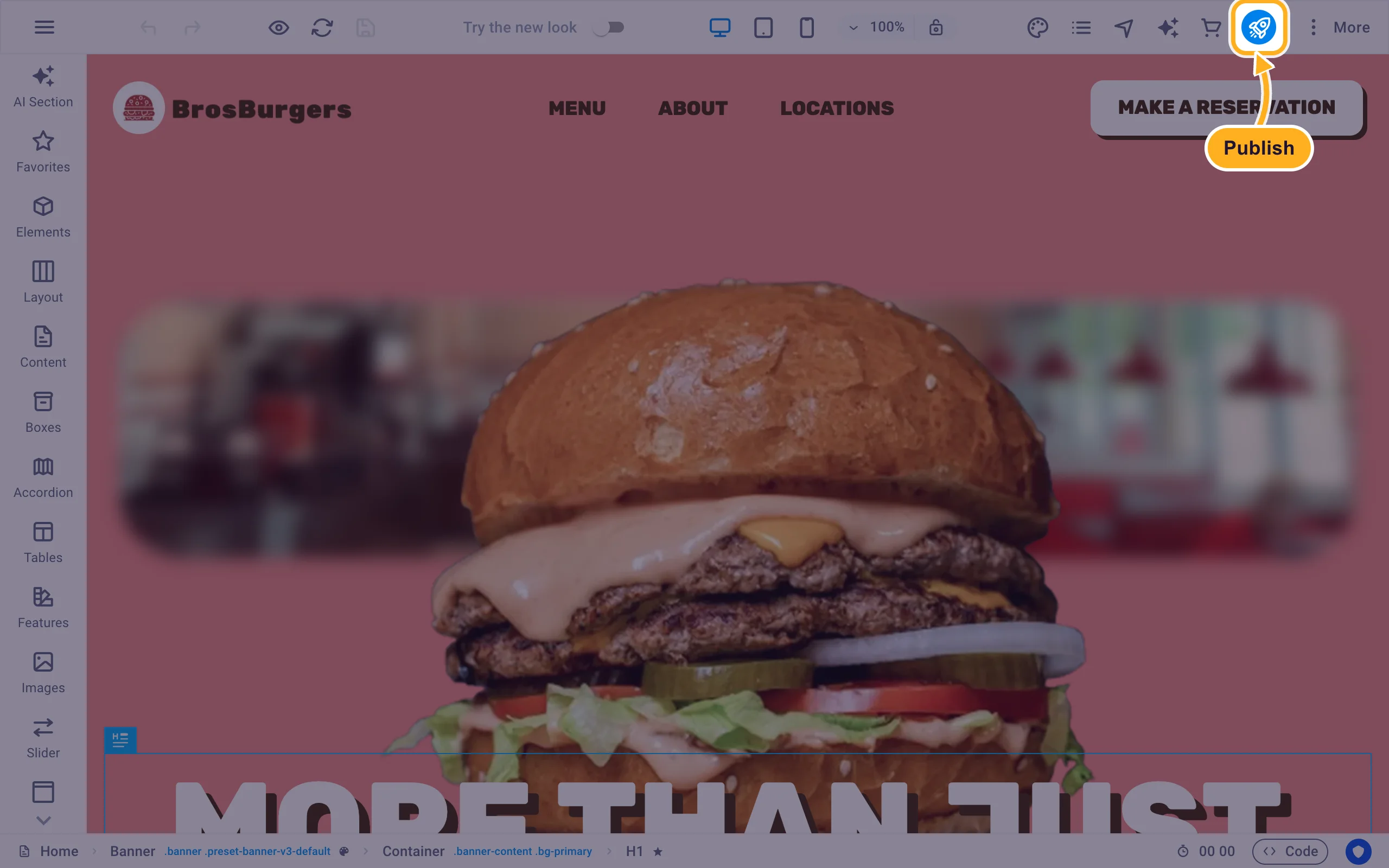
To make changes later, open Sitejet Builder in cPanel again and click Continue Editing. Changes go live when you publish again.
Sitejet or WordPress?
- Sitejet Builder is quick for a small business site or a one-page site: everything happens in one visual editor.
- WordPress suits blogs, online shops and sites that grow, with thousands of plugins. See Build your first WordPress website.
Common problems
Your domain isn't in the list
The domain has to be added to your hosting first. Use Create a New Website, or check Add another domain to your hosting (addon domain or alias).
The published site doesn't show
Your domain must point to your ElySpace hosting (see Find your server name, IP address and nameservers). Reload without cache (Ctrl+F5 on Windows, Cmd+Shift+R on a Mac).
The browser shows a security warning
See Free SSL: check and fix your certificate (AutoSSL).
Related articles
Still stuck? Open a support ticket and we'll help.
