

To build your first WordPress website, choose a theme, set the site title, add your pages, pick a homepage and create the menu.
1. Plan your pages
Write down the pages your visitors need. A small business site often has Home, About us, Services and Contact. Use pages for content that rarely changes and posts for news or a blog (see Write and publish your first post).
2. Choose a theme
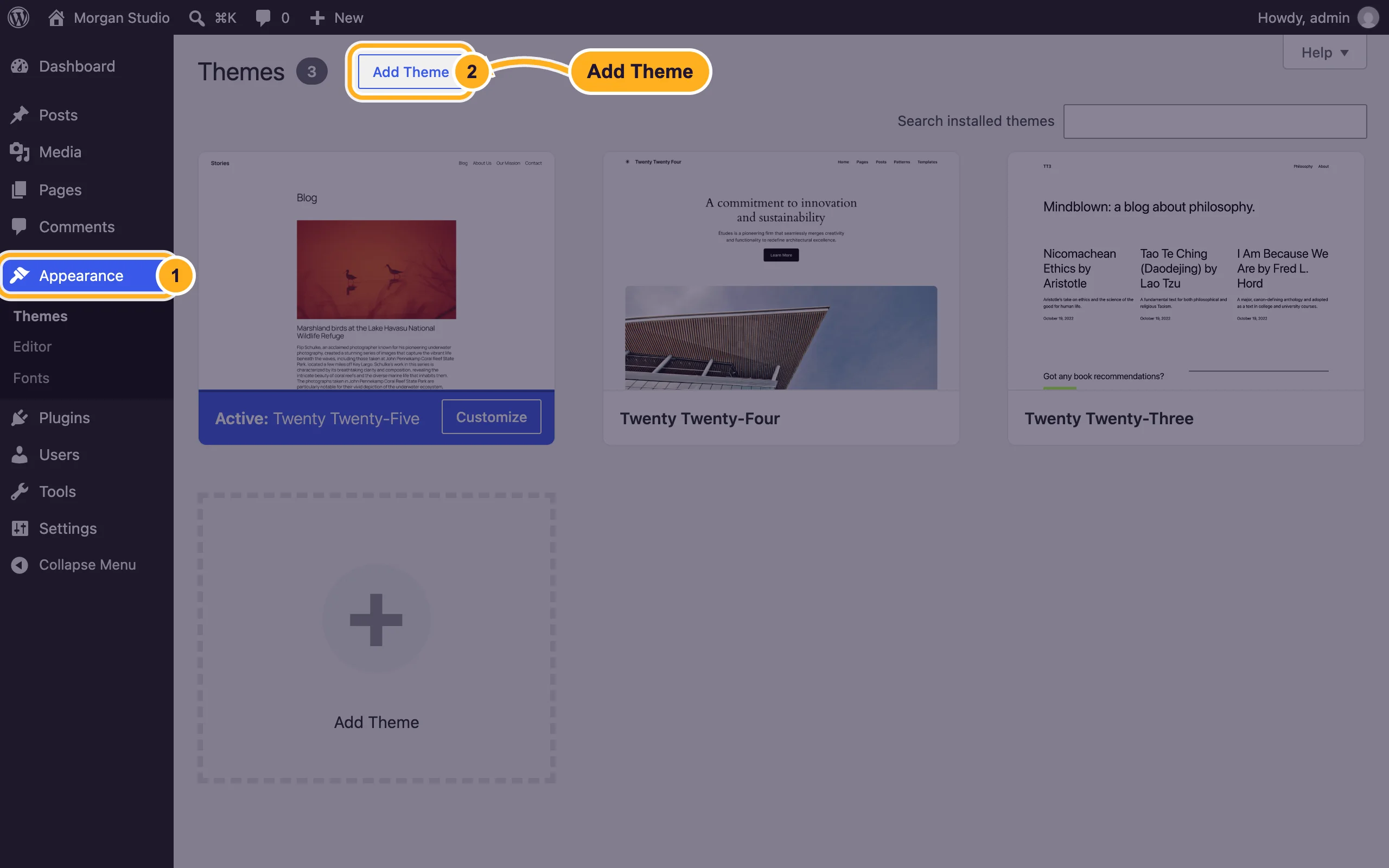
Go to Appearance > Themes. New sites start with a default WordPress theme, which already looks clean.
Click Add Theme to browse free themes. Hover over a theme and click Preview to try it, then Install and Activate.
Only install themes from the WordPress theme directory or from a seller you trust. Free themes from unknown websites often contain hidden malware.
3. Set your site title
Go to Settings > General. Enter the Site Title (your business name) and a short Tagline, and check Site Language and Timezone. Click Save Changes at the bottom.
4. Add your pages
Go to Pages > Add Page. If a welcome guide appears, close it.
Build the page:
- Type the page title, for example
About us, then click below it and start writing. Click the + button at the top left to add blocks such as images, headings, columns or buttons. - Click Publish (WordPress asks you to confirm with a second Publish). Save draft keeps the page private while you work on it.
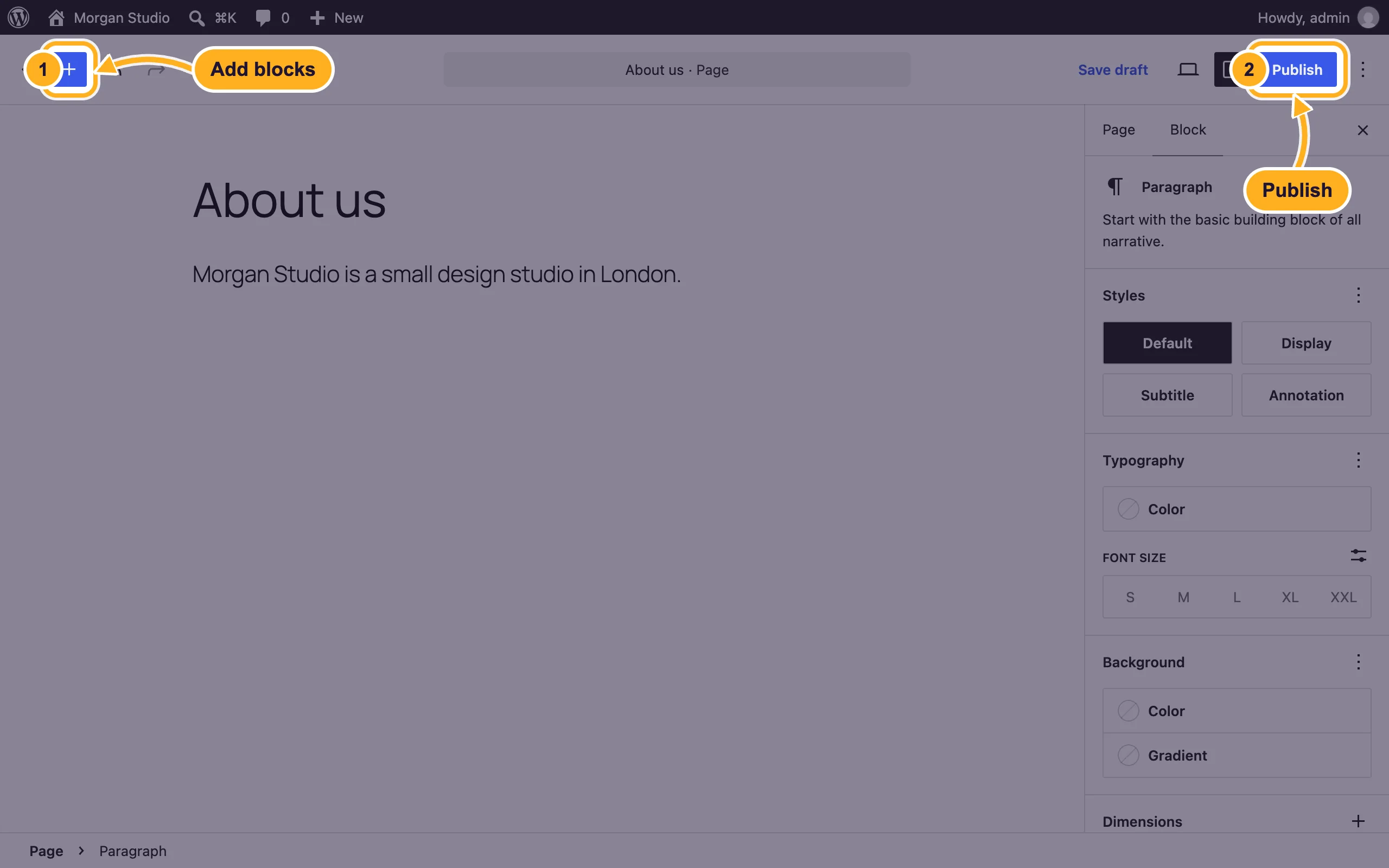
- Type the page title, for example
Repeat for each page. The page title also becomes its address, for example yourdomain.com/about-us/ (with the Post name setting in Settings > Permalinks).
5. Choose your homepage
By default the homepage shows your latest posts. To show a page instead, follow Choose your WordPress homepage.
6. Create the menu
Go to Appearance > Editor and click Navigation.
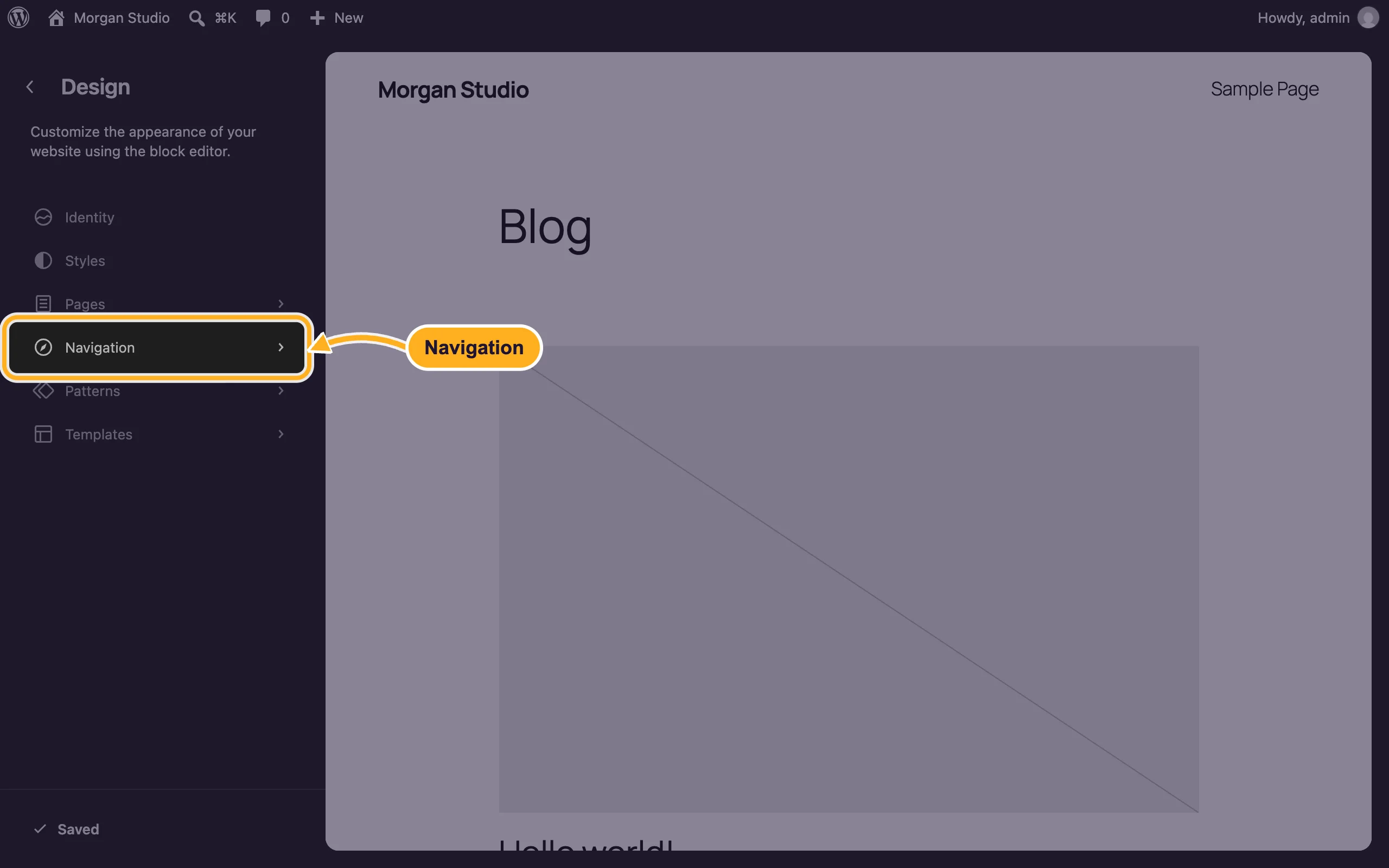
Open your menu, add your pages, drag them into order and save. The menu appears in the site header.
Older (classic) themes don't have the site editor. With them, go to Appearance > Menus, tick your pages, click Add to Menu, choose the menu location and click Save Menu.
7. Check your site
Click your site's name at the top left of the dashboard to see it as a visitor does. Check it on your phone too. When you're happy, make a backup (see Back up and restore a WordPress site).
Common problems
A new page shows "Page not found"
Go to Settings > Permalinks and click Save Changes. See Fix posts and pages that show 404 (permalinks).
Your changes don't show on the site
Check that you clicked Publish or Save, not only Save draft. Then reload the page without cache (Ctrl+F5 on Windows, Cmd+Shift+R on a Mac).
You'd rather build without WordPress
Your hosting also includes Sitejet Builder, a drag-and-drop website builder. See Build a website with Sitejet Builder.
Related articles
- Choose your WordPress homepage
- Write and publish your first post
- Update WordPress, plugins and themes
Still stuck? Open a support ticket and we'll help.
