

The Database Wizard in cPanel creates a MySQL database, a database user and the user's access in one go. It takes four short steps.
Create the database, the user and the access
Open cPanel from the client area: open your hosting service and click Log in to control panel (see Log in to cPanel from the client area).
In the Databases section, click Database Wizard.
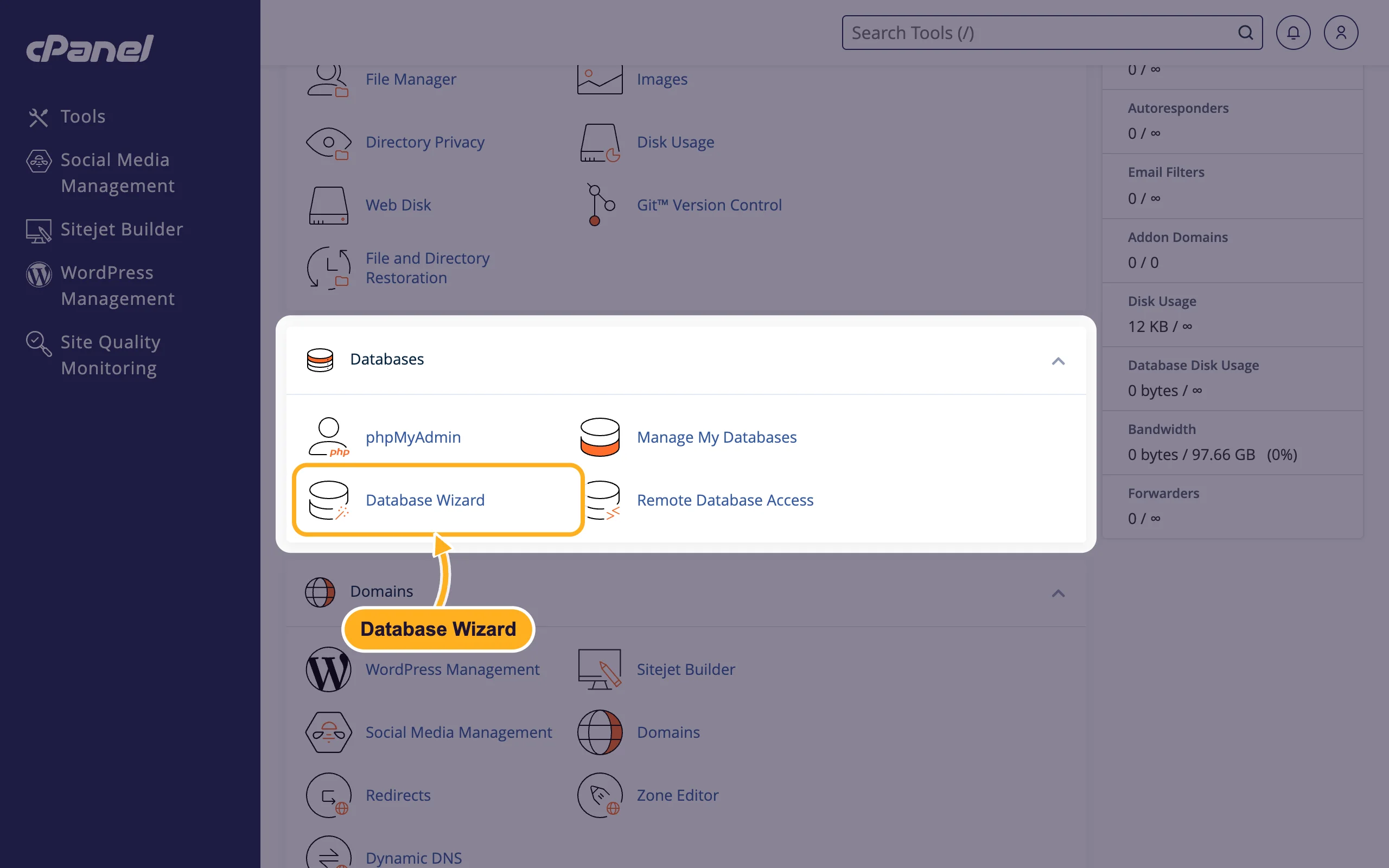
Step 1: Create A Database:
- Type a short name in New Database, for example
shop. cPanel puts your account name and an underscore in front of it, so the full name becomes something likeyouraccount_shop. - Click Next Step.
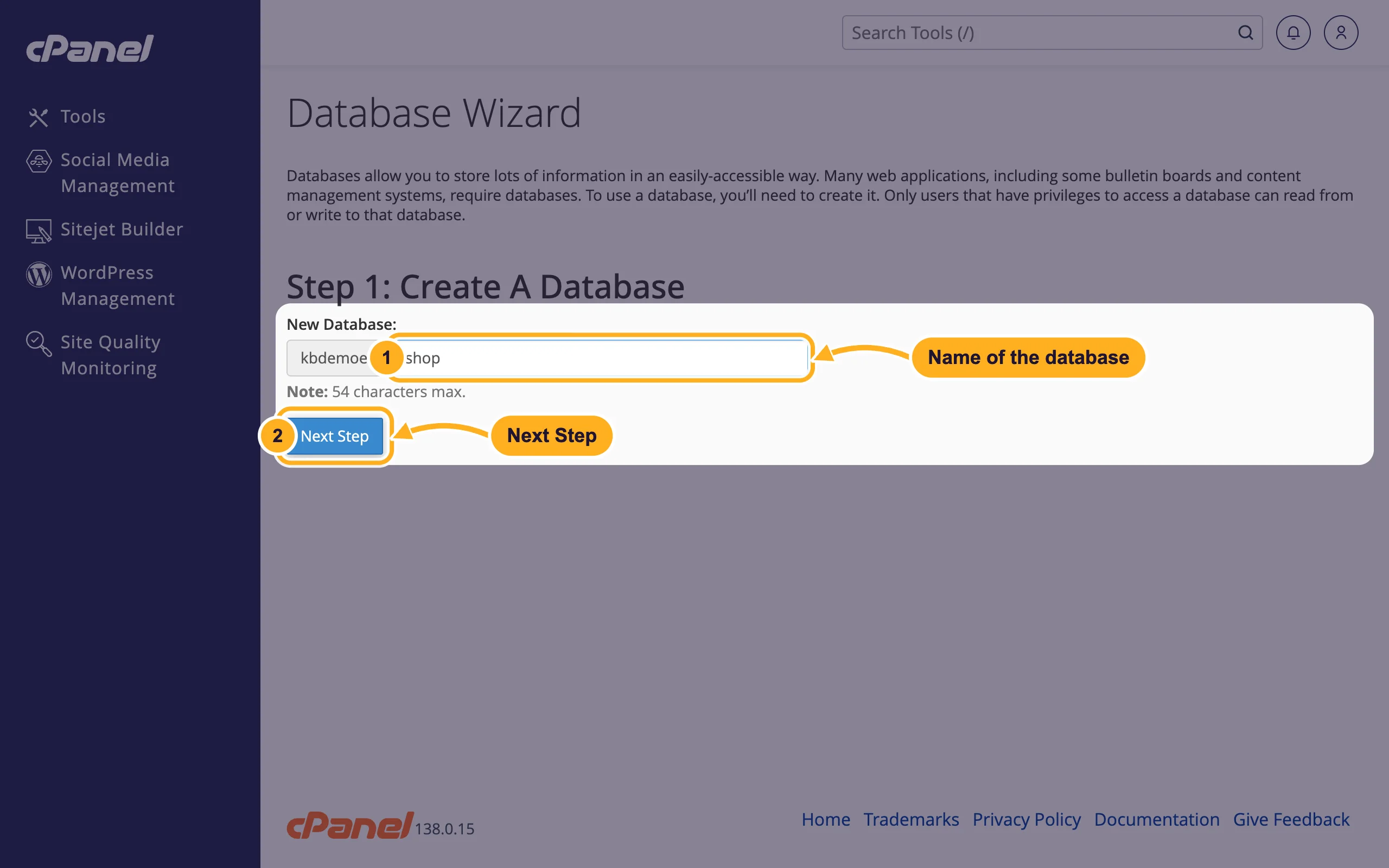
- Type a short name in New Database, for example
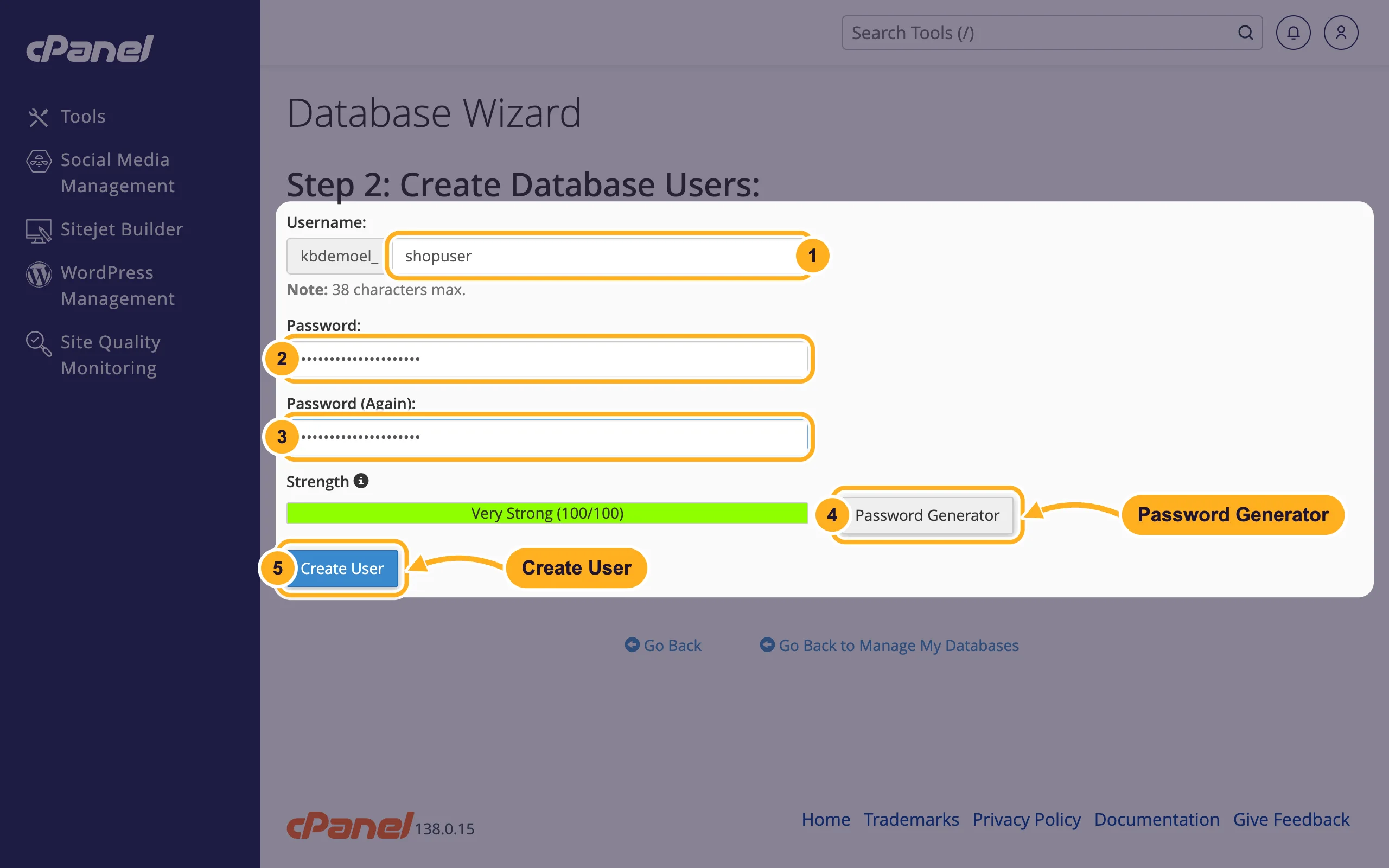
Step 2: Create Database Users:
- Username: a short name, for example
shopuser. The same prefix is added in front. - Password: a long, unique password.
- Password (Again): the same password once more.
- Or click Password Generator to let cPanel create a strong password. Copy it somewhere safe before you continue.
- Click Create User.
- Username: a short name, for example
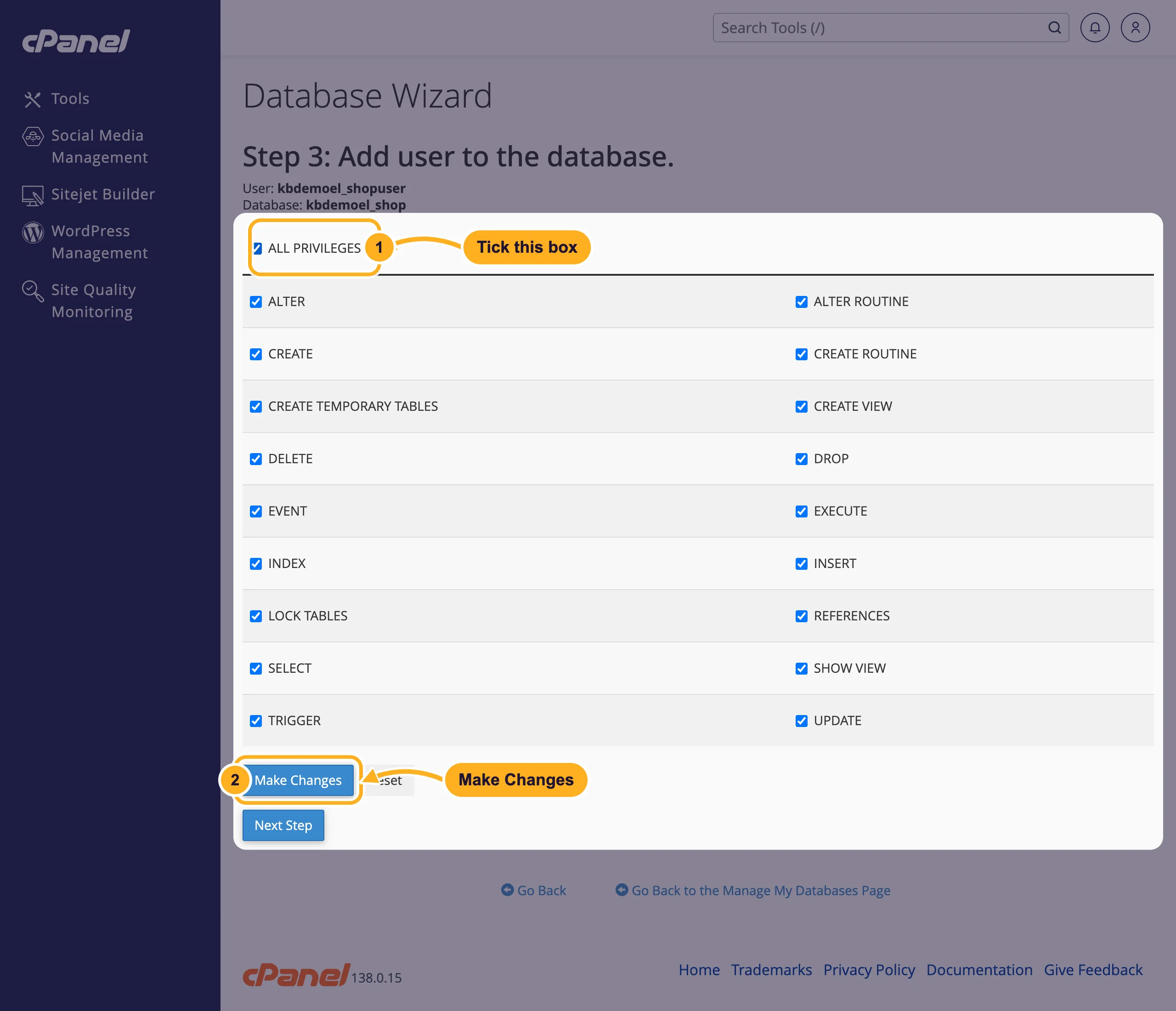
Step 3: Add user to the database:
- Tick ALL PRIVILEGES. All boxes below are ticked with it. Most applications, WordPress included, need all of them.
- Click Make Changes.
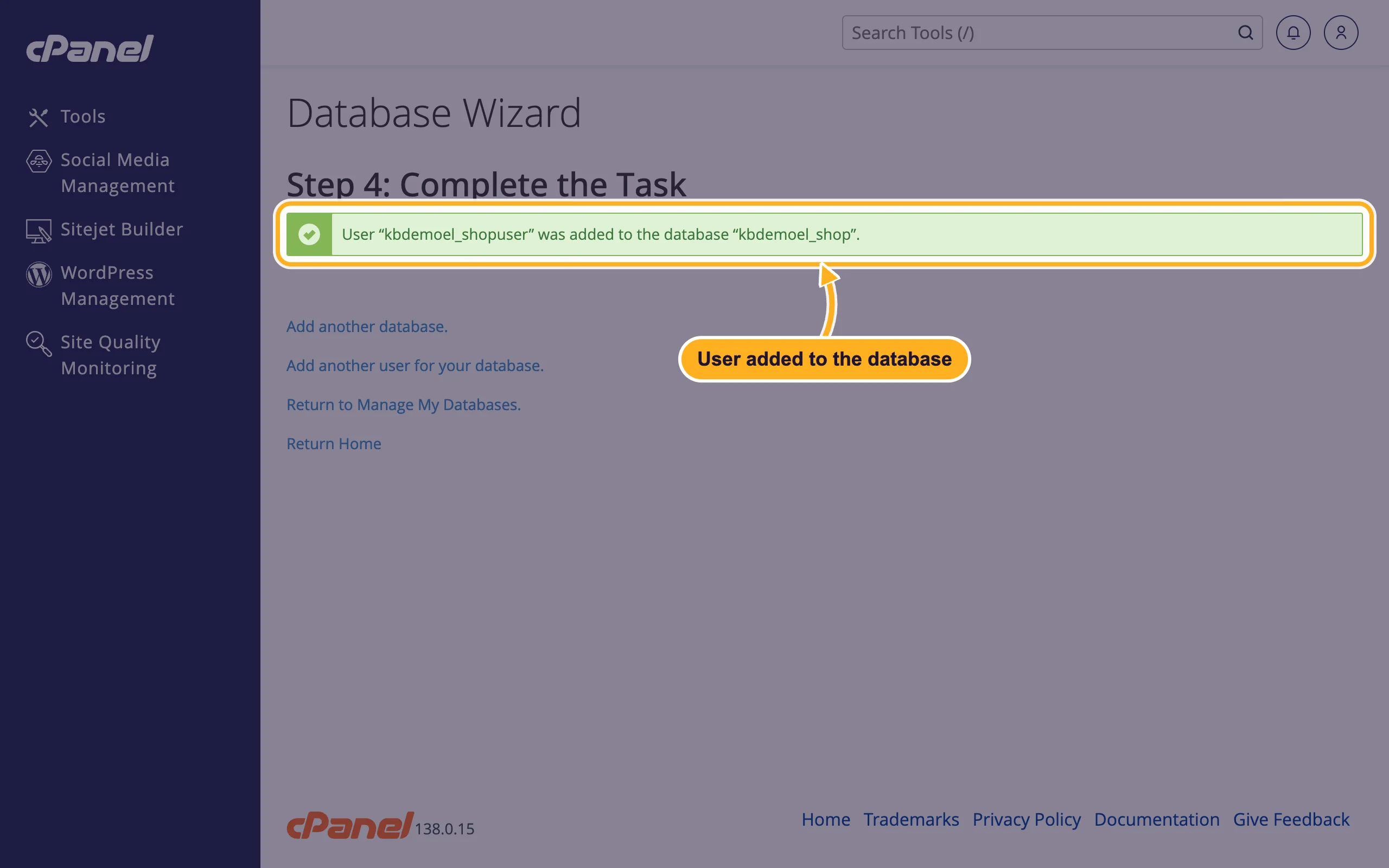
Step 4: Complete the Task confirms that the user was added to the database. From here you can add another database or user, or go back to Manage My Databases.
The details your website needs
Your application (WordPress, a shop, a script) asks for four things when you install it or in its configuration file:
| Setting | What to enter |
|---|---|
| Database name | The full name with the prefix, for example youraccount_shop |
| Database user | The full user name with the prefix, for example youraccount_shopuser |
| Password | The password you set in step 2 |
| Database host | localhost |
You'll find the full names later under Databases > Manage My Databases, in Current Databases and Current Users.
Create a database without the wizard
You can also do each part on its own in Manage My Databases: type a name under Create New Database and click Create Database, then create a user and add the user to the database. The result is the same.
Common problems
"The database already exists"
Each name can exist only once in your account. Pick another name, or use the existing database (you'll see it under Current Databases in Manage My Databases).
You can't create another database
Every hosting plan has a maximum number of databases. cPanel shows how many you use in the statistics on the right of its start page, for example "Databases 1 / 5". Delete a database you no longer need (see Delete a database or a database user) or upgrade your plan.
"Error establishing a database connection" on your website
The name, user or password in your application's settings doesn't match, or the user hasn't been added to the database. Check the full names with the prefix, check that the user is listed next to the database under Privileged Users, and set a new password if you're not sure (see Change a database user's password).
Related articles
- Create a MySQL database user
- Add a user to a database and set privileges
- Open and manage a database in phpMyAdmin
- Install WordPress in cPanel (WordPress Management)
Still stuck? Open a support ticket and we'll help.
