

Leech Protection in cPanel spots a members-area login that too many people use, sends them to another page and can lock that login. Set it up per folder.
"Leeching" means a member posts or passes on their username and password, and suddenly many people log in with it. cPanel counts the logins per username. When a username goes over your limit in two hours, the visitor is sent to a page you choose, you can get an email, and cPanel can switch the login off.
Turn on Leech Protection
Log in to cPanel (see Log in to cPanel from the client area). Type
Leechin the Search Tools box at the top and open Leech Protection.The page starts in your home folder. Click public_html (the folder's name or icon) to open it, then click Edit next to the protected folder, for example
members.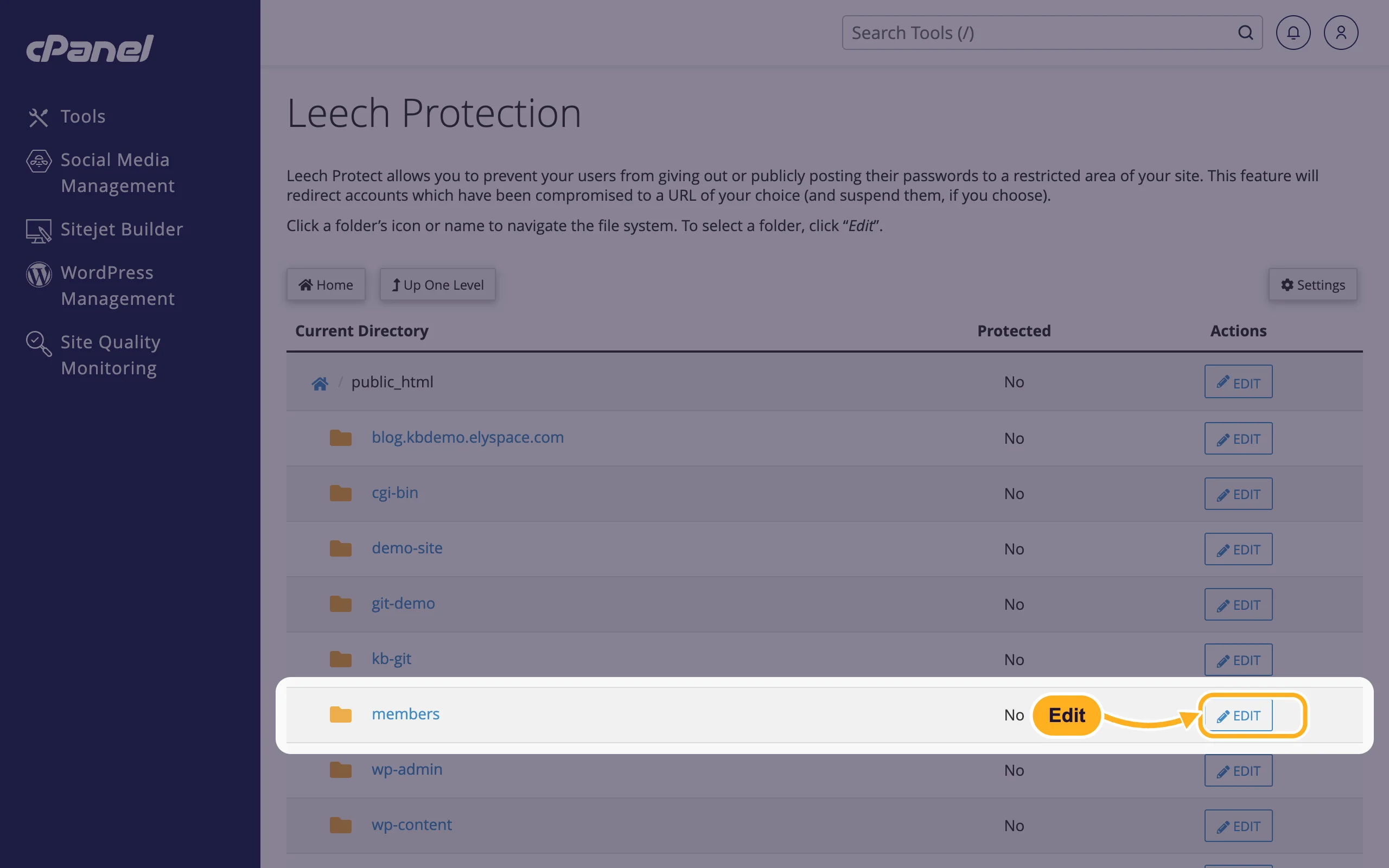
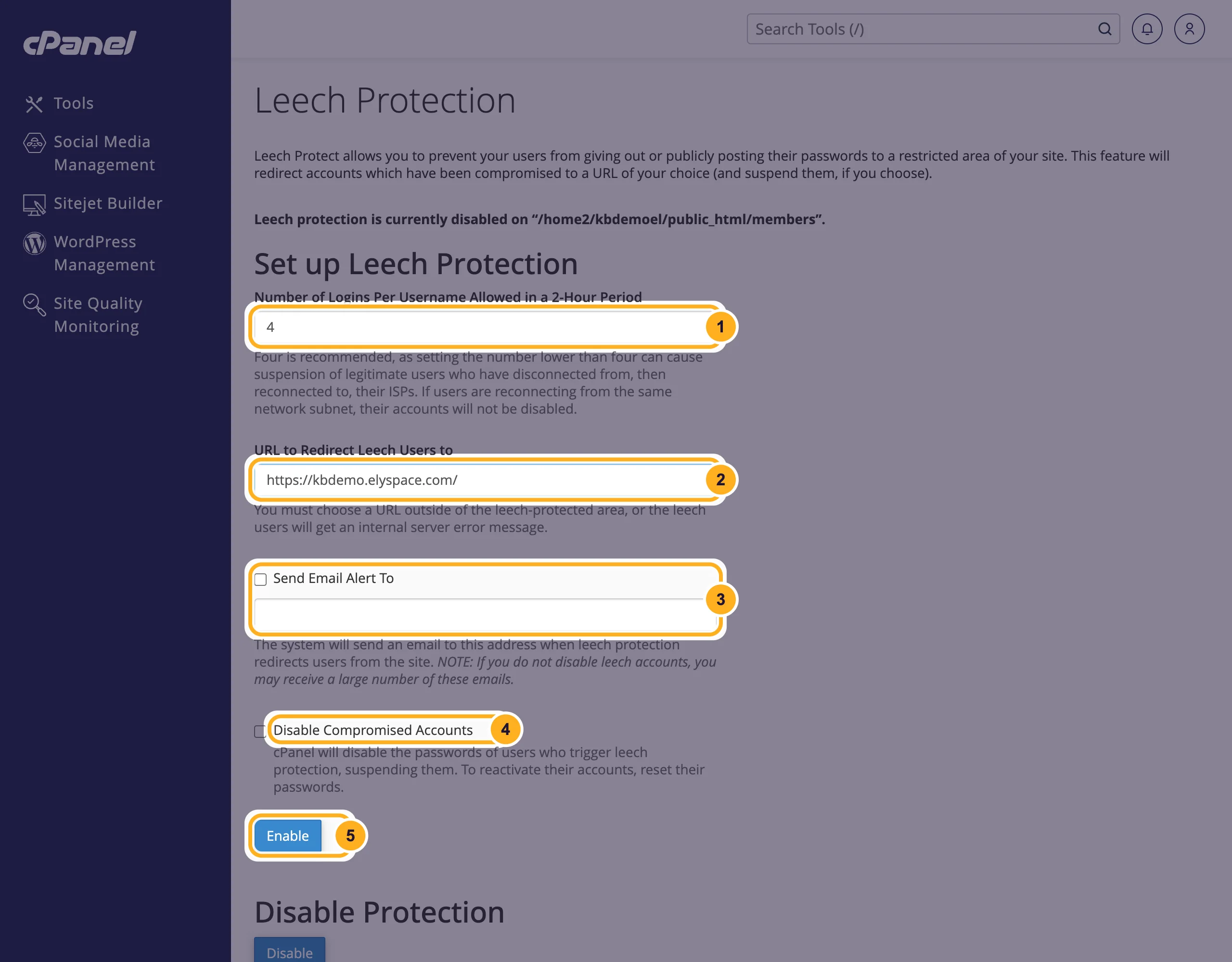
The page says Leech protection is currently disabled on the folder. Under Set up Leech Protection:
- Number of Logins Per Username Allowed in a 2-Hour Period: cPanel recommends
4. A lower number can lock out real members whose internet connection dropped and came back. If members reconnect from the same network, their logins aren't disabled. - URL to Redirect Leech Users to: the page shown instead, for example
https://yourdomain.com/or a page that explains the account is blocked. It must be outside the protected folder, or visitors get an internal server error. - Send Email Alert To: tick it and enter your email address to get a message each time someone is redirected.
- Disable Compromised Accounts: tick it to switch off the password of a username that goes over the limit. Without it, the visitor is only redirected and you may get a lot of alert emails.
- Click Enable.
- Number of Logins Per Username Allowed in a 2-Hour Period: cPanel recommends
To test it, don't share a real login: create a test user for the folder in Directory Privacy and log in with it from several devices.
Turn it off
Open Leech Protection, click Edit next to the folder and click Disable under Disable Protection.
Give a locked member access again
With Disable Compromised Accounts on, cPanel disables the password of a member who went over the limit. To give access back, set a new password for that user. Click Manage Users on the folder's Leech Protection page: it opens the folder in Directory Privacy, where you change the user's password (see Password-protect a folder). Send the new password to the member only, and ask them not to share it.
Common problems
Visitors see an internal server error instead of your page
The redirect address is inside the protected folder. Change URL to Redirect Leech Users to to a page outside it, for example your homepage, and click Enable again.
Real members get locked out
The limit is too low for people who log in from a phone, a laptop and at work on the same day. Set the number of logins back to 4 or a little higher.
You can't find your folder in the list
The list shows the folder you're in. Use Home and Up One Level to move around, or Settings to choose where the page starts: your home folder, the web root (public_html), or the document root of one of your domains.
Nothing happens even though a login is shared
Leech Protection only sees logins to a folder protected with Directory Privacy. If your members log in through WordPress or another app, use that app's own security settings instead.
Related articles
- Password-protect a folder
- Stop other sites from using your images (hotlink protection)
- Block an IP address
- Keep your website safe: a security checklist
Still stuck? Open a support ticket and we'll help.
