

Install a paid SSL certificate in cPanel under SSL/TLS Certificates > Installation: pick the domain, paste the certificate and key, then install.
Before you start
You need three parts from your certificate provider. They are plain text blocks:
- Certificate (CRT): starts with
-----BEGIN CERTIFICATE-----. - Private Key (KEY): created together with the certificate request (CSR). If you made the CSR in cPanel under the Requests tab, the key is already saved in your account.
- Certificate Authority Bundle (CABUNDLE): the intermediate certificates. Often not needed (see below).
Install the certificate
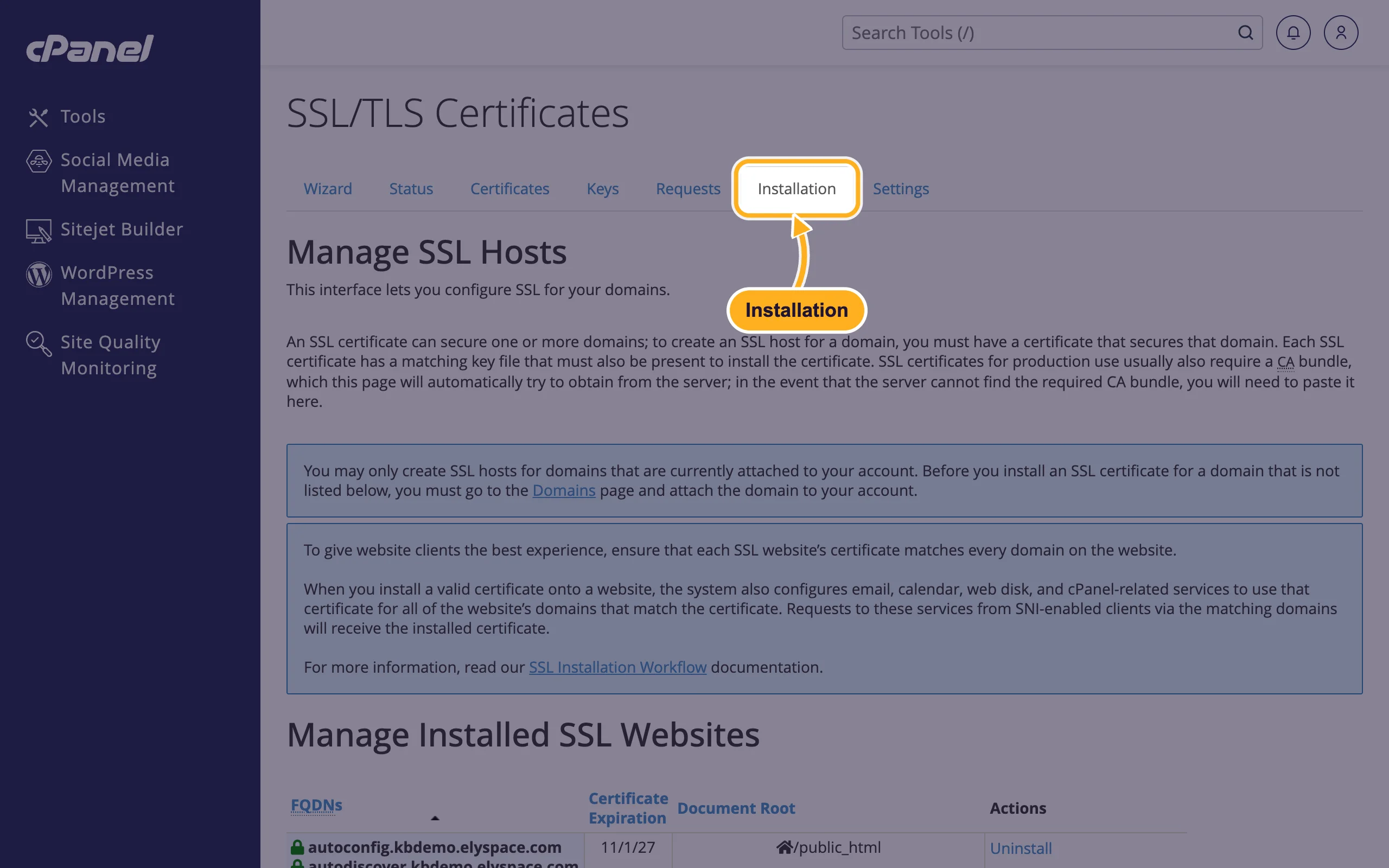
Log in to cPanel (see Log in to cPanel from the client area), open SSL/TLS Certificates and click the Installation tab.
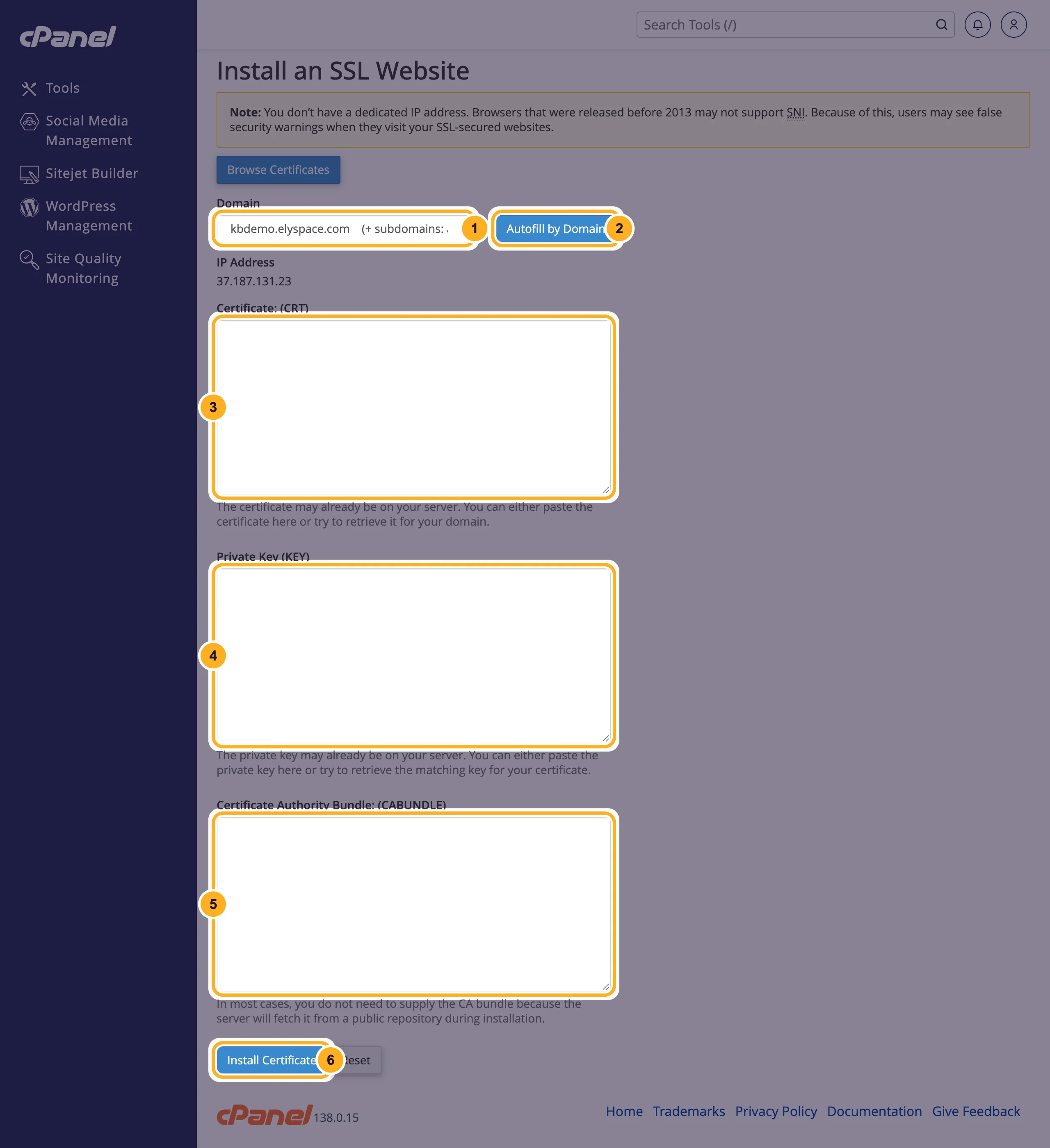
Scroll down to Install an SSL Website and fill in the form:
- Domain: select the domain the certificate is for.
- Autofill by Domain: fills in the certificate and key if they are already in your account (for example when you created the request in cPanel or uploaded the certificate under Certificates).
- Certificate: (CRT): paste the certificate, including the BEGIN and END lines, if it wasn't filled in.
- Private Key (KEY): paste the matching private key.
- Certificate Authority Bundle: (CABUNDLE): leave it empty unless your provider tells you otherwise. In most cases the server fetches it during installation.
- Click Install Certificate.
cPanel confirms the installation. The domain now appears under Manage Installed SSL Websites with the new expiry date. Open your site with
https://and click the lock icon in the address bar to check the certificate.
The installed certificate also covers your email, webmail and cPanel addresses on that domain, if the certificate includes those names.
Renew a certificate you bought
Paid certificates don't renew themselves on the server. Before the old one expires, get the renewed certificate from your provider and install it the same way, or use Update Certificate next to the domain under Manage Installed SSL Websites.
Common problems
cPanel says the certificate and the key don't match
The key belongs to a different request. Use the key that was created together with the CSR you sent to the provider. If it's lost, create a new CSR and ask the provider to reissue the certificate.
Some browsers say the certificate isn't trusted
The intermediate certificates are missing. Paste the CA bundle from your provider into Certificate Authority Bundle: (CABUNDLE) and install again.
The note about a dedicated IP address
The form says you don't have a dedicated IP address. That's normal on shared hosting: certificates work through SNI, which all current browsers support. Only browsers from before 2013 are affected.
The domain isn't in the Domain list
Only domains attached to your hosting account are listed. Add the domain first (see Add another domain to your hosting (addon domain or alias)).
Related articles
Still stuck? Open a support ticket and we'll help.
