

BoxTrapper holds mail from unknown senders until they answer a verification email. Set it up per mailbox in cPanel and whitelist known senders first.
How it works
- Mail from a sender on your whitelist arrives normally.
- Mail from anyone else waits in the BoxTrapper queue, and the sender gets a verification email. When they reply to it, their message is delivered.
- Unanswered messages are deleted after the number of days you set.
Prepare BoxTrapper for a mailbox
Log in to cPanel (see Log in to cPanel from the client area). In the Email section, click BoxTrapper. Click Manage next to the mailbox.
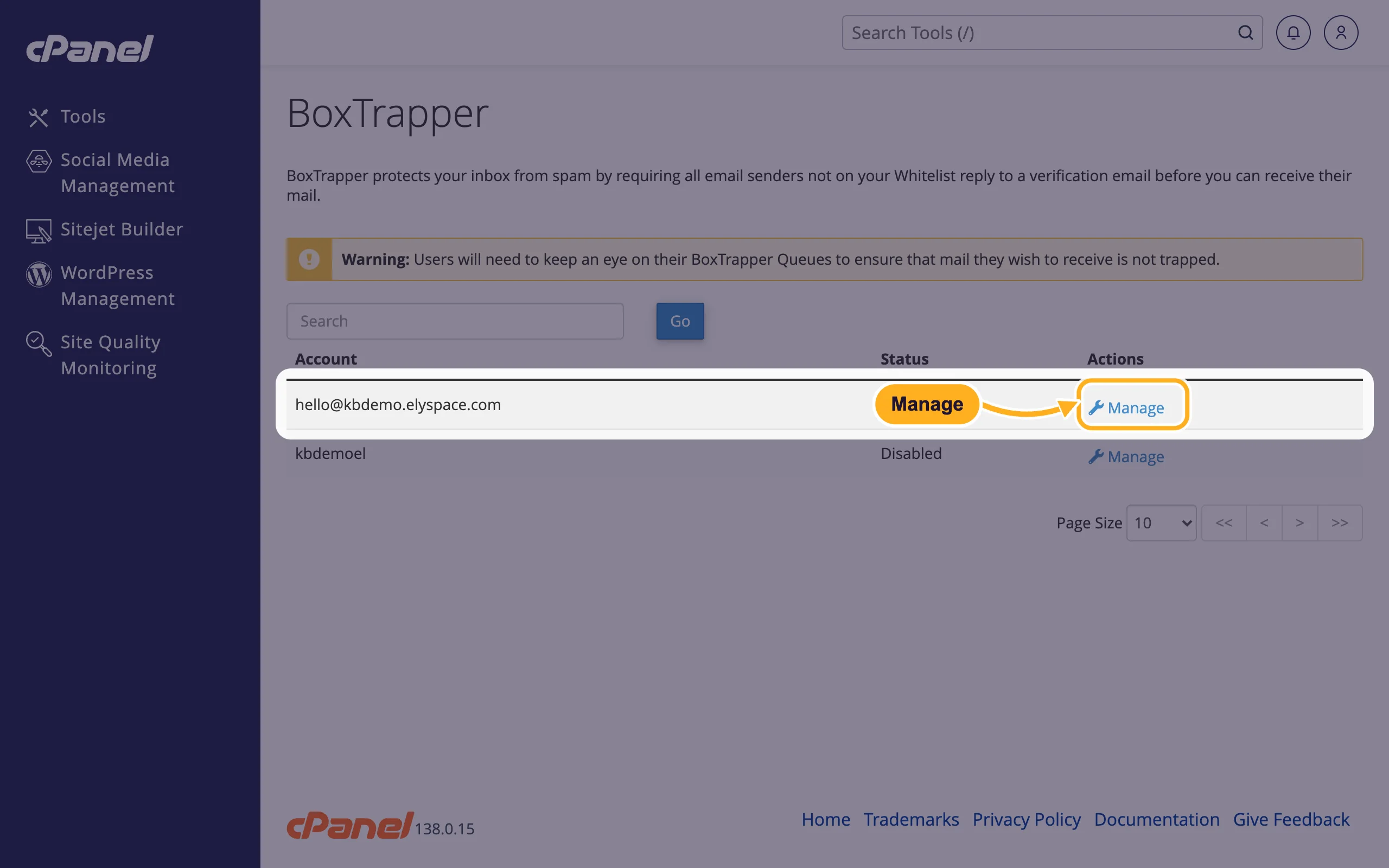
The page Configure BoxTrapper for your address shows the Current Status and these tools:
- Enable switches BoxTrapper on (do this last).
- Configure Settings: names, days and spam score.
- Edit White/Black/Ignore Lists: who always gets through, who is always blocked, whose mail is dropped silently.
- Review Queue: messages waiting for verification.
Edit Confirmation Messages changes the texts senders get, Forward List forwards verified mail to another address, and Review Log lists all messages by day.
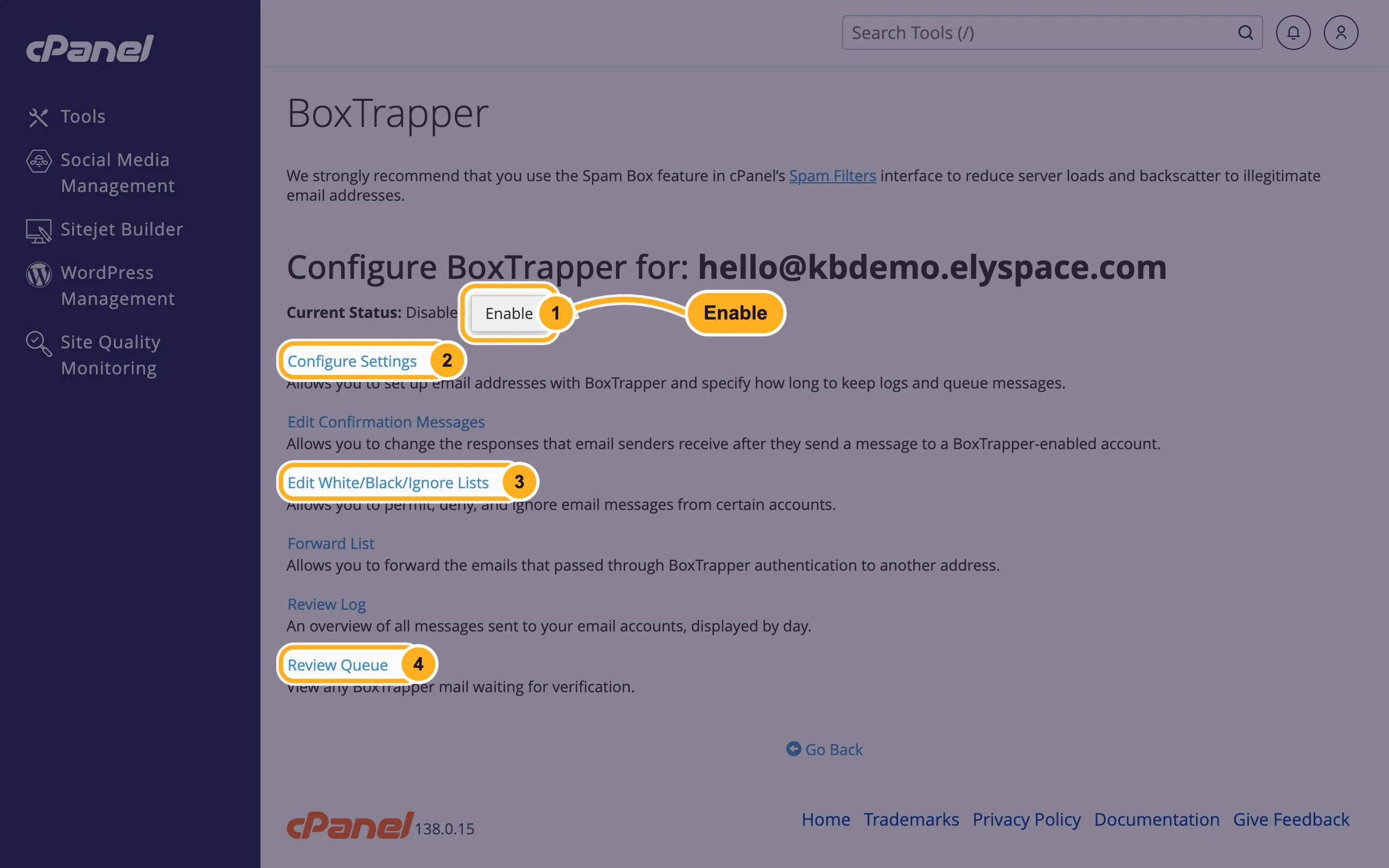
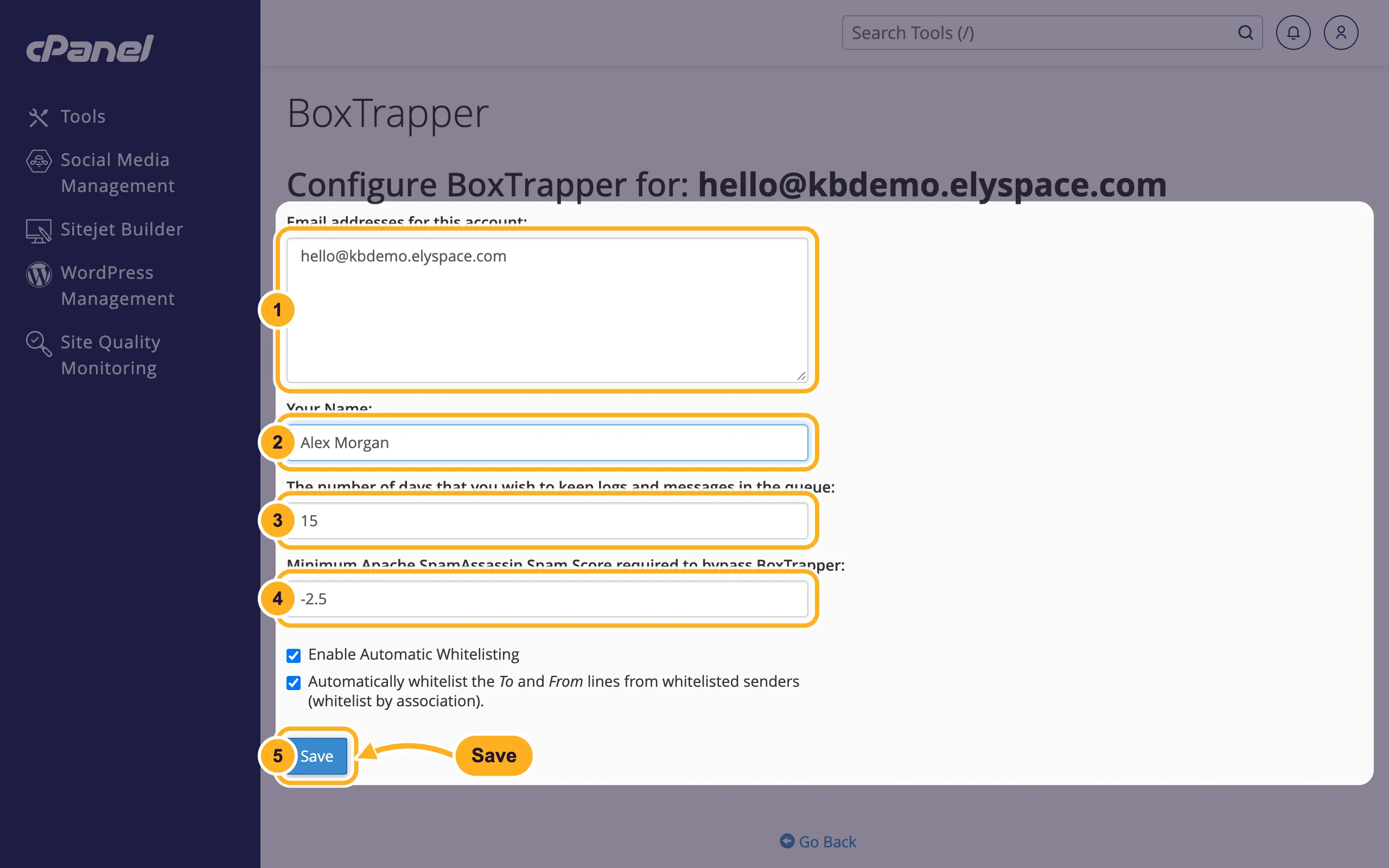
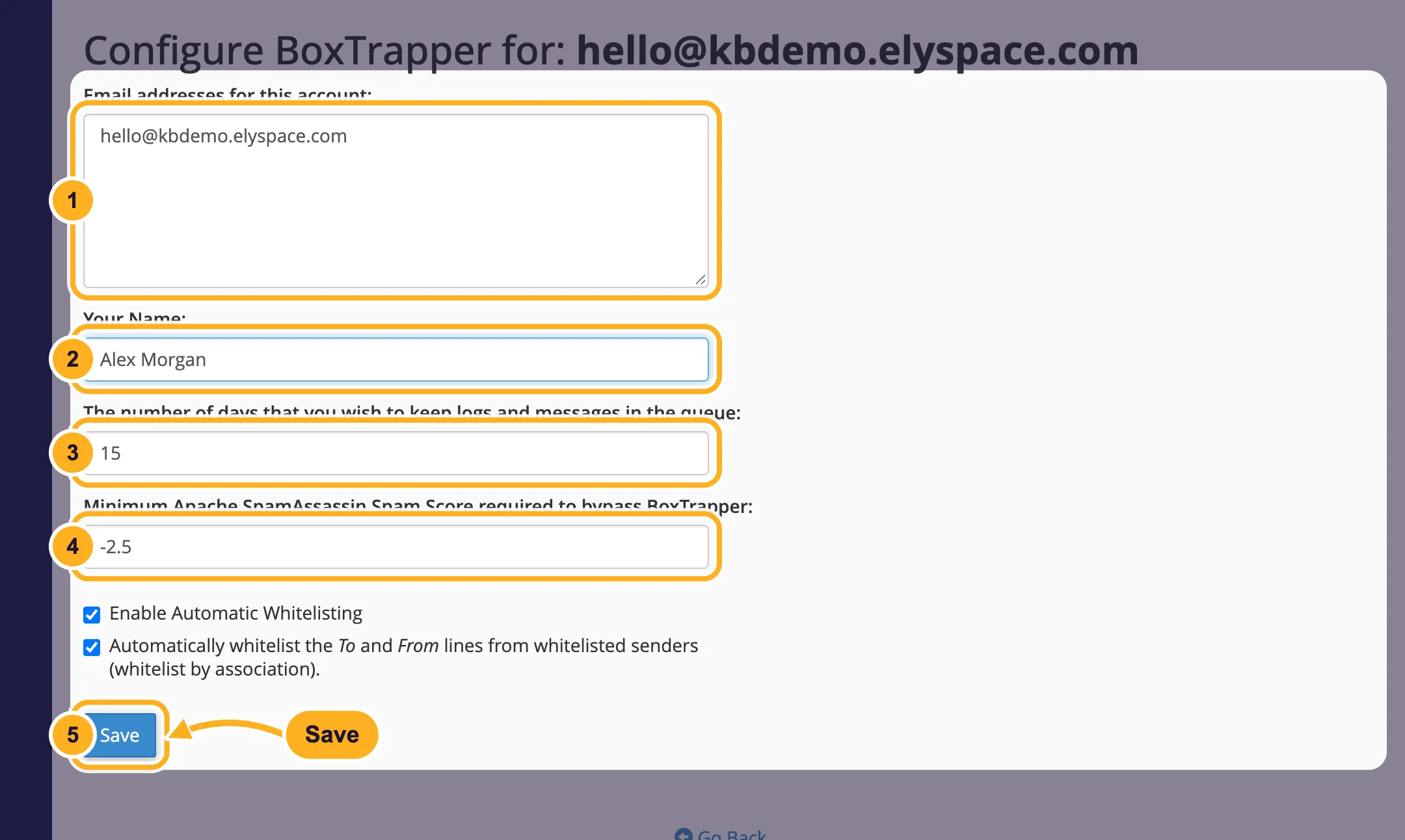
Click Configure Settings and check the form:
- Email addresses for this account: every address that delivers into this mailbox (for example forwarders), one per line. Mail to these addresses is treated as yours.
- Your Name: the name used in the verification emails.
- The number of days that you wish to keep logs and messages in the queue:
15by default. After that, unverified messages are gone. - Minimum Apache SpamAssassin Spam Score required to bypass BoxTrapper:
-2.5by default. Messages scored below this pass without verification. - Click Save.
Enable Automatic Whitelisting (ticked by default) adds senders to the whitelist once they have answered the verification email.
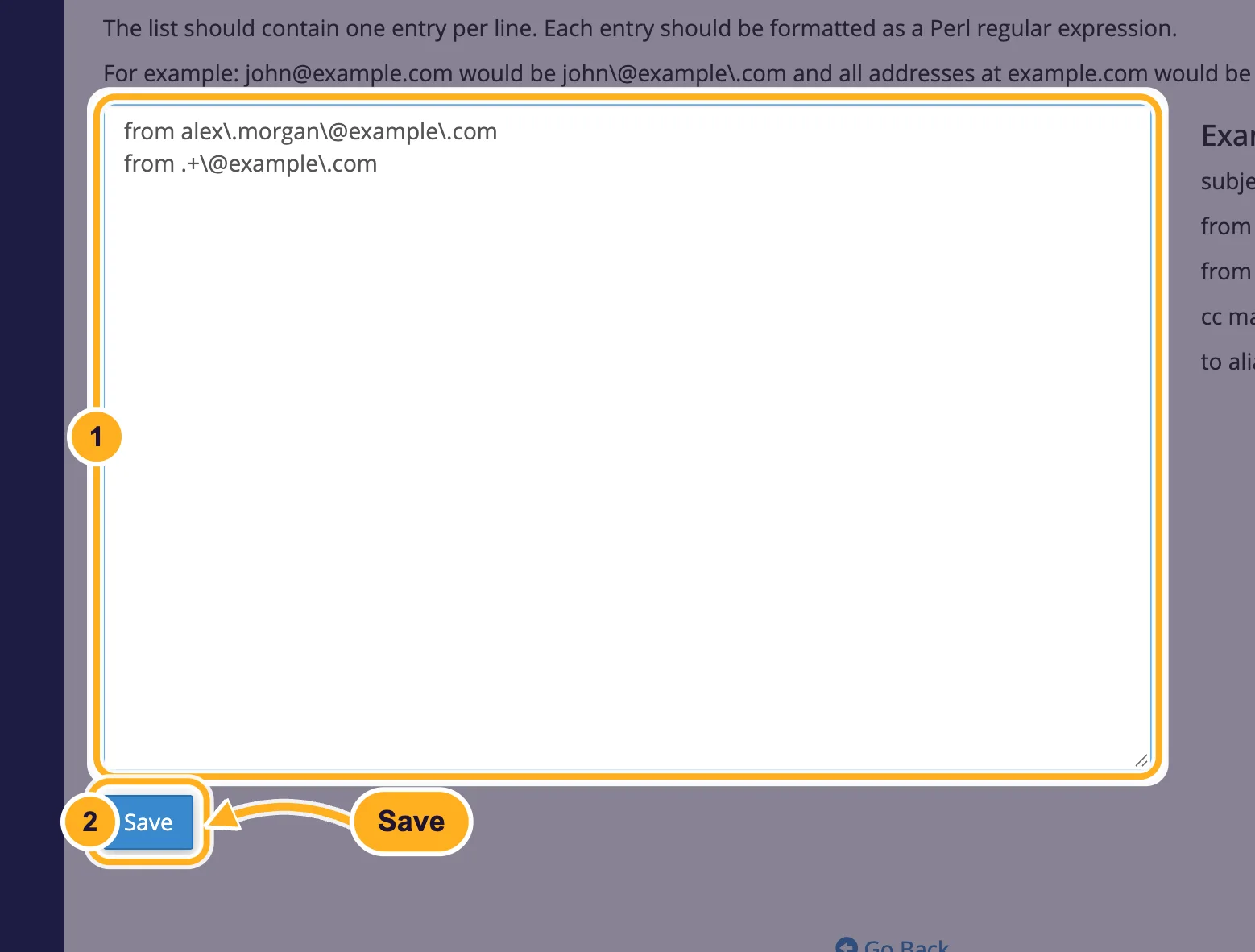
Go back, click Edit White/Black/Ignore Lists and then Edit Whitelist. Add everyone you expect mail from, one entry per line. Entries are Perl regular expressions, so put a backslash before
@and before dots:from alex\.morgan\@example\.comallows one sender.from .+\@example\.comallows everyone at example.com (useful for your bank, shop or our own mail).
The page also accepts
to,ccandsubjectrules. Click Save.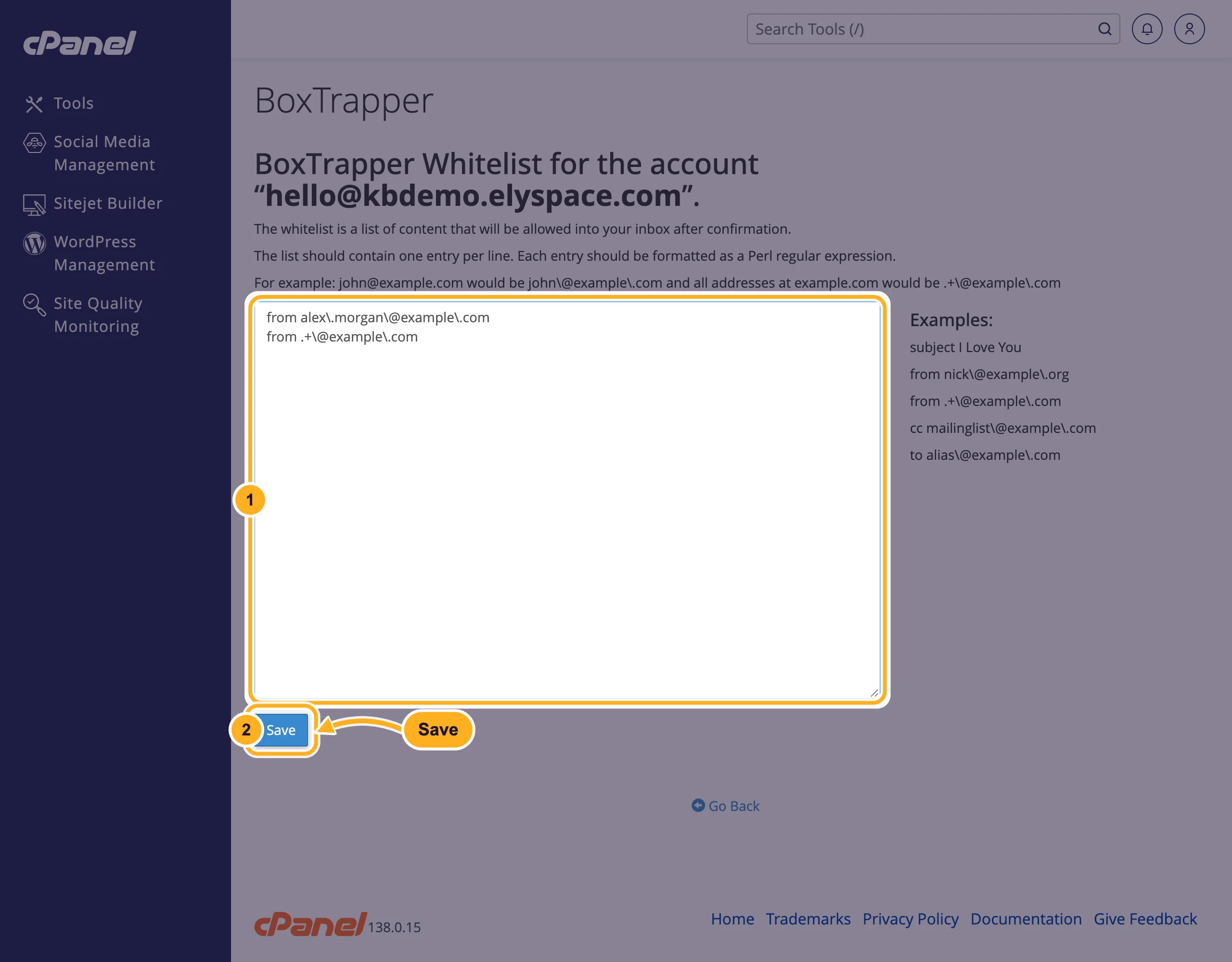
Back on the configuration page, click Enable. The status changes to enabled, and the same button now turns BoxTrapper off again.
Check the queue
Open Review Queue every few days. It shows waiting messages by day with From, Subject and Time. Select messages and choose Whitelist and Deliver to let them in and trust the sender from now on, or Delete. Use the search to find a sender or subject.
Common problems
An expected email never arrived
Look in Review Queue. Automatic senders (shops, banks, booking sites) never answer verification emails, so their mail stays there until you deliver it or it expires. Whitelist their domain.
People complain about the verification emails
Whitelist your regular contacts so they don't get them. If it's too much work, turn BoxTrapper off with the same button and use Spam Filters instead (see Turn on spam filters).
A whitelist entry doesn't work
Check the backslashes: [email protected] must be written as alex\.morgan\@example\.com, with from in front.
Related articles
- Turn on spam filters
- Sort incoming mail with email filters
- Check where an email went with Track Delivery in cPanel
- Mailbox full, bounces and other common email errors
Still stuck? Open a support ticket and we'll help.
