

Imunify360 in cPanel scans your website files for malware all the time. Open it to see infected files, past scans and blocked attacks.
The real-time scanner checks files as they are uploaded or changed, so you don't start scans yourself; there is no scan button in your cPanel. If you want a full scan of your account, ask us in a ticket. In cPanel you see the results.
Open Imunify360
Log in to cPanel (see Log in to cPanel from the client area). Type
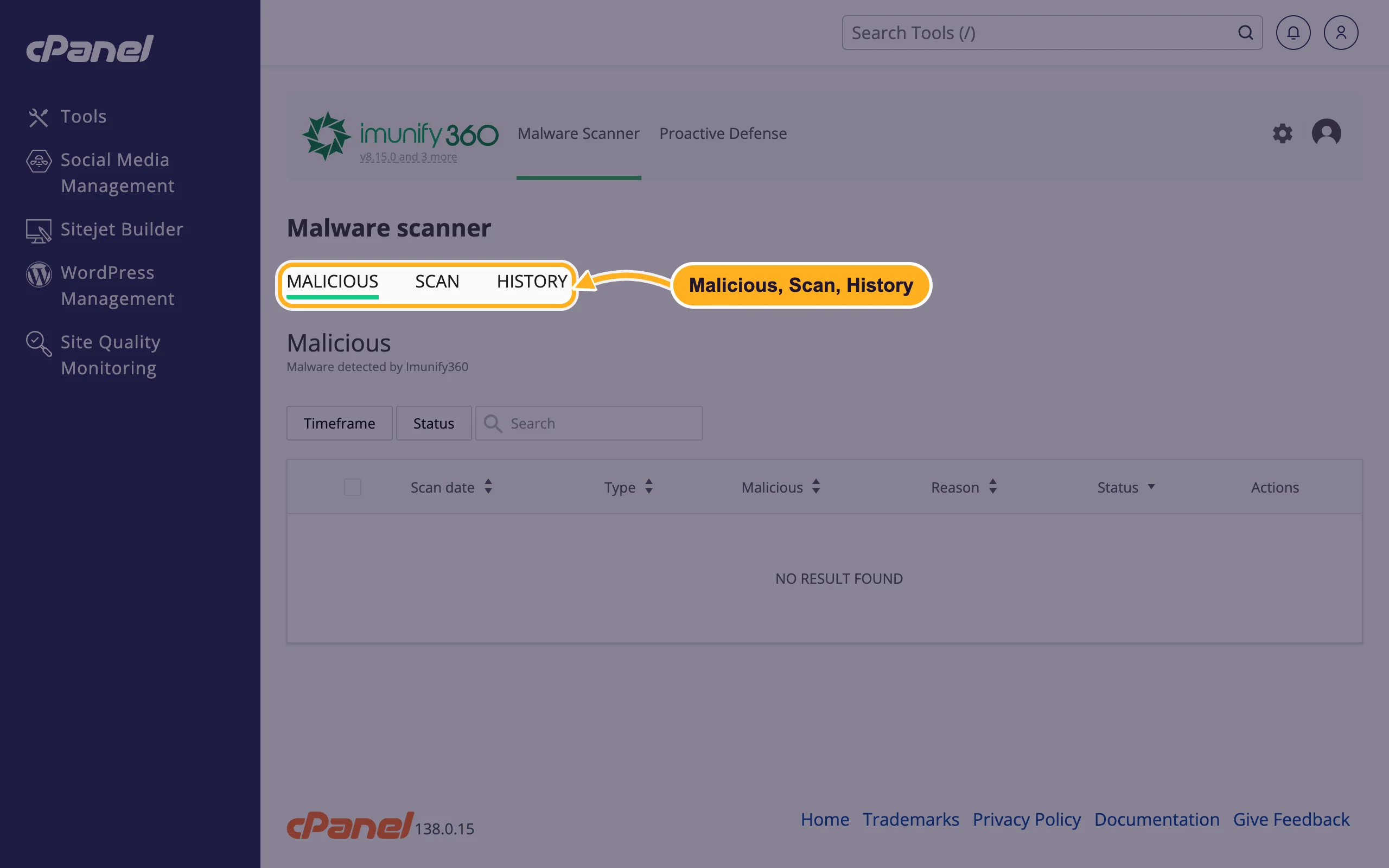
Imunifyin the Search Tools box at the top and open Imunify360.Malware Scanner opens with three tabs:
- Malicious: files Imunify360 found to be malware, with the scan date, type, reason and status. No result found means nothing was found.
- Scan: scans of your account, with the path scanned, the number of files checked and the result.
- History: a log of events for your files, with date, type, path, cause, who started it and what happened.
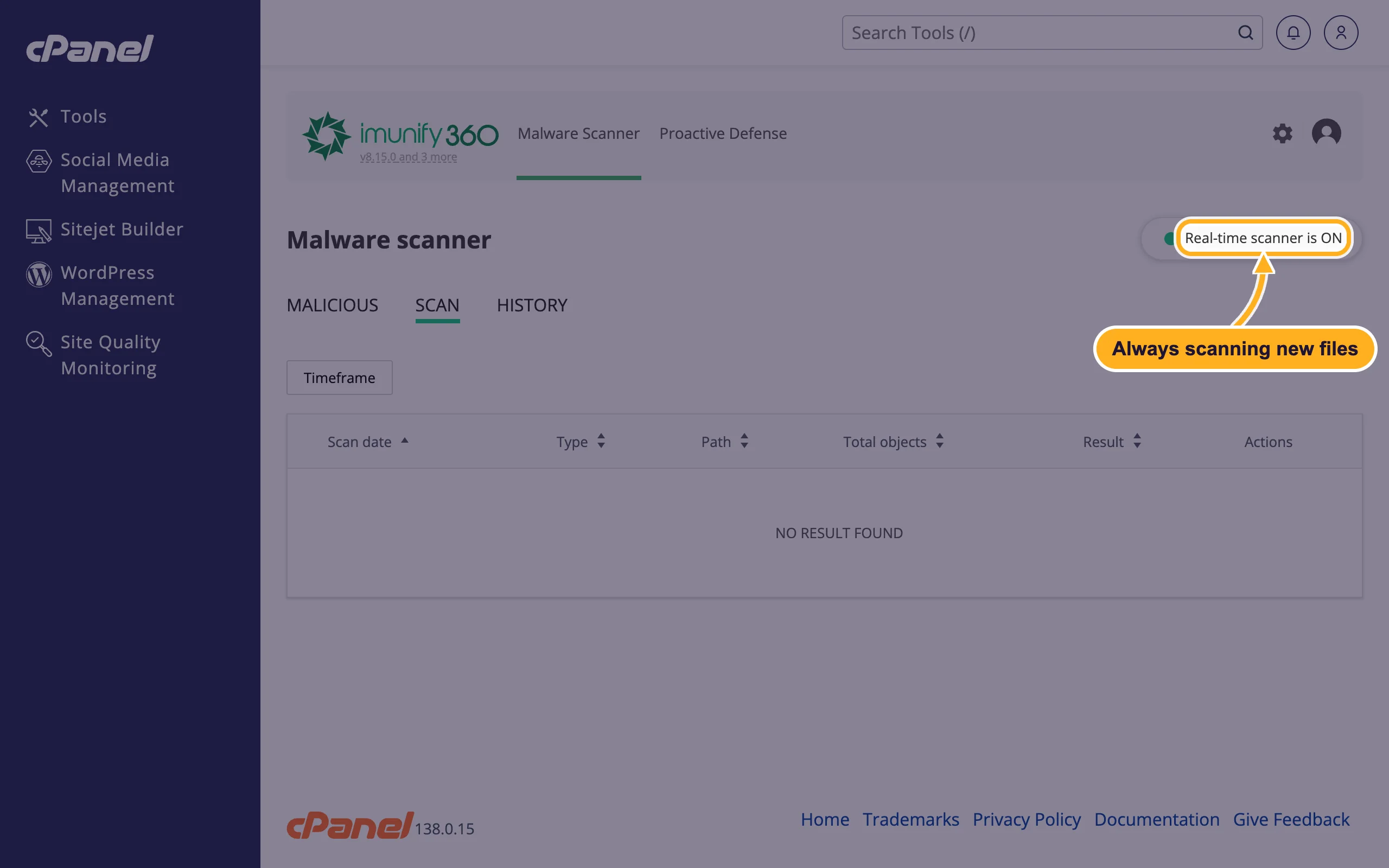
On the Scan tab, the box at the top right shows Real-time scanner is ON: new and changed files are checked automatically.
Proactive Defense
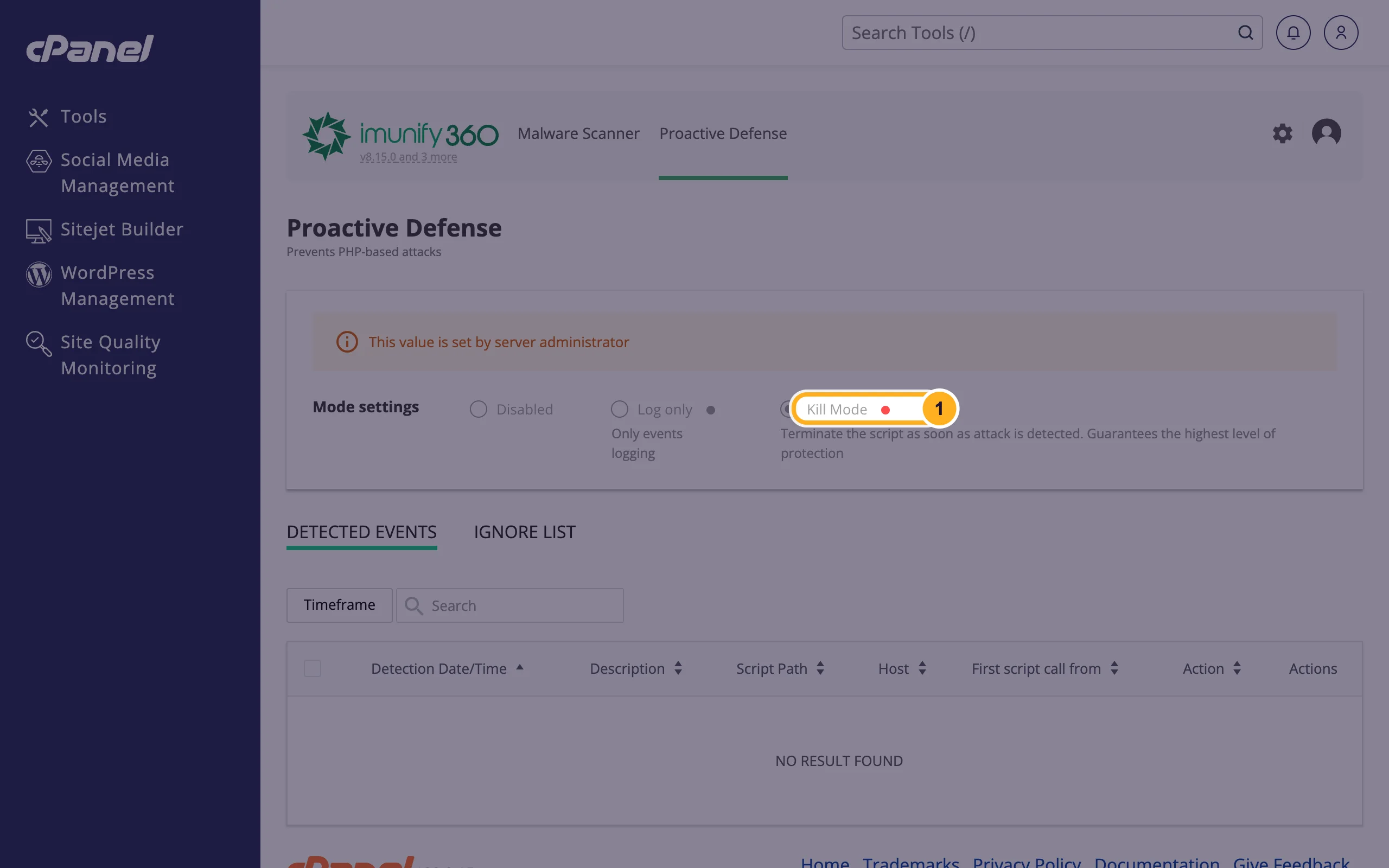
Click Proactive Defense at the top. It watches PHP scripts while they run and stops typical attacks. On ElySpace servers it runs in Kill Mode: a script is stopped as soon as an attack is detected. The setting is managed by us (This value is set by server administrator). Detected Events lists scripts that were stopped, with the script path and the time.
If Imunify360 finds malware
- Note the file path in the Malicious list. It tells you which site, plugin or theme is affected.
- For WordPress, repair the core files with Check WordPress Integrity and update or reinstall the affected plugin or theme (see Remove malware from index.php).
- Find out how the attacker got in and close it: Your website was hacked: what to do first.
More security tools in cPanel
- ElySpace Security (search for it in cPanel) brings live attack monitoring, malware detection and WordPress checks for your account together on one page. Its report appears there once it has been generated for your account.
- WordPress Management shows known vulnerabilities in your WordPress plugins and themes (see Secure your WordPress site from cPanel).
Common problems
A file you need was flagged
Sometimes a legitimate file looks like malware to a scanner. Don't restore it blindly. Open a ticket in Website Security with the file path and we'll check it.
Your site broke after a detection
If a detected file was part of a plugin or theme, the plugin may stop working. Reinstall a clean copy from its official source and update it.
Proactive Defense stopped a script you trust
Open a ticket in Website Security with the script path from Detected Events. We can review it.
Related articles
- Your website was hacked: what to do first
- Remove malware from index.php
- Secure your WordPress site from cPanel
Still stuck? Open a support ticket and we'll help.
