

Every email we send about your account is saved under Account > Email History in the client area. Open it to read a lost invoice or welcome email again.
Open your email history
Log in to the client area and open Account > Email History. You can also click See all messages in Email History at the bottom of the notifications under the bell.
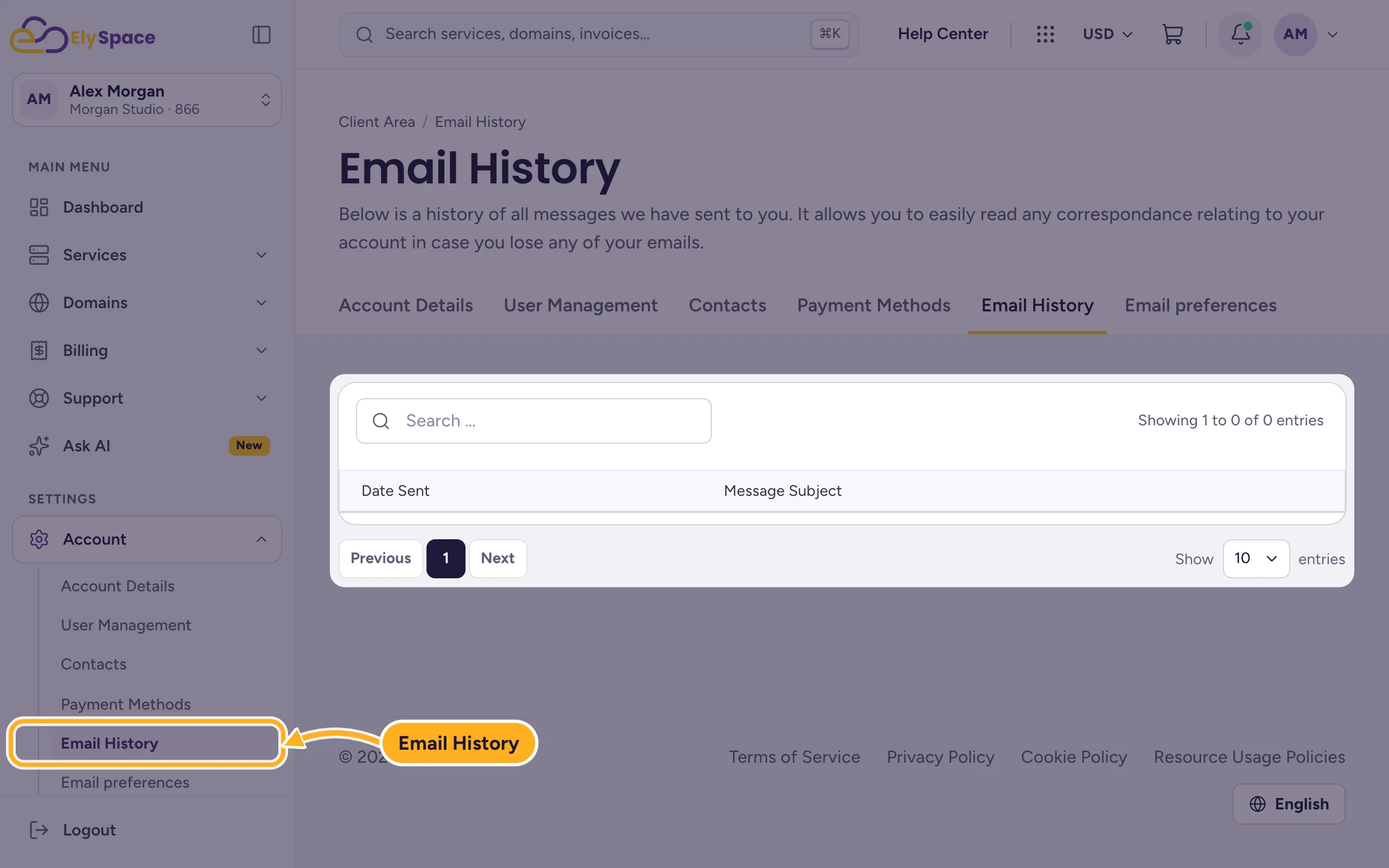
Each row shows the Date Sent and the Message Subject. Newest emails are at the top.
To find a message, type part of the subject into Search, for example "invoice" or "welcome". With Show at the bottom you choose how many entries one page lists.
Open a message with the button in the Action column to read the full email.
What you'll find there
- order confirmations and invoices,
- the welcome email with your hosting details,
- payment confirmations and reminders,
- domain renewal notices,
- notifications about your support tickets.
A new account has an empty list until we send the first email.
Common problems
An email is listed here but never reached you
Then we sent it, and it got stuck on the way. Check your spam folder and any filters in your mailbox, and add our address to your contacts. If emails go missing often, check under Profile that your email address is correct.
An email you expected isn't listed
Check your email preferences: emails of a type you turned off aren't sent. See Choose which emails you get.
Related articles
- Choose which emails you get (email preferences)
- After your order: what happens next
- Download or print an invoice (PDF)
- Verify your email address
Still stuck? Open a support ticket and we'll help.
