

Change your name, company, phone number and billing address under Account > Account Details in the ElySpace client area, then click Save Changes.
Change your details
Log in to the client area and open Account > Account Details in the left menu.
Change what you need under Personal Information and Billing Address, for example:
- the menu entry Account Details, where you are now,
- Company Name: printed on your invoices,
- Phone Number: so we can reach you about your account,
- Street and house number and the other address fields.
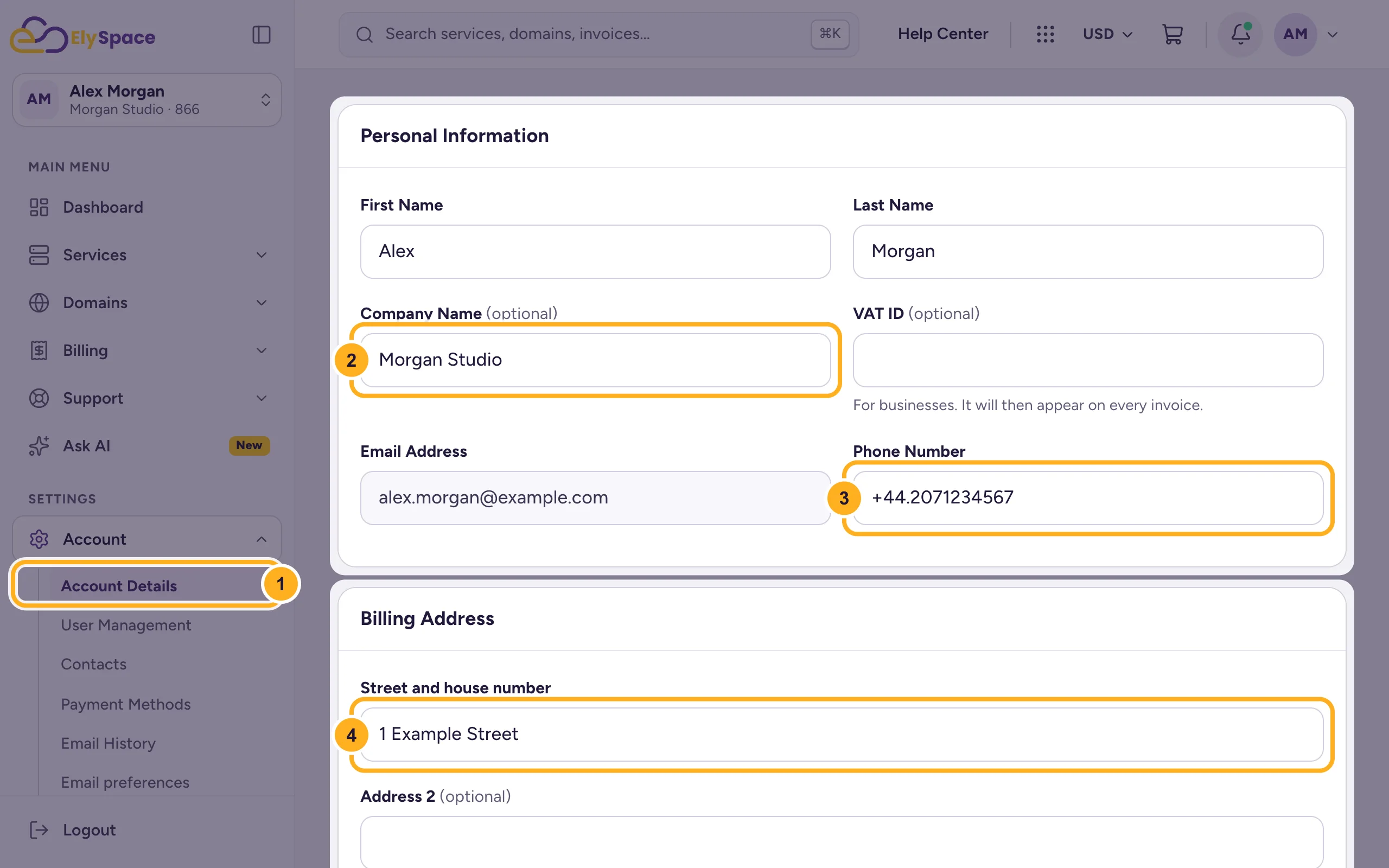
For a business, add your VAT number under VAT ID. It then appears on every invoice.
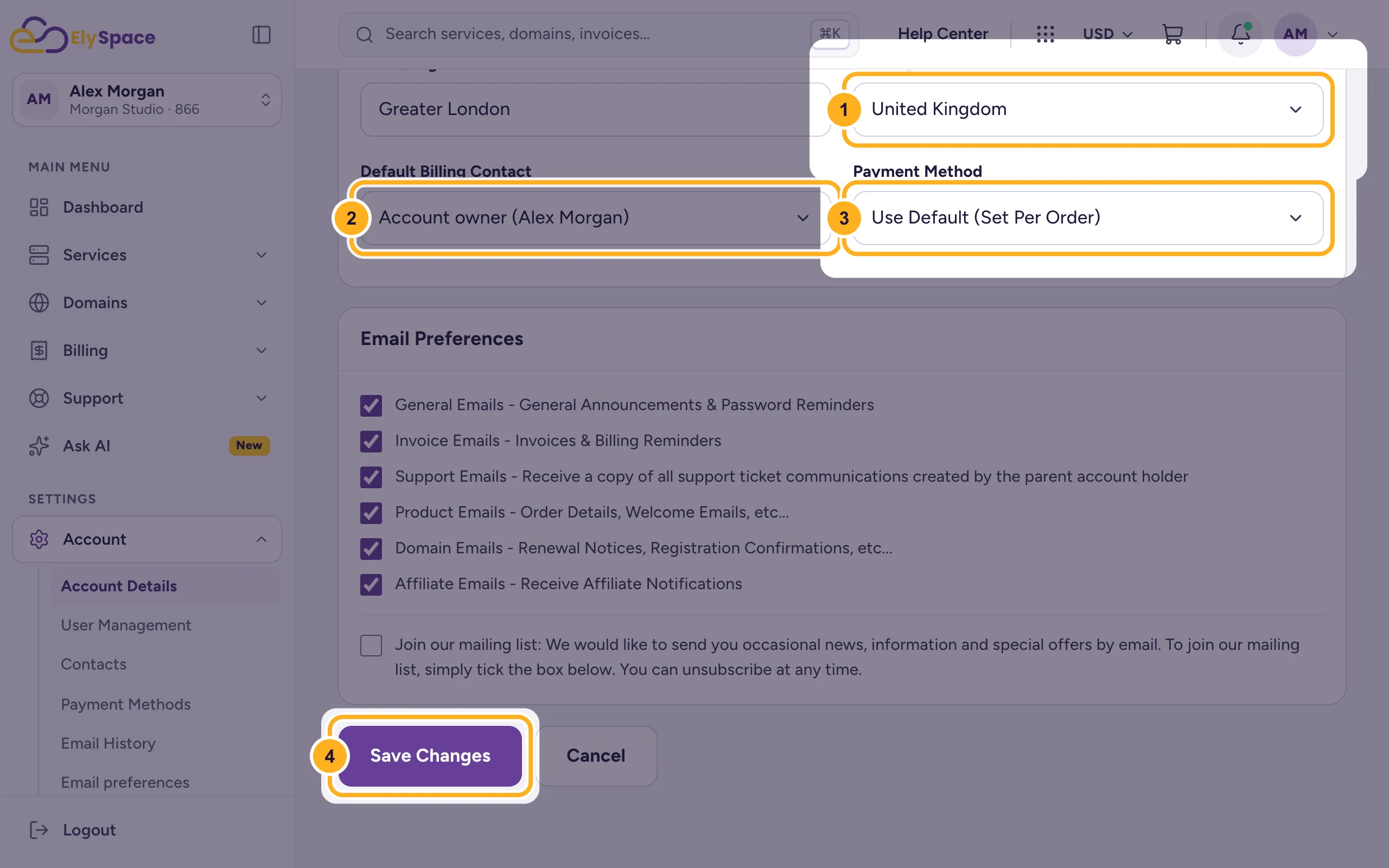
Further down:
- Country: the country of your billing address.
- Default Billing Contact: who gets your invoices. To send them to someone else, add a contact first: Add contacts.
- Payment Method: the payment method new invoices start with. Use Default (Set Per Order) keeps the one you choose with each order.
- Click Save Changes.
Email address, password and email settings
- Email Address is greyed out on this page. To change it, see Change the email address you log in with.
- Your password is on its own page: Change your client area password.
- Which emails you get is set in the Email Preferences box at the bottom of this page: Choose which emails you get.
Common problems
Save Changes shows an error
Read the message at the top of the page and next to the fields: usually a required field is empty or the phone number is in the wrong format. Start the phone number with your country code, for example +44 for the UK or +91 for India.
An invoice still shows the old details
Open a ticket in Sales Support with the invoice number and tell us what should be on it. We'll check it for you.
Related articles
- Change the email address you log in with
- Add contacts (for example a billing contact)
- Choose which emails you get (email preferences)
- Download or print an invoice (PDF)
Still stuck? Open a support ticket and we'll help.
