

In cPanel's File Manager you select a file or folder, then pick an action in the toolbar: Edit, Move, Rename, Compress, Extract, Permissions or Delete.
Edit a file
Open File Manager (see Upload files with the cPanel File Manager) and go to the folder with the file.
Select the file and click Edit:
- Click the file, for example
index.html. - Click Edit in the toolbar. If a box about character encoding appears, leave the setting as it is and click Edit again.
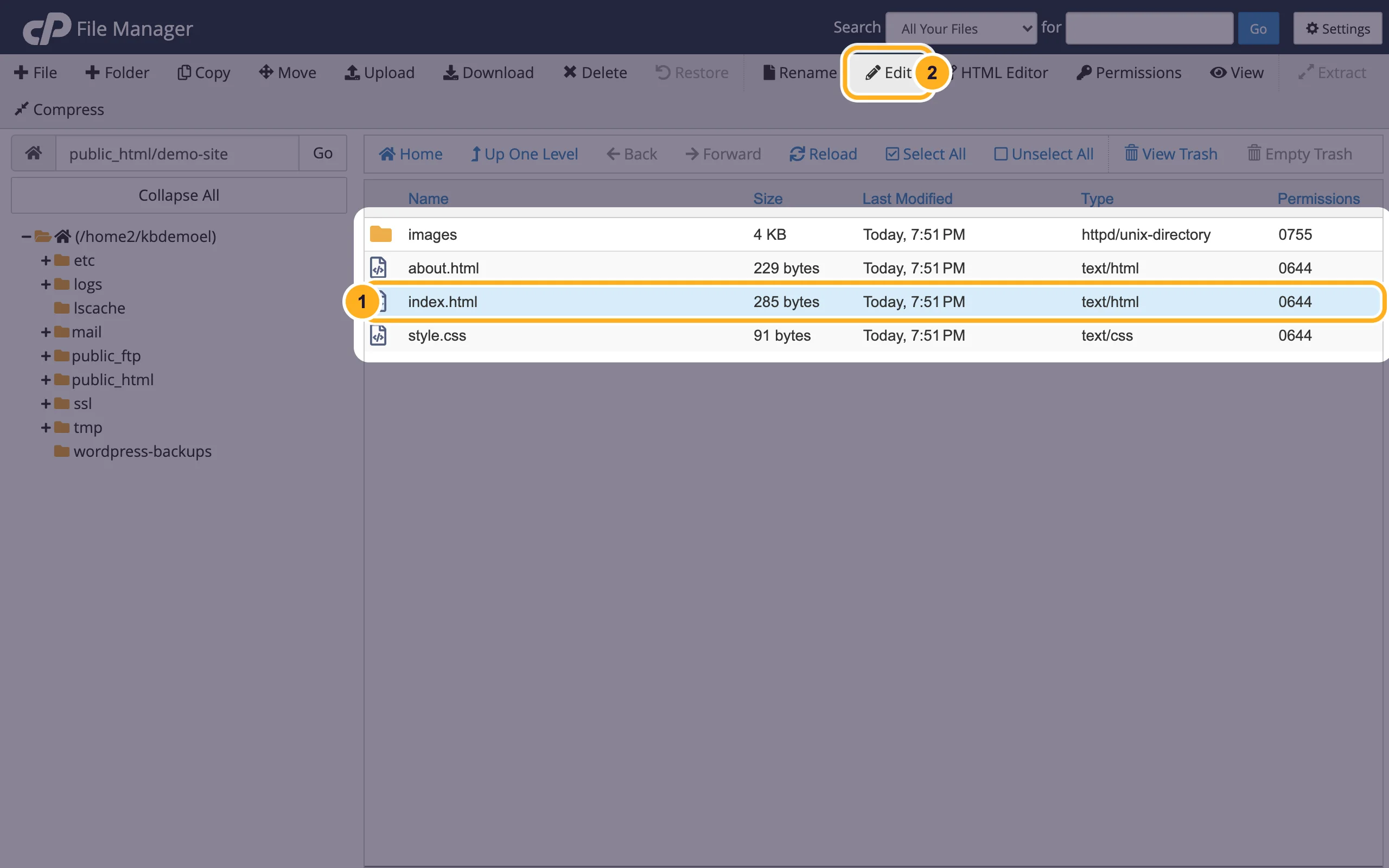
- Click the file, for example
The file opens in the code editor in a new tab. Make your change, click Save Changes, then Close when you're done.
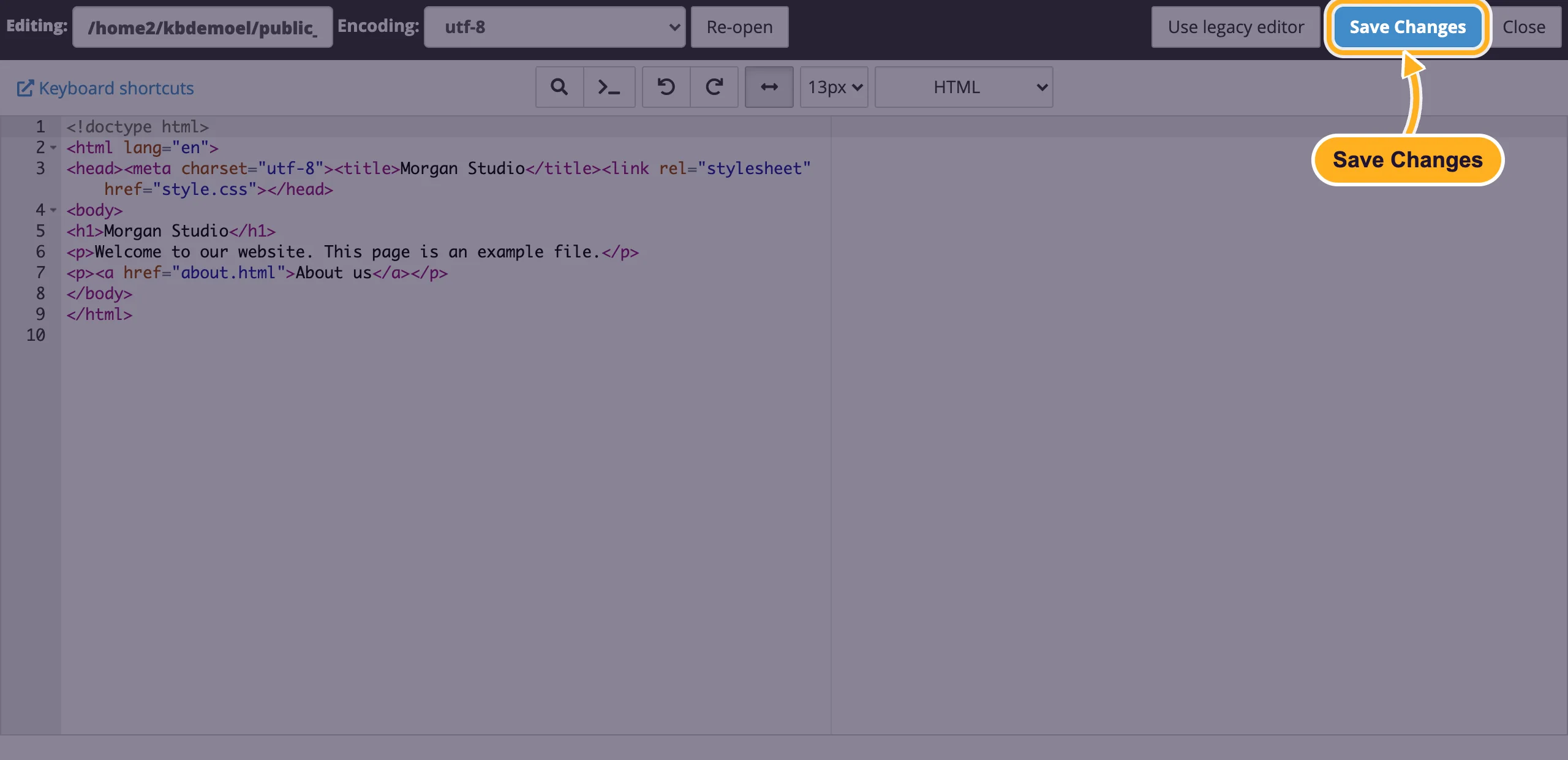
index-old.html). One wrong character in a PHP file or .htaccess can take the whole site offline.Move, copy or rename
- Move: select the files, click Move, type the target folder (for example
/public_html/old) and click Move Files. - Copy: works the same way and keeps the original.
- Rename: select one file, click Rename, type the new name and click Rename File.
- New file or folder: click File or Folder (with the plus sign) in the top left, type the name and click Create New File or Create New Folder.
File names on the server are case-sensitive: Logo.png and logo.png are two different files.
Change file permissions
Permissions decide who may read, change or run a file. The usual values are 644 for files and 755 for folders. You'll see the current value in the Permissions column.
Select the file and click Permissions.
Set the permissions:
- Tick the boxes, or type the three numbers (for example
6,4,4for 644). - Click Change Permissions.
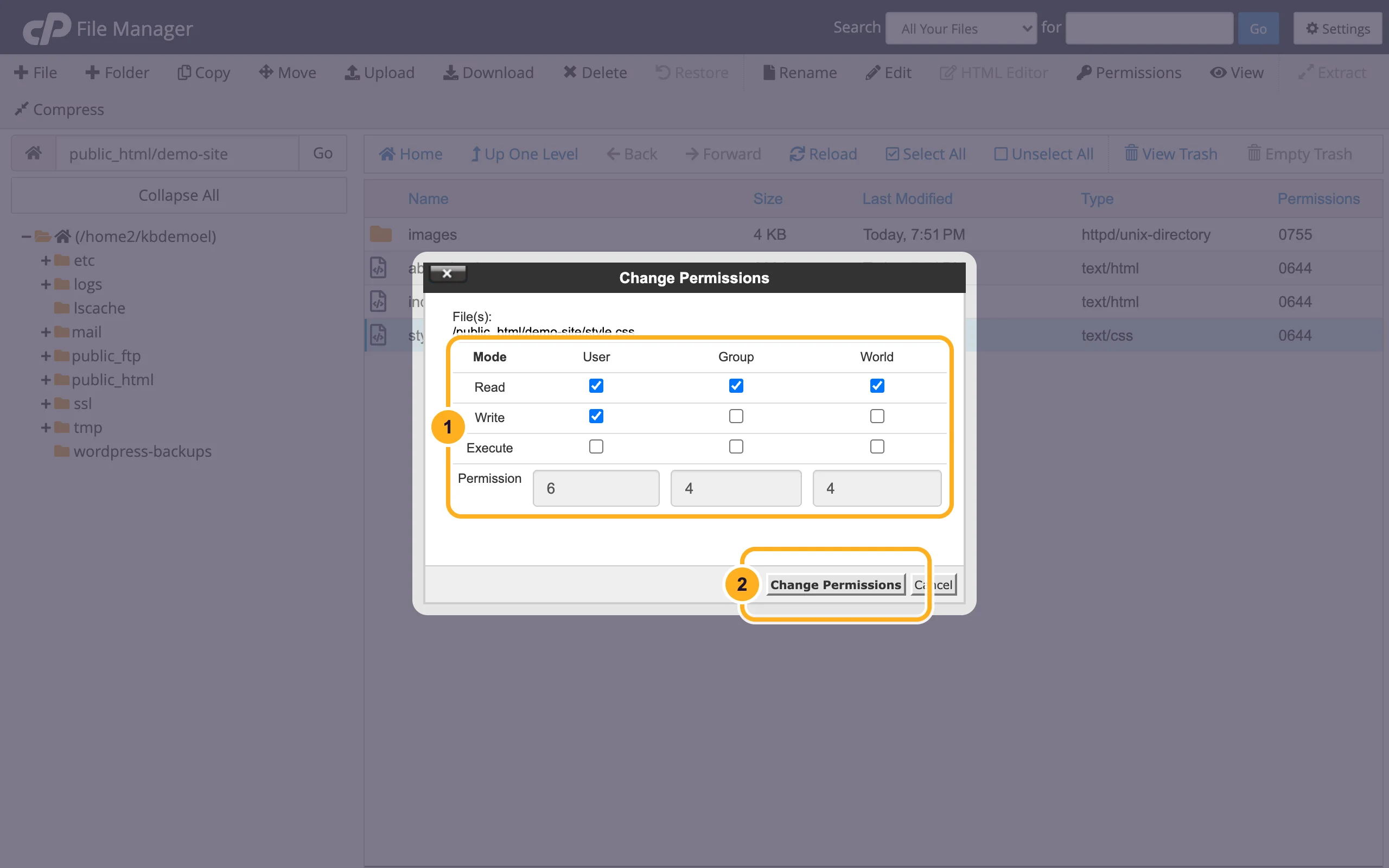
- Tick the boxes, or type the three numbers (for example
Don't use 777. It lets anyone who can run code on your account change the file, which malware likes to abuse.
Zip files and folders (Compress)
Select the files or the folder and click Compress.
In the dialog:
- Choose Zip Archive. It opens on every computer.
- Check the name and place of the new archive.
- Click Compress Files.
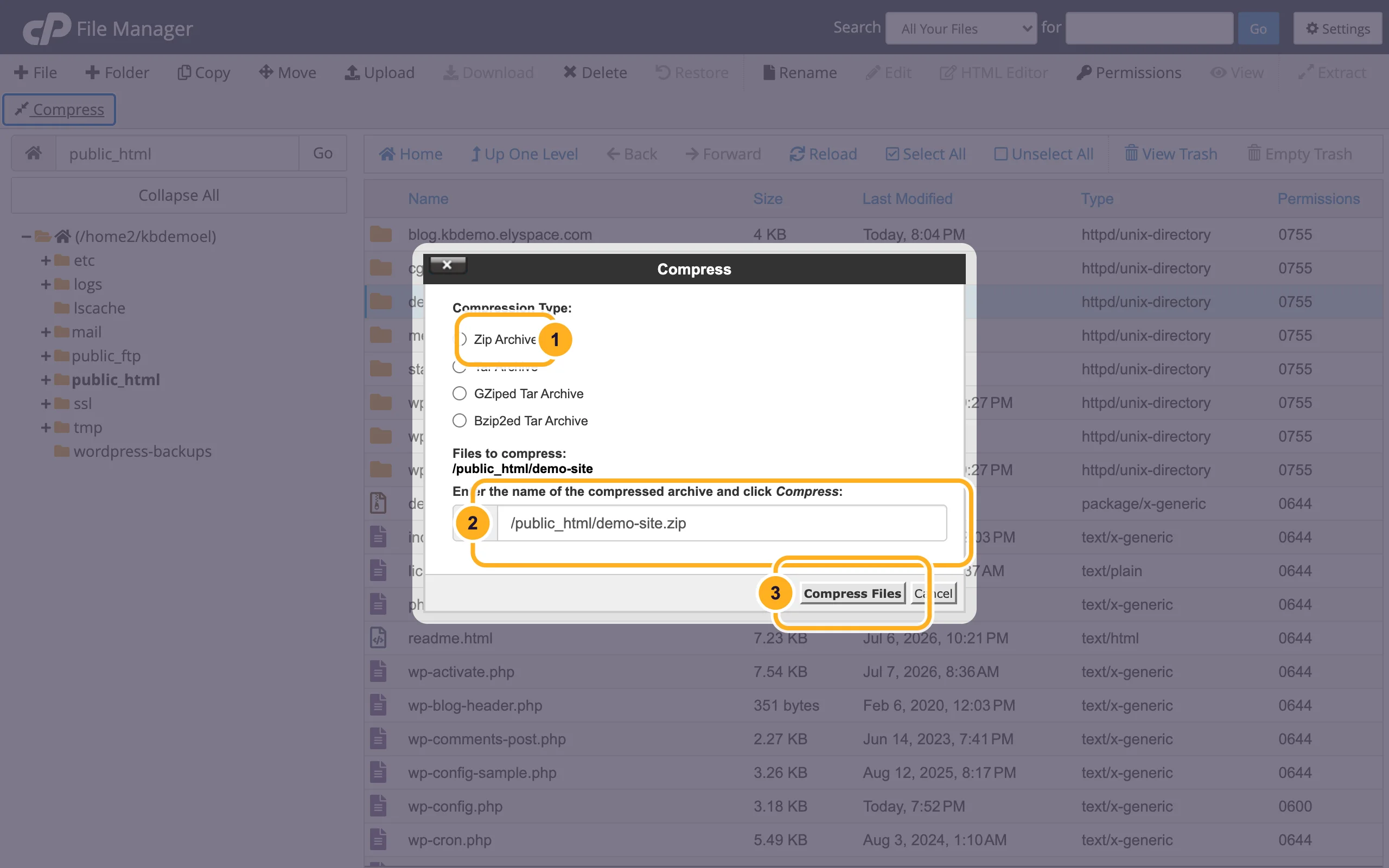
To download the archive, select it and click Download.
Unzip an archive (Extract)
Select the
.zip,.tar.gzor other archive and click Extract.In the dialog:
- Enter the folder to unpack into. If the folder doesn't exist, cPanel creates it.
- Click Extract Files.
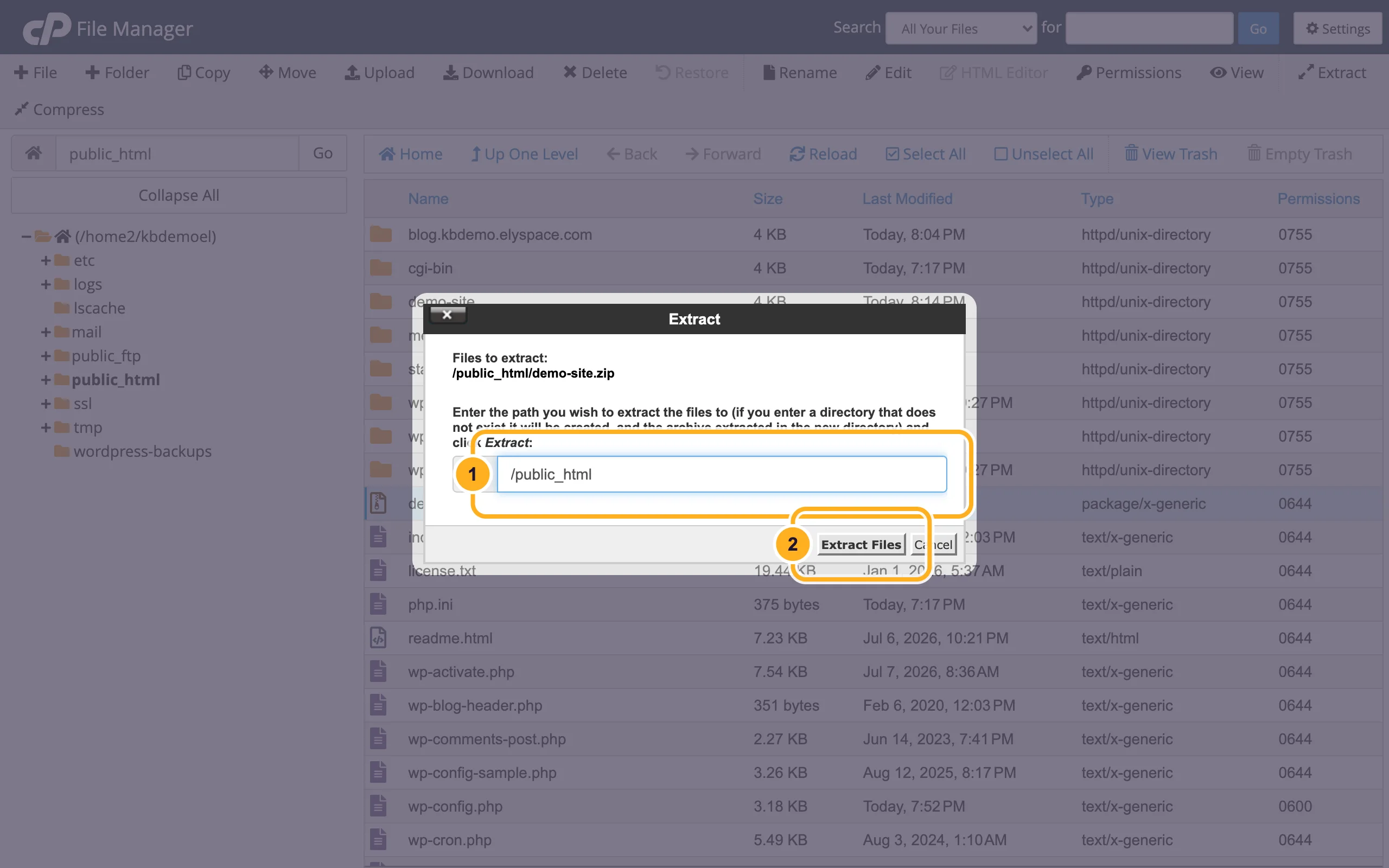
Files with the same name in the target folder can be replaced, so extract into a new, empty folder if you aren't sure.
Show hidden files such as .htaccess
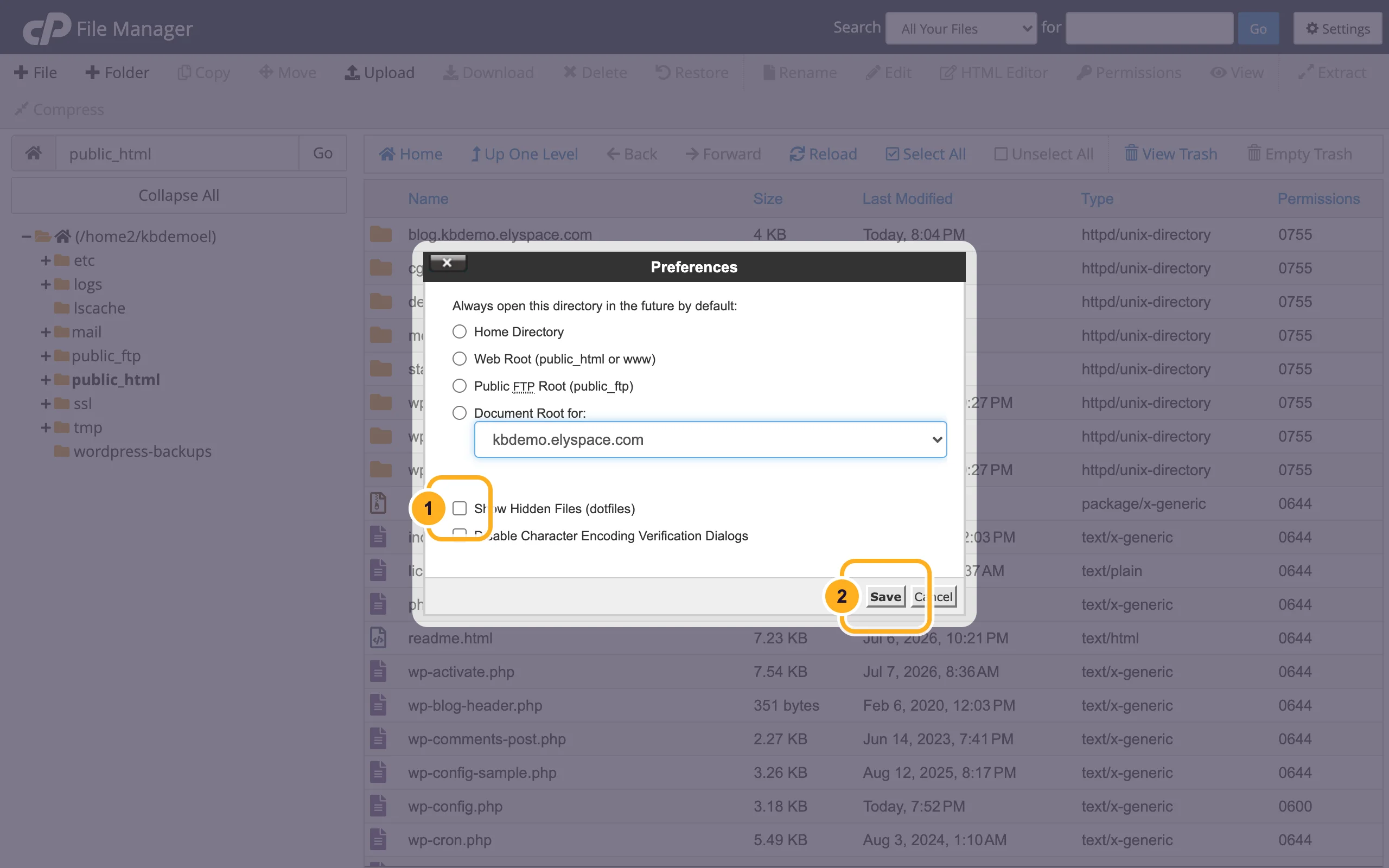
Files whose name starts with a dot, like .htaccess or .user.ini, are hidden at first.
Click Settings in the top right corner of File Manager.
Turn hidden files on:
- Tick Show Hidden Files (dotfiles).
- Click Save.
Delete files and use the trash
Select the files and click Delete.
Confirm:
- Leave Skip the trash and permanently delete the files unticked, so you can still get the files back.
- Click Confirm.
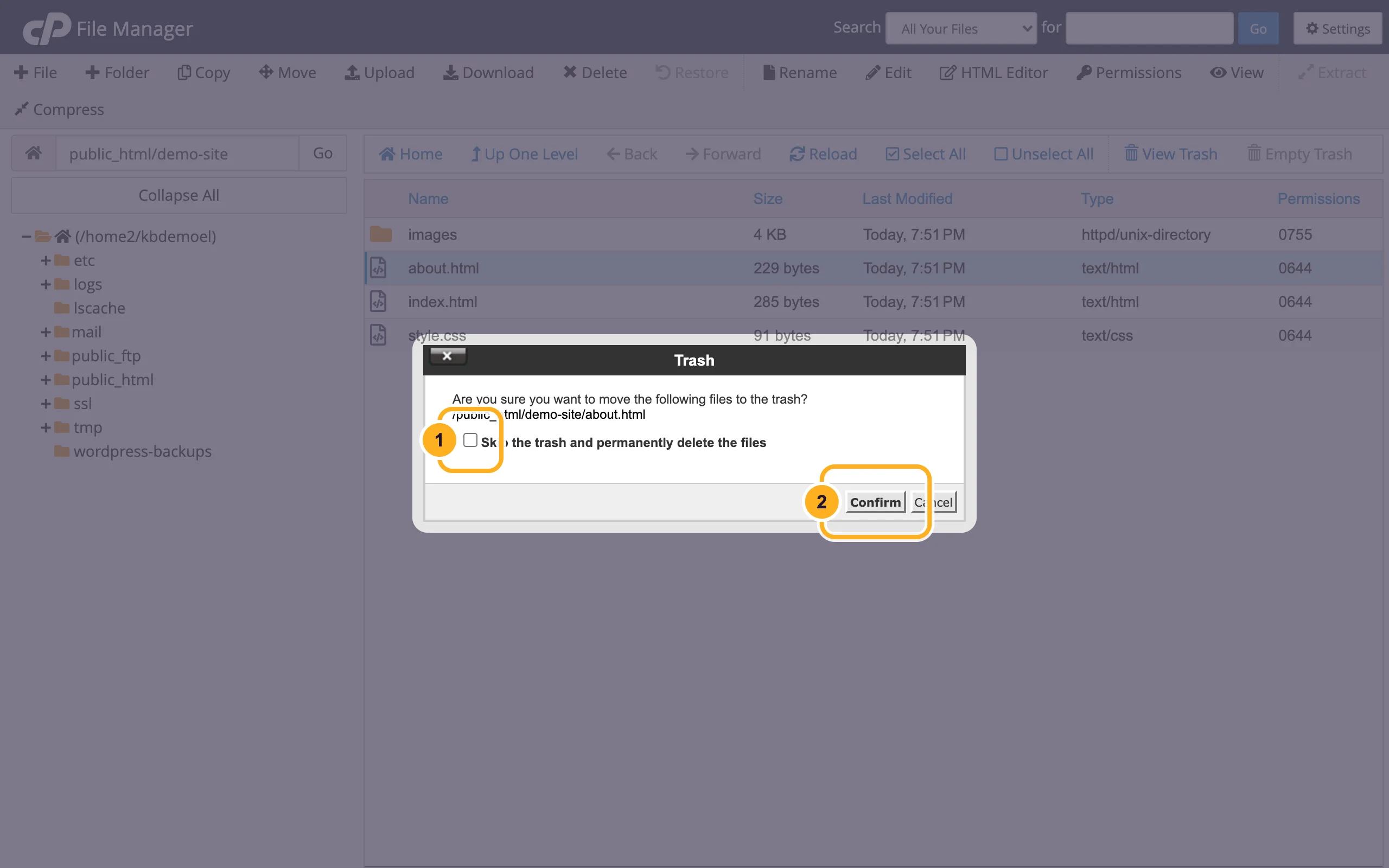
Deleted files go to the trash. Click View Trash, select a file and click Restore to put it back. Files in the trash still use disk space until you click Empty Trash.
Common problems
A toolbar button is grey
The action doesn't fit the selection. For example, Edit needs exactly one file, and Extract needs an archive. Select the right item first.
"500 Internal Server Error" after an edit
Usually a mistake in .htaccess or a PHP file, or wrong permissions. Undo your last change (or restore your copy) and check the error log.
Changes to a page don't show
Reload the page with Ctrl+F5 (Cmd+Shift+R on a Mac), and clear any cache plugin if the site uses one.
Related articles
- Upload files with the cPanel File Manager
- View the error log
- See what uses your disk space
- Password-protect a folder
Still stuck? Open a support ticket and we'll help.
