

cPanel's Disk Usage tool shows how much space each folder, your databases and your mailboxes use, so you can find what fills your hosting.
Open Disk Usage
Log in to cPanel and click Disk Usage in the Files section.
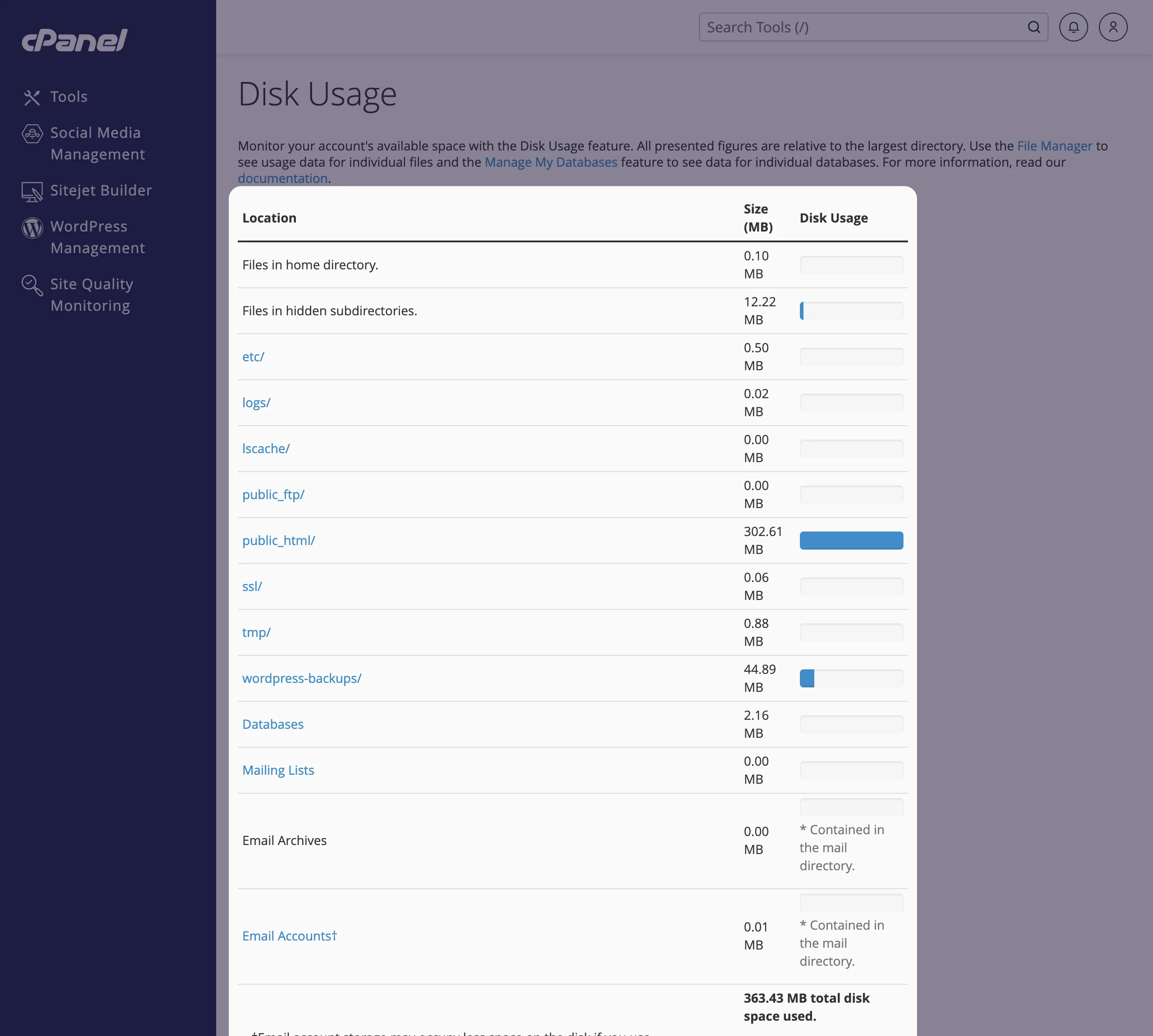
The first table lists the main parts of your account with their size in MB and a bar: your top-level folders (such as public_html/), Databases, Mailing Lists and Email Accounts. The total is at the bottom.
Scroll down to the folder list and choose Disk Usage next to Sort directories by. The biggest folders are now at the top. Click the arrow in front of a folder to see the folders inside it.
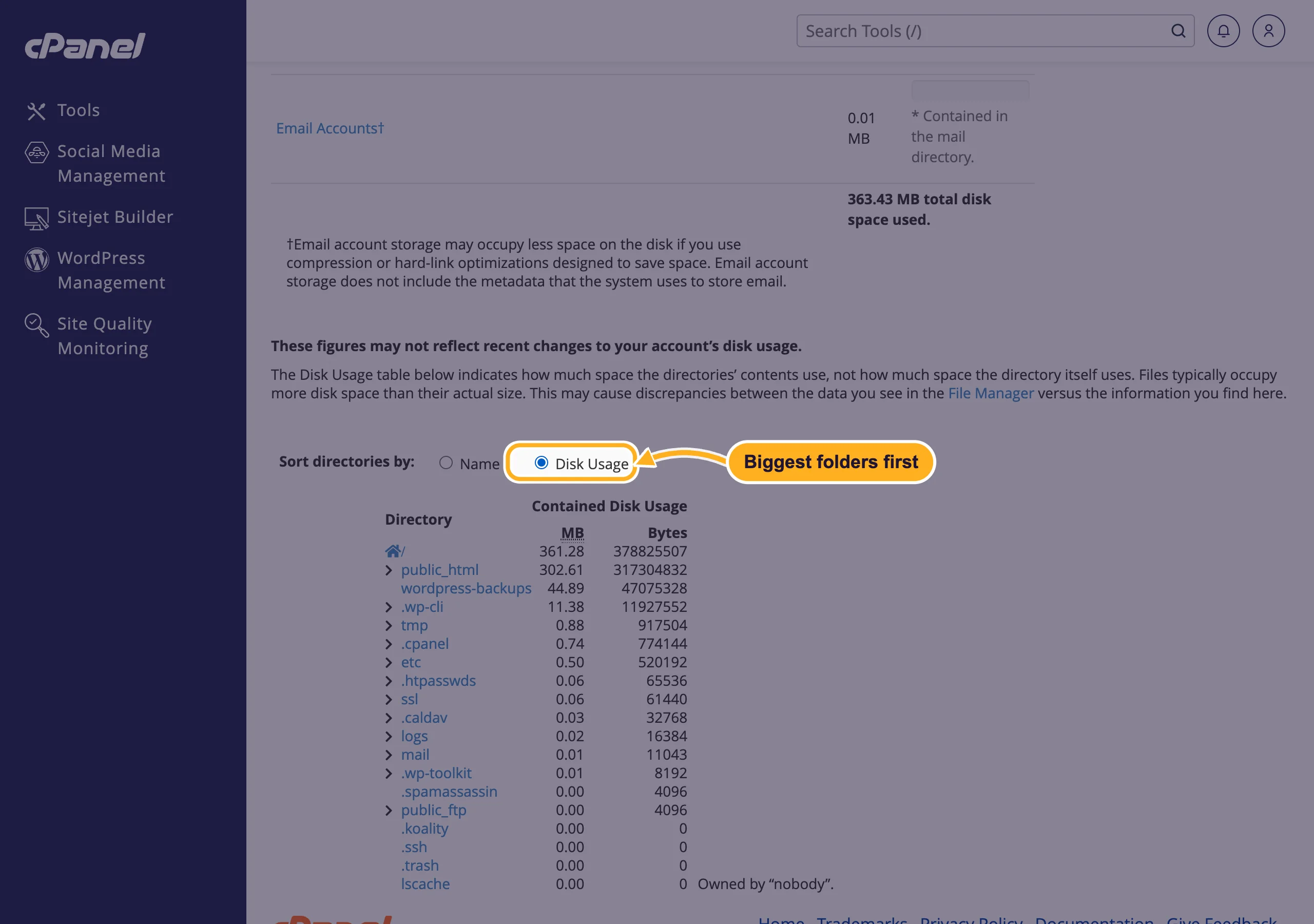
The figures can be a little behind: cPanel says so on the page. Your total and your plan's limit are also shown under Disk Usage in the Statistics panel on the cPanel home page, and in the client area (see Check disk space and bandwidth usage).
Where space usually goes
| What you see | What it is and what to do |
|---|---|
| public_html/ is large | Your website. In WordPress, look at wp-content/uploads (images) and old backup files from plugins. Delete what you don't need in the File Manager. |
| wordpress-backups/ | Backups made with WordPress Management. Remove old ones there, see Back up and restore a WordPress site. |
| Email Accounts or mail/ | Emails in your mailboxes. Delete old mail with attachments, or use Email Disk Usage in the Email section. |
| Databases | Your MySQL databases. Large ones often hold old logs or sessions of a plugin. |
| .trash | Files you deleted in File Manager. Click Empty Trash there to free the space. |
| logs/ or tmp/ | Log and temporary files. A big php.error.log means an error repeats, see View the error log. |
Folders whose name starts with a dot are hidden in File Manager at first. Turn on Show Hidden Files (dotfiles) under Settings to see them.
Common problems
You deleted files but the total didn't go down
Deleted files stay in the File Manager trash until you empty it. The figures on the Disk Usage page can also take a while to update.
Uploads or emails fail because the disk is full
Free some space as shown above. If you need more space for good, upgrade your plan.
Related articles
- Check disk space and bandwidth usage
- Manage files: edit, move, zip and set permissions
- View the error log
- Upgrade or downgrade your hosting plan
Still stuck? Open a support ticket and we'll help.
