

Open File Manager in cPanel, go to the public_html folder, click Upload and choose your files. No FTP program is needed, everything runs in the browser.
public_html/about.html opens at https://yourdomain.com/about.html.Upload a file
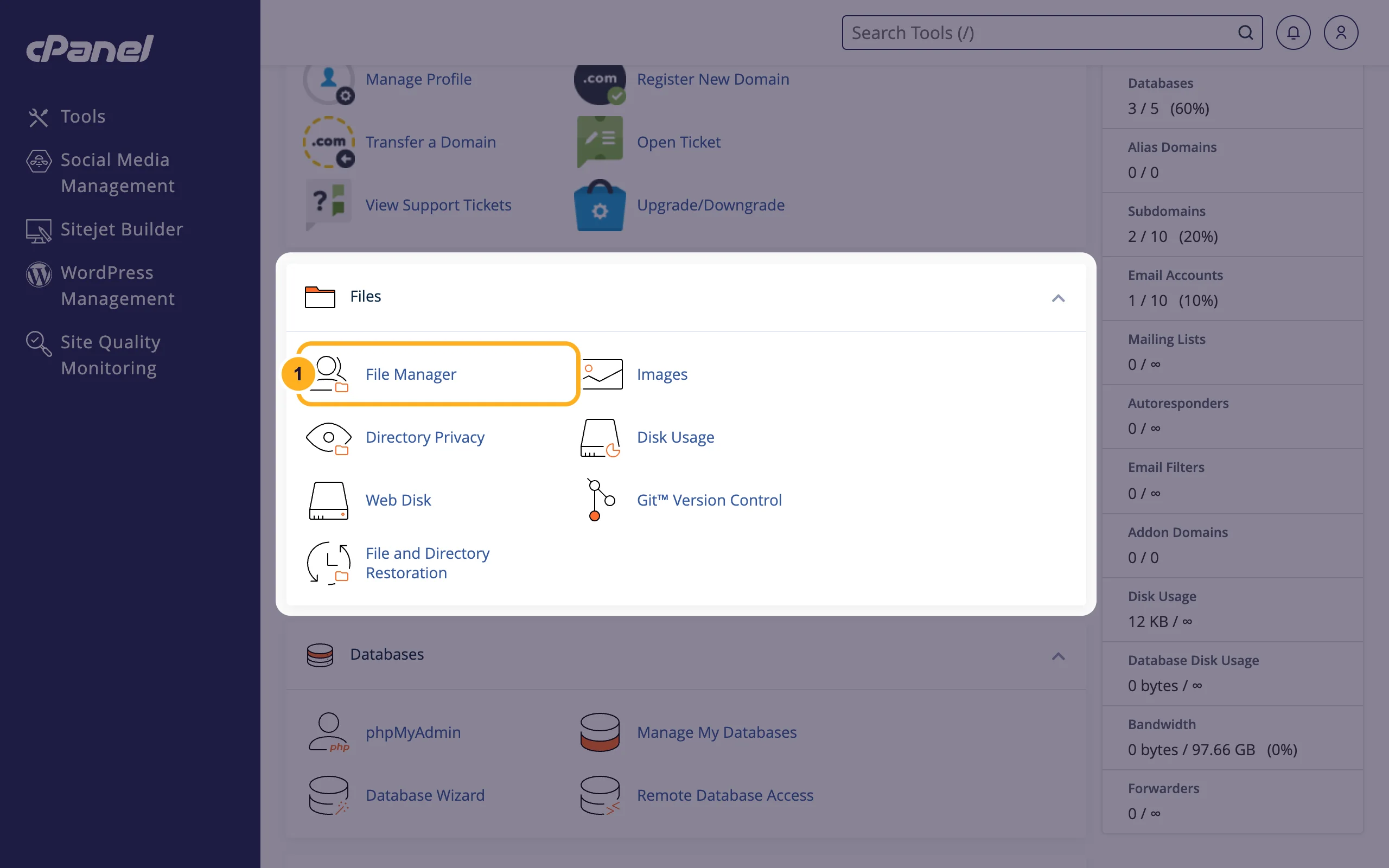
Log in to cPanel and click File Manager in the Files section.
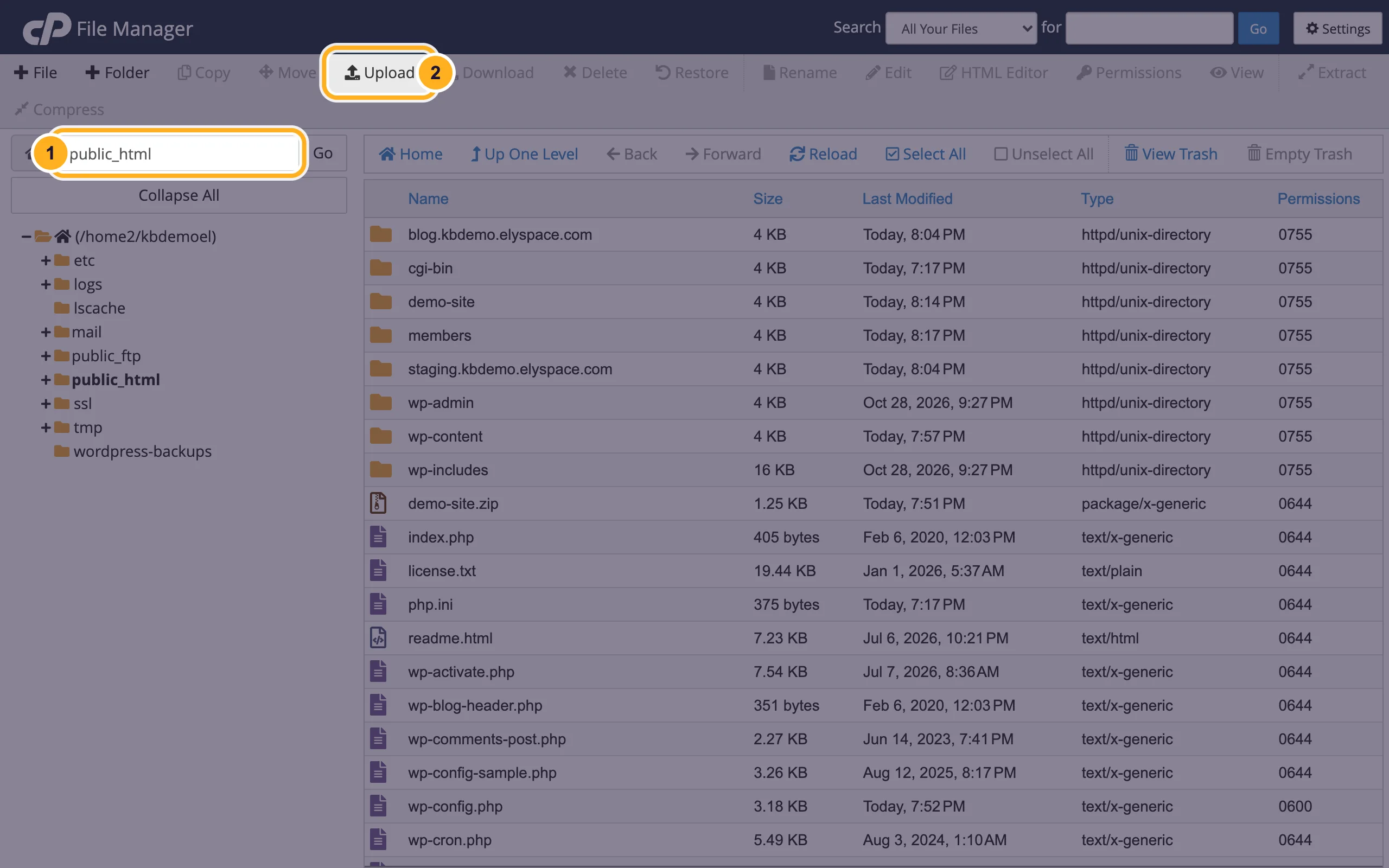
Open the folder you want to upload to, then click Upload:
- Double-click public_html in the list, or type the folder in the path box on the left and click Go.
- Click Upload in the toolbar. The upload page opens in a new browser tab.
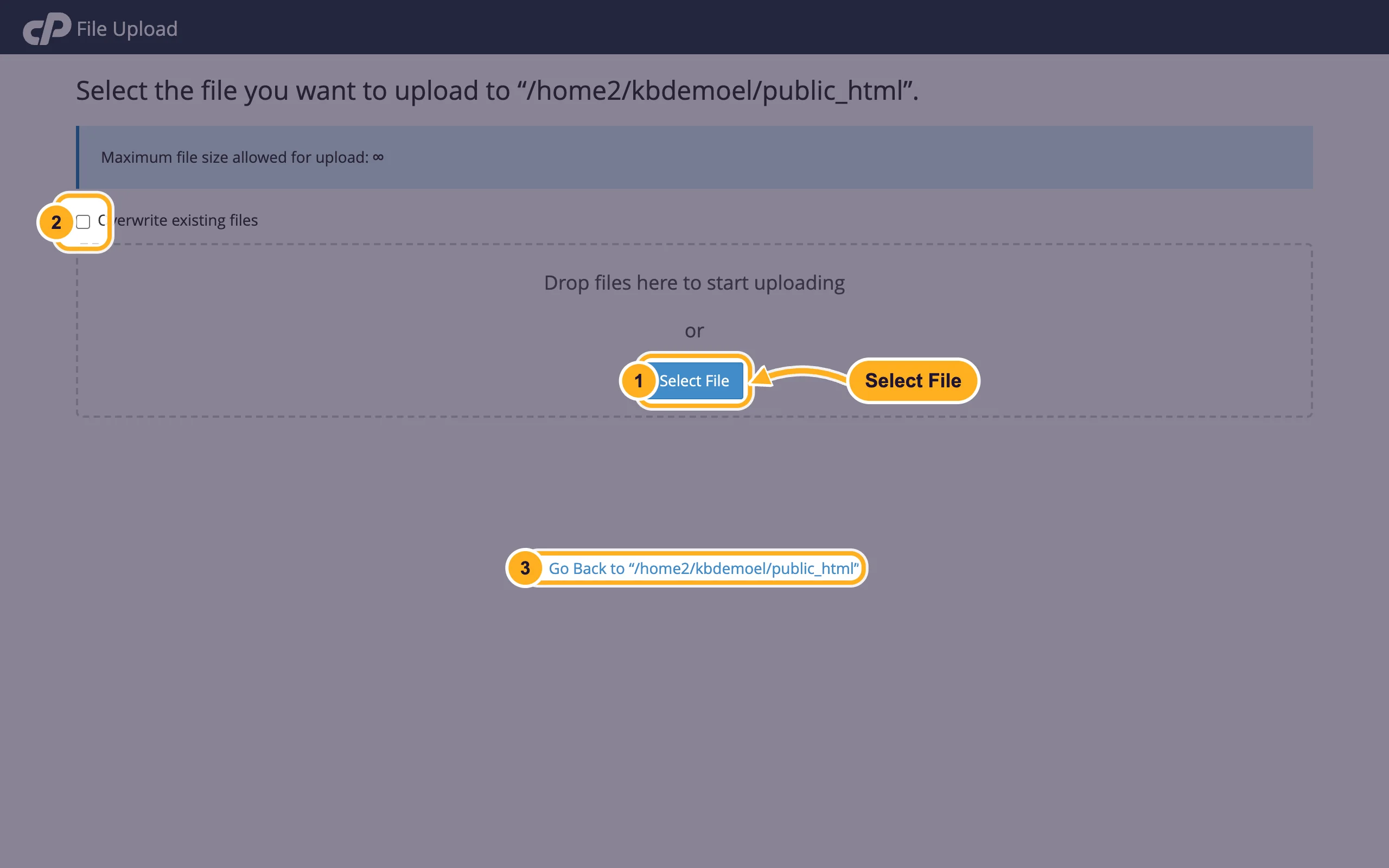
Add your files:
- Drag files from your computer onto the dashed box, or click Select File and pick them. The upload starts at once and shows a progress bar for each file.
- Overwrite existing files: tick it first if you want to replace files with the same name without being asked. If it's not ticked, cPanel asks Overwrite File? and you choose Yes or No.
- When each file shows 100% and complete, click Go Back to "…/public_html".
Back in File Manager, click Reload if the new files don't show yet.
Upload a whole website or a folder
The upload page takes files, not folders. To upload a complete site:
On your computer, pack the folder into a
.zipfile.Upload the zip file to public_html as shown above.
Select the zip file in File Manager, click Extract and confirm the folder. Then delete the zip file. See Manage files: edit, move, zip and set permissions.
Zipping also makes the upload much faster than sending hundreds of small files one by one.
Common problems
The website still shows the old page
Your browser or a cache may still hold the old version. Reload the page with Ctrl+F5 (Cmd+Shift+R on a Mac). If you use WordPress with a caching plugin, clear its cache too.
The file is in the wrong place
Check the path at the top of the upload page: it shows the folder the files go to. If they landed in the wrong folder, select them in File Manager and use Move.
The upload stops or fails
Very large files can break off on a slow or unstable connection. Zip them, try again on a stable connection, or split the upload into smaller parts. If your disk space is full, uploads fail too: see See what uses your disk space.
Related articles
- Manage files: edit, move, zip and set permissions
- cPanel at a glance: the most-used tools
- See what uses your disk space
- Move your website to ElySpace (free migration)
Still stuck? Open a support ticket and we'll help.
