

"There has been a critical error on this website" means a PHP error stopped WordPress, usually in a plugin or theme. Find it in the error log and switch it off.
1. Find the cause in the error log
PHP errors from your website are saved in logs/php.error.log in your home directory. Open it in cPanel's File Manager and read the newest lines at the bottom. A line such as PHP Fatal error: ... in /home/.../wp-content/plugins/plugin-name/... tells you which plugin (or theme, under themes) caused it. See View the error log.
2. Switch off the plugin from cPanel
You don't need the WordPress dashboard for this:
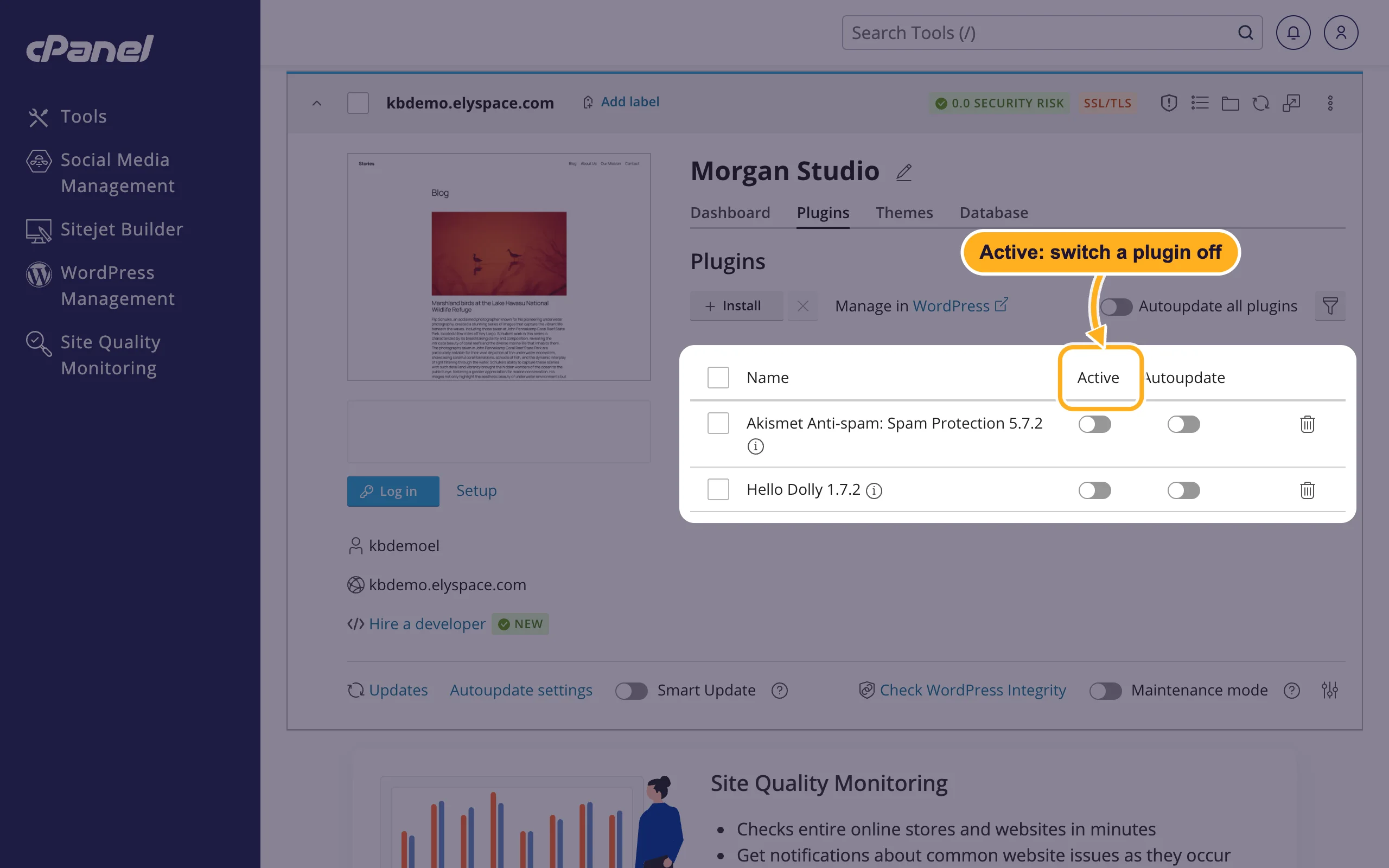
Log in to cPanel, click WordPress Management and open the Plugins tab on your site's card.
Turn off the Active switch of the plugin from the log. Reload your site. If you don't know which plugin it is, switch them off one at a time and reload after each.
Another way: in File Manager, open wp-content/plugins and rename the plugin's folder (for example add -off to its name). WordPress then deactivates it. If the error comes from the theme, rename the theme's folder in wp-content/themes; WordPress switches to another installed theme.
When the site works again, update or replace the plugin before you switch it back on (see Update WordPress, plugins and themes).
3. Turn on WordPress debugging (if the log shows nothing)
On the site's card in WordPress Management, click the settings icon next to Debugging.
In Debug Settings:
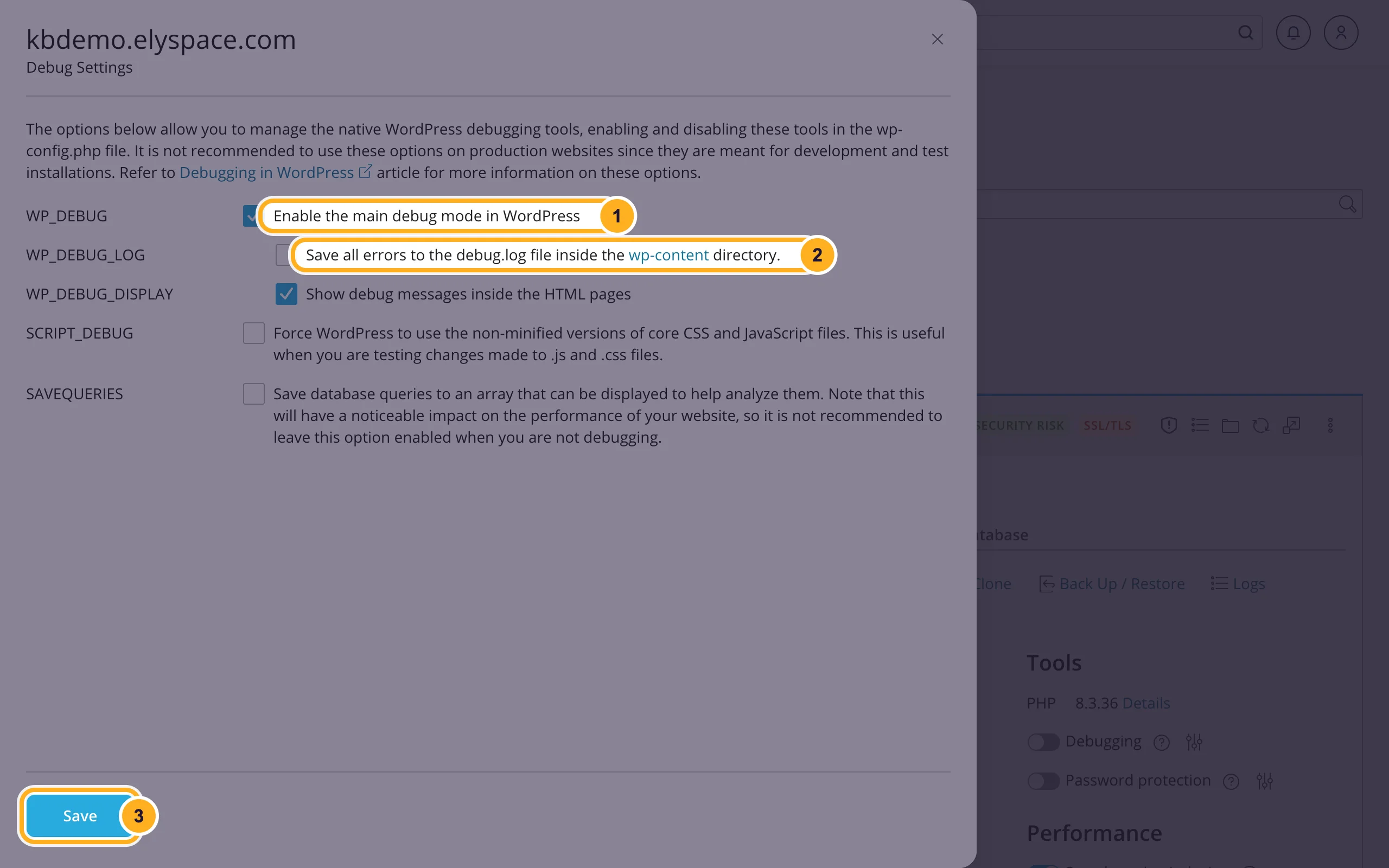
- Tick WP_DEBUG.
- Tick WP_DEBUG_LOG to save all errors to
wp-content/debug.log. Untick WP_DEBUG_DISPLAY, so visitors don't see error messages on your pages. - Click Save and make sure the Debugging switch on the card is on.
Reload your site, then read
wp-content/debug.login File Manager. Turn Debugging off again when you're done.
4. Other causes
- PHP version: if the error started after a PHP version change, an old plugin or theme may not support the new version. Your site's card shows the PHP version; change it in cPanel's MultiPHP Manager (see Change the PHP version and PHP settings).
- Memory: the log says
Allowed memory size ... exhausted. Raisememory_limitin the MultiPHP INI Editor (same article). - A failed update: use Check WordPress Integrity on the card to repair WordPress's own files (see Remove malware from index.php), or restore a backup (see Back up and restore a WordPress site).
Other common WordPress errors
A blank white page
It's usually the same kind of PHP error, without a message. Follow the steps above.
"Error establishing a database connection"
WordPress can't reach its database. The database name, user or password in wp-config.php don't match, often after a password change or a move. Compare them with cPanel's Manage My Databases, or set the database user's password again and enter it in wp-config.php (see Change a database user's password).
Posts and pages show "Page not found"
See Fix posts and pages that show 404 (permalinks).
Images won't upload
Check your disk space (see See what uses your disk space) and that folders have permission 755 and files 644 (see Manage files: edit, move, zip and set permissions).
The login page keeps reloading
See Log in to your WordPress dashboard.
Related articles
Still stuck? Open a ticket in WordPress Support: Open a support ticket and we'll help.
