

Install WordPress in cPanel with WordPress Management: choose the domain, enter a site title and admin login, and click Install. It takes about a minute.
Install WordPress
Log in to cPanel. From the client area, open your hosting service and click Log in to control panel (see Log in to cPanel from the client area).
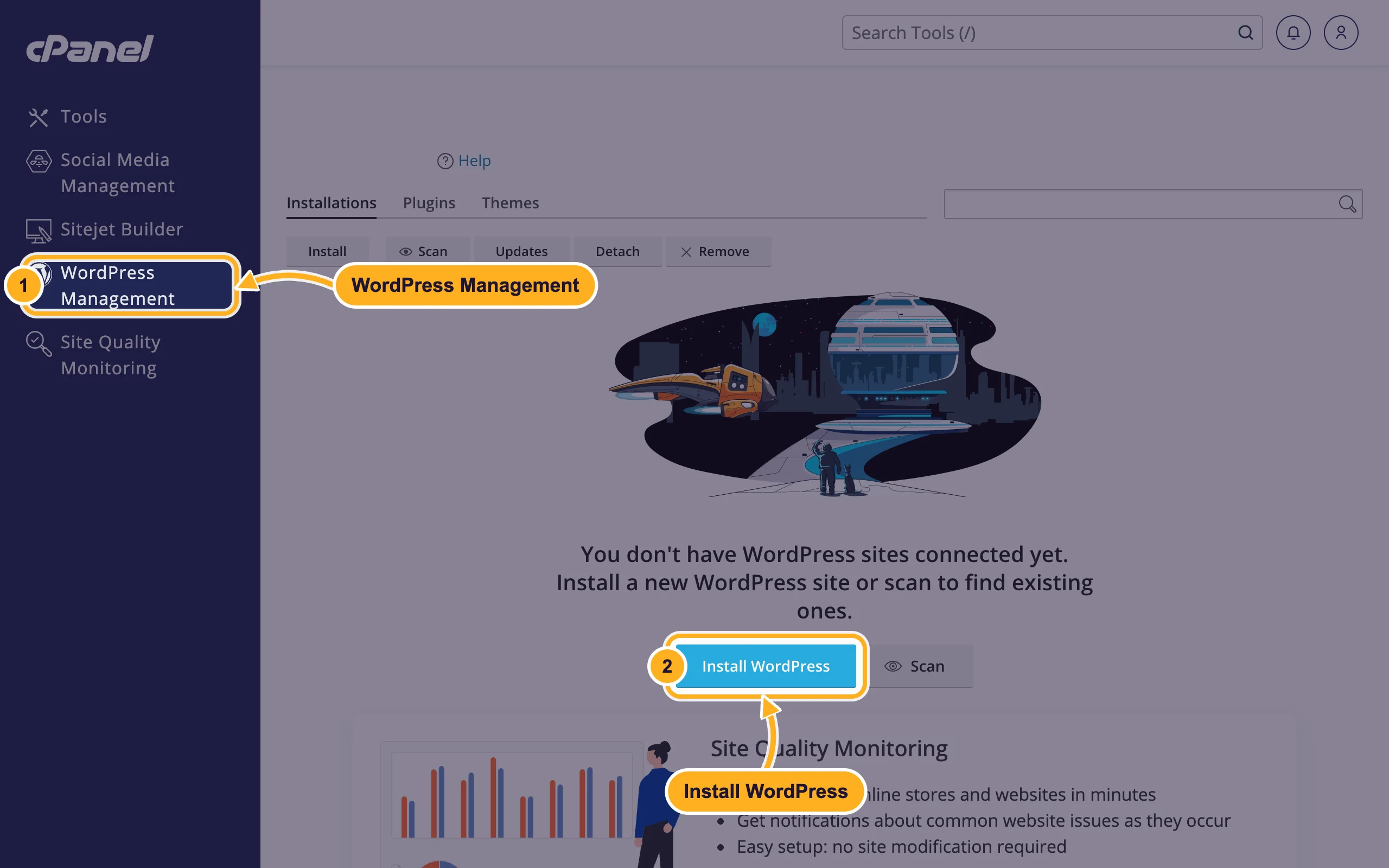
Click WordPress Management in the menu on the left, then click Install WordPress. If you already have a WordPress site, the button is called Install and sits above the list of sites.
Fill in the Install WordPress form:
- Installation path: pick your domain. Leave Installation directory empty to put WordPress at the main address (yourdomain.com). Type a folder name, for example
blog, to install it at yourdomain.com/blog. - Website title: your site's name. You can change it later in WordPress.
- Username: the name you'll log in to WordPress with. Avoid
admin, because attackers try that name first. - Password: click Generate for a strong password, or type your own. Click the eye icon to see it and save it in your password manager.
- Email: an address you read. WordPress sends password reset links and warnings there.
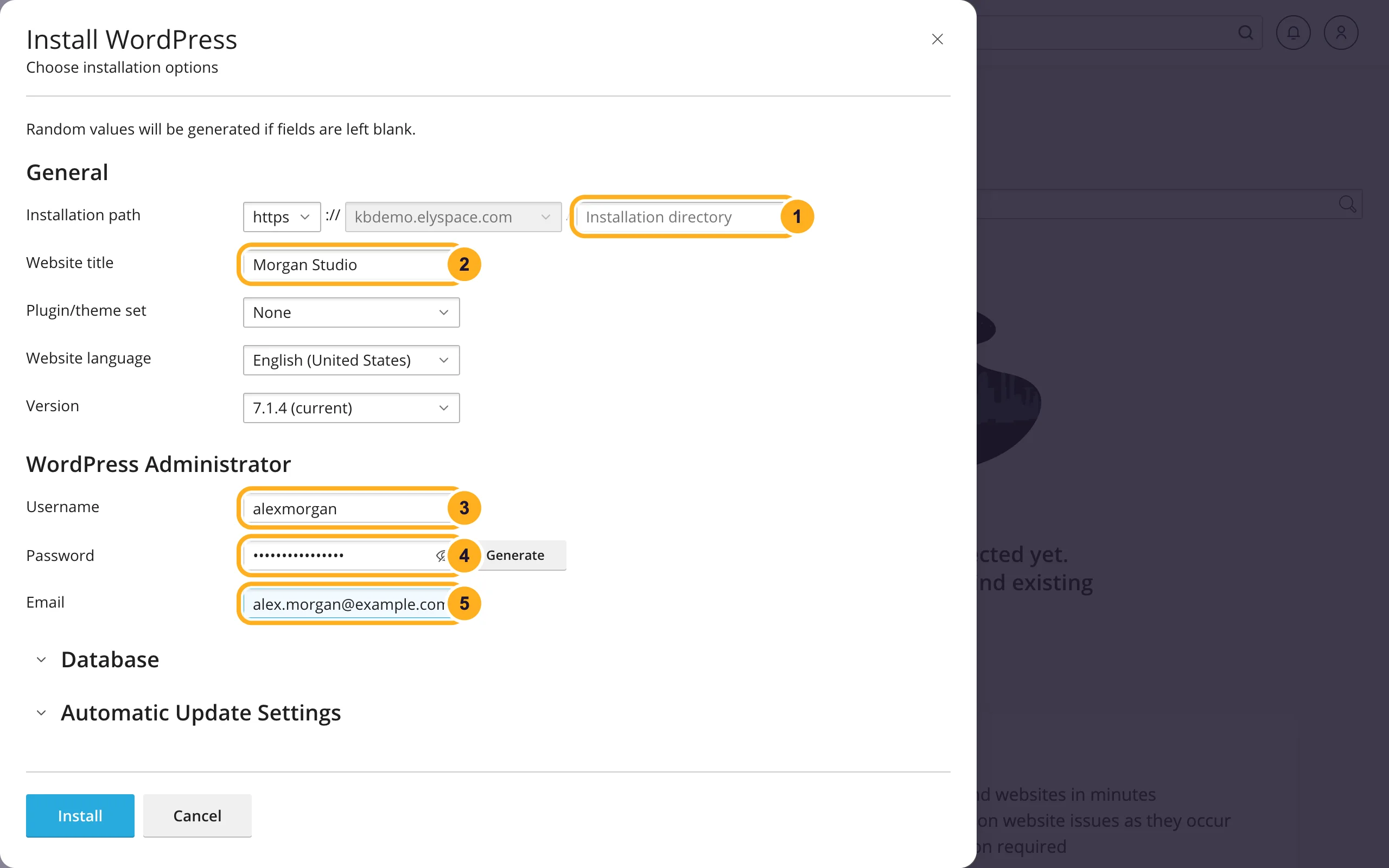
The other fields can stay as they are. Plugin/theme set adds a ready-made group of plugins (for example E-Commerce pack for an online shop); None gives you a clean WordPress. Website language sets the language of the WordPress dashboard. Fields you leave empty get random values.
- Installation path: pick your domain. Leave Installation directory empty to put WordPress at the main address (yourdomain.com). Type a folder name, for example
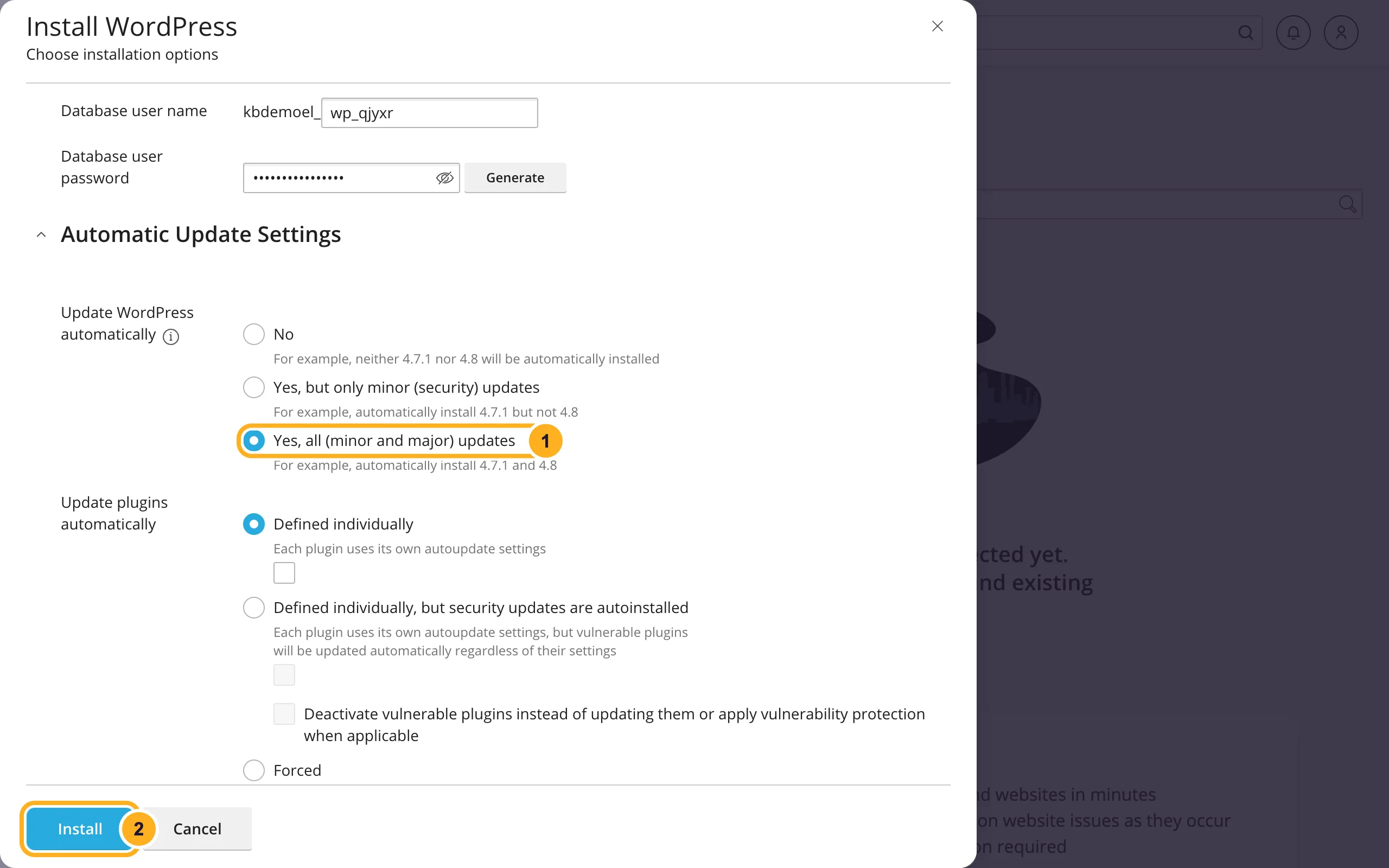
Scroll down. Under Database you see the database name and user that will be created for this site. Under Automatic Update Settings choose how WordPress updates itself:
- Yes, all (minor and major) updates keeps WordPress itself up to date. We recommend leaving it on.
- Click Install.
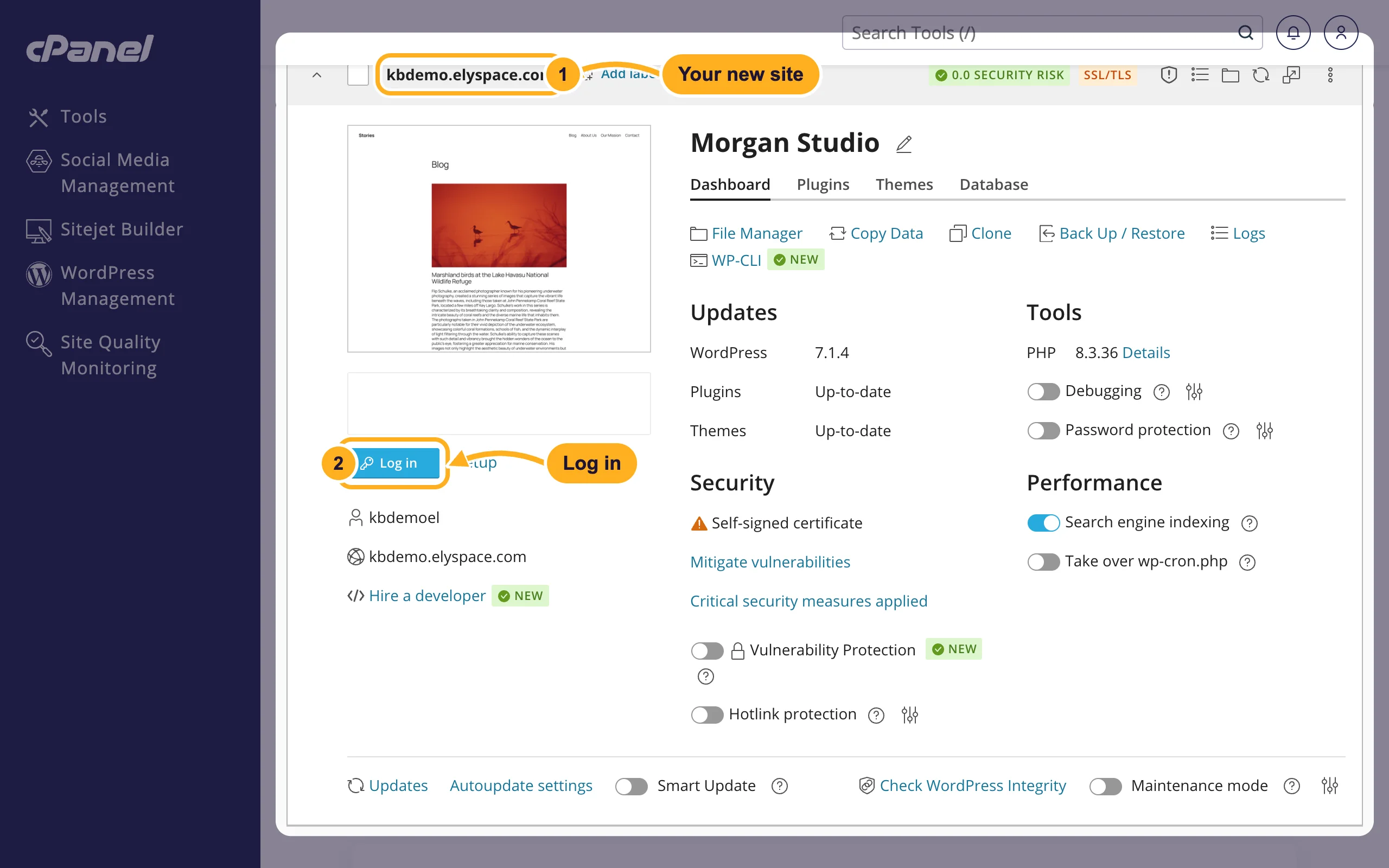
Wait while WordPress is installed. When Installation Complete appears, click No, thanks to start with a clean site, or Install Plugins to add some right away. Your new site now has its own card in WordPress Management. Click Log in on the card to open the WordPress dashboard.
What to do next
- Open the dashboard: Log in to your WordPress dashboard.
- Pick a theme and add your first pages: Build your first WordPress website.
- Check that your site has a working SSL certificate: Free SSL: check and fix your certificate (AutoSSL).
Common problems
The domain still shows an old page or a default page
If the folder already has an index.html file, the server shows that file instead of WordPress. Open File Manager, go to the folder you installed into (usually public_html) and rename or delete the old index.html. See Manage files: edit, move, zip and set permissions.
The site doesn't open at all
Your domain has to point to your ElySpace hosting. Check your nameservers in Find your server name, IP address and nameservers. After a change, DNS can take a few hours to update worldwide.
The browser shows a security warning
A new domain gets its free SSL certificate once it points to our server. Until then browsers warn about the connection. See Free SSL: check and fix your certificate (AutoSSL).
You forgot the WordPress password
You can set a new one in WordPress Management without the old one. See Log in to your WordPress dashboard.
Related articles
- Log in to your WordPress dashboard
- Update WordPress, plugins and themes
- Back up and restore a WordPress site
- WordPress.org or WordPress.com: the difference
Still stuck? Open a support ticket and we'll help.
