

To write a WordPress post, go to Posts > Add Post, type a title and your text, add images with the + button, then click Publish.
Posts are for news, articles and blog entries. They are dated and listed newest first. For content that rarely changes, such as About us or Contact, use a page instead (see Build your first WordPress website).
Write the post
Log in to WordPress (see Log in to your WordPress dashboard), point to Posts in the menu and click Add Post.
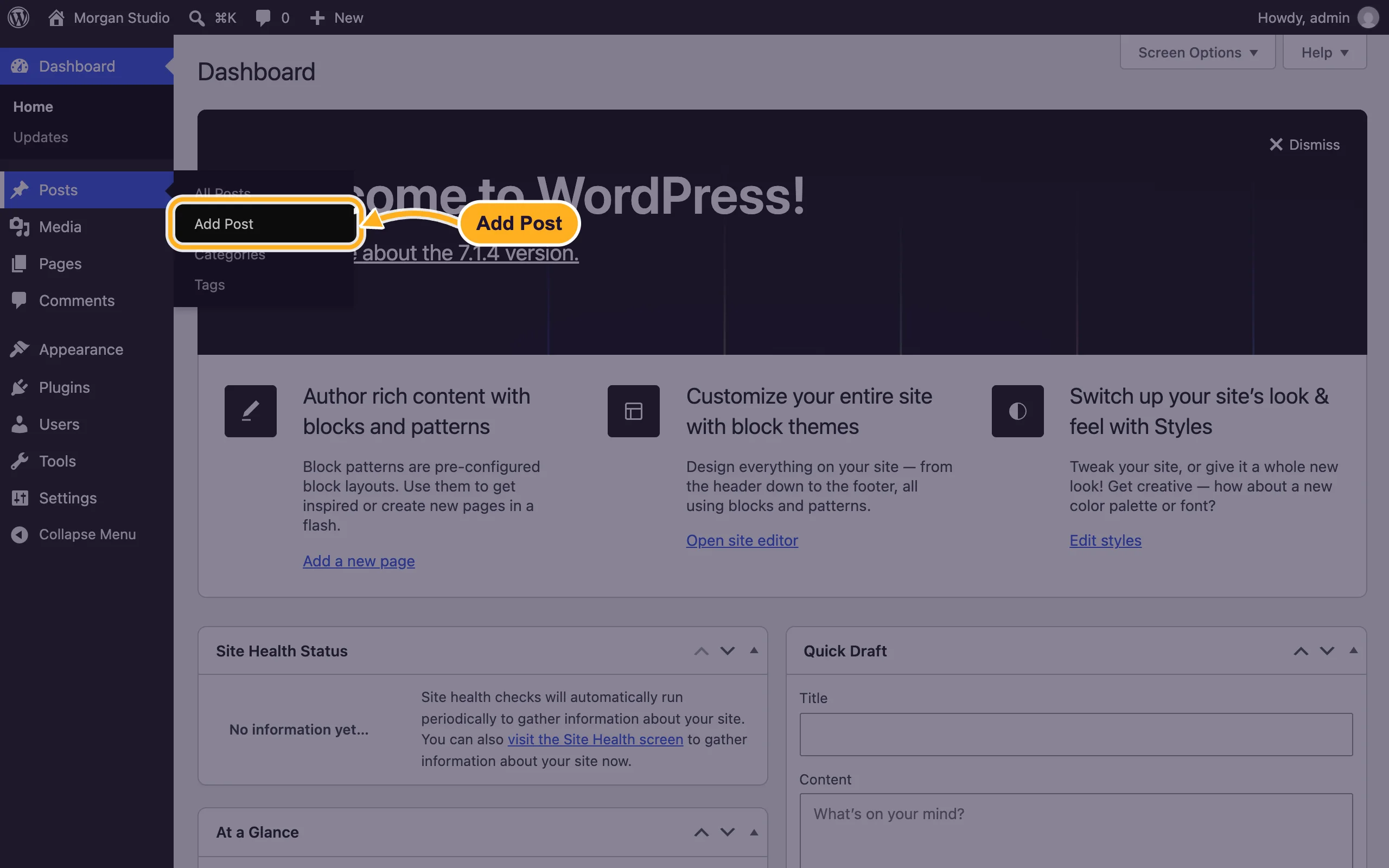
If a welcome guide appears, close it. Type the title, press Enter and write your text. Each paragraph is a block.
Use the editor:
- + (top left) adds blocks: Image, Heading, List, Quote, Video and many more. You can also type
/in an empty line, for example/image. - Save draft saves without publishing. Come back later through Posts > All Posts.
- Publish puts the post online (see below).
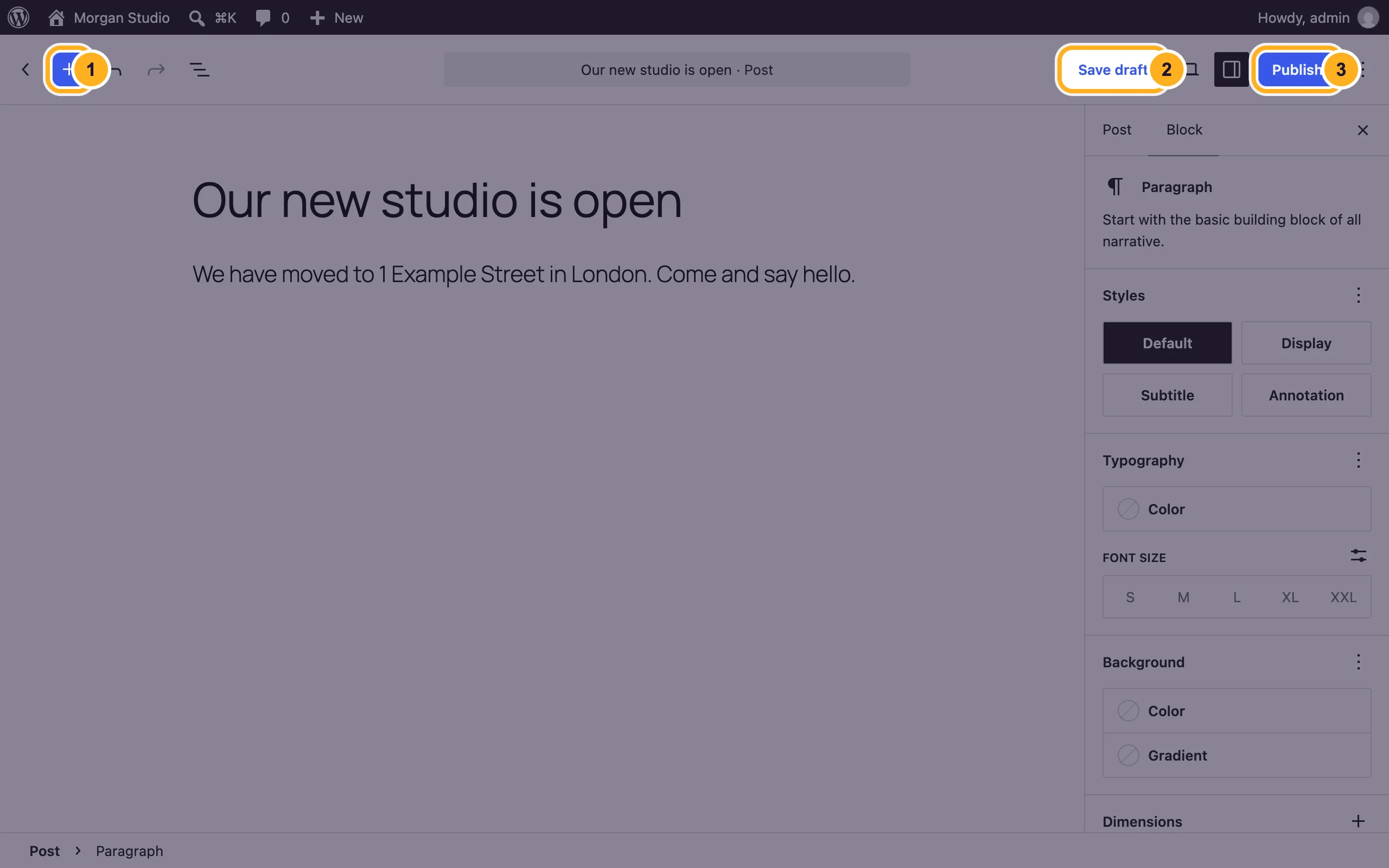
- + (top left) adds blocks: Image, Heading, List, Quote, Video and many more. You can also type
Add the finishing touches
Click Post at the top of the right sidebar. If you don't see the sidebar, click the Settings icon (the square next to Publish). There you can:
- Categories and Tags: group posts by topic, for example "News" or "Projects". Manage them under Posts > Categories.
- Set featured image: the picture shown in post lists and when the post is shared.
- Add an excerpt: a short summary for post lists.
- Next to Publish, Immediately can be changed to a date and time to schedule the post.
Publish
Click the preview icon at the top right to check how the post looks.
Click Publish. WordPress shows a short check panel; click Publish again to confirm. The post is online and appears on your posts page.
To change a published post, open it from Posts > All Posts, edit it and click Save.
Common problems
The post opens with "Page not found"
Go to Settings > Permalinks and click Save Changes. See Fix posts and pages that show 404 (permalinks).
An image won't upload
Very large photos can fail. Make the image smaller (about 2000 pixels wide is plenty for the web) and try again. If every upload fails, check your disk space in cPanel (see See what uses your disk space).
The post doesn't appear on the homepage
Your homepage may show a fixed page. Posts then appear on the posts page you chose in Choose your WordPress homepage.
Related articles
- Build your first WordPress website
- Choose your WordPress homepage
- Log in to your WordPress dashboard
Still stuck? Open a support ticket and we'll help.
