

phpMyAdmin lets you browse, edit, export and import your MySQL databases in the browser. Open it from cPanel, no extra login needed.
Open phpMyAdmin
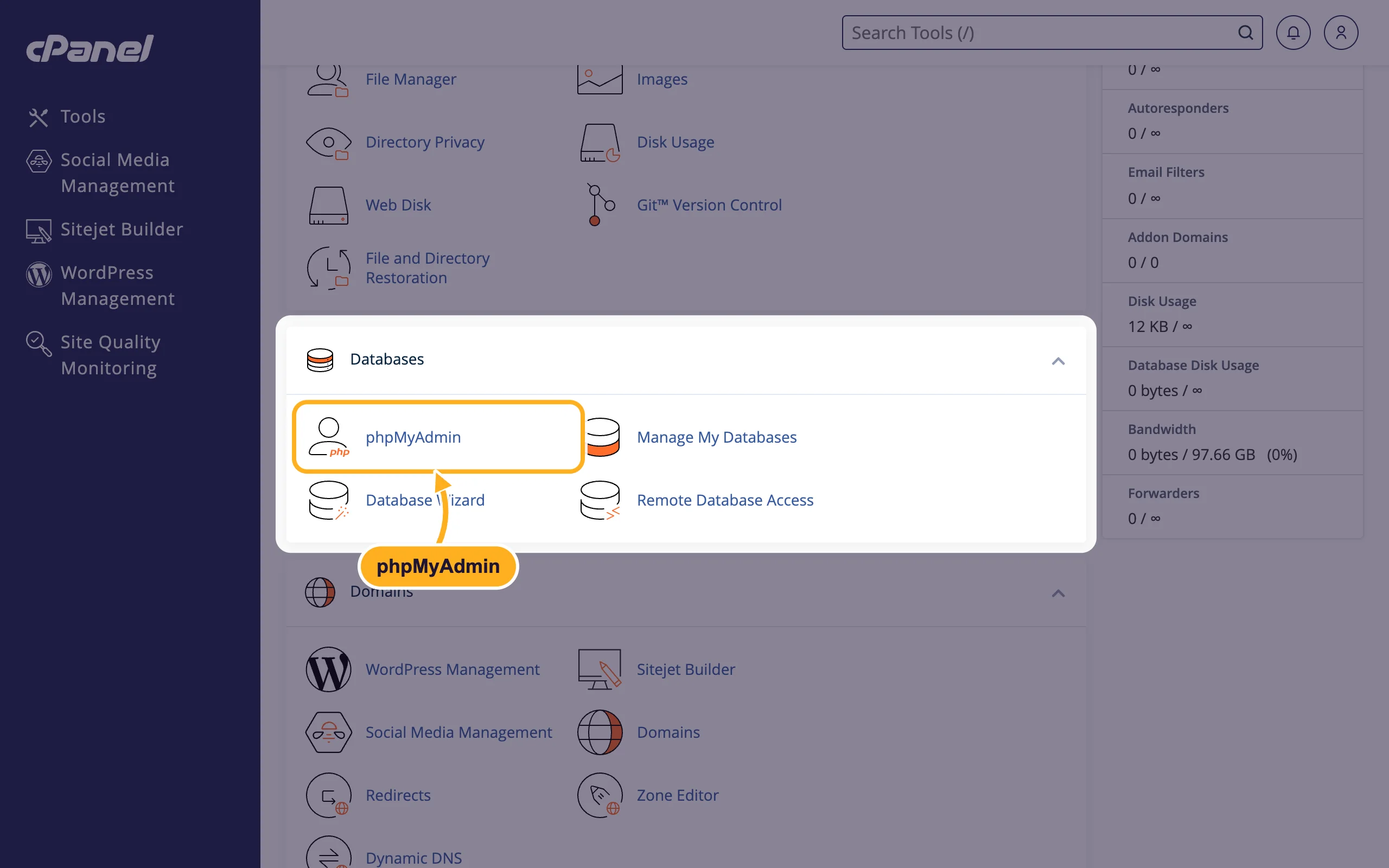
Log in to cPanel (see Log in to cPanel from the client area). In the Databases section, click phpMyAdmin. It opens in a new browser tab.
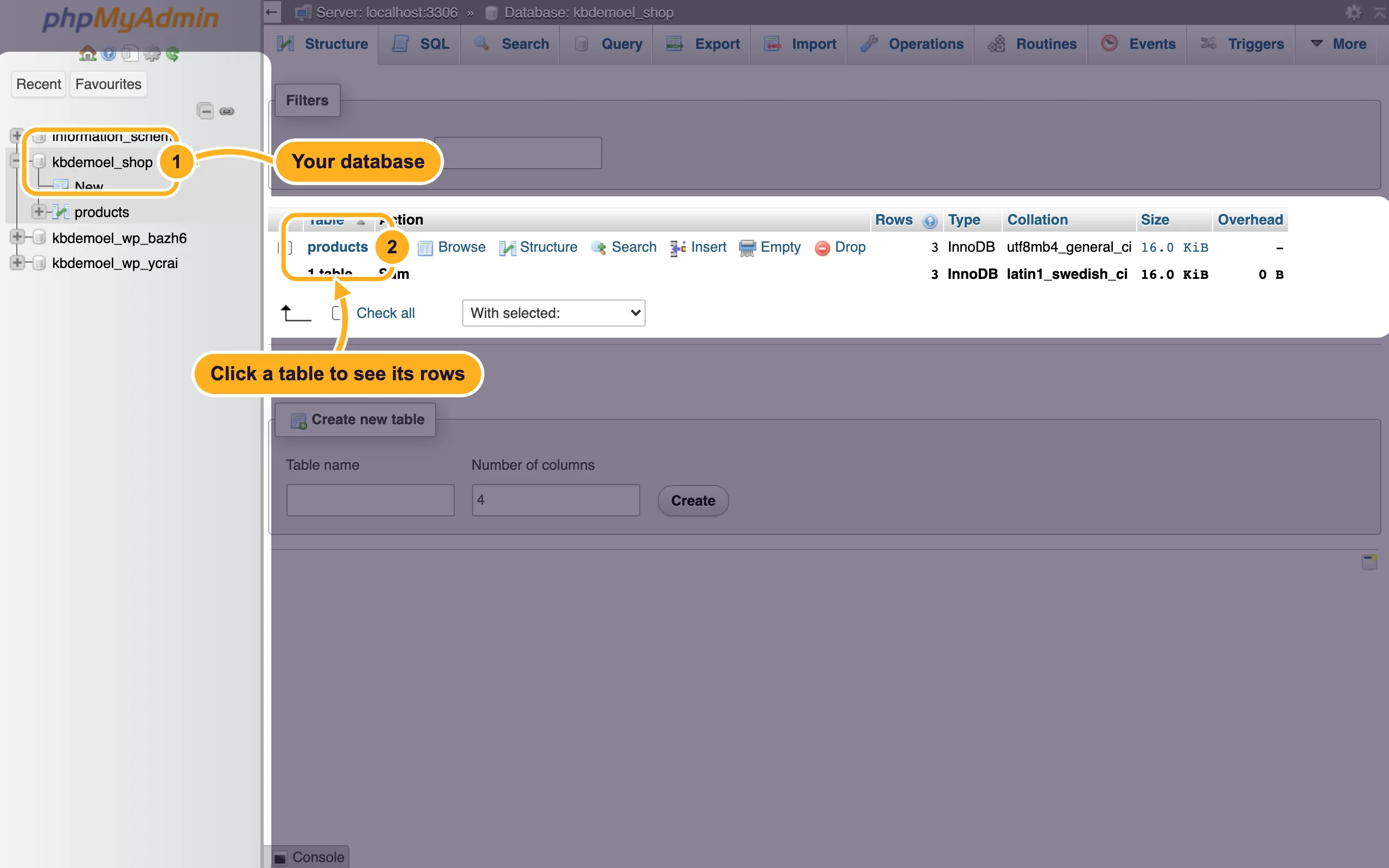
In the list on the left you see all databases of your account (
information_schemais a system database, leave it alone):- Click your database. Its tables are listed on the right.
- Click a table name, or Browse next to it, to see its rows.
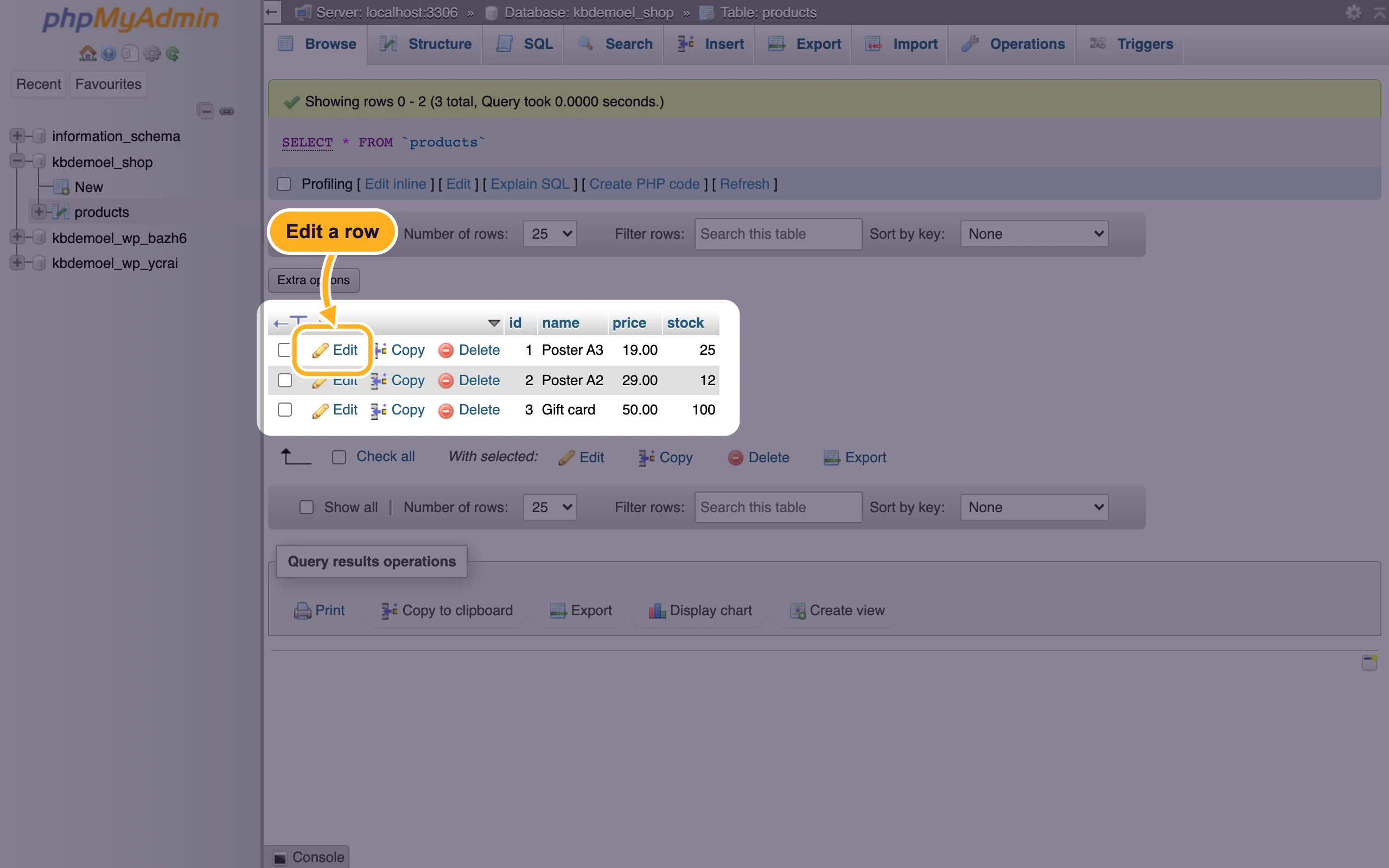
Edit, copy or delete a row
When you browse a table, every row has Edit, Copy and Delete. Click Edit, change the values and click Go to save.
Export (back up) a database
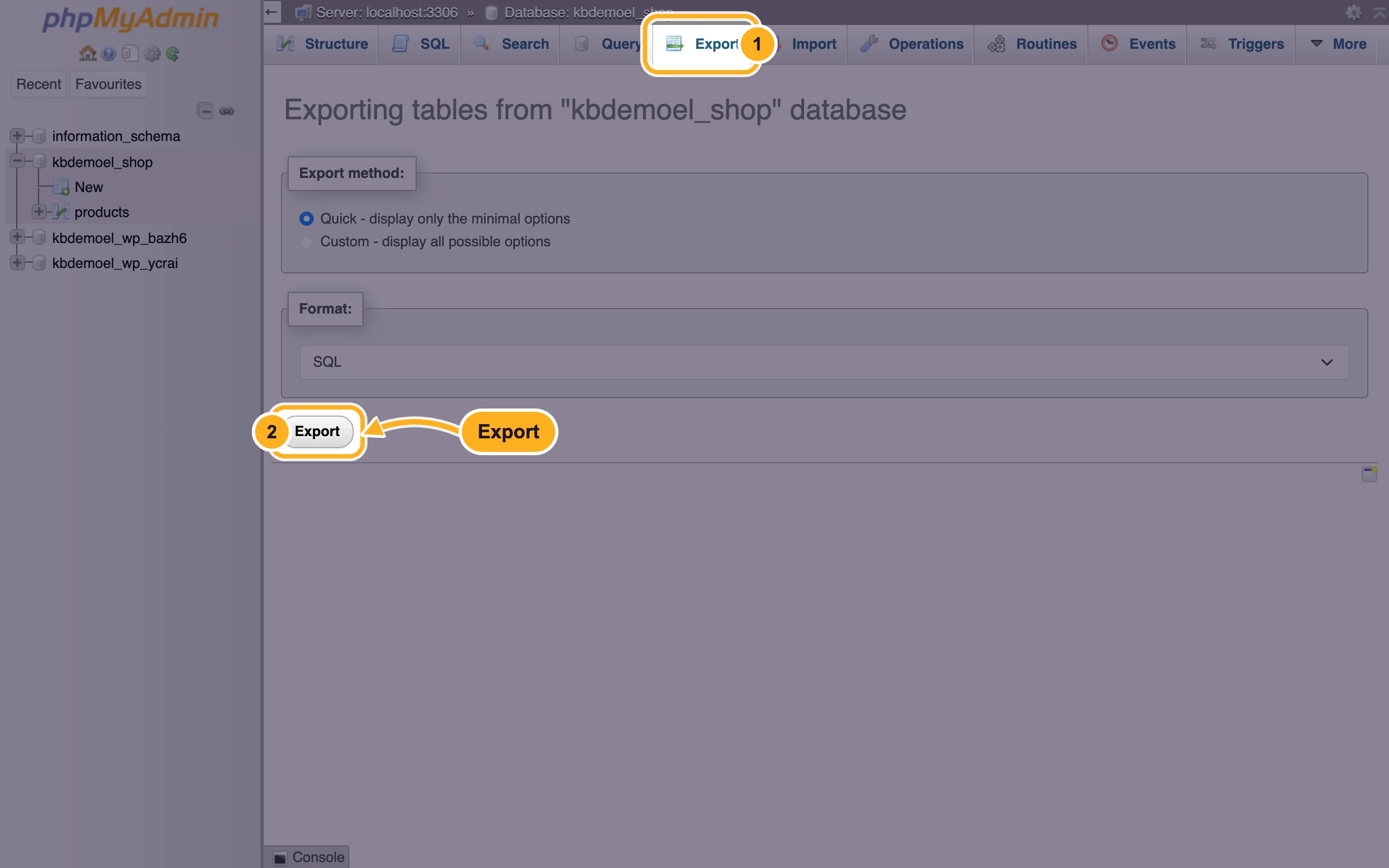
Click the database on the left so that it's selected.
Open the tabs at the top:
- Click Export.
- Keep Quick and the SQL format, and click Export at the bottom. Your browser downloads a
.sqlfile.
To load a .sql file into a database, use the Import tab (see Import a large SQL file).
Other useful tabs
- SQL: run your own SQL query on the selected database.
- Search: find a word in all tables of the database.
- Operations: table and database options, for example to empty or copy a table.
Create and delete whole databases and users in cPanel under Manage My Databases, not in phpMyAdmin.
Common problems
phpMyAdmin doesn't open
Your browser may block the new tab. Allow pop-ups for the cPanel address, or log in to cPanel again if your session has expired.
A database isn't listed
phpMyAdmin only shows databases of the cPanel account you're logged in to. Check the name in Manage My Databases and reload phpMyAdmin.
Related articles
Still stuck? Open a support ticket and we'll help.
