

Add your mailbox to Mail on a Mac with a setup profile from cPanel, or enter the IMAP and SMTP settings yourself under Mail, Add Account.
Option 1: install the setup profile from cPanel
The profile fills in the server, ports and security for you. Download it on the Mac where you want to read the mail.
Log in to cPanel (see Log in to cPanel from the client area), open Email Accounts and click Connect Devices next to the address.
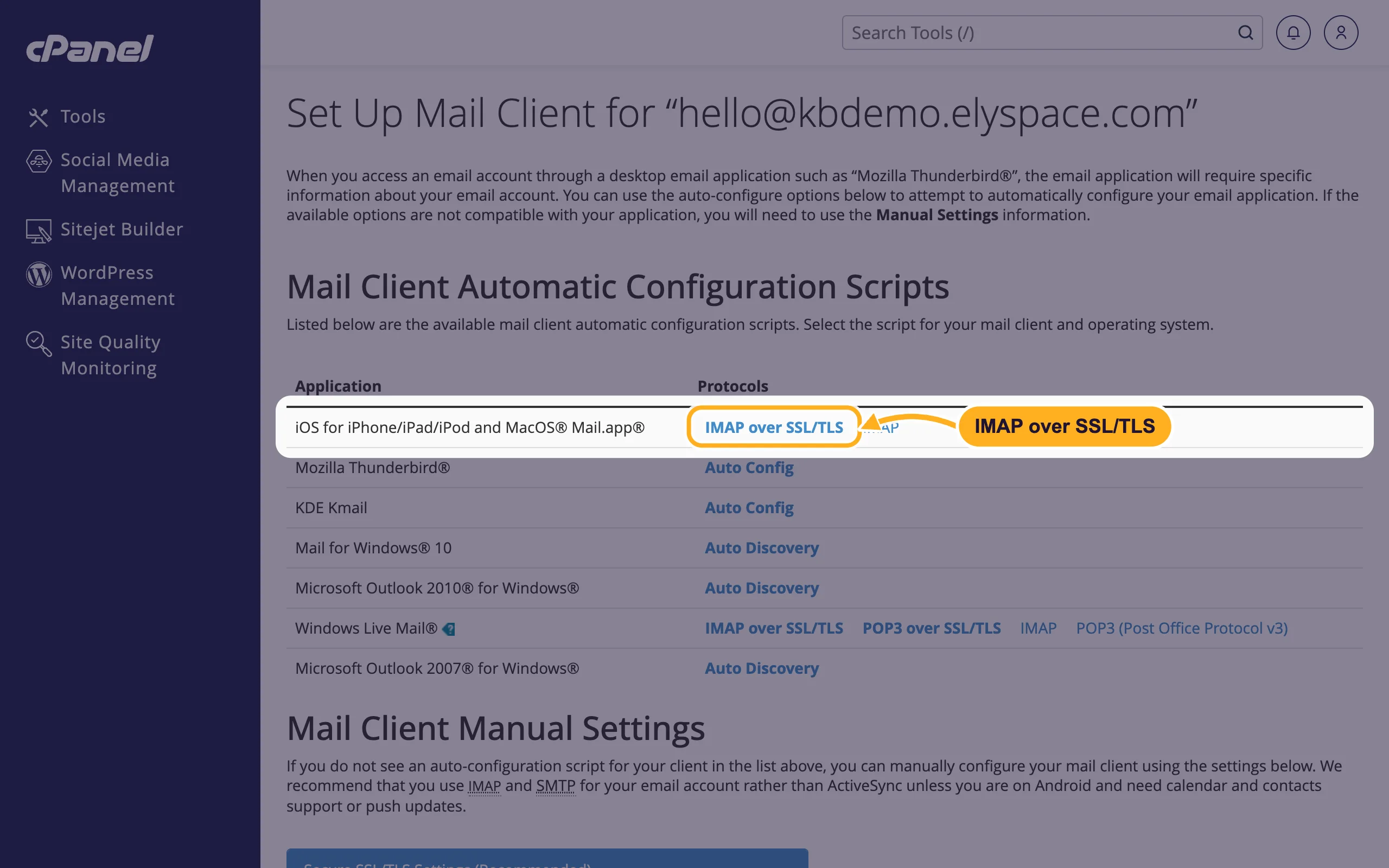
In the row iOS for iPhone/iPad/iPod and MacOS® Mail.app®, click IMAP over SSL/TLS. Don't use the plain IMAP link next to it: it connects without encryption to mail.yourdomain.com.
Click Proceed. Your browser downloads a file ending in
.mobileconfig.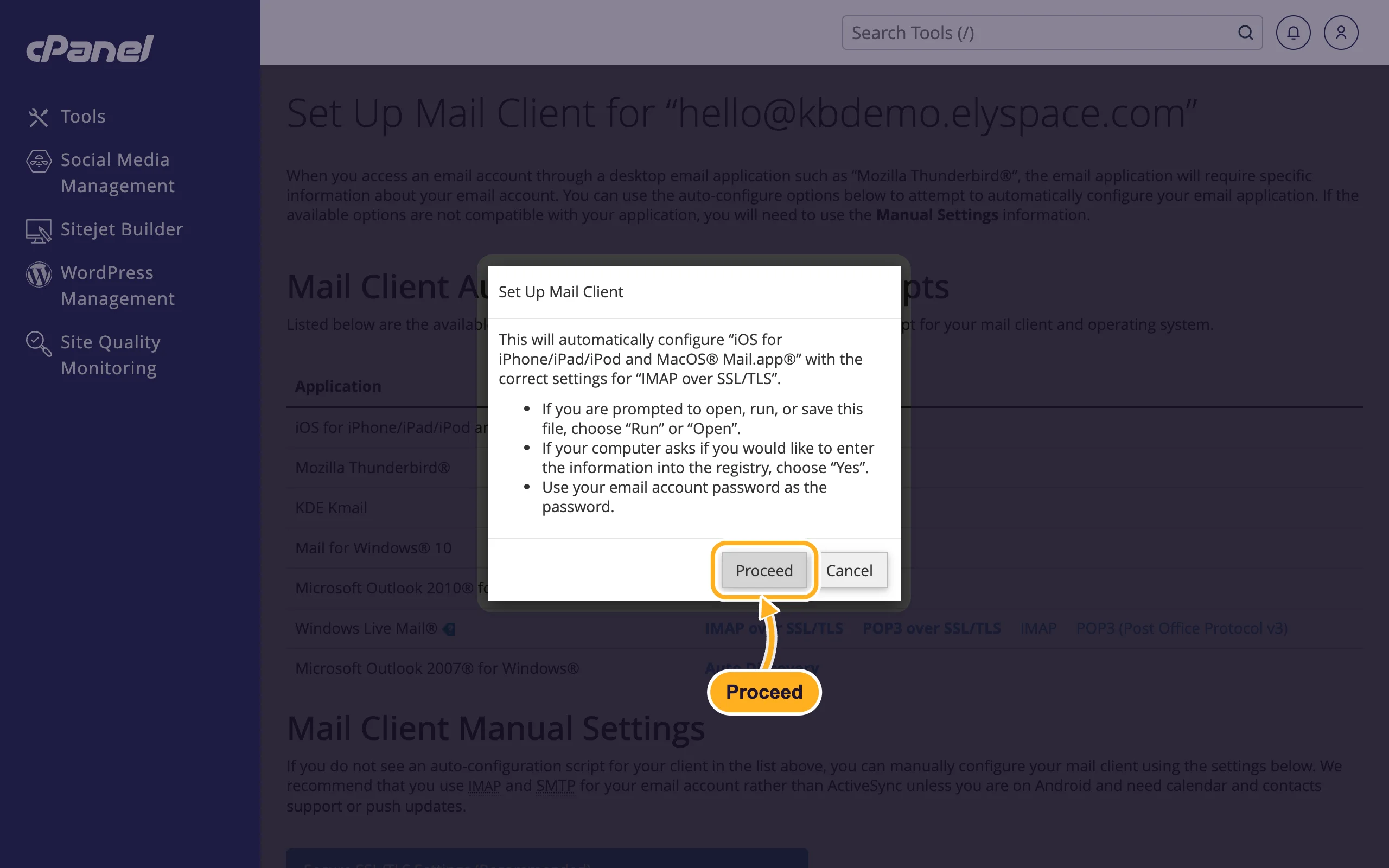
Open the downloaded file. macOS says the profile needs to be reviewed in System Settings.
Open System Settings, click General in the sidebar and then Device Management (scroll down if you don't see it). Under Downloaded, double-click the profile, check that it names your email address, and click Install.
When asked, enter the mailbox password (not your Mac password). If macOS also asks for your Mac password to allow the change, enter that too.
Open Mail. The new mailbox appears in the sidebar after a moment.
Option 2: enter the settings yourself
Open Mail and choose Mail, Add Account in the menu bar.
Select Other Mail Account and click Continue.
Enter your Name, your Email Address and the mailbox Password, then click Sign In.
Mail usually says "Unable to verify account name or password" and shows more fields. That's normal for your own domain. Fill them in:
- User Name: your full email address
- Account Type: IMAP
- Incoming Mail Server: your server name, for example
node111.elycloud.com - Outgoing Mail Server: the same server name
Click Sign In again.
Choose the apps to use with the account (at least Mail) and click Done.
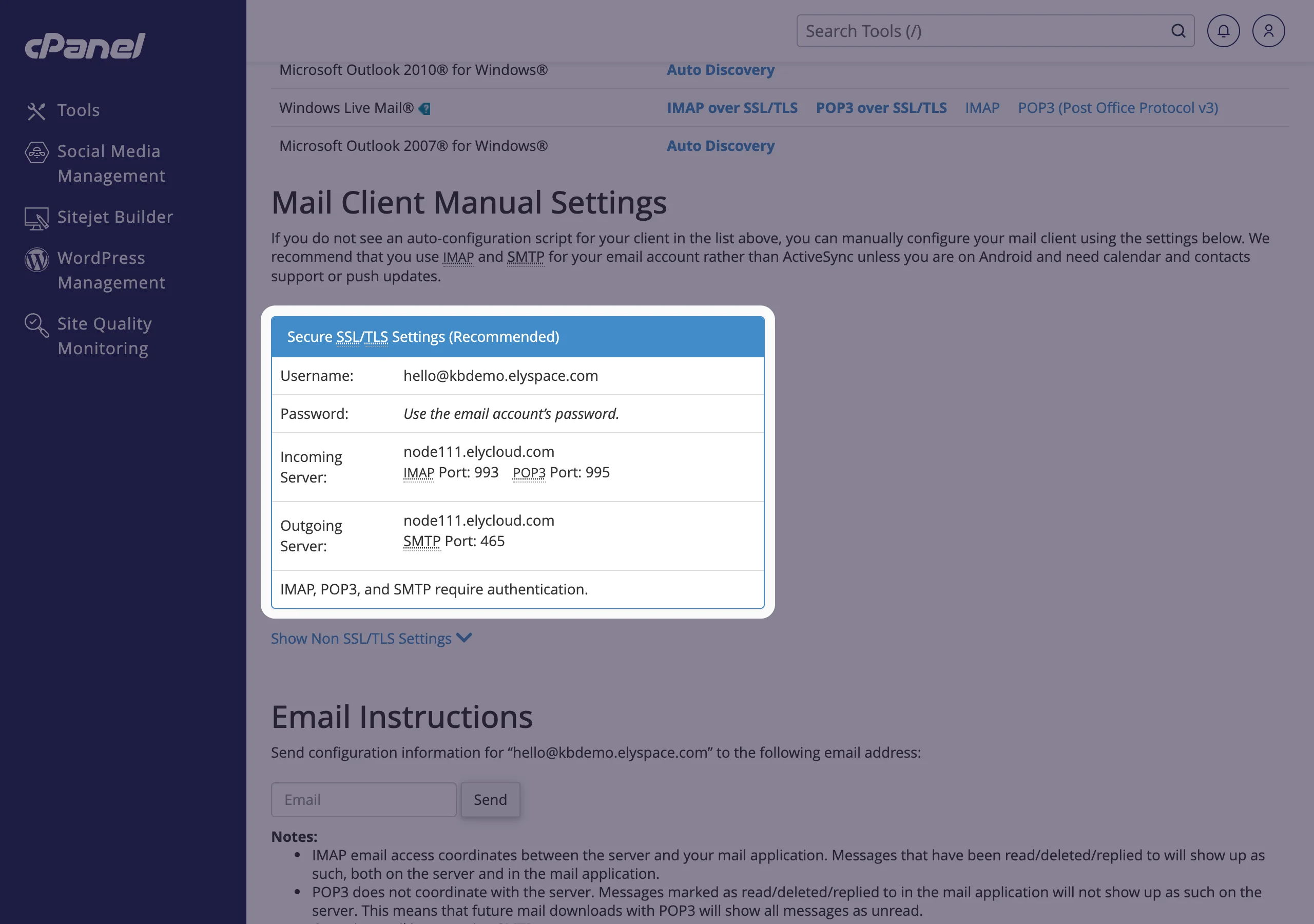
Your server name and ports are on the Connect Devices page under Secure SSL/TLS Settings (Recommended):
Check the ports
Mail normally finds the right ports. If sending or receiving doesn't work, set them by hand:
- Choose Mail, Settings, click Accounts, select the account and open Server Settings.
- Under the incoming server, turn off Automatically manage connection settings, set Port to
993and tick Use TLS/SSL. - Under the outgoing server, do the same with port
465and Use TLS/SSL. The User Name is your full email address. - Click Save.
Common problems
Mail keeps asking for the password
Check the password in webmail (see Log in to webmail). If it works there, type it again in Server Settings for both the incoming and the outgoing server.
Certificate warning ("Mail can't verify the identity of the server")
The account uses mail.yourdomain.com. Change the Host Name of the incoming and outgoing server to your server name, for example node111.elycloud.com.
Sending fails on some networks
Some networks block port 465. Use port 587 for the outgoing server; Mail then uses STARTTLS.
I can't find Device Management
Open the downloaded .mobileconfig file first: the entry only appears when a profile is waiting. Or use option 2.
Related articles
- Email server settings and ports (IMAP, POP3, SMTP)
- Set up email on iPhone or iPad
- Sync calendars and contacts with CalDAV and CardDAV
- Set up email in Thunderbird
Still stuck? Open a support ticket and we'll help.
