

Add your mailbox to Thunderbird with your name, email address and password. Thunderbird usually finds the server settings by itself.
Before you start
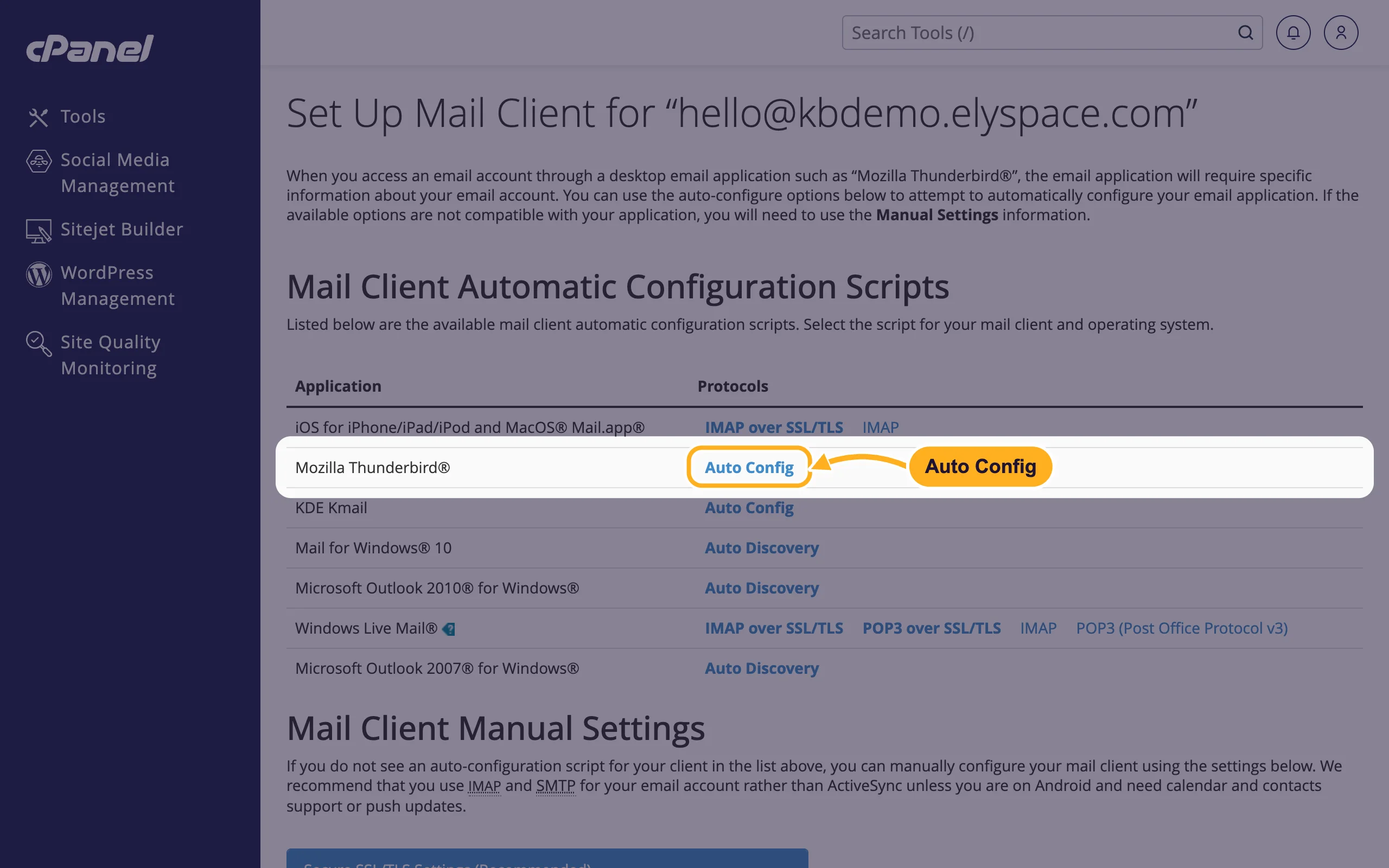
You need the email address and its password. If you don't know the password, set a new one (see Change an email account password). cPanel confirms that Thunderbird can set itself up: on the Connect Devices page of the mailbox, Mozilla Thunderbird® is listed with Auto Config. Clicking it only shows a short note, there is nothing to download.
Add the account
Open Thunderbird. On the very first start it asks for an email account straight away. Otherwise open the menu (☰) and choose New Account and then Email. In older versions the same is under Account Settings, Account Actions, Add Mail Account.
Enter your full name (the name people see), your email address and the mailbox password. Click Continue.
Thunderbird looks up the settings. When your domain uses our nameservers, it shows IMAP with your server name (for example
node111.elycloud.com) on port993and SMTP on port465, both with SSL/TLS. Keep IMAP selected and confirm with Done (or Continue in the new setup window).If Thunderbird asks about calendars or address books to sync, you can skip that step. To add them later, see Sync calendars and contacts with CalDAV and CardDAV.
Enter the settings yourself
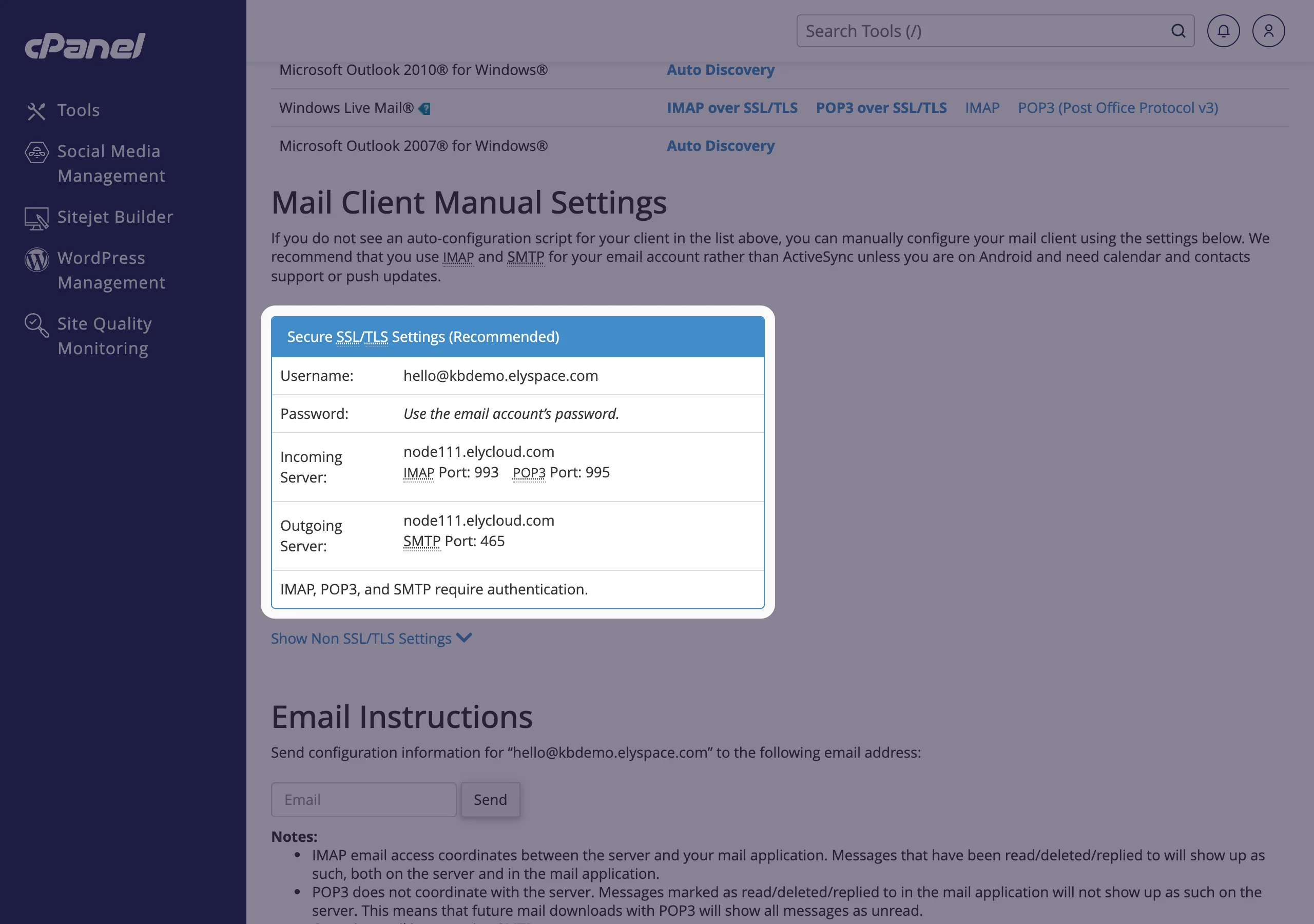
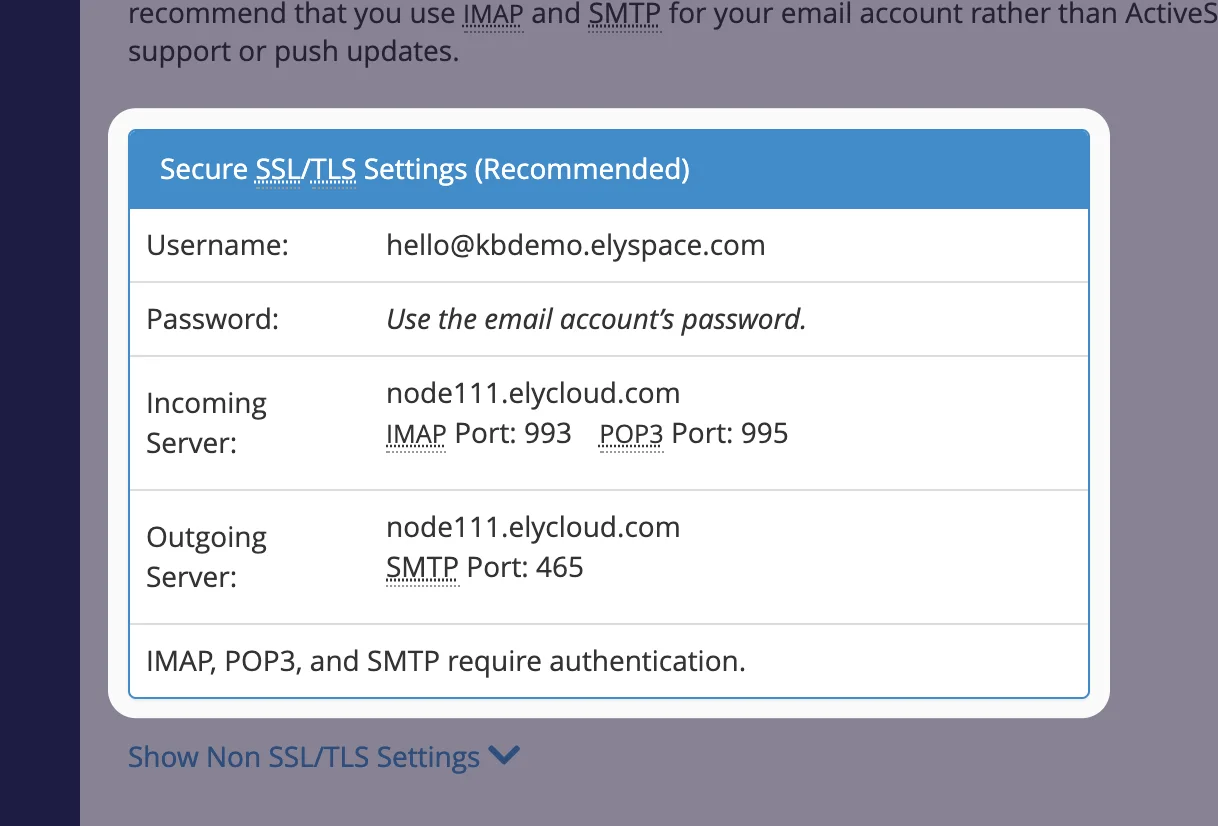
If Thunderbird finds nothing, shows other servers (for example mail.yourdomain.com) or the test fails, enter the settings by hand: click Configure manually (in the new setup window: Edit Configuration). Your exact values are on the Connect Devices page under Secure SSL/TLS Settings (Recommended); see Email server settings and ports.
| Field | Incoming | Outgoing |
|---|---|---|
| Protocol | IMAP | SMTP |
| Hostname | Your server name, for example node111.elycloud.com | The same server name |
| Port | 993 | 465 |
| Connection security | SSL/TLS | SSL/TLS |
| Authentication method | Normal password | Normal password |
| Username | Your full email address | Your full email address |
Click Re-test (or Test). When the test passes, click Done and enter the password if Thunderbird asks.
Common problems
"Thunderbird failed to find the settings for your email account"
Your domain's DNS is probably managed somewhere else, so Thunderbird can't read the setup details from our server. Enter the settings by hand as shown above.
"Login to server failed" or the password is asked for again and again
The username must be the full email address. Check the password by logging in to webmail (see Log in to webmail). If webmail works, remove the saved password in Thunderbird's settings under Privacy & Security, Saved Passwords and try again.
Receiving works, sending fails
Check that the outgoing server uses the same server name, port 465, SSL/TLS and your full email address as username. If your network blocks port 465, use port 587 with STARTTLS.
Certificate warning
Thunderbird is using mail.yourdomain.com as server. Change incoming and outgoing server to your server name from the Connect Devices page.
Related articles
- Email server settings and ports (IMAP, POP3, SMTP)
- Set up email in Apple Mail on a Mac
- Set up email in Outlook
- Sync calendars and contacts with CalDAV and CardDAV
Still stuck? Open a support ticket and we'll help.
