

Track Delivery in cPanel shows whether an email from or to your account was delivered, delayed or rejected, and the reason the server gave.
Run a delivery report
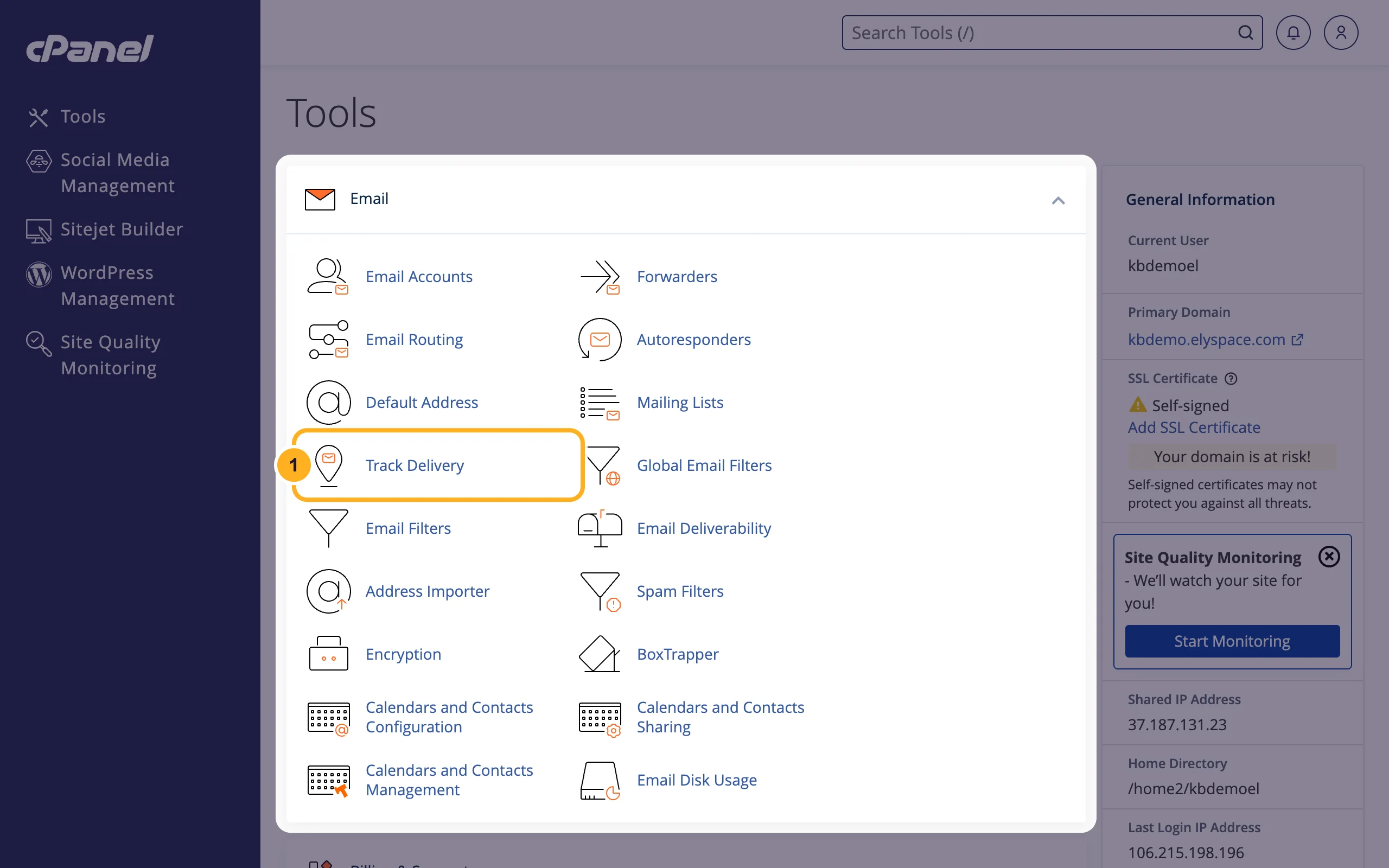
Log in to cPanel (see Log in to cPanel from the client area). In the Email section, click Track Delivery.
Choose what to look for:
- Recipient Email (optional): type the address you sent to, or the address that should have received the mail, for example
[email protected]. Leave it empty to see everything. - Click Run Report to search for that address.
- Show All lists every message of the last 10 days.
- Show Blocked & Failed lists only messages that were not delivered. Start here when someone says your email never arrived.
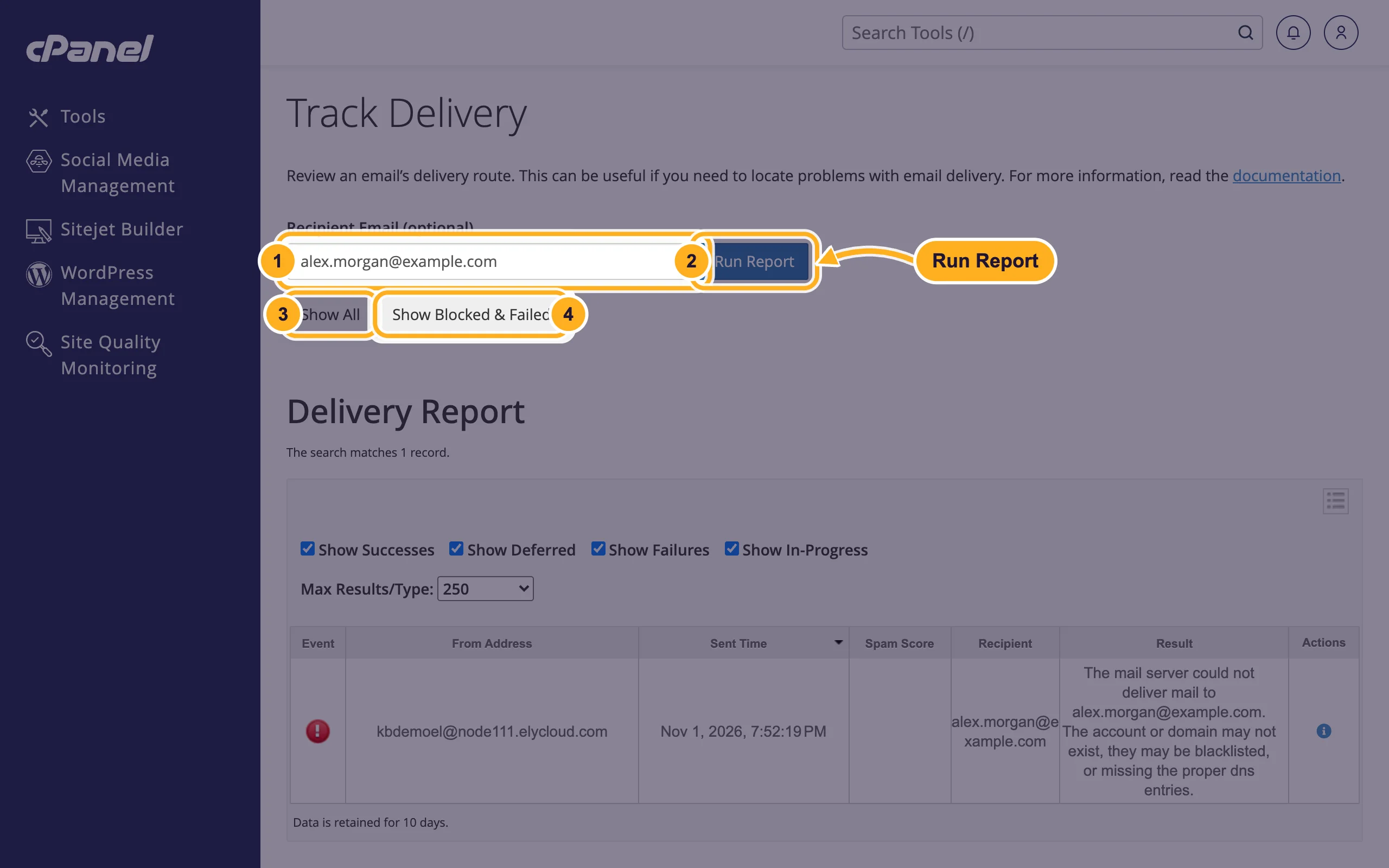
- Recipient Email (optional): type the address you sent to, or the address that should have received the mail, for example
The Delivery Report appears below. Each row is one message with its From Address, Sent Time, Spam Score, Recipient and Result. The icon in the Event column shows the status at a glance: a green tick for delivered, a red icon for a failure and a black warning sign for a message our server blocked. Use the boxes Show Successes, Show Deferred, Show Failures and Show In-Progress to filter the list.
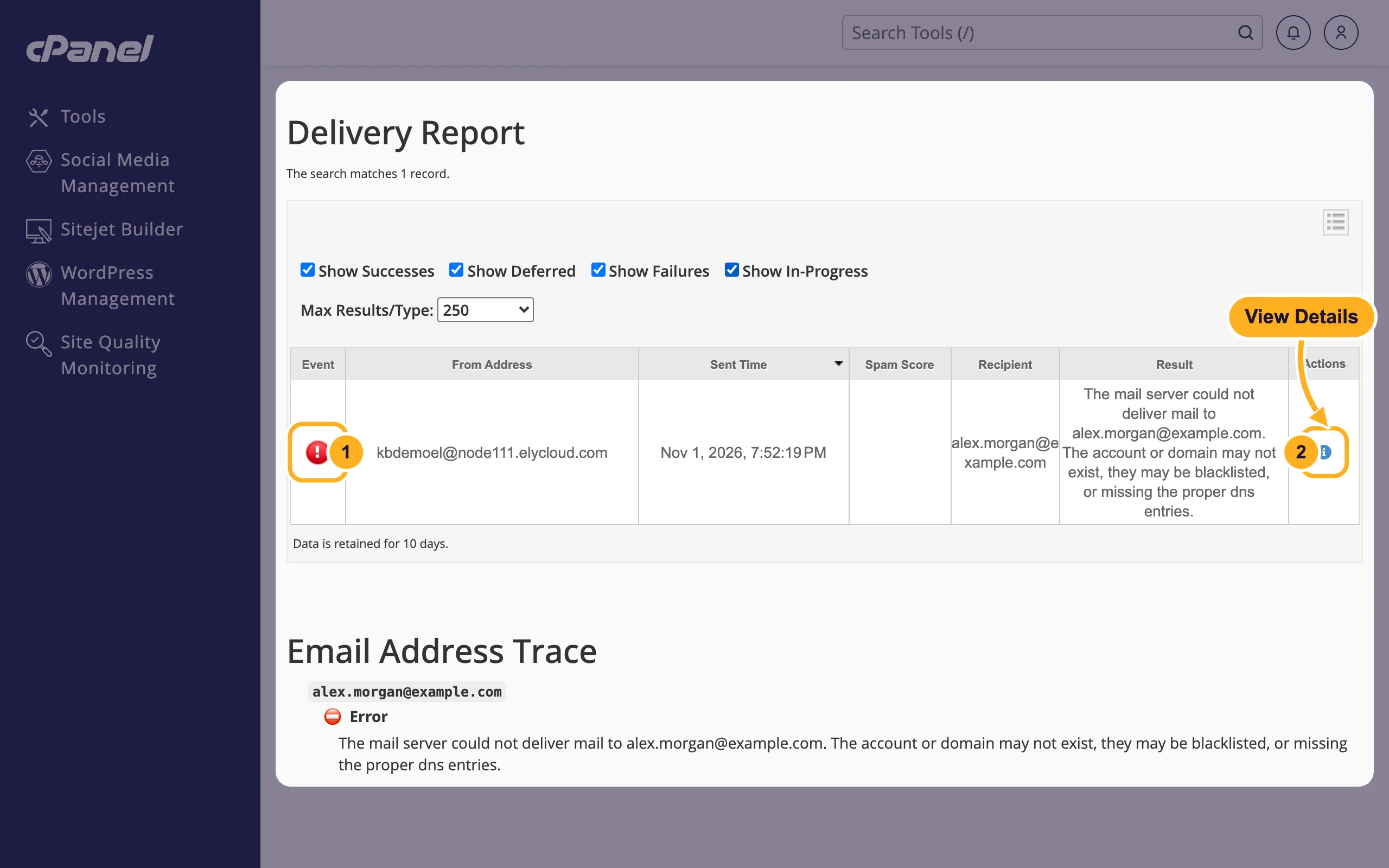
When you searched for an address, Email Address Trace below the report shows how our server would handle mail to that address right now, for example an Error with the reason.
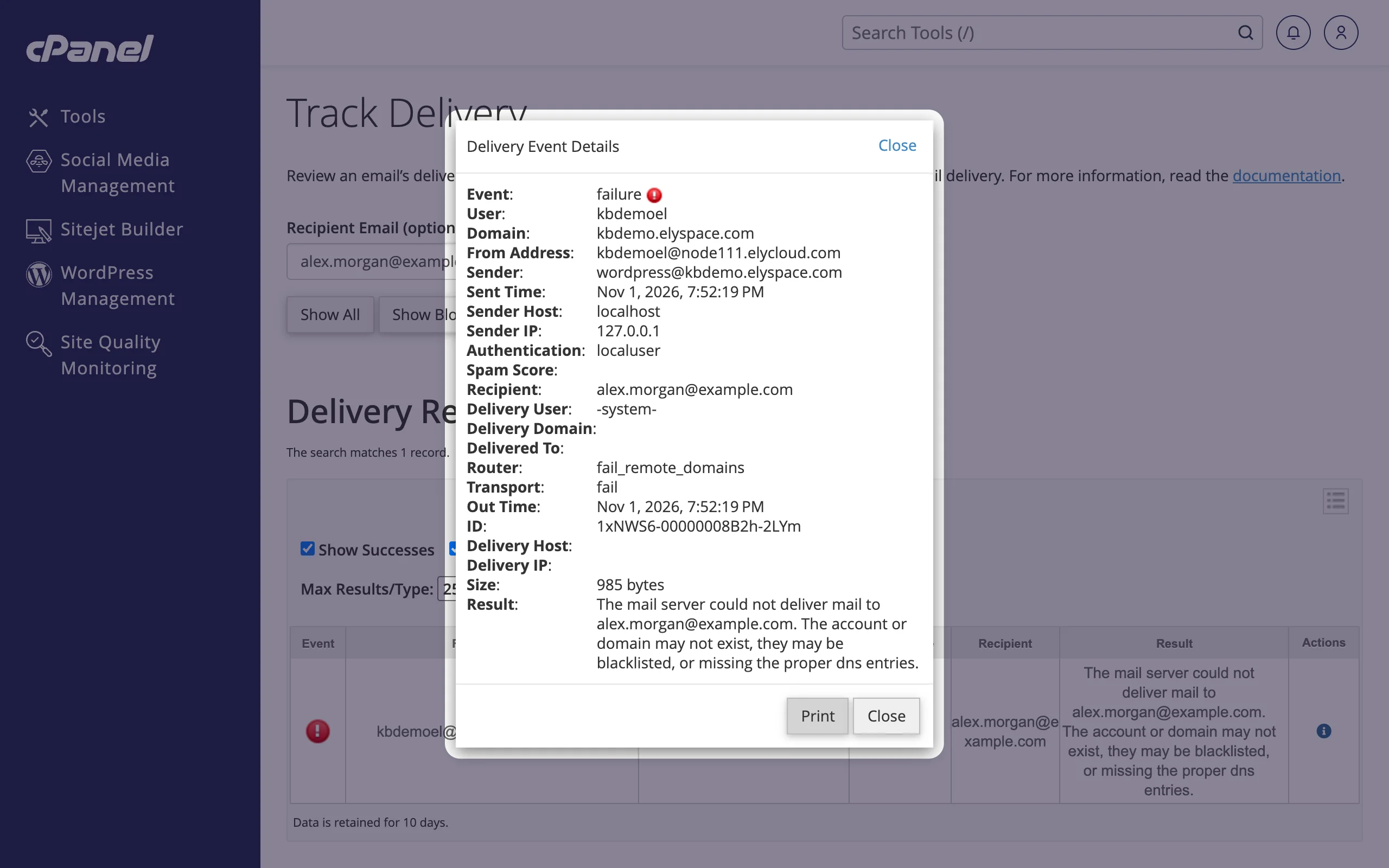
Click the blue info icon (View Details) in the Actions column to see everything the server recorded: who sent the message, when it left, which server received it (Delivery Host) and the full Result.
What the results mean
| Status | Meaning | What to do |
|---|---|---|
| Success | The receiving server accepted the message. | If the person still can't find it, ask them to check their spam or junk folder. From here on, the receiving side decides where it lands. |
| Deferred | The receiving server was busy or asked us to try later. Our server keeps retrying. | Wait. If it stays deferred for a long time, open View Details and read the result. |
| Blocked | Our server refused the message, for example because the sender didn't log in or failed a check. | Read the Result. "SMTP AUTH is required" means the mail app must log in to send. |
| Failure | The message was rejected and a bounce message went back to the sender. | Read the Result. Check the address for typos first. |
| In progress | The message is still being processed. | Run the report again in a few minutes. |
A result such as "The mail server could not deliver mail to … The account or domain may not exist, they may be blacklisted, or missing the proper dns entries." usually means the address or the domain is wrong, or the domain doesn't accept email at all. For more error texts, see Mailbox full, bounces and other common email errors.
Mail sent by your website (for example WordPress contact forms) appears here too. In View Details the Sender line shows the address the site used.
Common problems
The message isn't in the report
It's older than 10 days, the recipient address was spelled differently, or the mail didn't pass through our server. If your domain's email runs on Google Workspace or another service, check the delivery there.
The report says Success, but the email never arrived
The receiving server took it, so ask the recipient to look in spam or junk and to add your address to their contacts. If your mail often lands in spam, set up SPF, DKIM and DMARC (see Fix email going to spam: SPF, DKIM and DMARC).
Many failures from your website
Check the recipient addresses your site sends to. A form that sends to a mistyped or non-existent address fails every time.
Related articles
- Mailbox full, bounces and other common email errors
- Fix email going to spam: SPF, DKIM and DMARC
- Turn on spam filters
- Email server settings and ports (IMAP, POP3, SMTP)
Still stuck? Open a support ticket and we'll help.
