

Open WordPress from cPanel with one click, or go to yourdomain.com/wp-admin and sign in with your WordPress username and password.
Log in from cPanel (no password needed)
Log in to cPanel and click WordPress Management in the menu on the left.
On your site's card, click Log in. The WordPress dashboard opens in a new browser tab, already signed in.
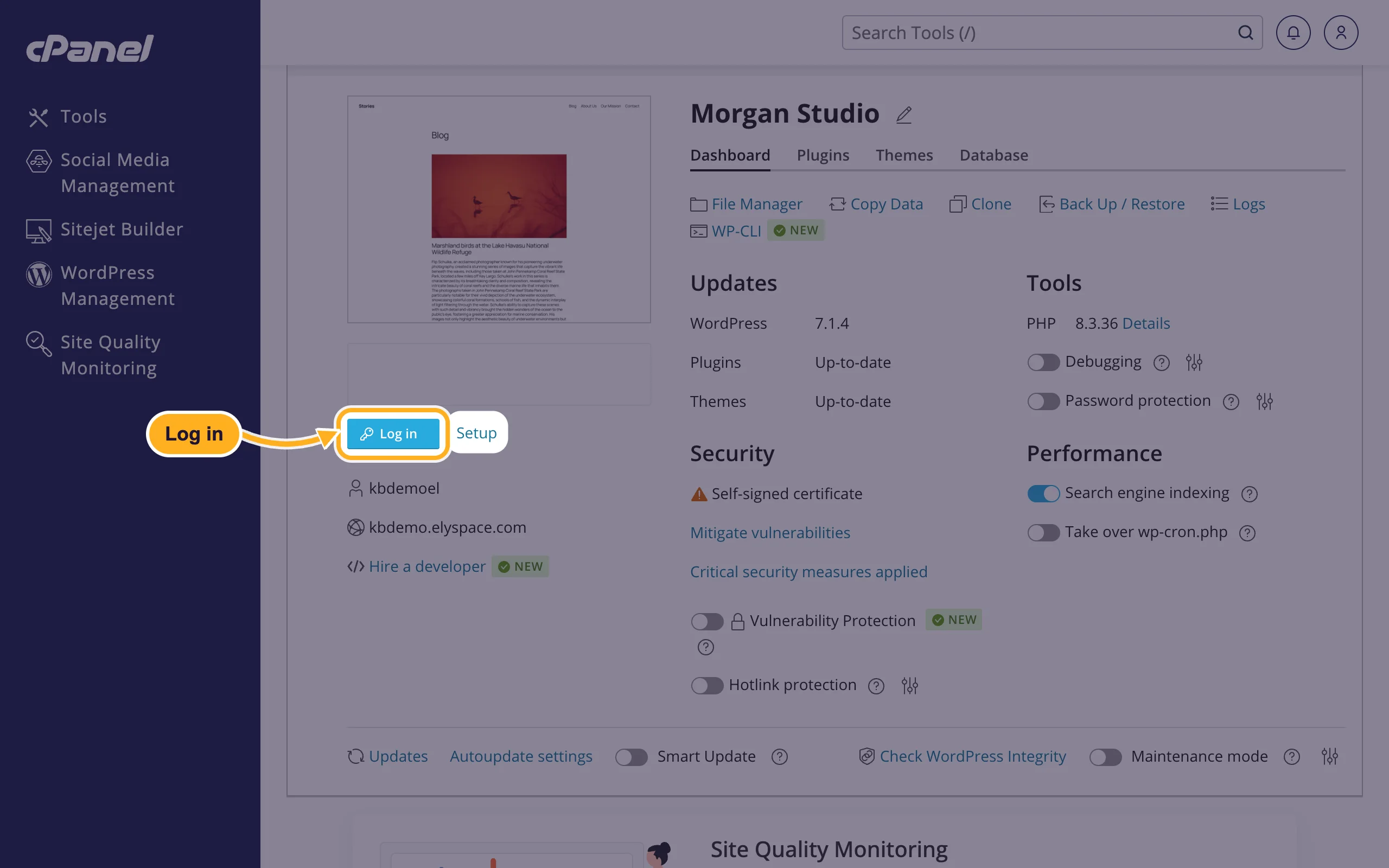
If nothing opens, your browser may have blocked the new tab. Allow pop-ups for the cPanel page and click Log in again.
Log in with your username and password
Open
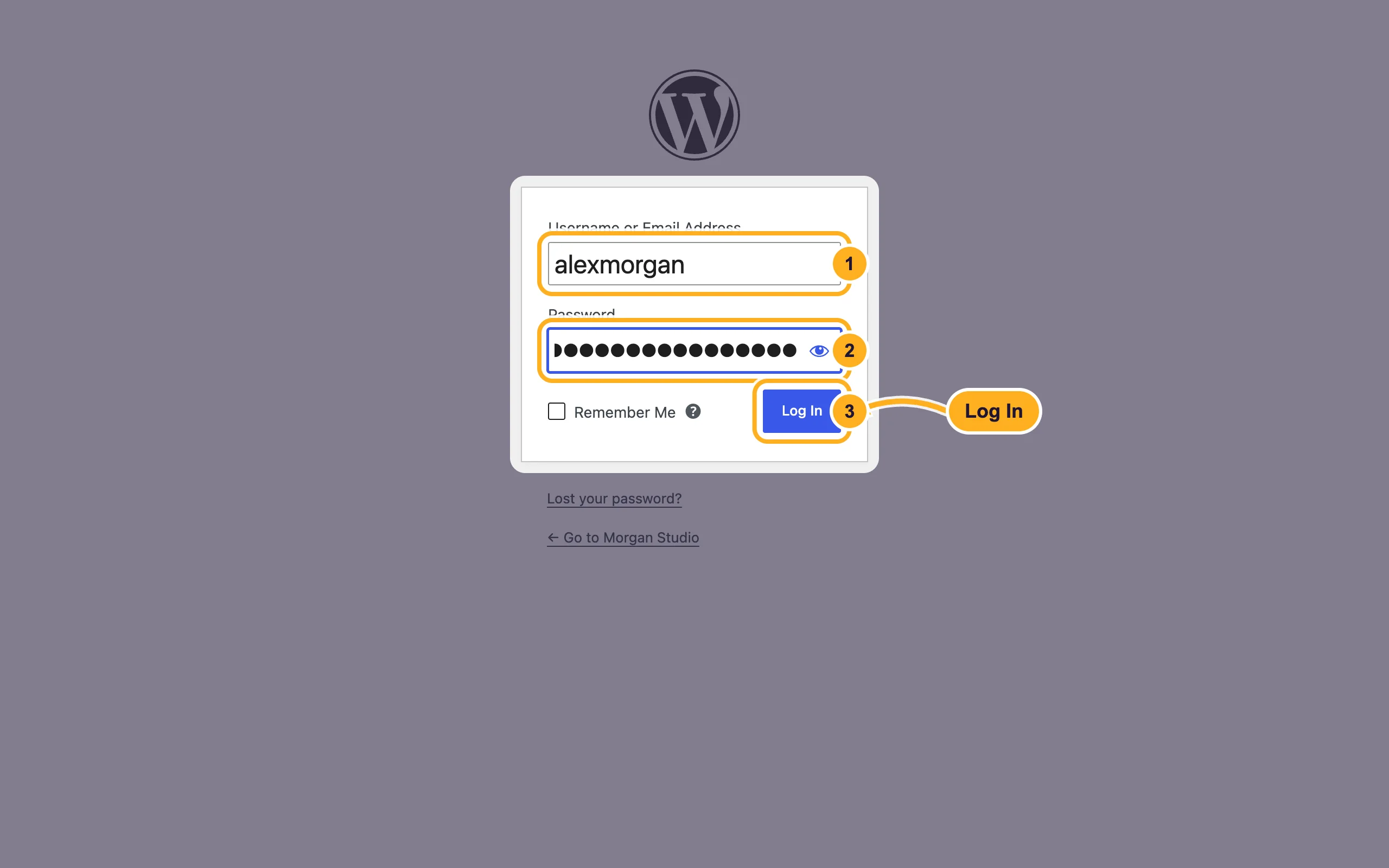
yourdomain.com/wp-adminin your browser (use your own domain). If you installed WordPress in a folder, add the folder, for exampleyourdomain.com/blog/wp-admin.Sign in:
- Username or Email Address: the WordPress username you chose during the installation, or its email address.
- Password: your WordPress password. This is not your cPanel or client area password.
- Click Log In.
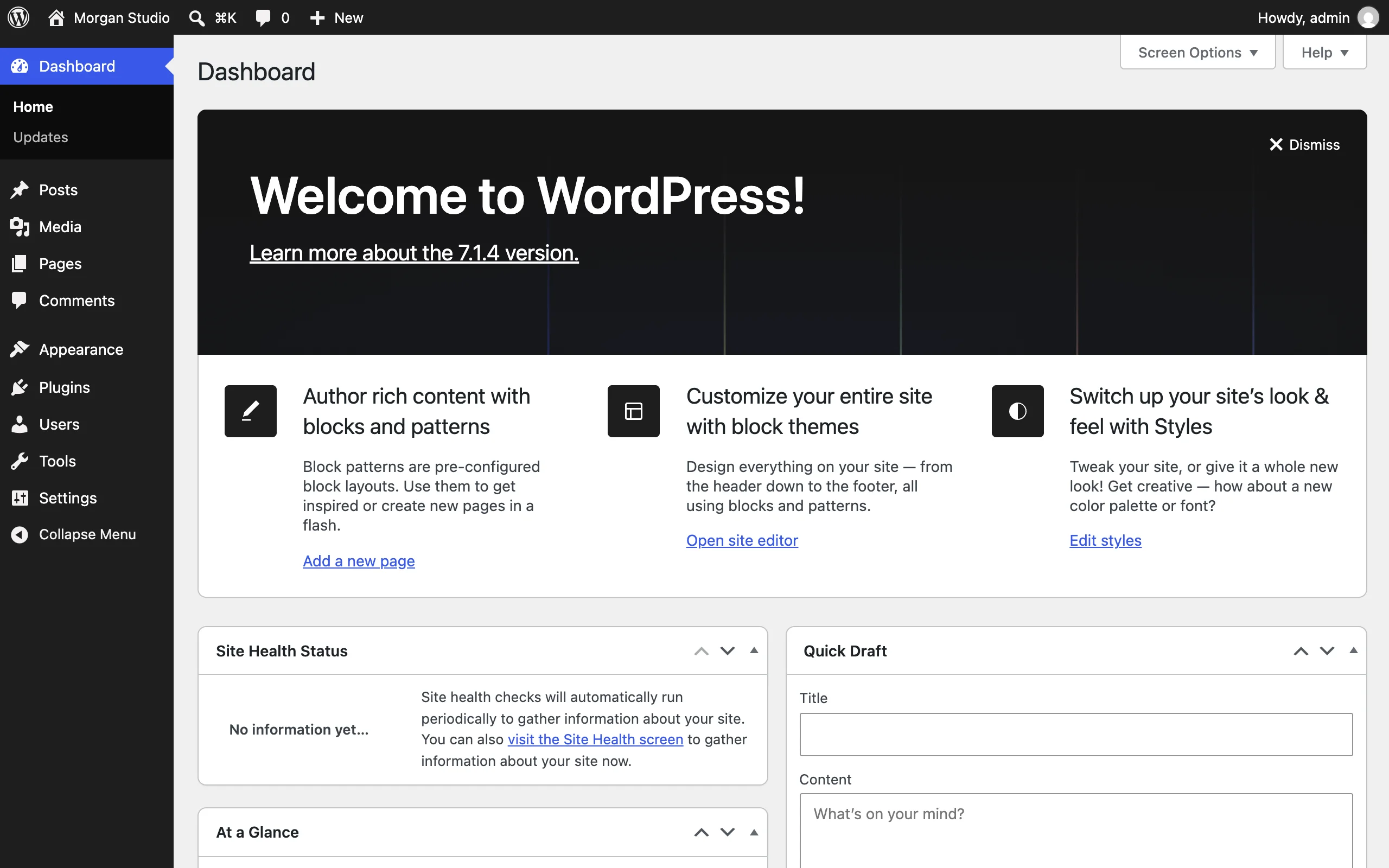
You're in the WordPress dashboard. The menu on the left leads to everything: Posts, Media, Pages, Appearance (themes and design), Plugins, Users and Settings.
Forgot your WordPress password? Set a new one in cPanel
In cPanel, open WordPress Management and click Setup under the Log in button on your site's card.
Set the new password:
- Type a New password, or click Generate for a strong one. Save it in your password manager.
- Click Change.
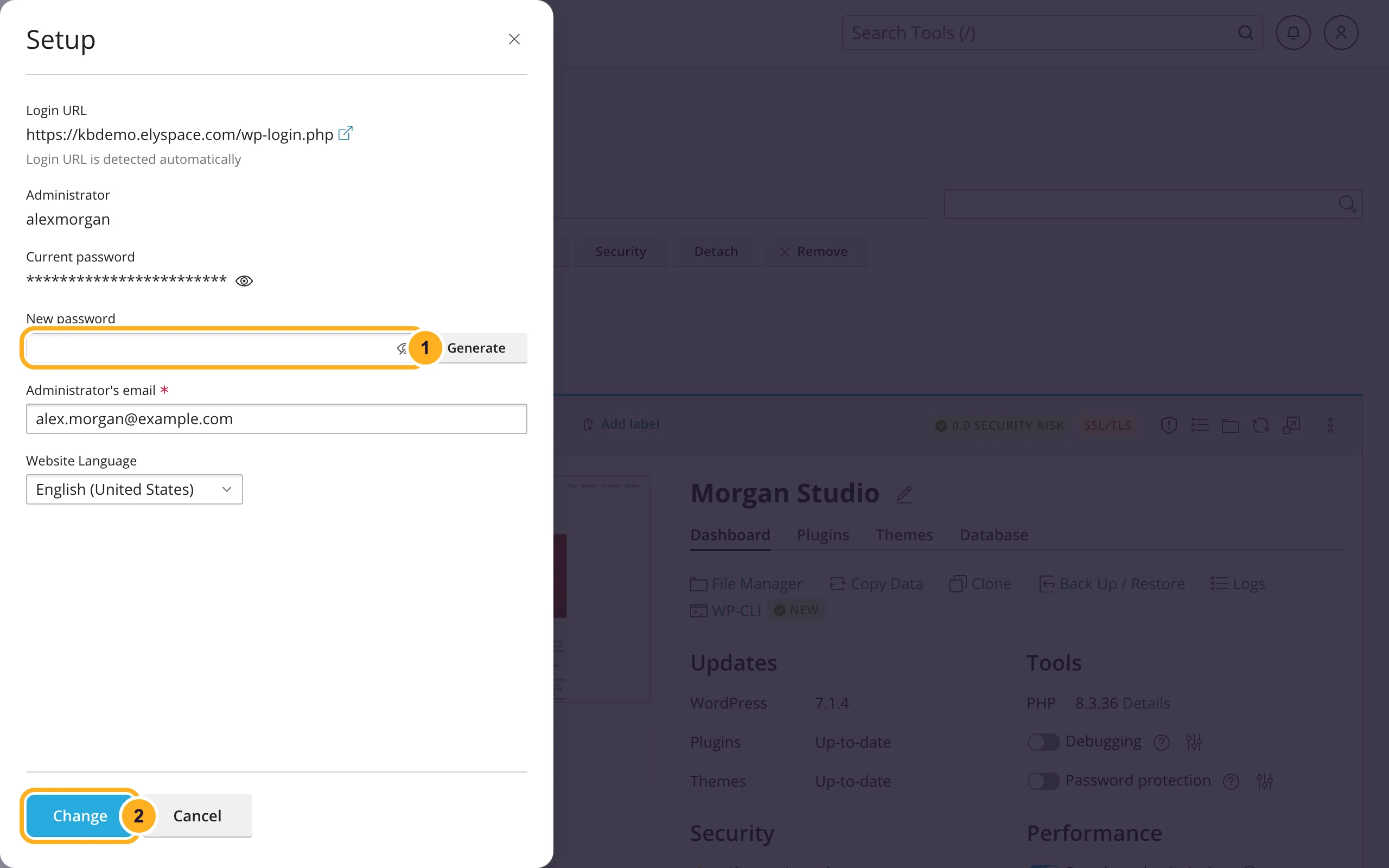
The same dialog shows the administrator's username and lets you change the Administrator's email. On the WordPress login page you can also click Lost your password?; WordPress then emails a reset link to the administrator's email address.
Common problems
The login page reloads and you stay logged out
Clear your browser's cookies for your domain, or try a private window. If it still happens, check that the addresses in Settings > General match your real domain (with or without www, http or https). If you can't reach the dashboard to check, use Log in in WordPress Management.
"The password you entered is incorrect"
Check Caps Lock and that you're using the WordPress password, not the cPanel one. Then set a new password with Setup as shown above.
The reset email never arrives
Look in your spam folder. If the administrator's email address is wrong, correct it in Setup in WordPress Management and set a new password there.
The page shows "There has been a critical error on this website"
A plugin or theme stopped the site from loading. See Fix "There has been a critical error on this website".
Related articles
- Install WordPress in cPanel (WordPress Management)
- Secure your WordPress site from cPanel
- Build your first WordPress website
- Log in to cPanel from the client area
Still stuck? Open a support ticket and we'll help.
