

Renew a domain from its page in the client area with Renew Now: pick how many years, add it to the cart and pay. Or pay the renewal invoice we send.
Pay the renewal invoice
With auto-renew on (the default), we create a renewal invoice before the domain expires and email it to you. Paying it renews the domain, you don't need to do anything else. Find it under Billing > My Invoices (see Pay an invoice).
Renew now, for one or more years
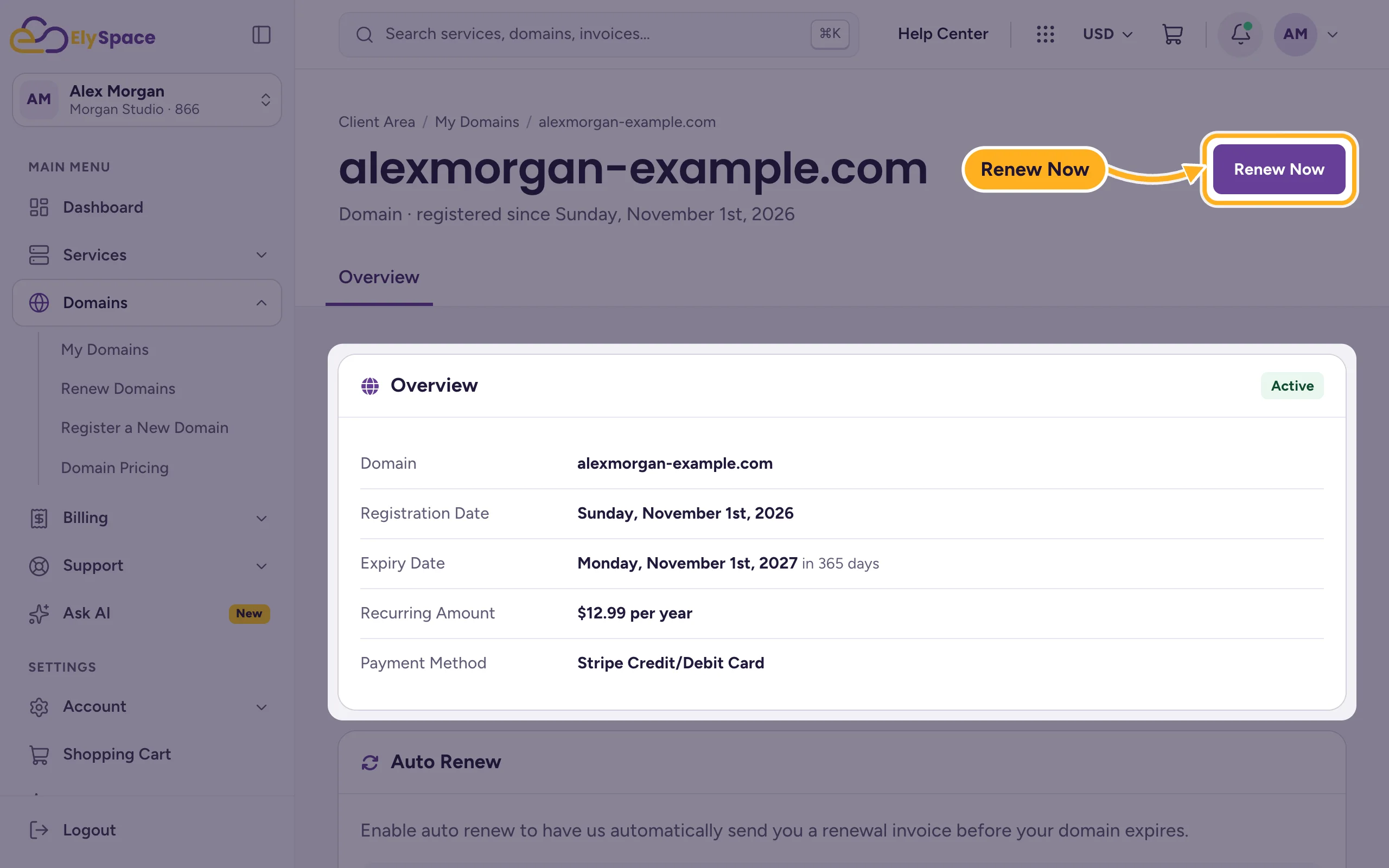
Go to Domains > My Domains and click Manage next to the domain.
Click Renew Now at the top right.
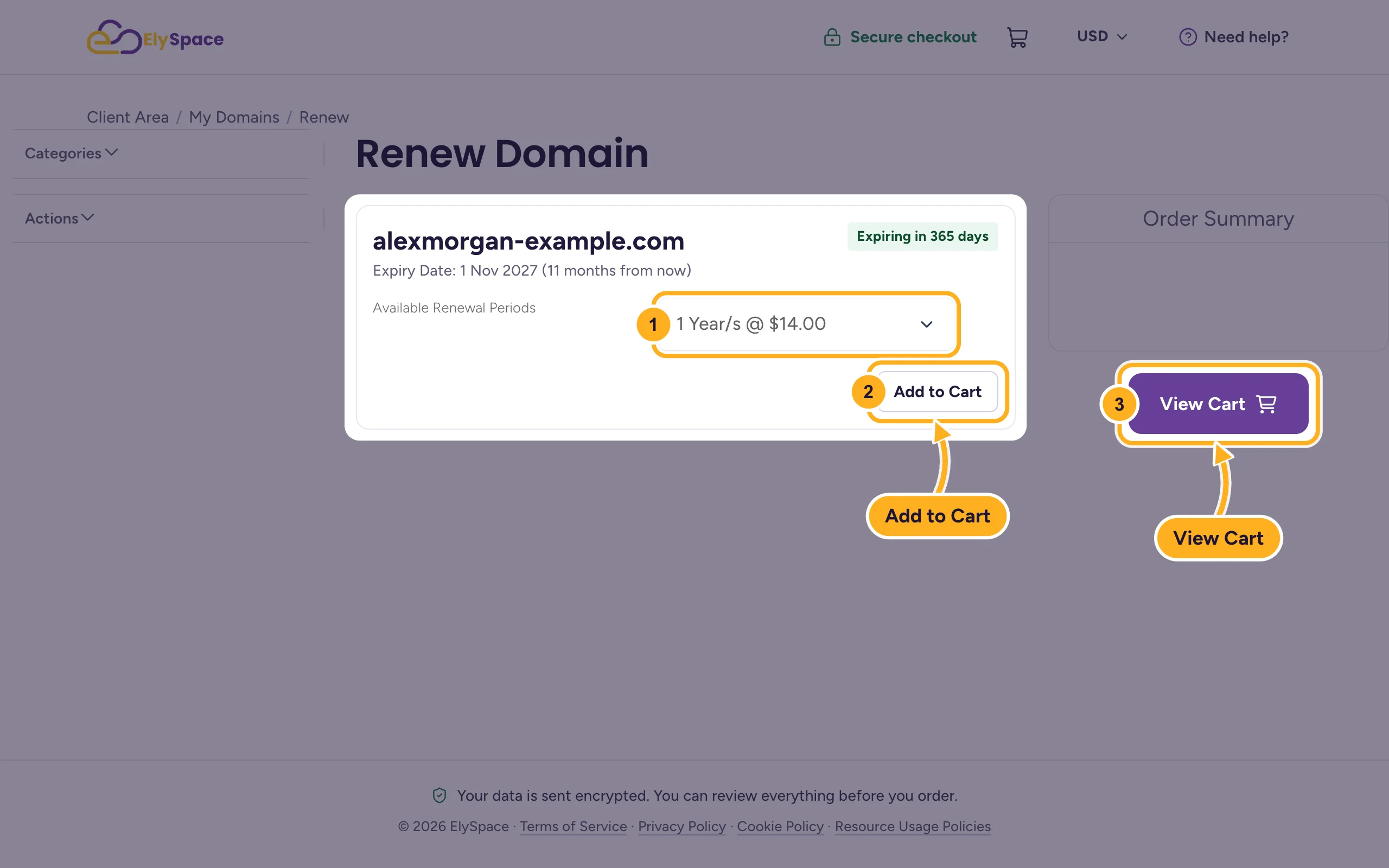
On Renew Domain you see the expiry date and how long until it expires:
- Under Available Renewal Periods, pick the number of years. Each option shows its price.
- Click Add to Cart. The renewal appears in the Order Summary.
- Click View Cart.
Check the cart and complete the checkout. Once the invoice is paid, the new expiry date shows on the domain page.
The added years count from the current expiry date, so you lose nothing by renewing early.
Common problems
There's already an unpaid renewal invoice
Pay that invoice instead of ordering another renewal, otherwise you may pay twice. If you want more years than the invoice covers, open a ticket in Domains Support.
The domain has expired
Renew it as soon as possible. Depending on the extension, a domain can still be renewed for a while after the expiry date, but later the registry may charge a restore fee or release the domain. If Renew Now isn't available, open a ticket in Domains Support.
Your website went offline when the domain expired
After payment the domain is renewed, but it can take a while before it works again everywhere. Clearing your DNS cache can help you see it sooner (see Clear your DNS cache).
Related articles
- Turn auto-renew on or off
- Renewals, due dates and suspension explained
- Manage your domains in the client area
Still stuck? Open a support ticket and we'll help.
