

After you sign up, we email you a link to confirm your address. Click it, and your profile shows Email Verified. You can resend the email from the client area.
Verify your address
Open the email we sent after you created your account and click the verification link in it.
The client area opens and confirms: "Your email address has been verified".
Until your address is verified, a notice at the top of the client area says "Please check your email and follow the link to verify your email address." The Get set up box on the dashboard also lists Verify your email address until it's done.
Check whether it's verified
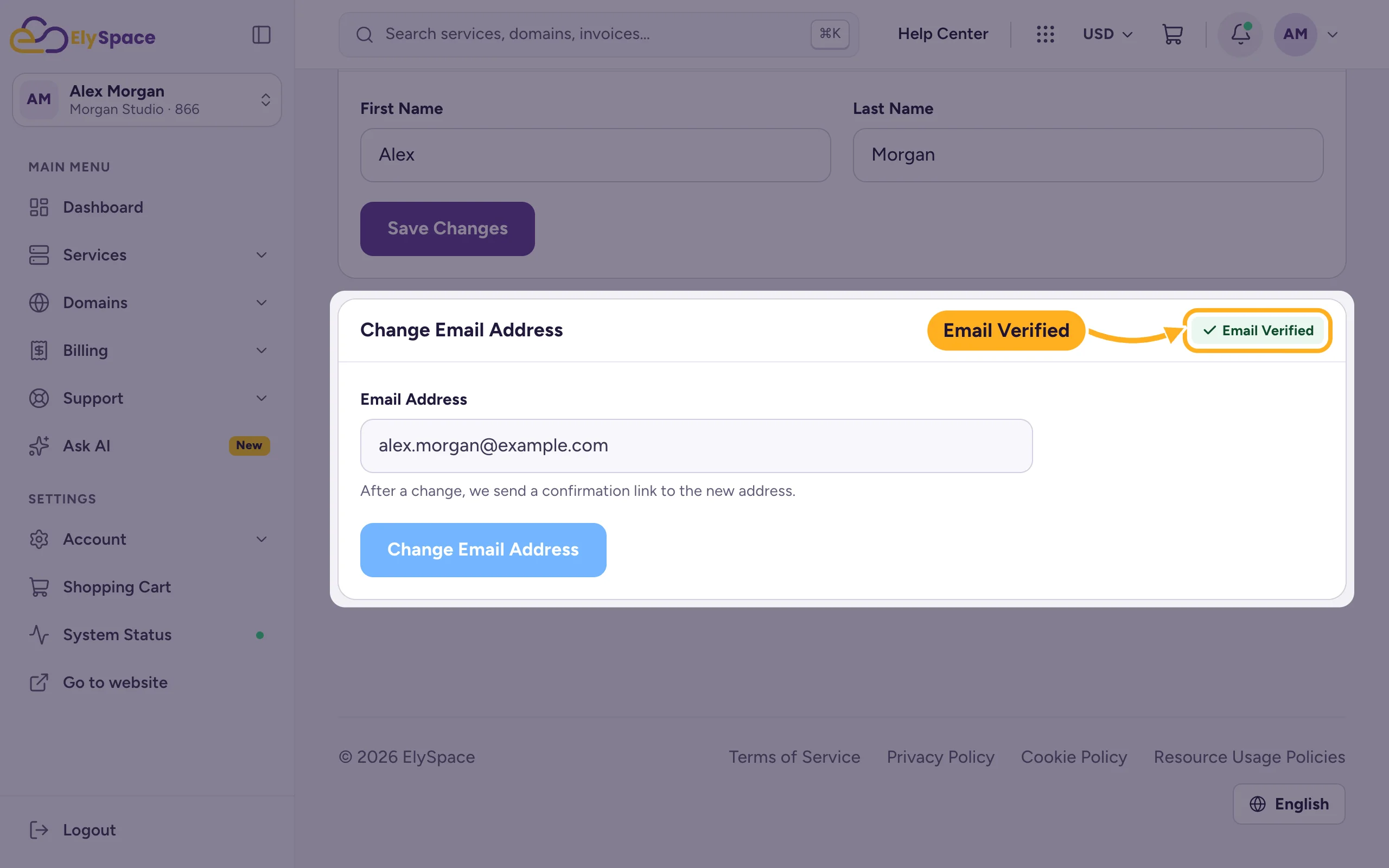
Click your initials at the top right and choose Profile. In the Change Email Address box, the label next to the title shows Email Verified once it's done.
Send the email again
Didn't get it, or the link has expired? Log in and click Resend Verification Email in the notice at the top of the client area. Then use the link in the newest email.
Common problems
The email doesn't arrive
Look in your spam, junk or promotions folder, and search your mailbox for "ElySpace". Company mail servers sometimes hold emails back for a few minutes. If nothing arrives, check under Profile that your address is spelled correctly. A typo there can only be fixed by us: Change the email address you log in with.
"Your email verification link has expired"
Log in and send a new email with Resend Verification Email, then click the new link.
"Sorry, we couldn't find a pending verification matching your request."
The link was already used or a newer one was sent. Check under Profile whether your address already shows Email Verified.
Related articles
- Create an ElySpace account
- Change the email address you log in with
- See the emails we have sent you
- Can't log in? What to check
Still stuck? Open a support ticket and we'll help.
