

Add a contact under Account > Contacts to send invoices or other emails to a second address, such as your accounts team. Contacts can't log in.
Use a contact when someone only needs emails from us. If the person should log in and work in your account, invite them as a user instead: Give other people access to your account.
Add a contact
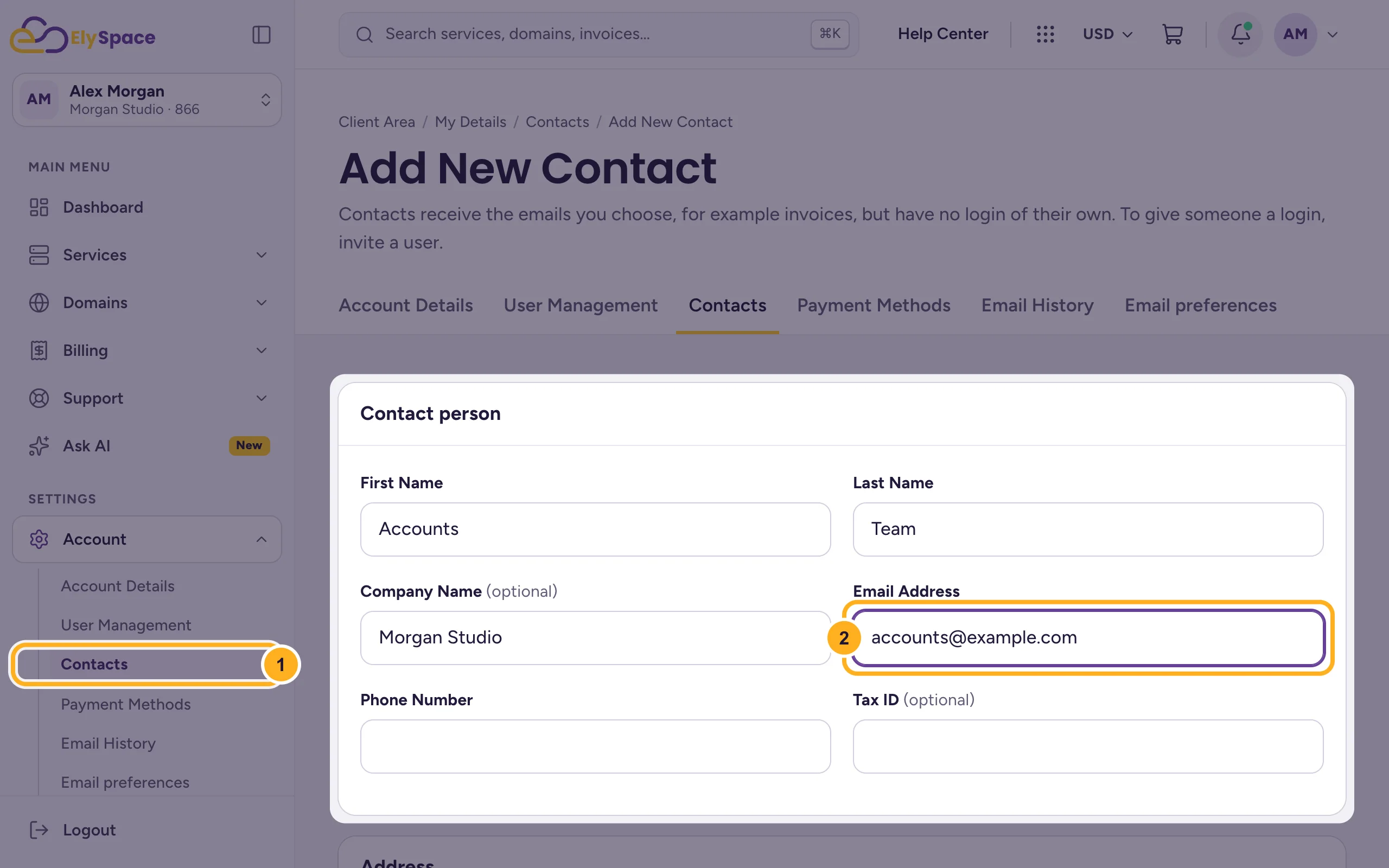
Log in to the client area and open Account > Contacts. The Add New Contact form opens.
Fill in Contact person:
- the menu entry Contacts, where you are now,
- Email Address: where the emails should go. Add a name, and the address and phone number if you have them.
Choose the emails the contact gets:
- Under Email Preferences, tick only what this person needs. For a billing contact, that's Invoice Emails.
- Click Save Changes.
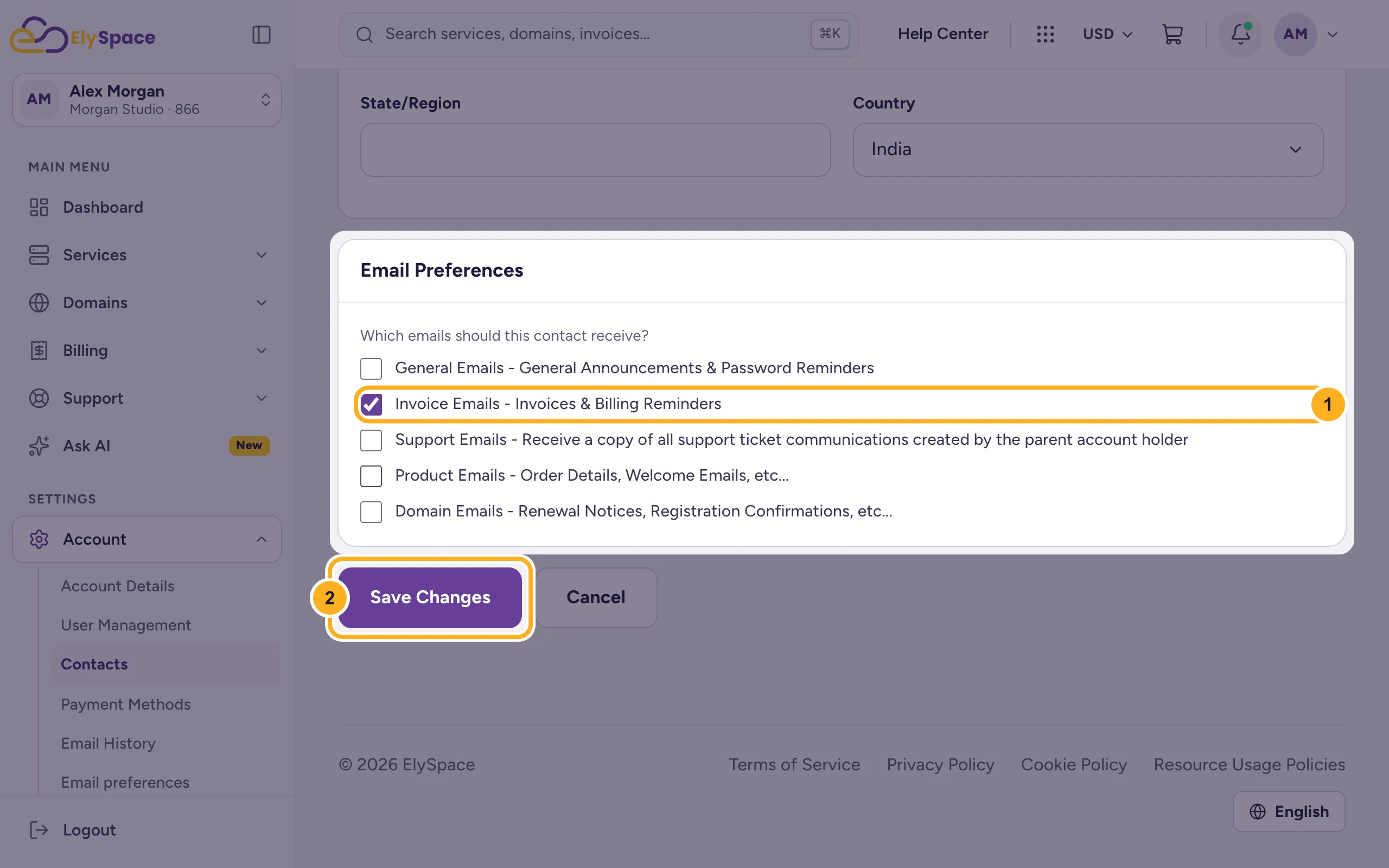
The contact now gets a copy of the emails you ticked. You keep getting them as well, unless you change your own email preferences (see Choose which emails you get).
Make the contact your billing contact
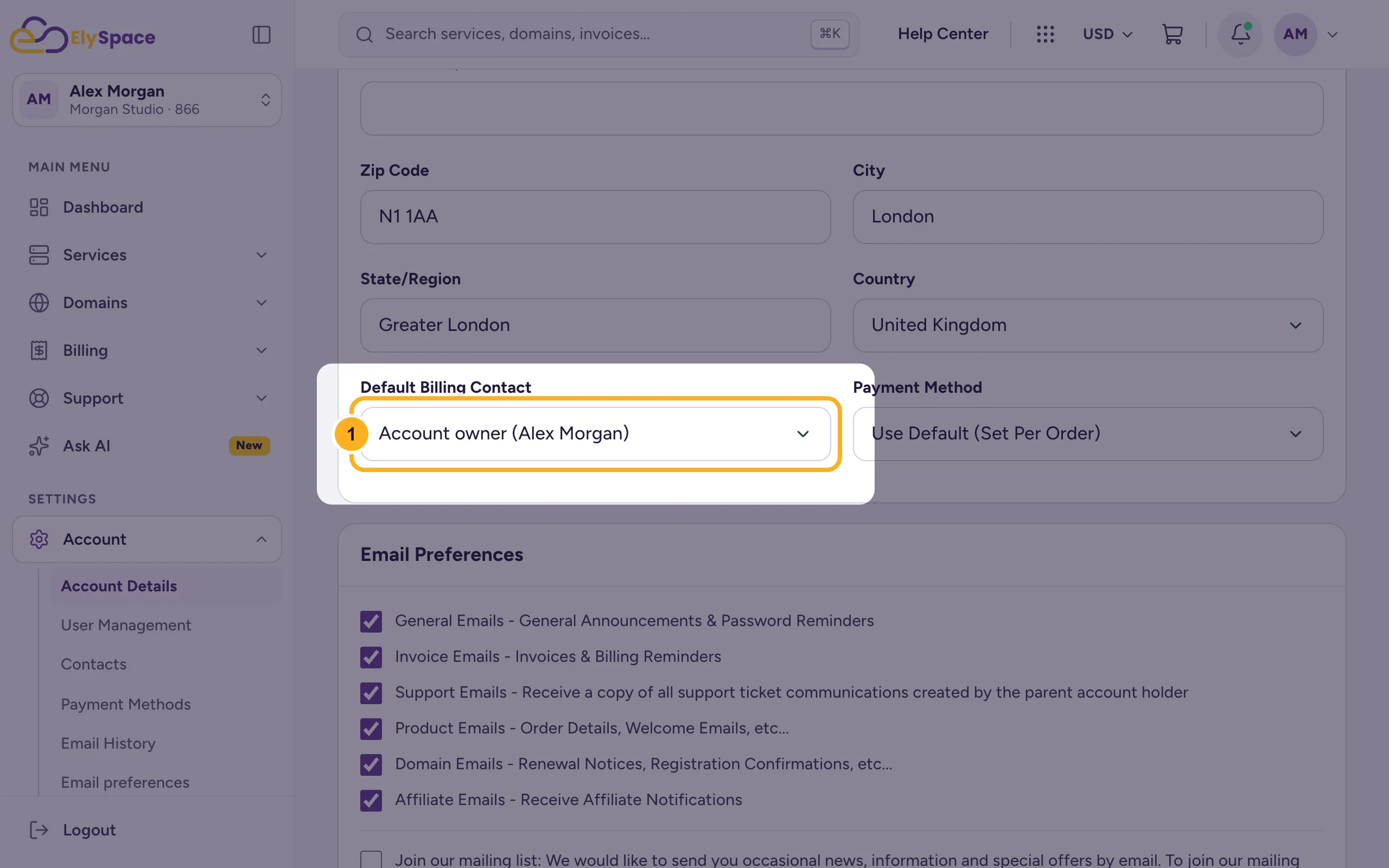
To put the contact's details on your invoices, open Account > Account Details, choose the contact under Default Billing Contact and click Save Changes.
Change or remove a contact
Open Account > Contacts again, pick the contact and change the details or the emails it gets. If a person leaves your company, remove them so they stop getting your invoices.
Common problems
You can't untick Domain Emails
Someone on your account must always get domain notifications, such as renewal notices, because domain registries require it. Tick Domain Emails for another contact or for yourself first, then untick it here.
The contact gets no emails
Check the address for typos and the ticked boxes under Email Preferences. Then ask the person to look in their spam folder.
Related articles
- Give other people access to your account (users)
- Update your profile and billing address
- Choose which emails you get (email preferences)
Still stuck? Open a support ticket and we'll help.
