

To buy web hosting, choose a plan in the ElySpace store, pick a domain, set the billing cycle and server location, then enter your details and pay at checkout.
The order has four steps, shown at the top of every page: Plan, Domain, Options and Account and payment. Nothing is ordered until you click Complete Order at the very end.
1. Choose a plan
Open the store at my.elyspace.com/store/web-hosting. If you're logged in, you can also click Order new service on the dashboard. Not sure which plan? See Which hosting plan is right for you?
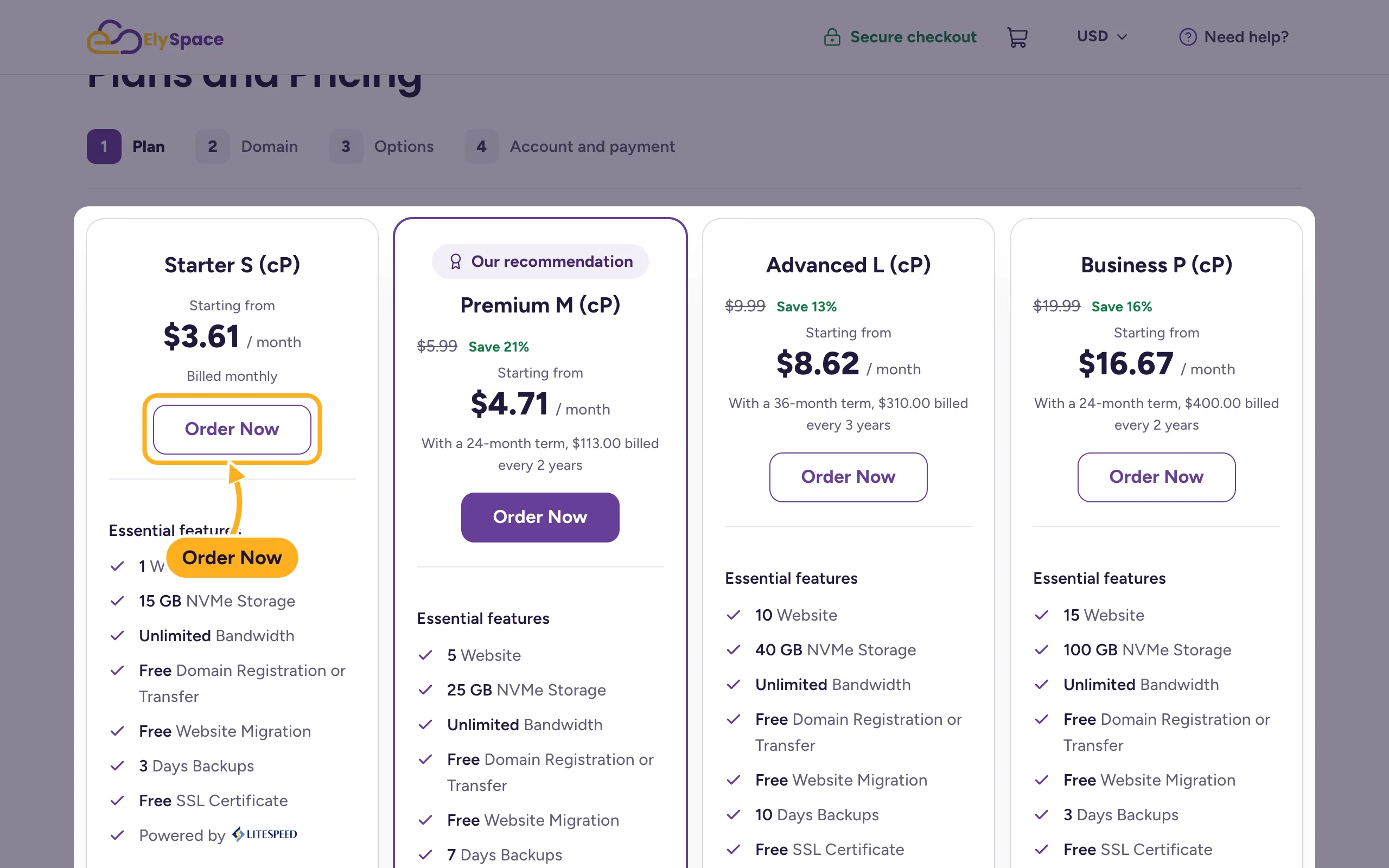
Click Order Now under the plan you want.
2. Choose the domain
Your plan needs a domain. Pick one of the three options:
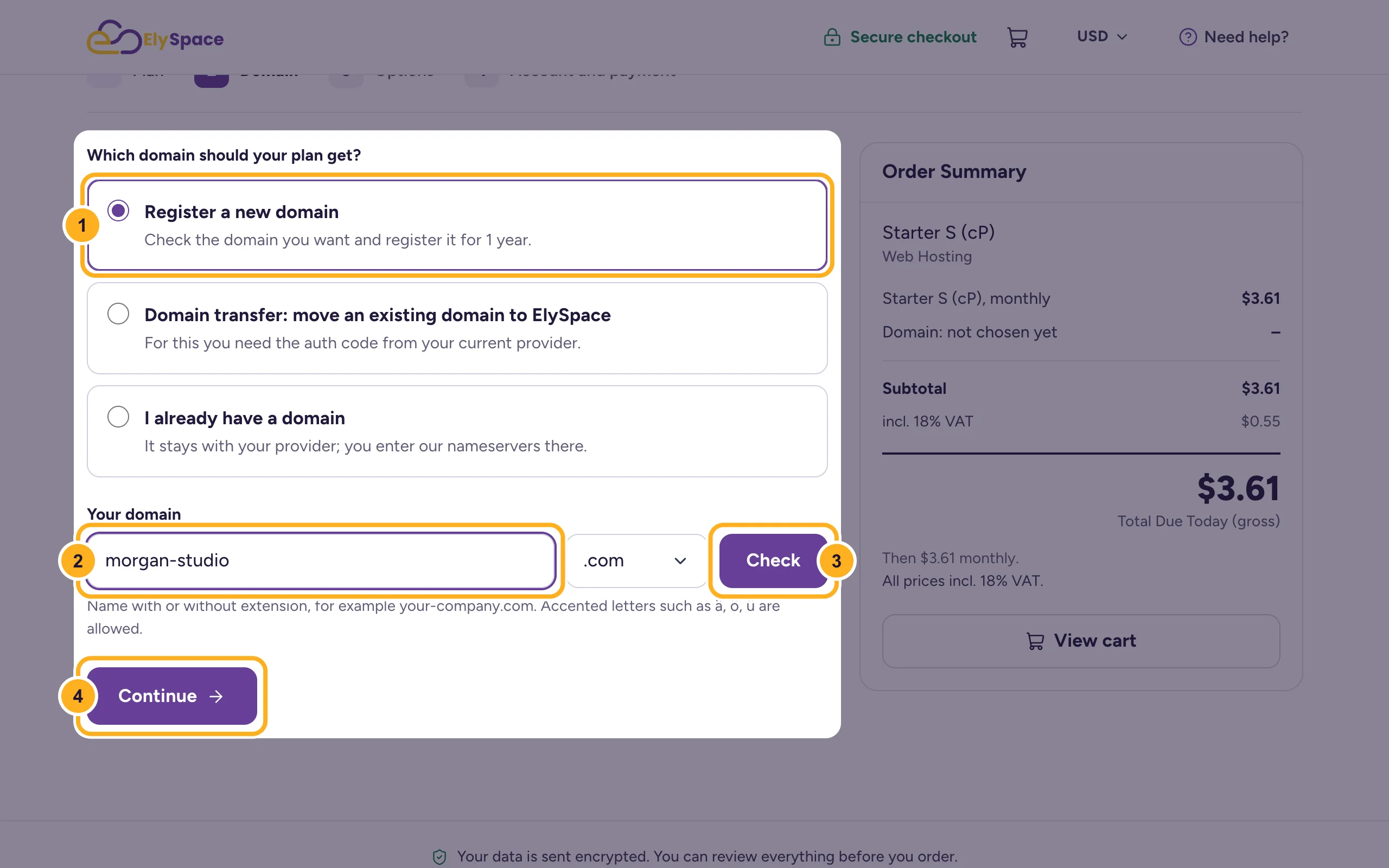
- Register a new domain: for a new address. It's registered for 1 year.
- Domain transfer: move an existing domain to ElySpace: you need the auth code (EPP code) from your current provider. See Transfer a domain to ElySpace.
- I already have a domain: the domain stays with your current provider. After the order you point it to us by changing its nameservers there.
For a new domain:
- Select Register a new domain.
- Type the name you want and choose the extension, for example .com.
- Click Check to see whether it's free.
- Click Continue.
If you chose I already have a domain, a window asks whether you'd like to add a new domain as well. Click Continue without a new domain if you don't need one, or Search for a domain to add one.
3. Choose the options
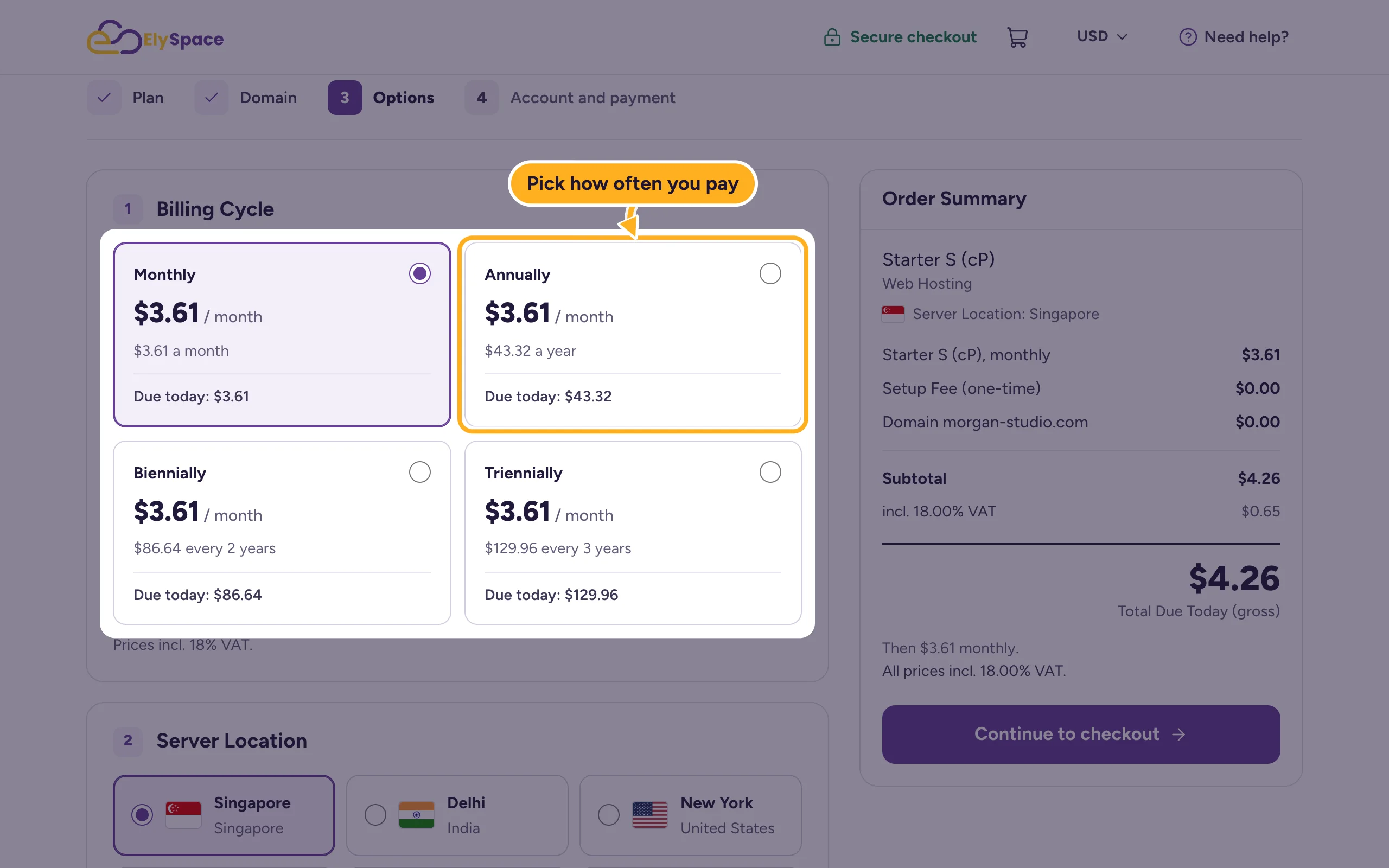
Under Billing Cycle, choose how often you pay: Monthly, Annually, Biennially (every 2 years) or Triennially (every 3 years). Each box shows the amount due today.
Finish the options:
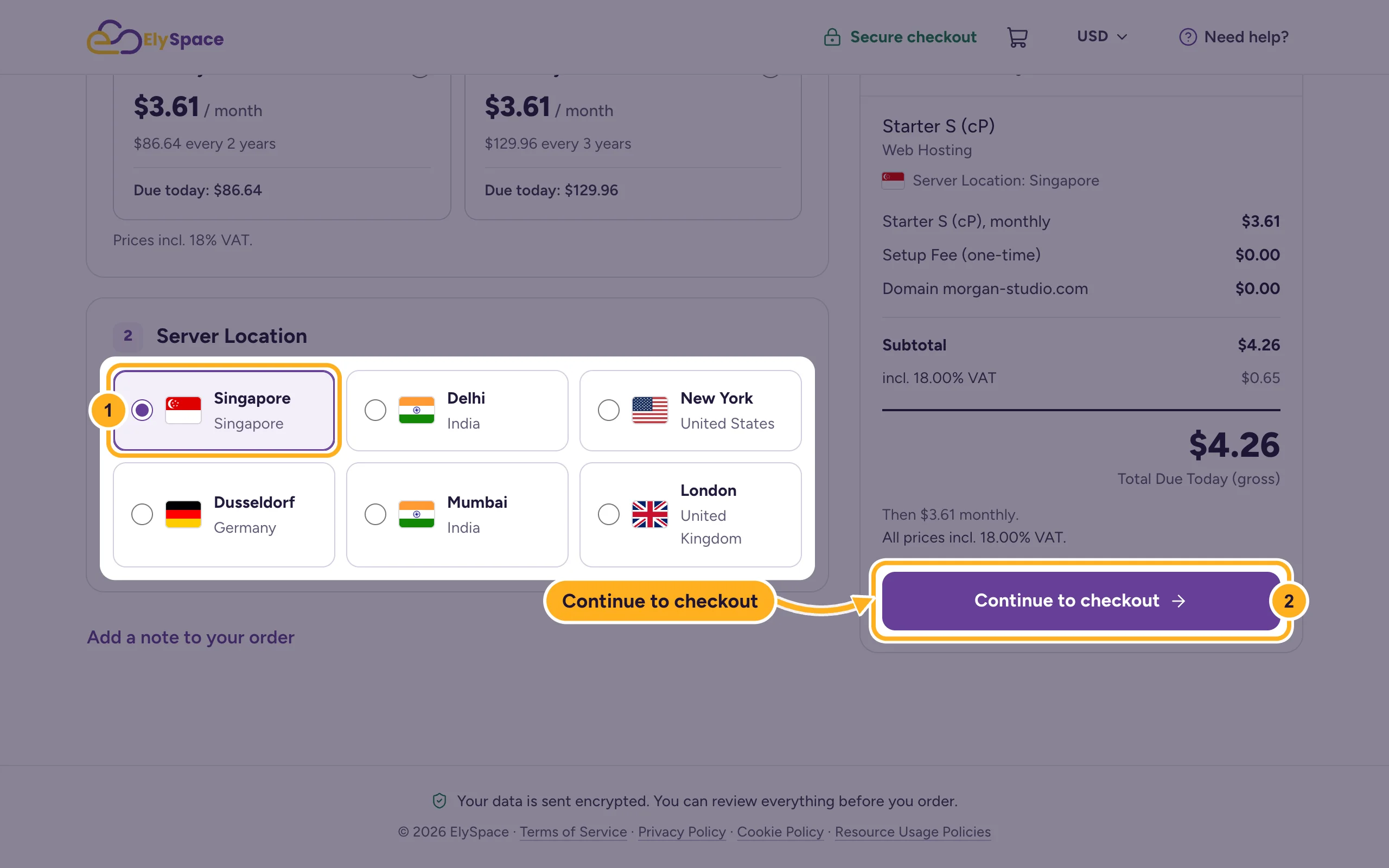
- Under Server Location, choose the location closest to most of your visitors.
- Click Continue to checkout.
With Add a note to your order you can tell us something about the order, for example that you'd like us to move your existing website.
4. Your account and payment
Enter your details:
- Already an ElySpace client? Click Log in and we fill in your details. Your order is added to your existing account.
- New to ElySpace? Fill in Your Details. We send your order confirmation, invoice and login details to this Email Address.
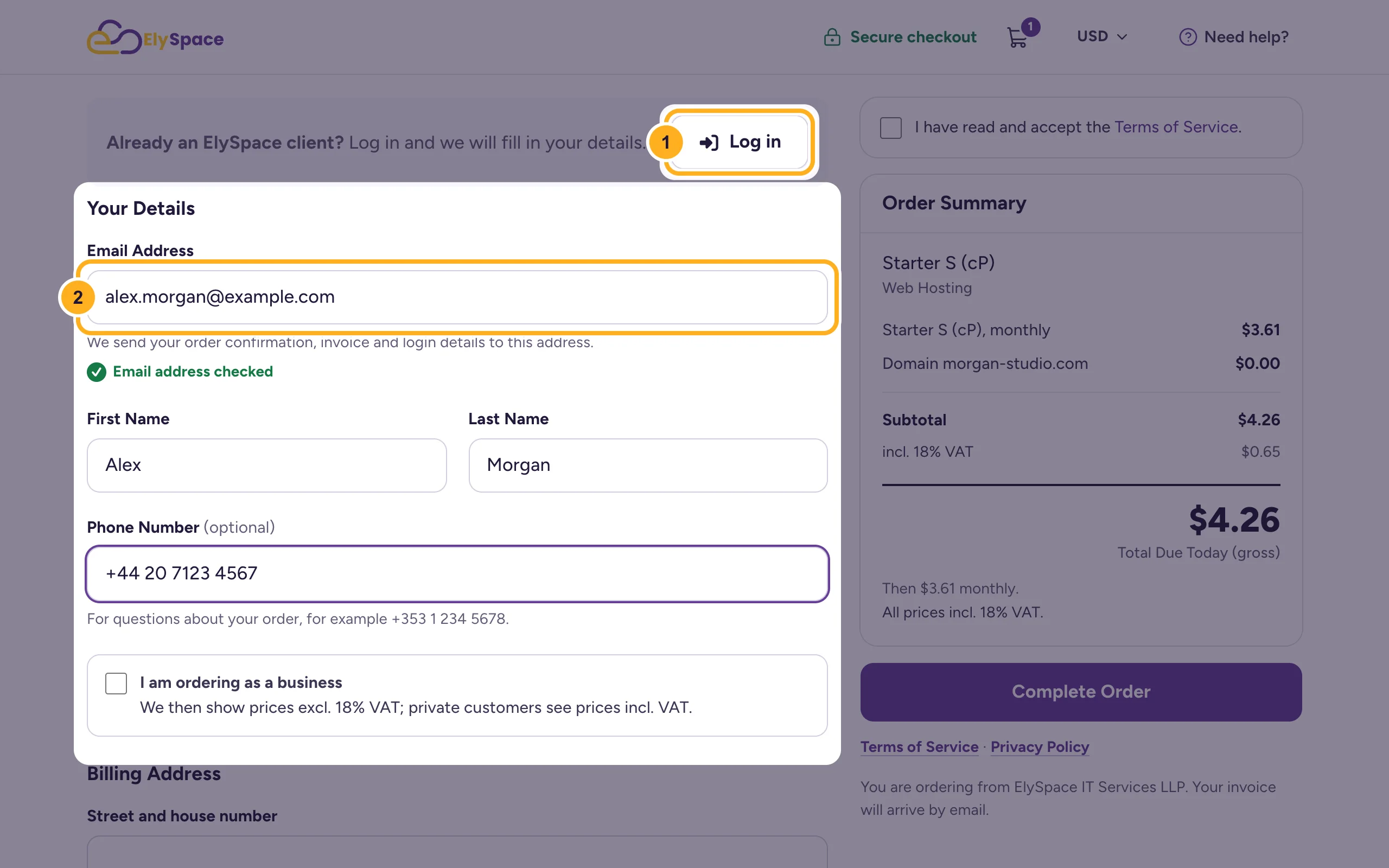
Below that, fill in your Billing Address and choose a password for the client area (at least 10 characters). Tick I am ordering as a business if you buy for a company.
Under Payment Details, choose how you want to pay: card (Stripe), Razorpay for Indian UPI and cards, crypto, PayPal or bank transfer. For a card, enter the card details right there. See Payment methods we accept.
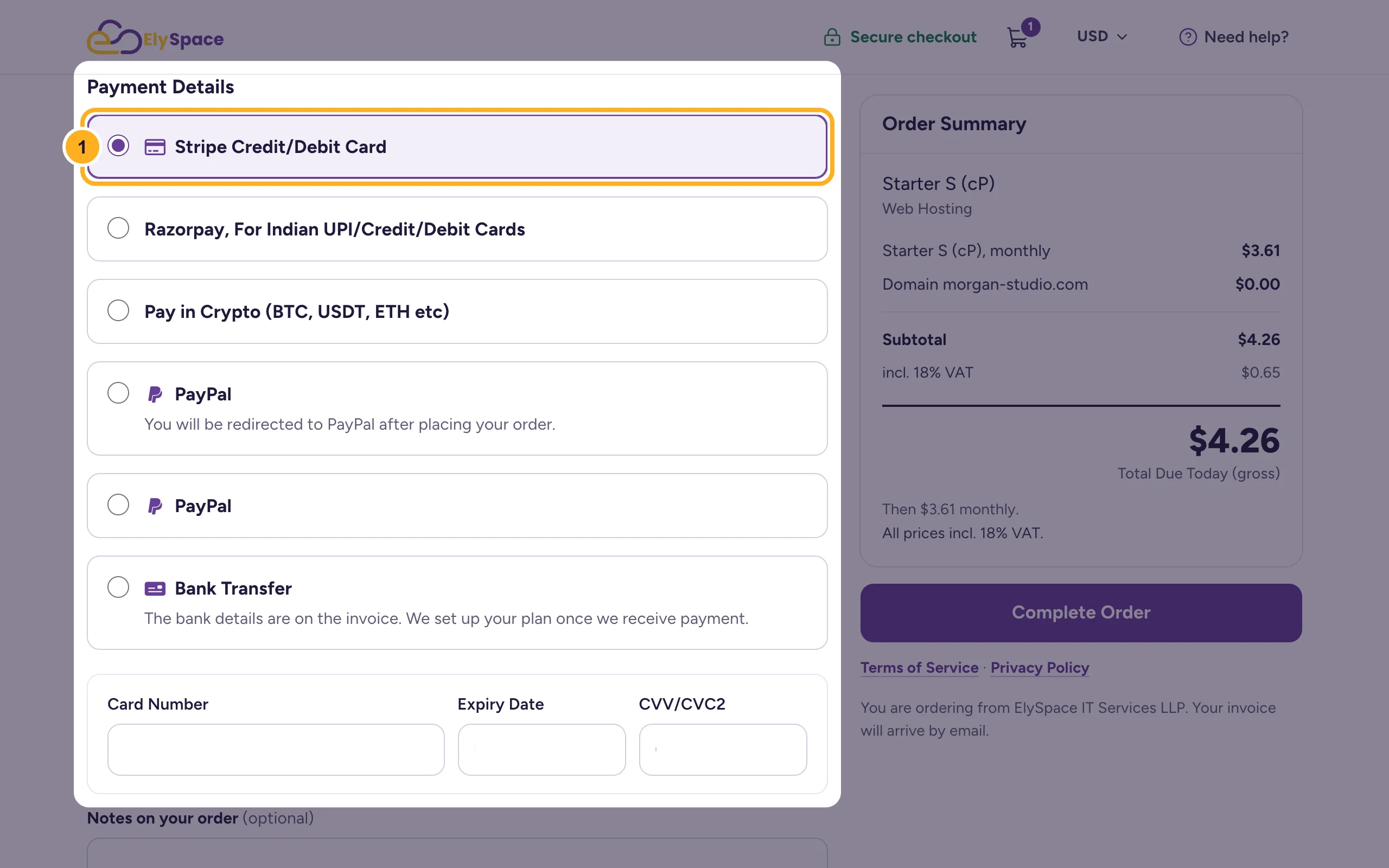
Check the Order Summary on the right, then:
- Tick I have read and accept the Terms of Service.
- Click Complete Order.
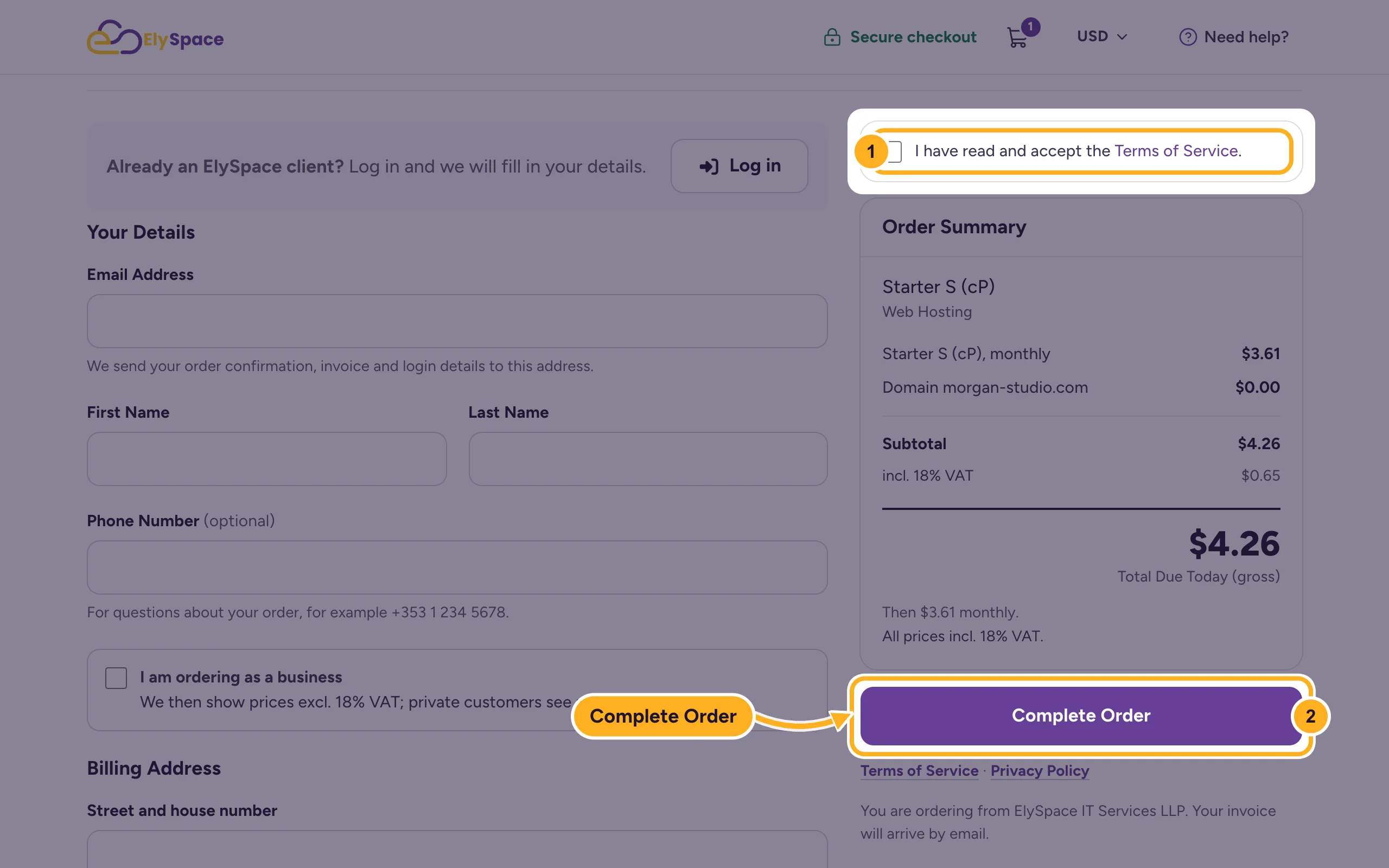
With PayPal you're sent to PayPal to pay. With bank transfer, the bank details are on the invoice, and we set up your plan once your payment arrives. What happens after that: After your order: what happens next.
Common problems
The domain you want is taken
Try another extension (.net, .in, .co.uk and many more are in the list) or a slightly different name.
The price in the cart looks different from the store
The store shows the price per month. The cart shows what's due today for the whole billing cycle you chose, plus any tax for your country.
The payment fails
Your order is saved with an unpaid invoice. Log in, open Billing > My Invoices and pay it again, with the same or another method. See Pay an invoice.
Related articles
- After your order: what happens next
- Which hosting plan is right for you?
- Payment methods we accept
- Register a new domain
Still stuck? Open a support ticket and we'll help.
