

phpMyAdmin imports SQL files up to 50 MiB. For bigger databases, compress the file to .sql.gz, split it, or import it over SSH.
Import a file in phpMyAdmin
Create the database (and a user) first if it doesn't exist yet (see Create a MySQL database with the Database Wizard).
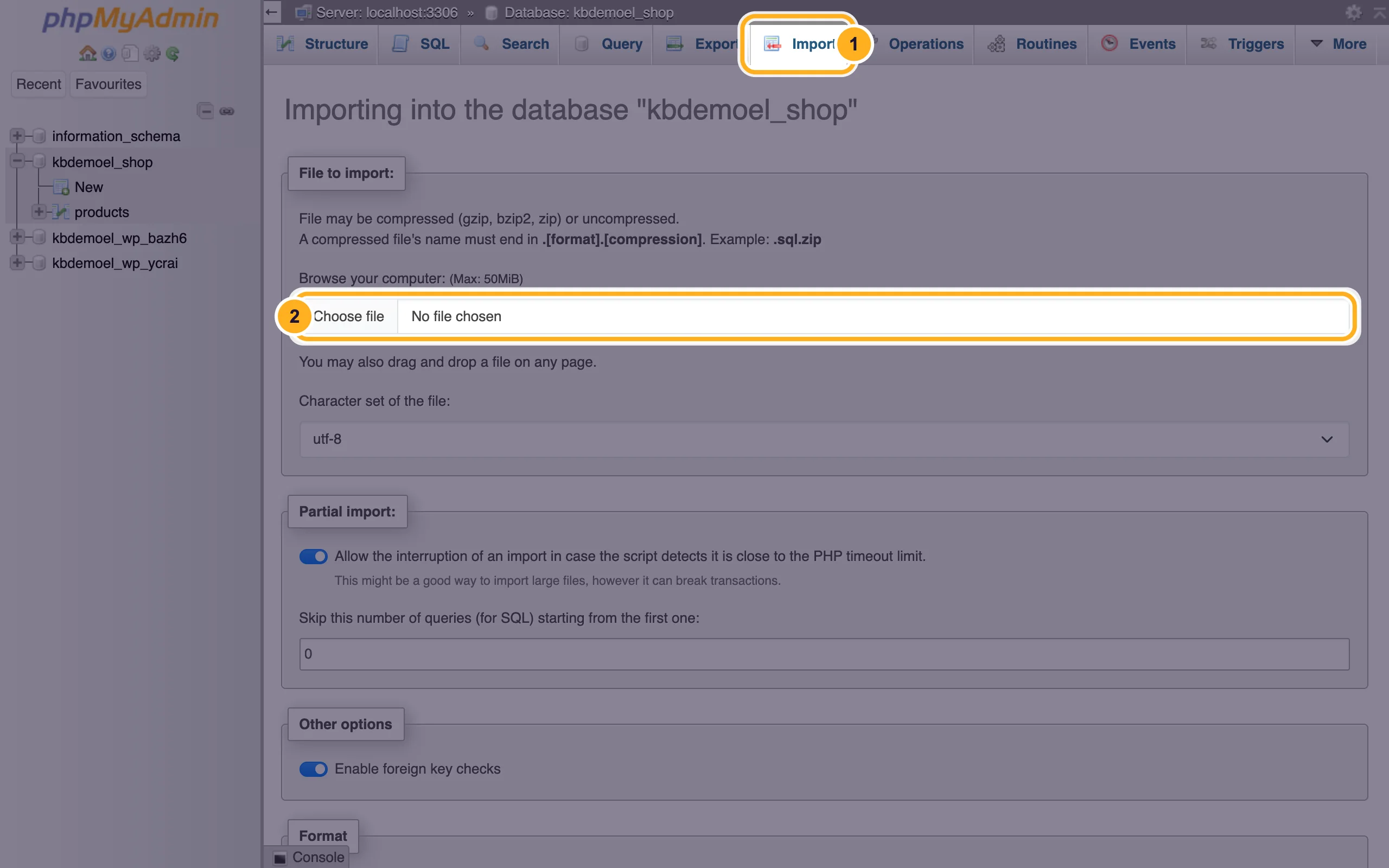
In cPanel, open phpMyAdmin and click the database on the left.
Choose the file:
- Click the Import tab.
- Under Browse your computer, click Choose file and pick your
.sqlor.sql.gzfile. The maximum size is shown next to it: (Max: 50MiB).
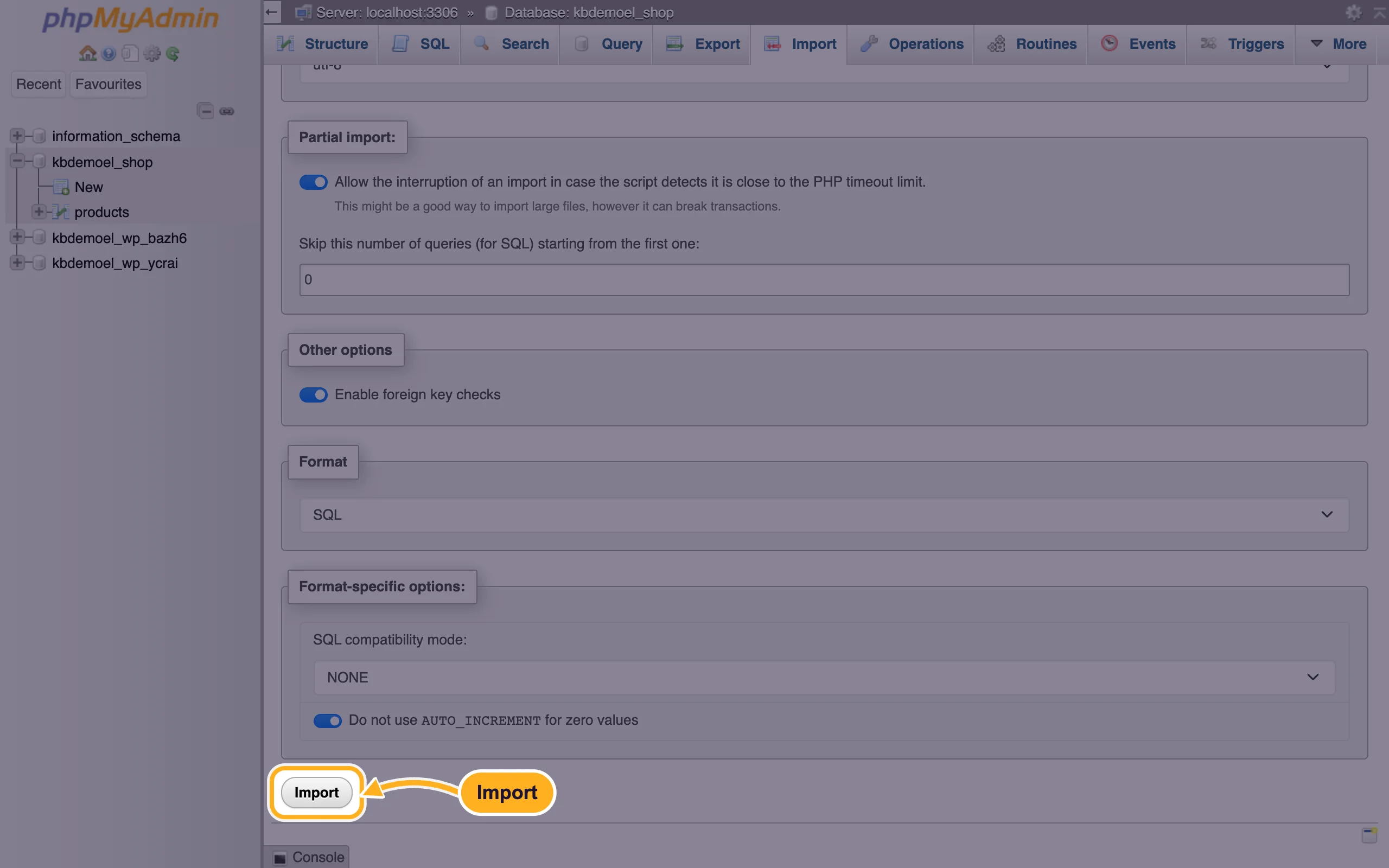
Leave the other settings as they are (Character set of the file utf-8, format SQL) and click Import at the bottom of the page.
When it's done, phpMyAdmin shows a green message with the number of queries it ran. The tables appear on the left.
File bigger than 50 MiB: compress it
SQL files are plain text and usually shrink a lot when compressed. phpMyAdmin accepts gzip, bzip2 and zip files, as long as the name ends in .sql.gz, .sql.bz2 or .sql.zip.
- macOS or Linux: open Terminal in the folder with the file and run the command below. You get
database.sql.gz.gzip -9 database.sql - Windows: with the free 7-Zip, right-click the file, choose 7-Zip > Add to archive, set Archive format to gzip and click OK. Or right-click > Send to > Compressed (zipped) folder and rename the result to
database.sql.zip.
Then import the compressed file as described above. phpMyAdmin unpacks it for you.
Still too big: export less or split the file
- When you export from the old host, leave out tables you don't need, such as old logs, statistics or cache tables.
- Export the database in parts (a few tables per file) and import the files one after another.
Very large databases: import over SSH
If your plan includes SSH access (see Use SSH on shared hosting), there is no 50 MiB limit:
Upload the
.sqlfile to your home folder, outsidepublic_html, with the File Manager or FTP.Connect with SSH and run the command below, with your full database user and database name. Type the database user's password when asked.
mysql -u youraccount_shopuser -p youraccount_shop < database.sqlDelete the
.sqlfile from the server when the import is done.
Common problems
The import stops before the end
Partial import is on by default: if the import gets close to the time limit, phpMyAdmin stops and tells you where. Choose the same file again and click Import. phpMyAdmin fills in Skip this number of queries so it continues where it stopped.
"#1050 Table already exists"
The database already has tables with the same names. Import into an empty database, or delete the old tables first (select them in the Structure tab and choose Drop) after you've exported a copy.
Strange characters after the import
The file uses another character set. Import again into an empty database and choose the right one under Character set of the file, most often utf-8.
"Access denied" or "#1044" errors
The file tries to create a database or uses a different database name. Remove lines that start with CREATE DATABASE or USE from the file, then select your database on the left and import again.
Related articles
- Open and manage a database in phpMyAdmin
- Create a MySQL database with the Database Wizard
- Move your website to ElySpace (free migration)
Still stuck? Open a support ticket and we'll help.
