

cPanel says "The account … already exists!" when the address is already set up. Search for it in Email Accounts first; a leftover entry needs our help.
etc folder in File Manager. That removes the passwords and settings of every email account on your domain, and deleting the mail folder deletes the messages. Use the steps below instead.1. Look for the existing account
In cPanel (see Log in to cPanel from the client area), open Email Accounts.
Type the name before the @ into Search and press Enter. Make sure the filter is set to All, and check every page if the list has more than one.
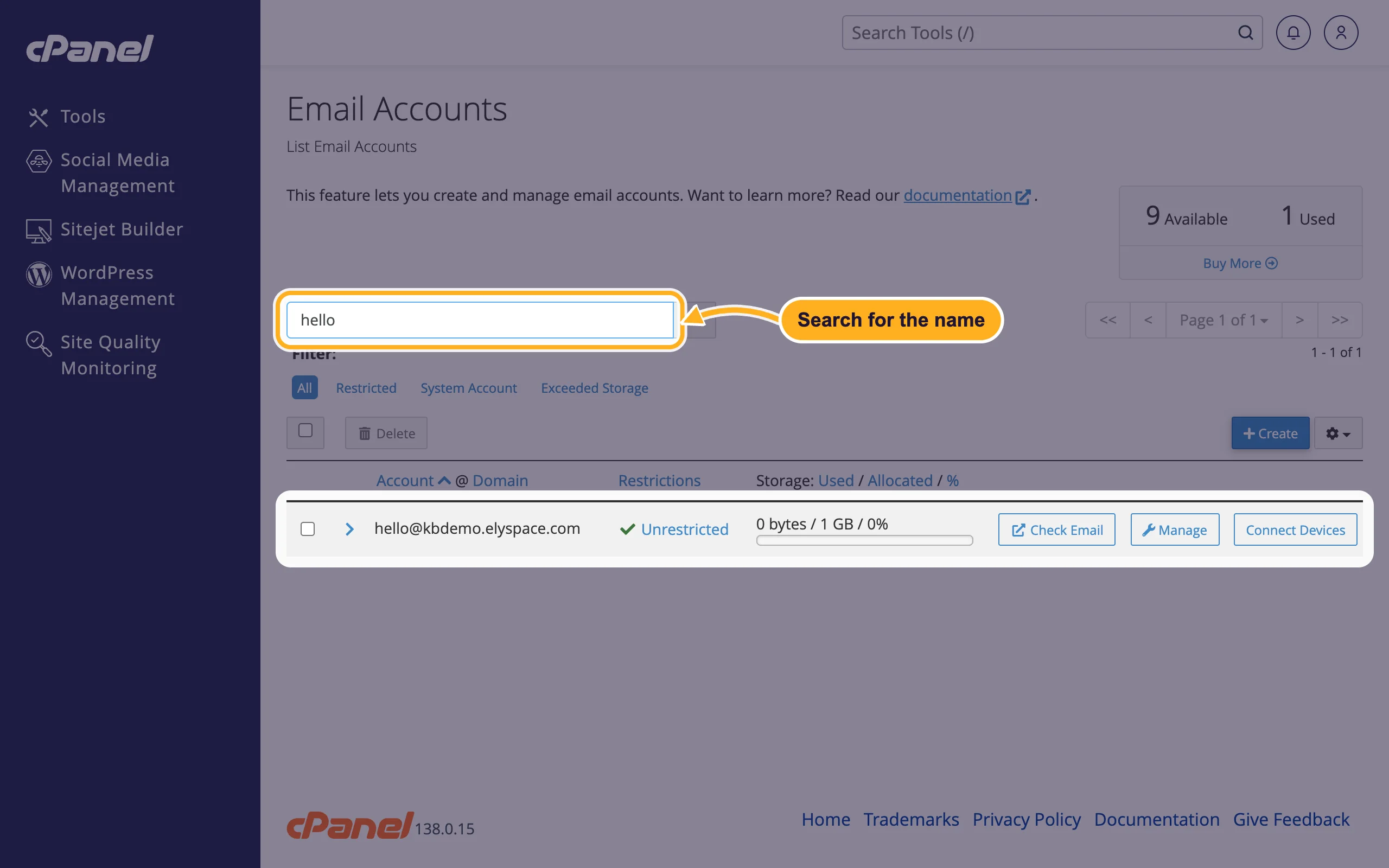
If the address is there, you don't need to create it again. Use Manage to set a new password (see Change an email account password) or to change its storage.
2. Check the domain you picked
With several domains or subdomains, the same name can exist on each of them, for example [email protected] and [email protected]. On the Create form, check the Domain menu above the username before you click Create.
3. You just deleted the account
If you deleted the address a moment ago and want to create it again, wait a minute and reload Email Accounts before you try again.
4. The account isn't listed but cPanel still says it exists
Then an old entry of a deleted or restored account is still stored on the server. Removing it by hand can break other mailboxes, so let us do it: open a ticket in cPanel Support and include the full address and the exact error message. If the old mailbox still holds mail you need, say so, and we'll keep it.
Common problems
The address exists as a forwarder
A forwarder doesn't block a mailbox with the same address; you can have both. If you want only the mailbox, delete the forwarder in Forwarders (see Forward email to another address).
You can't create any new accounts
That's a different message: your plan's limit is reached. The box at the top of Email Accounts shows how many are still Available.
Related articles
Still stuck? Open a support ticket and we'll help.
