

Invite a colleague or web designer under Account > User Management. They get their own login, and you choose exactly what they can see and change.
Invite a user
Log in to the client area and open Account > User Management. The list shows everyone who has access, whether they use two-factor authentication, and their permissions.
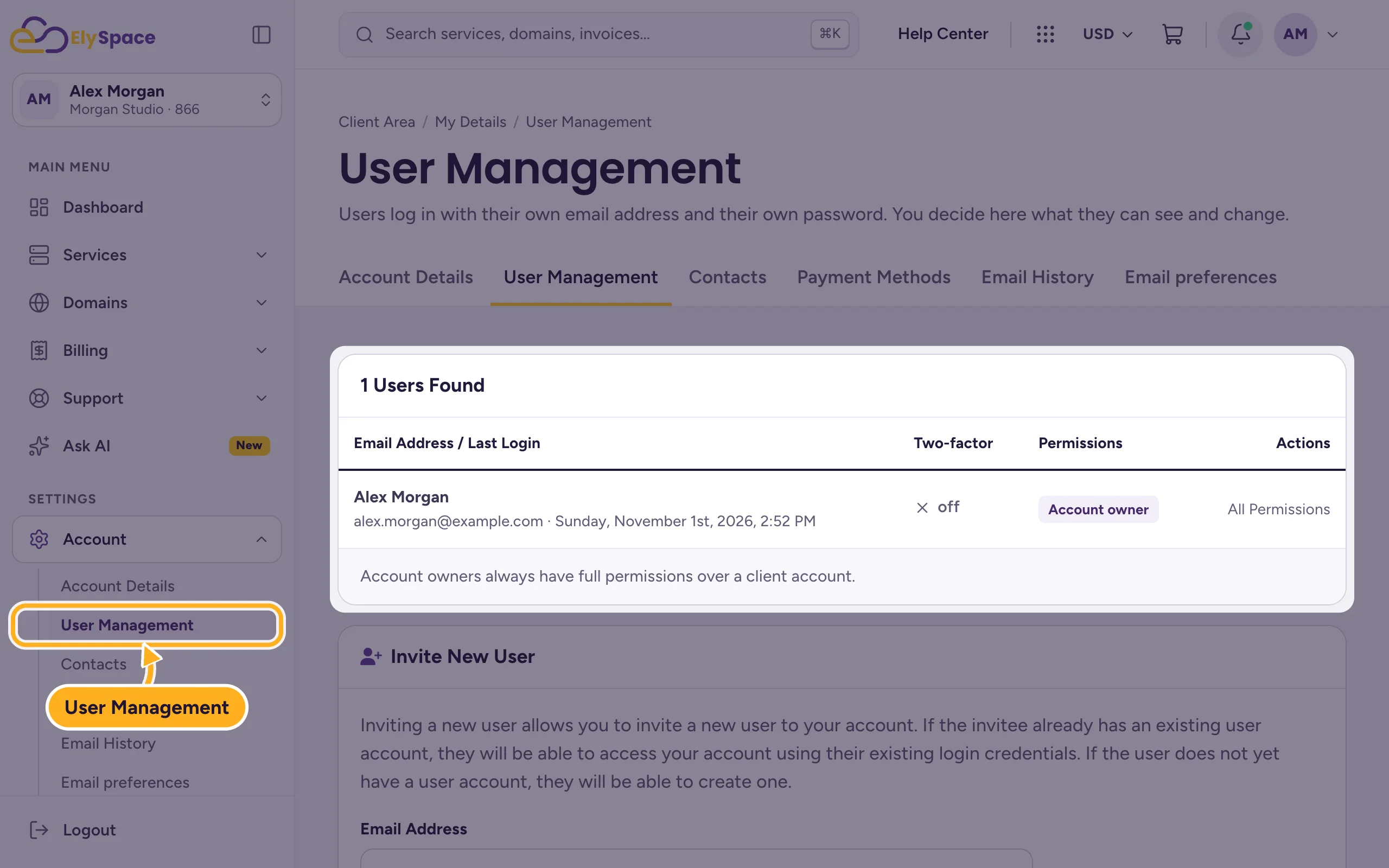
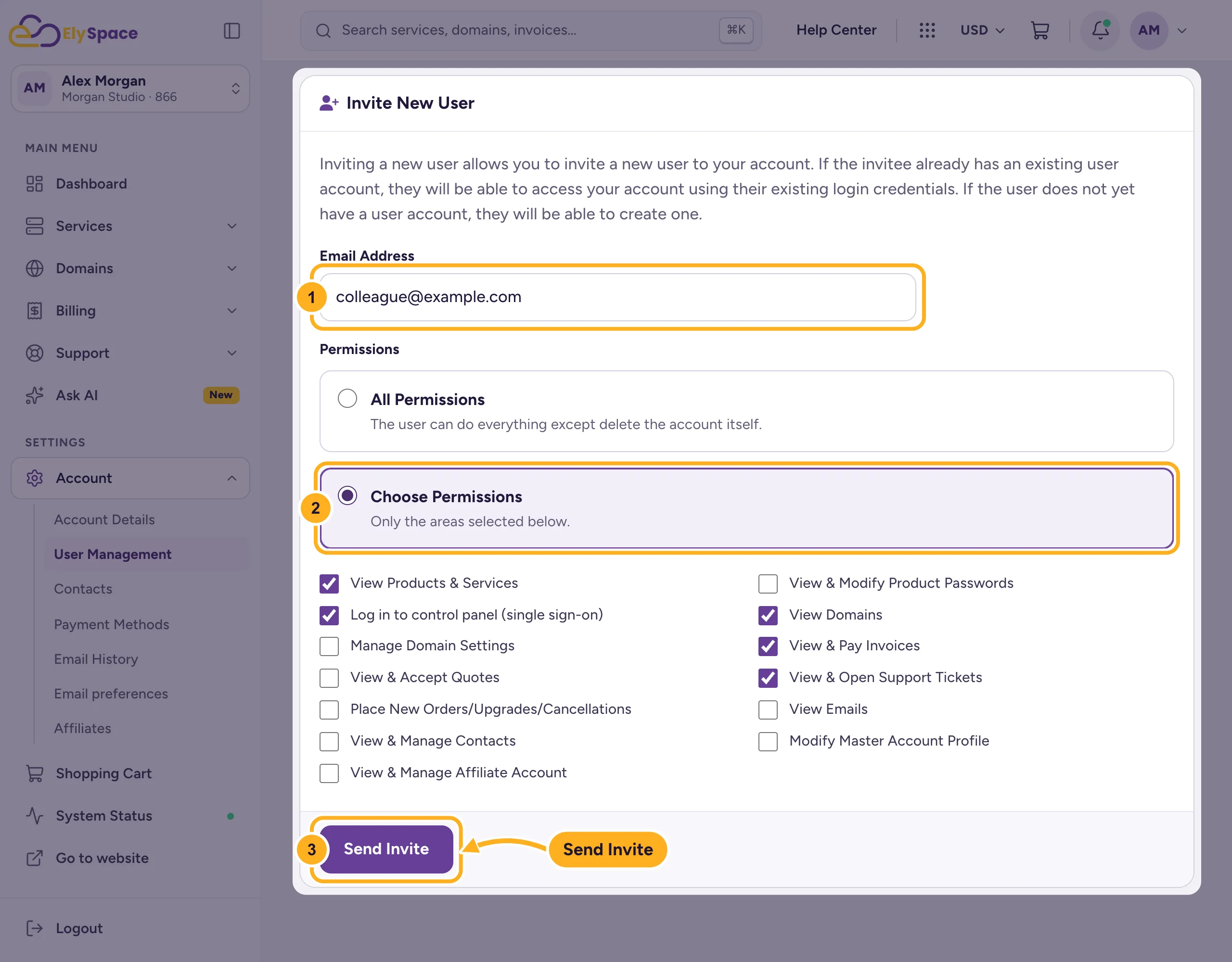
Under Invite New User:
- Enter the person's Email Address.
- Choose All Permissions (they can do everything except delete the account), or Choose Permissions and tick only the areas they need.
- Click Send Invite.
The person gets an email with an invitation link. If they already have an ElySpace login, they use it. If not, they create one. After that, they can switch between their own account and yours: Switch between accounts.
Which permissions to give
| The person is… | Tick for example |
|---|---|
| a web designer working on your site | View Products & Services, Log in to control panel (single sign-on), View & Open Support Tickets |
| your accountant | View & Pay Invoices, View & Accept Quotes, View Emails |
| someone who looks after your domains | View Domains, Manage Domain Settings |
Give as little as the job needs. Place New Orders/Upgrades/Cancellations and Modify Master Account Profile are powerful: tick them only for people you fully trust.
Change or remove someone's access
In the user list, the Actions column next to each user has two buttons:
- Permissions: change what the user can do, then save.
- Remove Access: the user can no longer open your account. Their own login still exists, but your account is gone from it.
Remove access as soon as someone leaves your company or a project ends. The account owner always has all permissions and can't be removed.
Users or contacts?
A user can log in. A contact can't log in and only receives the emails you choose, such as invoices. For a billing address that just needs the invoices, add a contact: Add contacts (for example a billing contact).
Common problems
The invitation doesn't arrive
Ask the person to check their spam folder. Open invitations are listed under Pending Invites on the same page: check the address there and click Resend Invite.
You want to close your whole account
That isn't done in User Management. Open a ticket in Client Area Support and tell us. We'll confirm that the request comes from you before we close anything.
Related articles
- Add contacts (for example a billing contact)
- Switch between accounts
- Turn on two-factor authentication (2FA)
- Security tips for your ElySpace account
Still stuck? Open a support ticket and we'll help.
