

Set a page as your WordPress homepage in Settings > Reading: choose A static page, pick the homepage and the posts page, and save.
A new WordPress site shows your latest blog posts on the homepage. That suits a blog. A business site usually wants a fixed page with its services instead, and the blog on a page of its own.
Set a page as the homepage
Create and publish the pages first, for example
HomeandBlog(the blog page can stay empty). See Build your first WordPress website.Log in to WordPress (see Log in to your WordPress dashboard) and go to Settings > Reading.
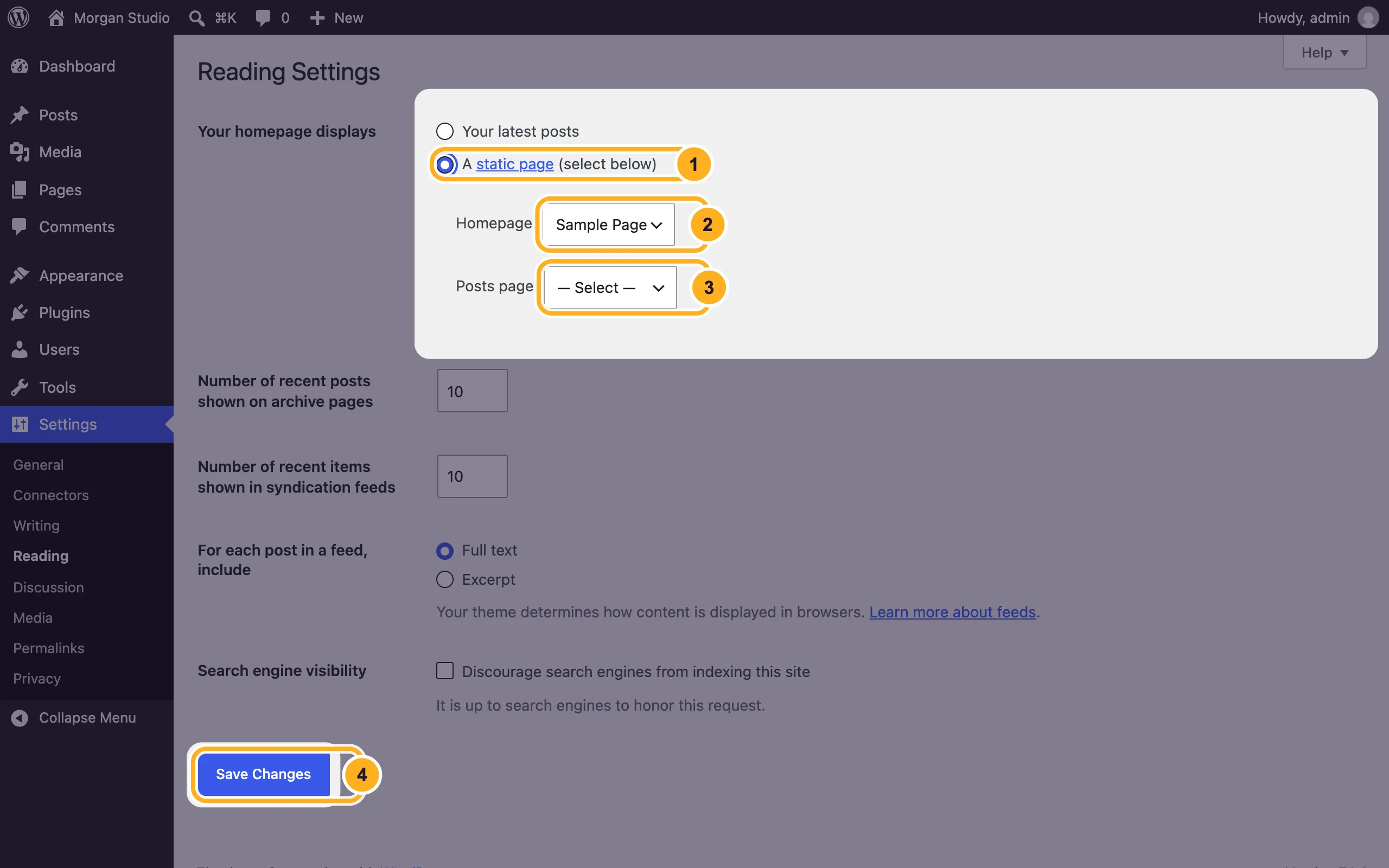
Under Your homepage displays:
- Choose A static page (select below).
- Homepage: select the page visitors should see first.
- Posts page: select the page that should list your posts, or leave Select if you don't blog.
- Click Save Changes.
To edit the homepage afterwards, open Pages, click the page marked Front Page and change it like any other page.
Show your latest posts on the homepage
In Settings > Reading, choose Your latest posts and click Save Changes. Number of recent posts shown on archive pages sets how many posts appear per page.
Common problems
Your page isn't in the Homepage list
Only published pages are listed. Open the page and click Publish, then come back to Settings > Reading.
The homepage still looks the same
Reload your site without cache (Ctrl+F5 on Windows, Cmd+Shift+R on a Mac). With some block themes, the homepage design comes from a template: go to Appearance > Editor > Templates to change it.
The same page is chosen twice
The homepage and the posts page must be different pages. If you choose the same page for both, the posts list won't show.
Related articles
- Build your first WordPress website
- Write and publish your first post
- Fix posts and pages that show 404 (permalinks)
Still stuck? Open a support ticket and we'll help.
