

Change a mailbox's size in cPanel: Email Accounts, Manage, then set Allocated Storage Space in MB (or Unlimited) and click Update Email Settings.
Check how full a mailbox is
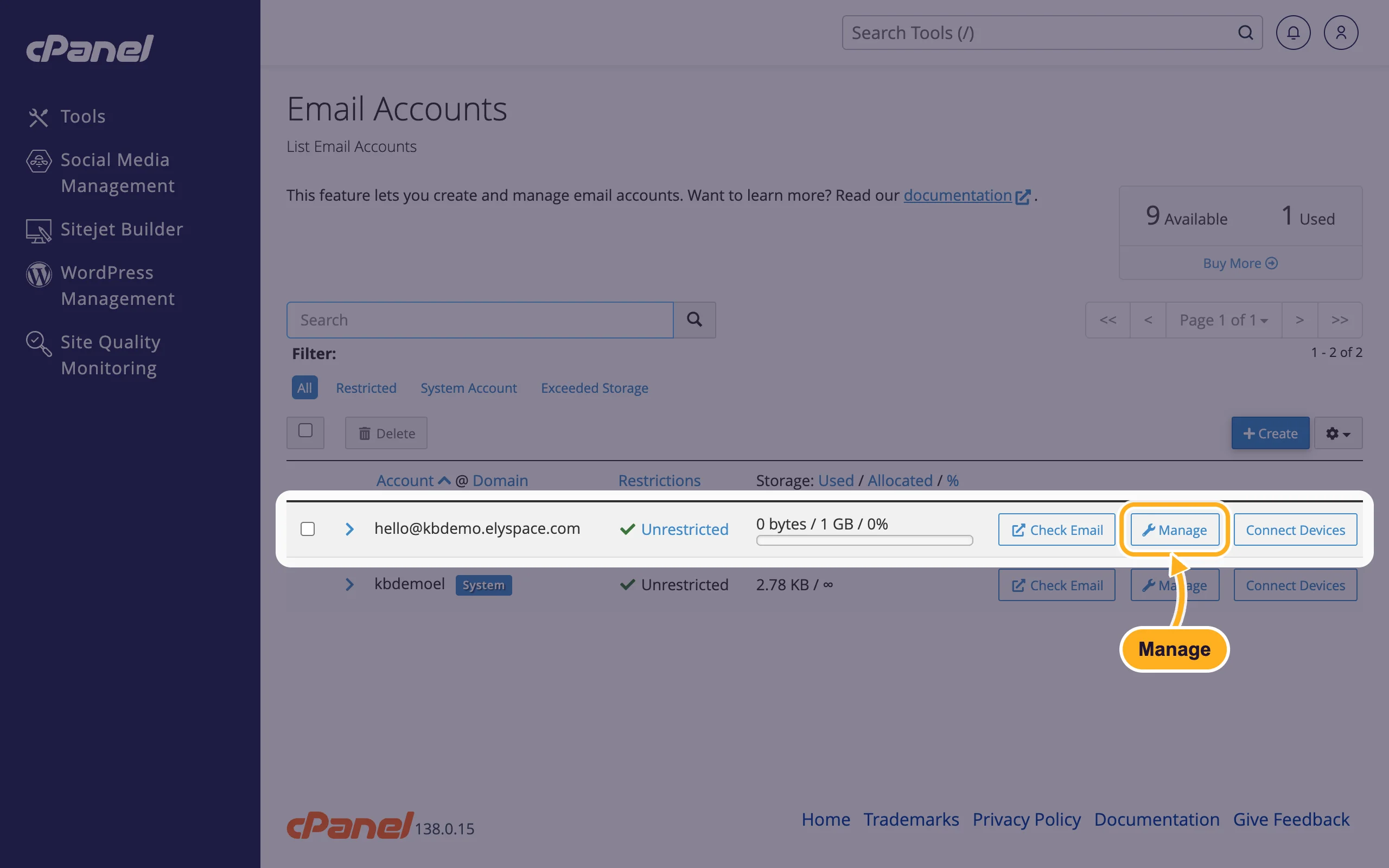
Open Email Accounts in cPanel (see Log in to cPanel from the client area). The Storage: Used / Allocated / % column shows how much of its space each mailbox uses, for example 0 bytes / 1 GB / 0%.
Change the storage space
Click Manage next to the address.
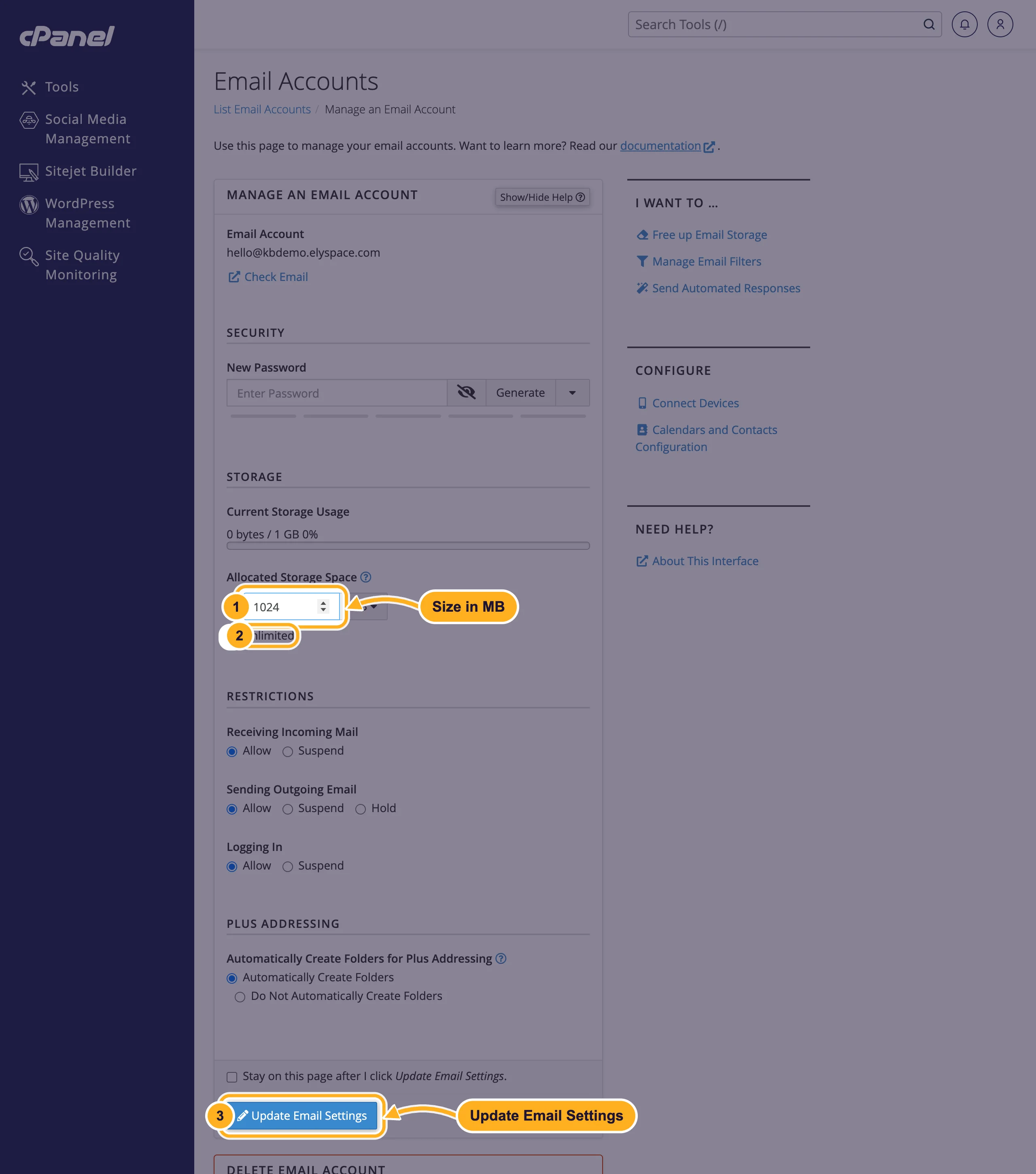
Under Storage:
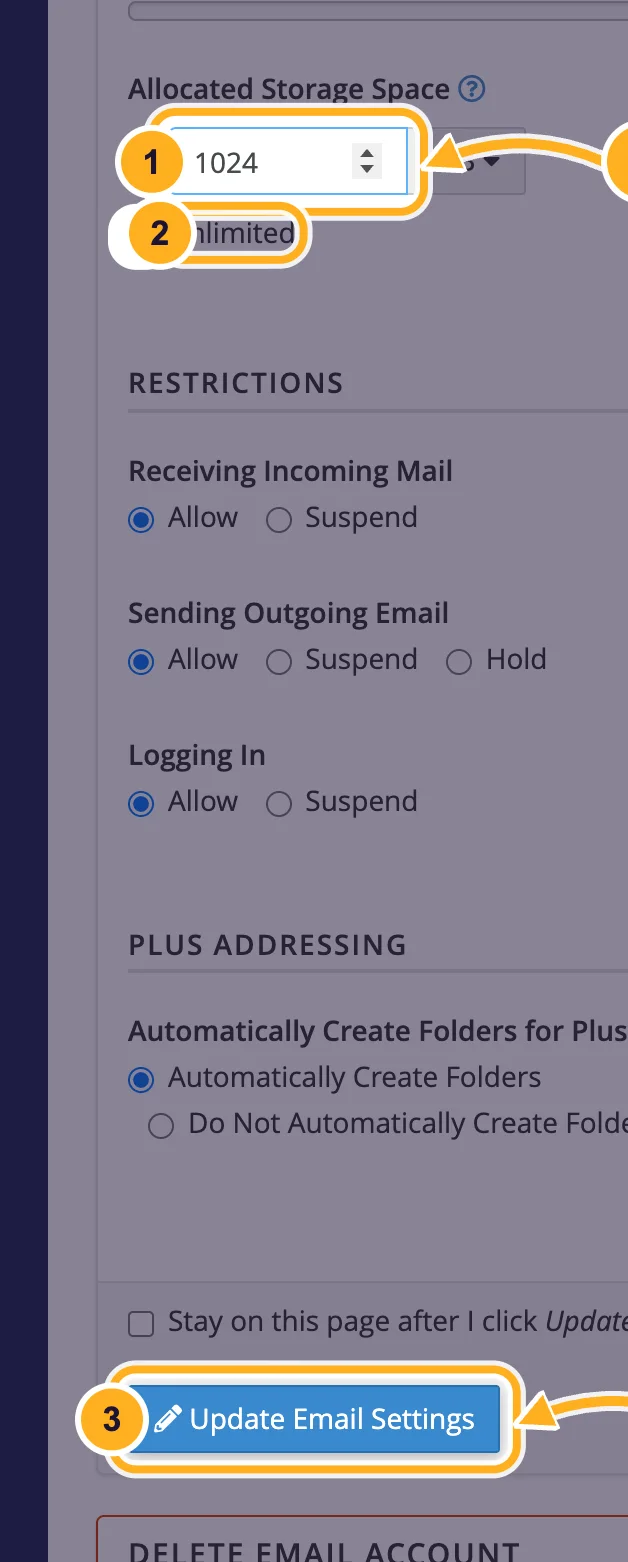
- Type the new size in Allocated Storage Space. The unit is MB unless you switch it in the menu next to the field (1024 MB is 1 GB).
- Or choose Unlimited: the mailbox can then grow until your hosting plan's disk space is full.
- Scroll down and click Update Email Settings.
Free up space instead
On the same Manage page, under I want to …, click Free up Email Storage. It opens Email Disk Usage, which lists the folders of the mailbox (Inbox, Sent, Junk, Trash and others) with their size, so you can delete old messages in bulk. You can also empty the Spam and Deleted Items folders in webmail.
Common problems
Senders get "mailbox full" or "quota exceeded" errors
The mailbox has reached its allocated space and new mail bounces. Raise the size or delete old mail. In the Email Accounts list, the Exceeded Storage filter shows every mailbox with this problem.
Your mail app downloads everything but the mailbox is still full
With IMAP the mail stays on the server. Delete or archive old mail in the app or in webmail, and empty the trash folder afterwards.
Related articles
Still stuck? Open a support ticket and we'll help.
