

Change a mailbox password in cPanel under Email Accounts, Manage. If you only have the mailbox login, change it in Webmail under Password & Security.
Change the password in cPanel
Use this if you manage the hosting account, for example to reset the password of a colleague's mailbox.
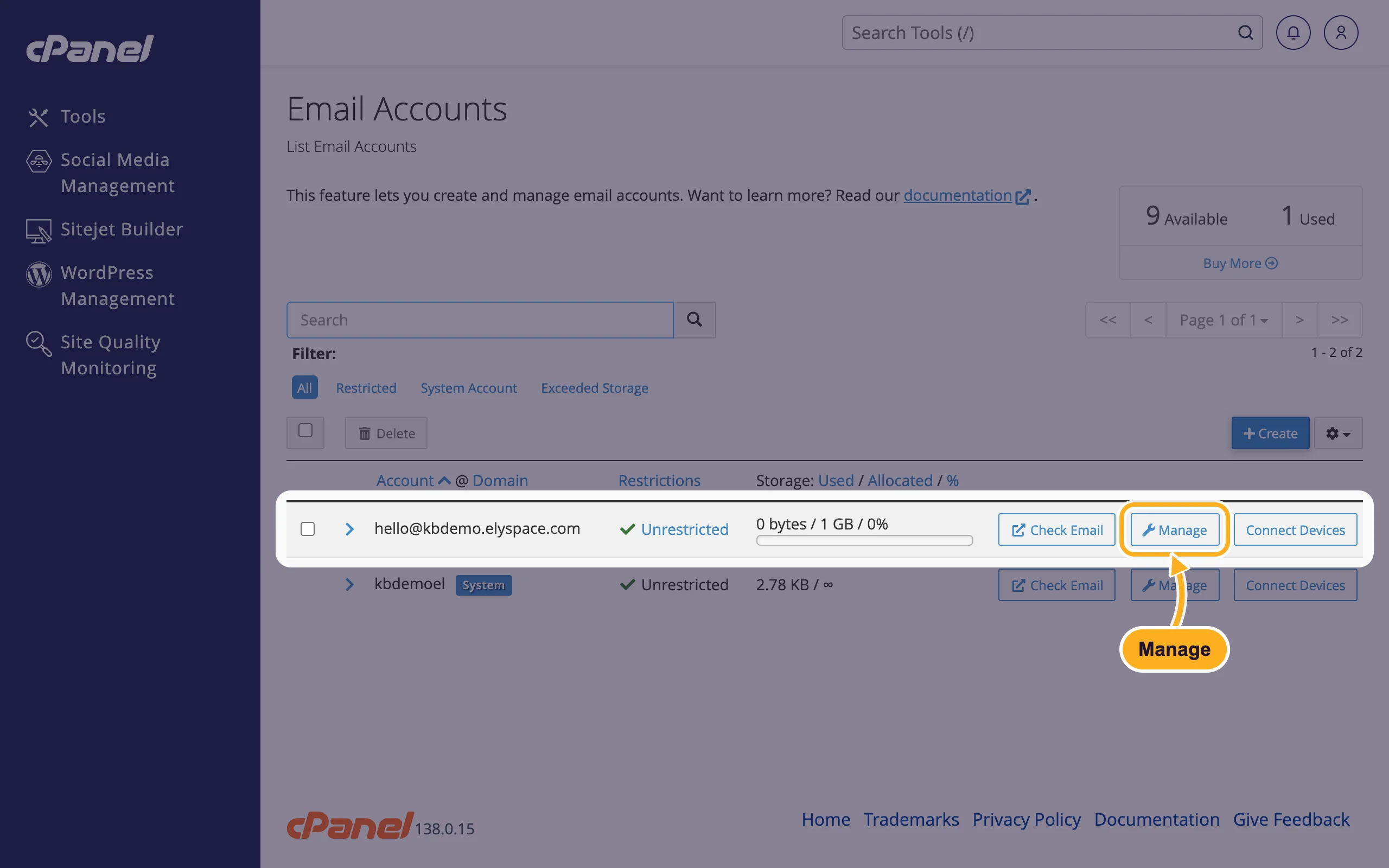
Log in to cPanel (see Log in to cPanel from the client area) and open Email Accounts in the Email section.
Find the address and click Manage in its row. With many addresses, type part of the name into Search first.
Under Security:
- Type the new password in New Password.
- Or click Generate for a random one, and copy it before you leave the page.
- Scroll down and click Update Email Settings.
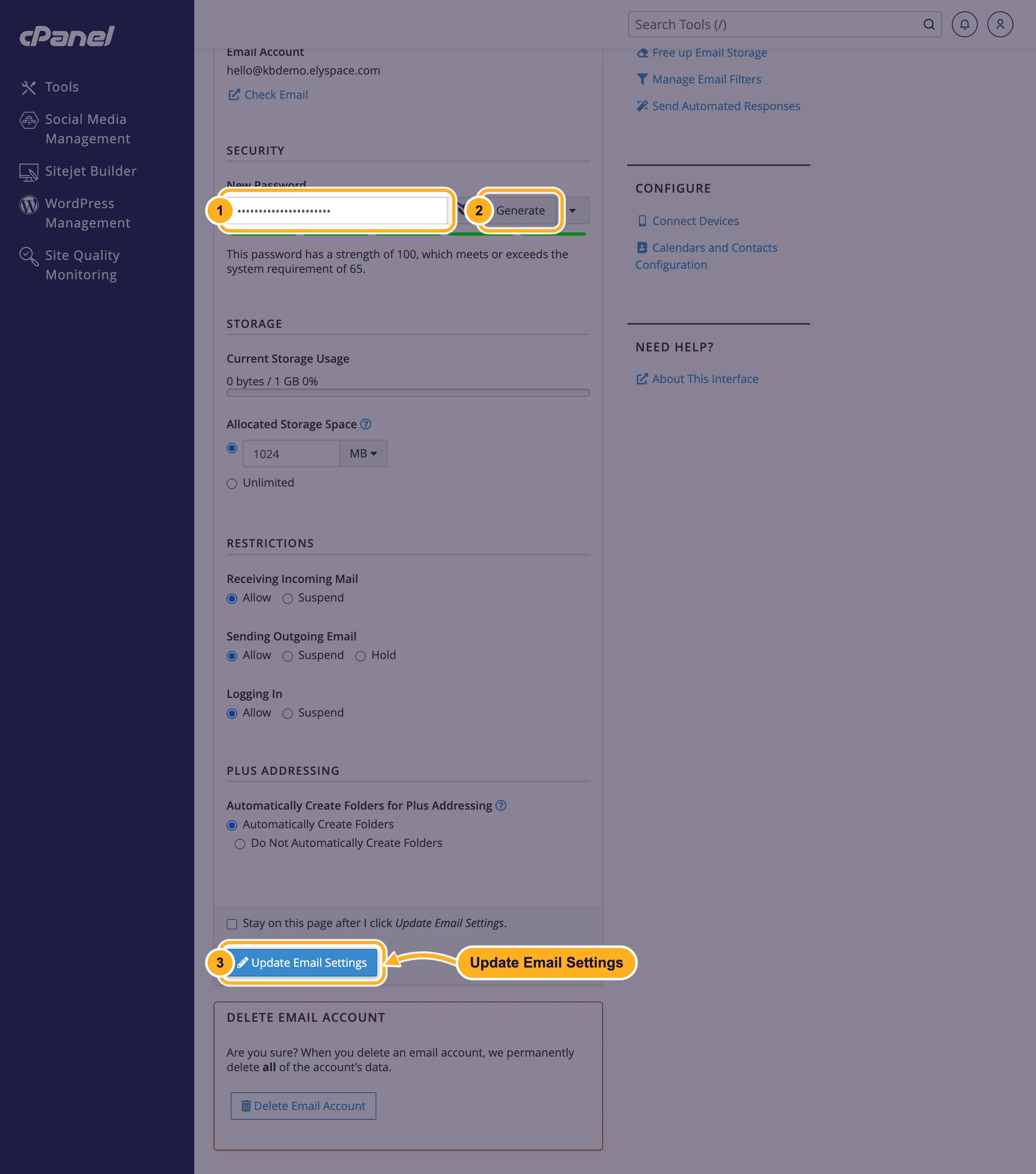
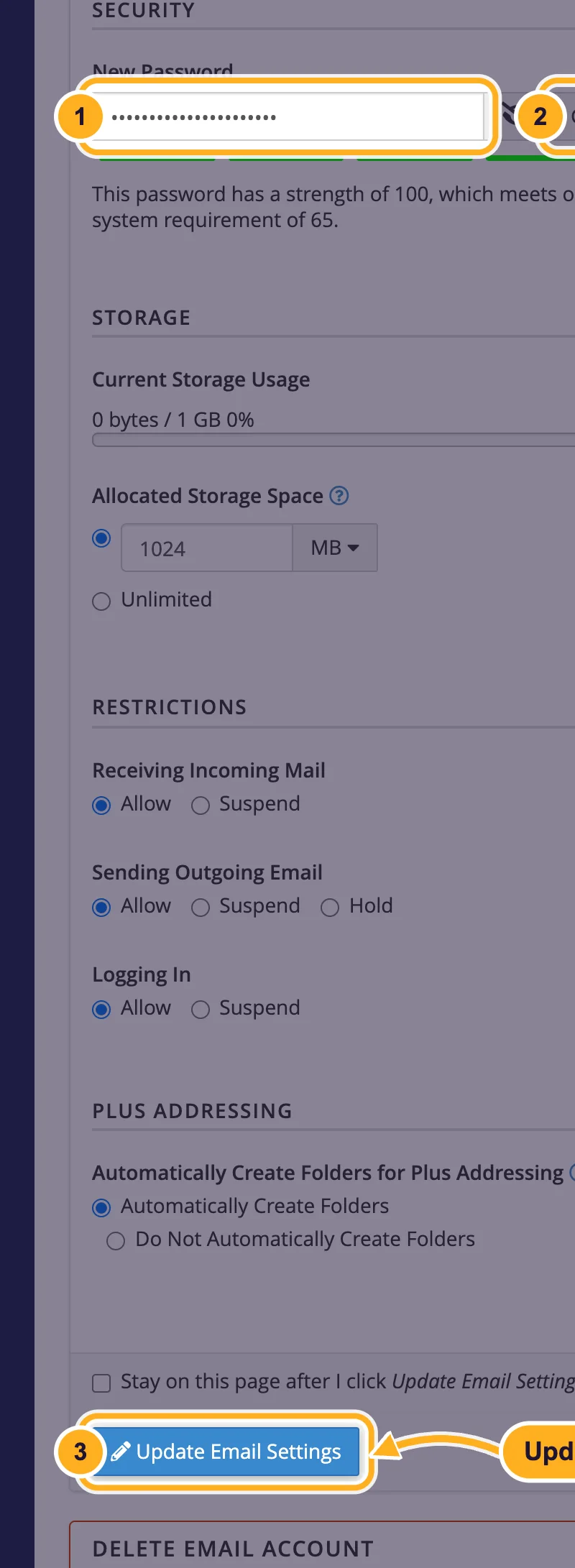
Leave the other settings on the page as they are unless you mean to change them: the same form also sets storage space and restrictions.
Change the password in Webmail
Use this if you don't have the cPanel login but know the mailbox's current password.
Log in to Webmail with the email address and current password (see Log in to webmail).
On the Webmail start page, under Edit Your Settings, click Password & Security. If Roundcube opens straight away, click Webmail Home in its left menu first.
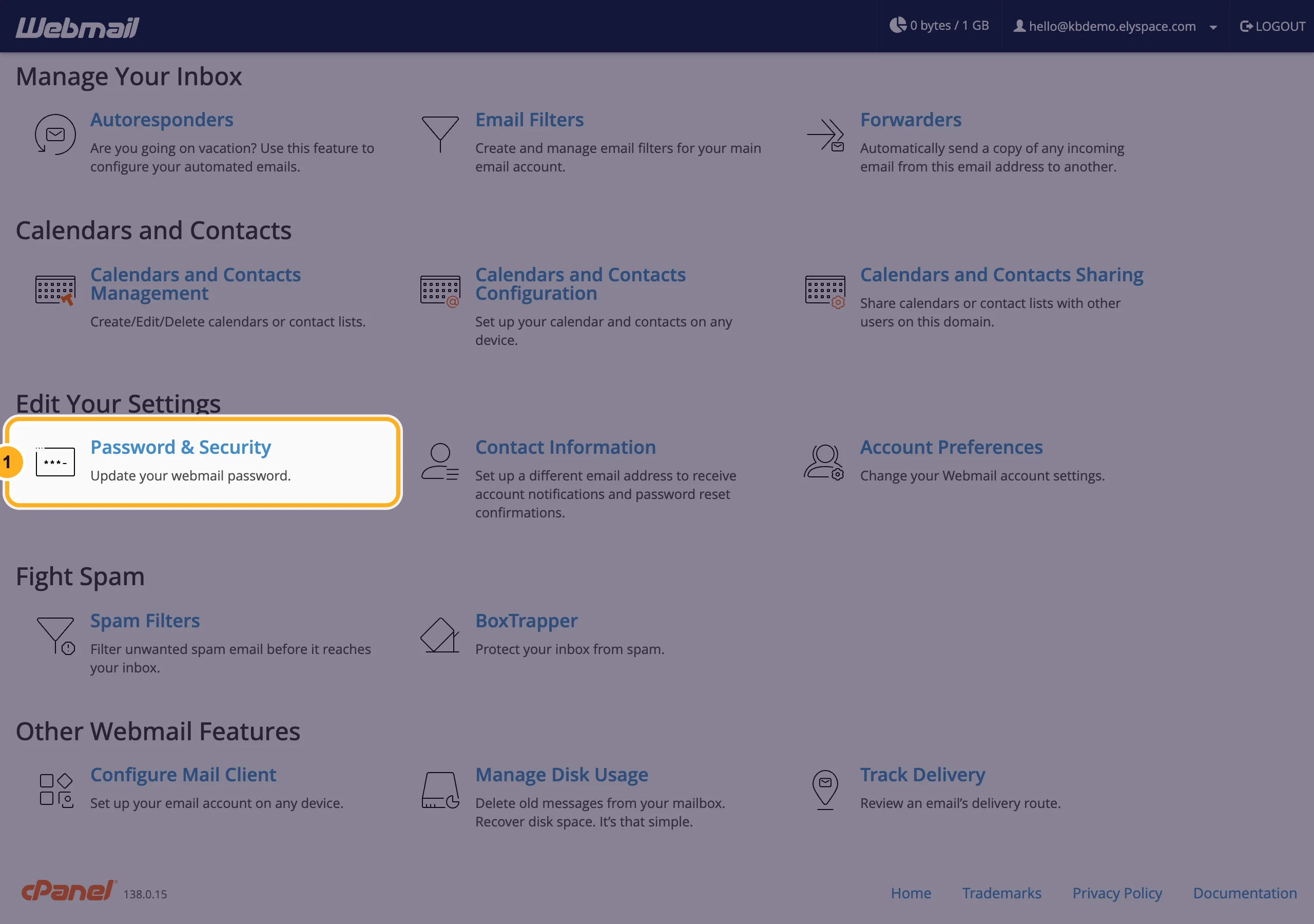
Type the new password in New Password and again in Confirm New Password (or use Password Generator), then click Save.
Common problems
Your phone keeps asking for the password
The mail app still uses the old one. Open the account settings in the app and enter the new password for both the incoming and the outgoing server.
You forgot the mailbox password and have no cPanel access
Ask the person who manages your hosting account to set a new one in cPanel. If that's you, log in to cPanel through the client area; you don't need a separate cPanel password for that.
Related articles
- Create an email account
- Log in to webmail
- Email server settings and ports (IMAP, POP3, SMTP)
- Change or reset your cPanel password
Still stuck? Open a support ticket and we'll help.
