

Delete a MySQL database or user in cPanel under Manage My Databases with the Delete link next to it. A deleted database can't be brought back from there.
Delete a database
In cPanel, open Databases > Manage My Databases.
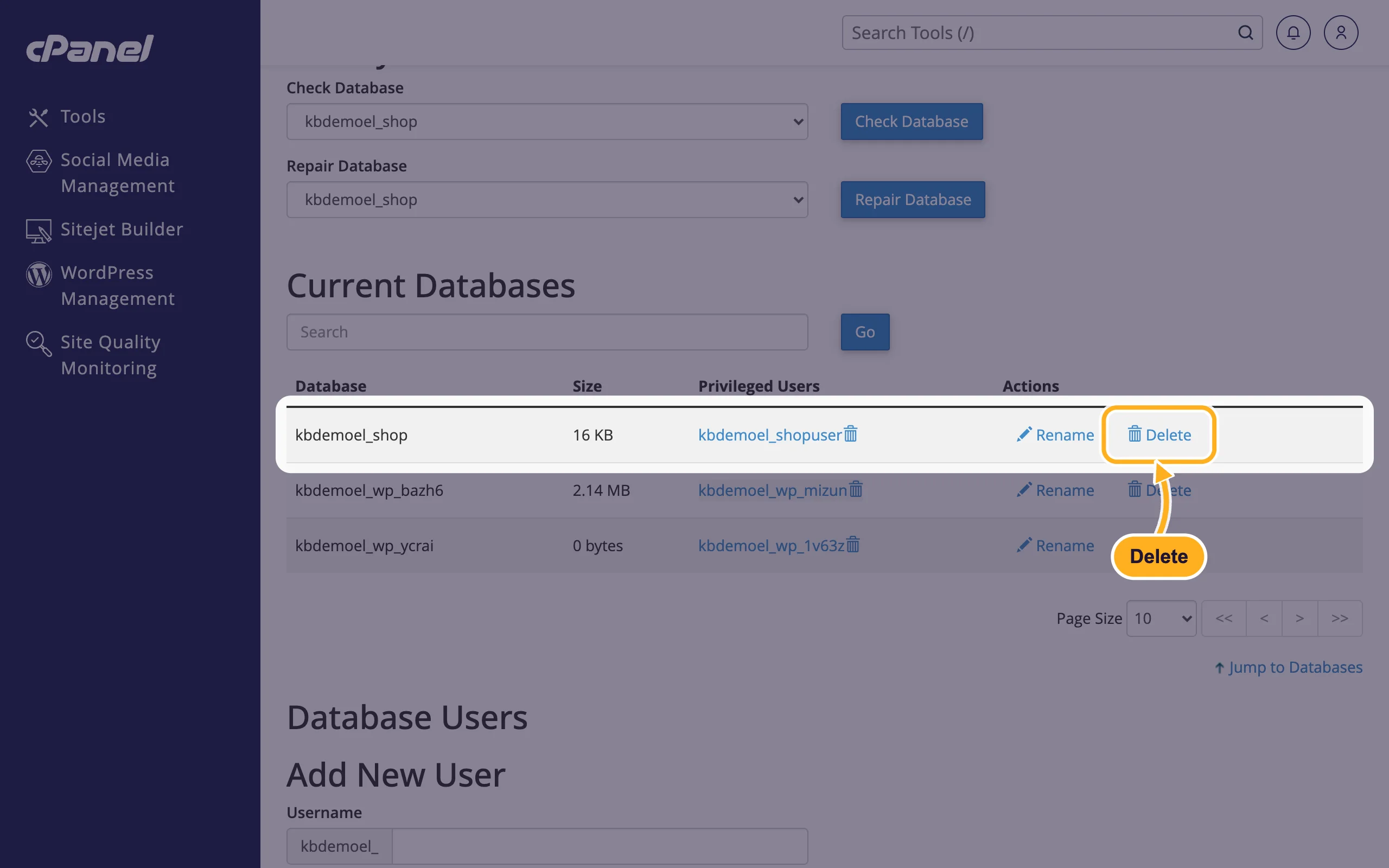
In Current Databases, click Delete in the row of the database.
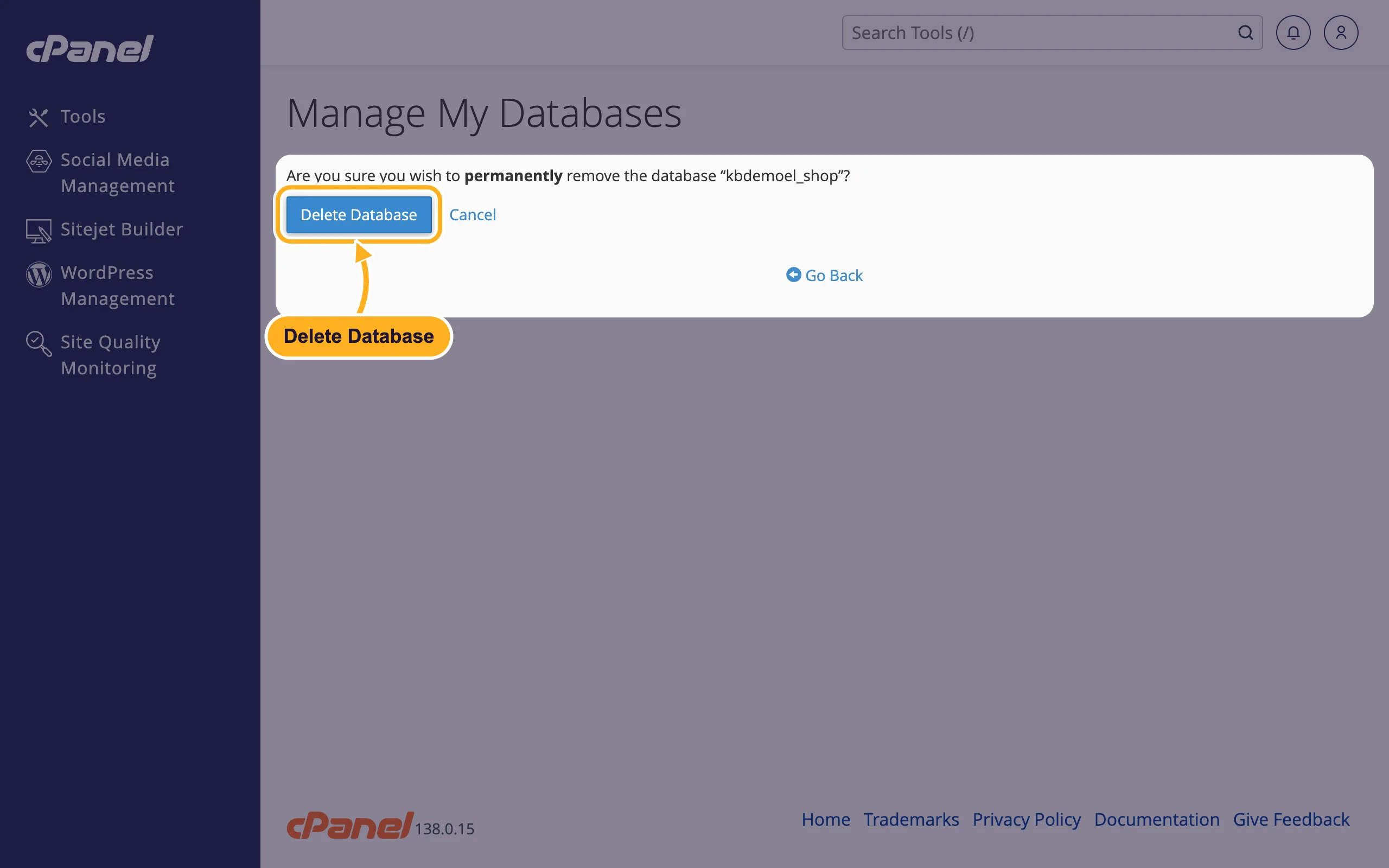
cPanel asks if you want to permanently remove the database. Click Delete Database.
The database and all its tables are removed. Its users stay in your account, so you can delete them too if nothing else uses them.
Delete a database user
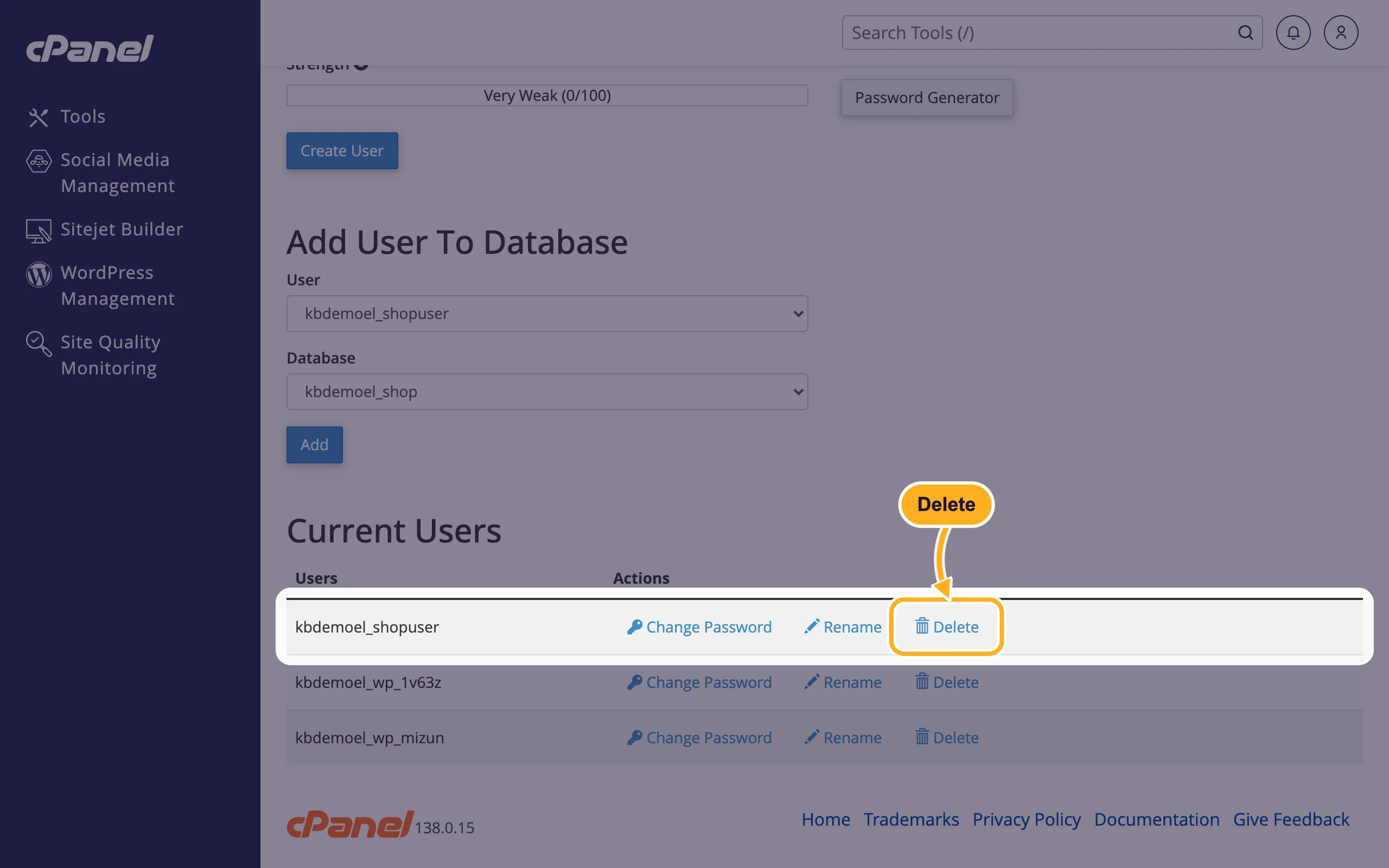
On the same page, scroll down to Current Users and click Delete next to the user.
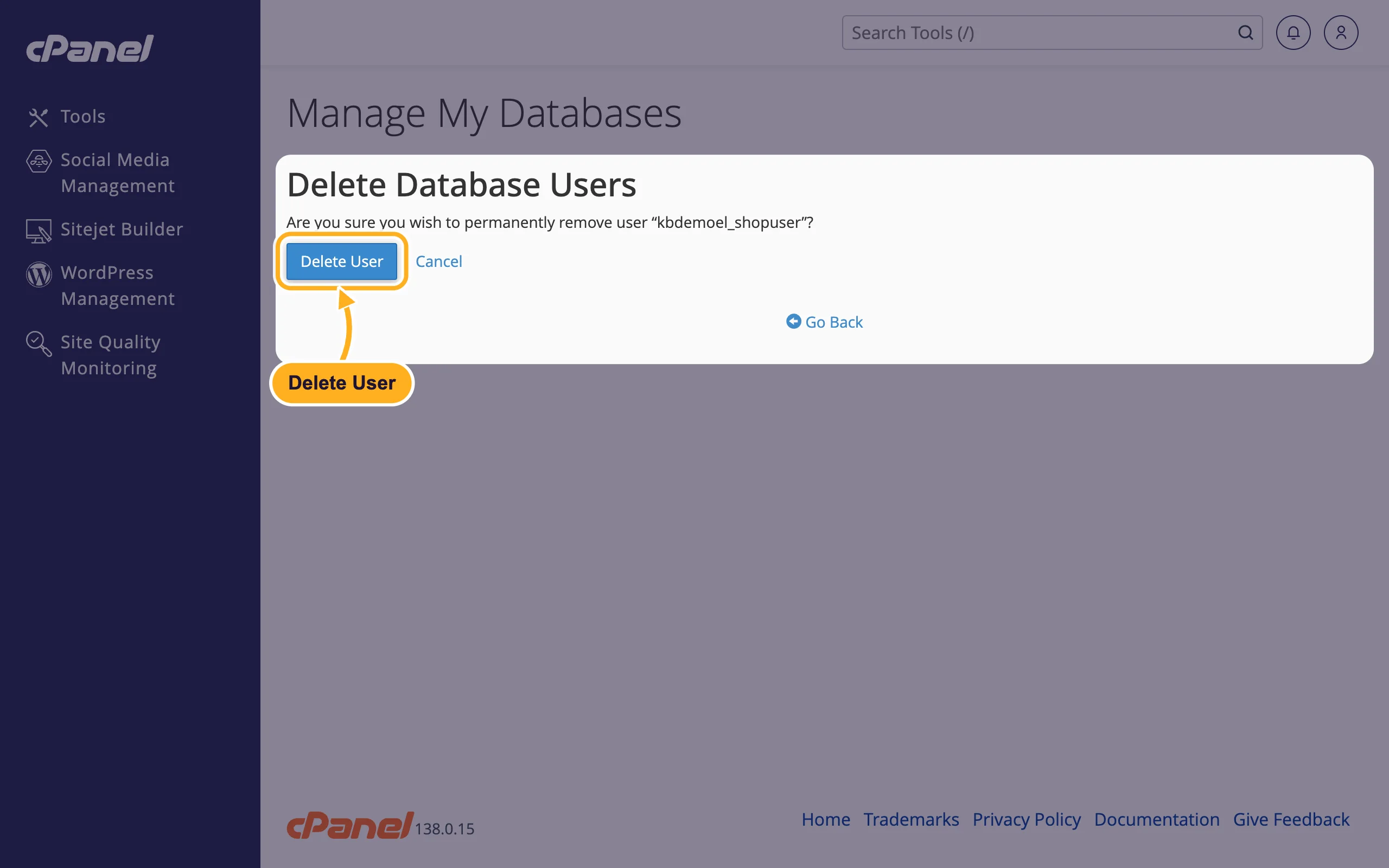
Click Delete User to confirm.
The user loses access to every database it was added to. If you only want to take away access to one database, remove the user from that database instead.
Common problems
You deleted the wrong database
If you exported a copy, create a database with the same name and import the file (see Import a large SQL file). If you have no copy, open a ticket straight away and tell us the full database name and when you deleted it.
A WordPress site was installed with WordPress Management
Remove the site in WordPress Management rather than deleting its database here, so that the site's files and database are removed together.
Related articles
- Remove a user from a database
- Open and manage a database in phpMyAdmin
- Create a MySQL database with the Database Wizard
Still stuck? Open a support ticket and we'll help.
