

If a table is damaged and your site shows database errors, open Manage My Databases in cPanel, pick the database under Repair Database and click the button.
Check and repair the database
Export a copy of the database first, in case the repair can't save everything (see Open and manage a database in phpMyAdmin).
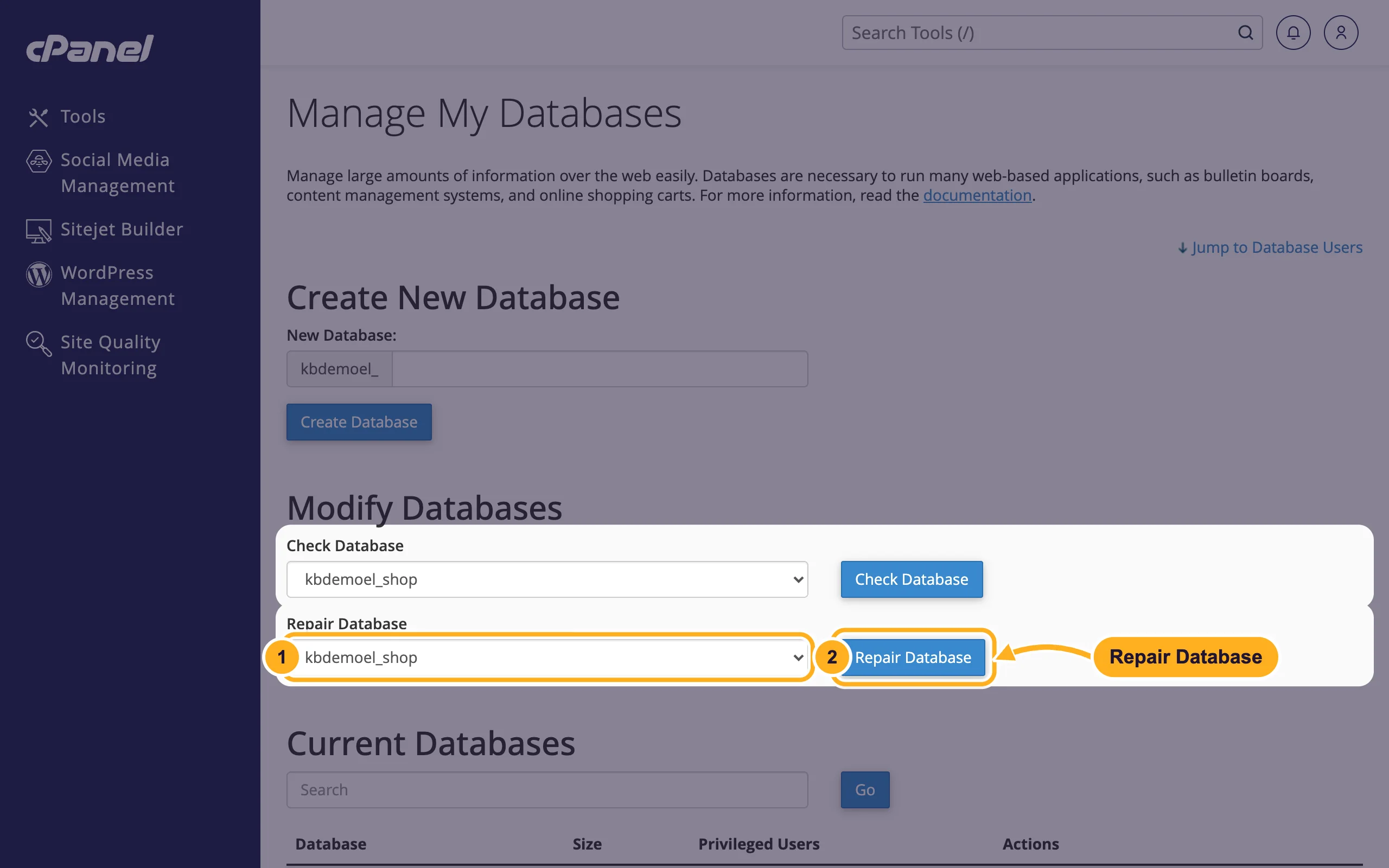
In cPanel, open Databases > Manage My Databases and find Modify Databases:
- Under Repair Database, pick the database.
- Click Repair Database.
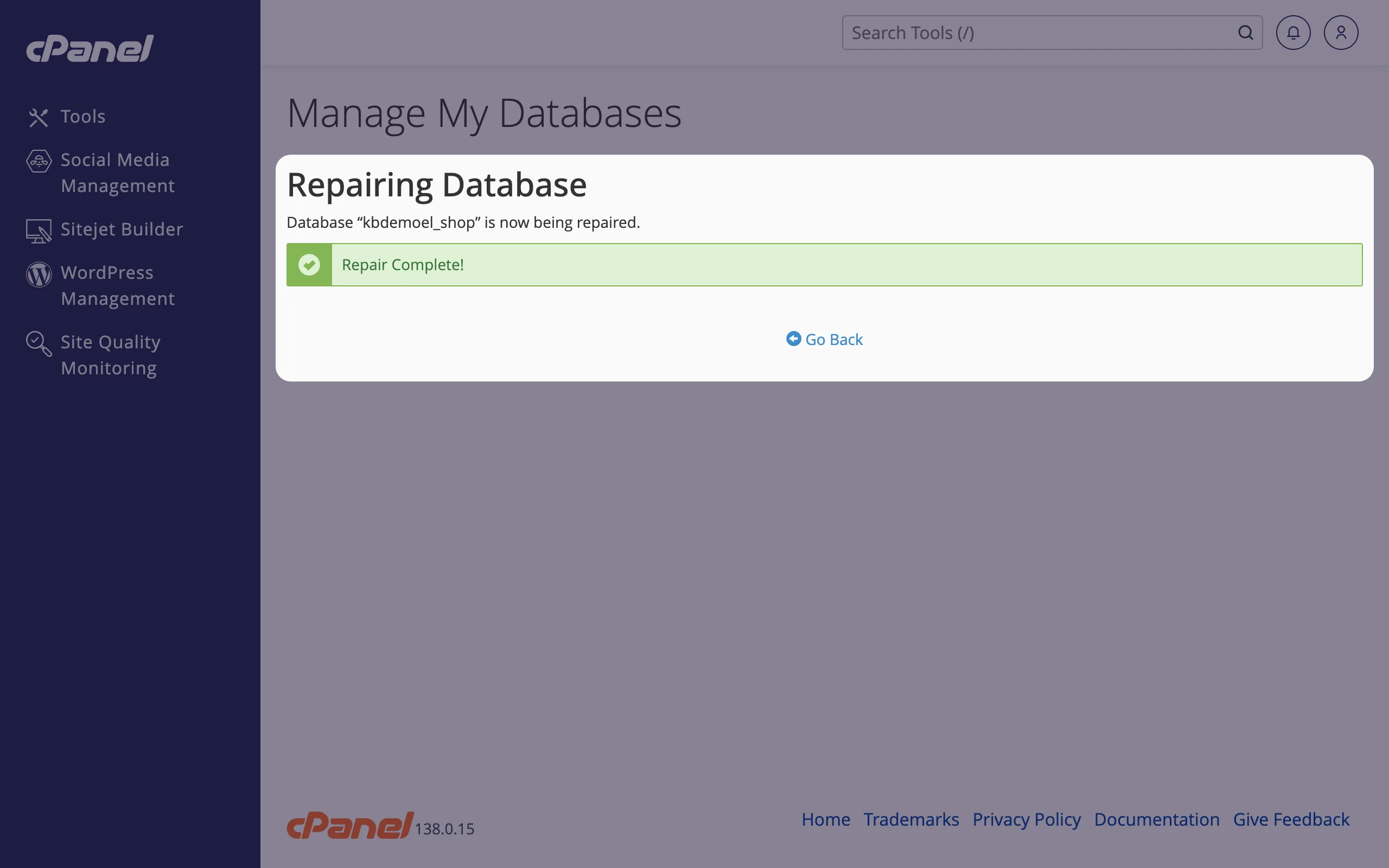
Wait for the result. "Repair Complete!" means cPanel has finished.
Reload your website. If the error is still there, run Check Database: it lists every table with its status, and a healthy table shows
OK.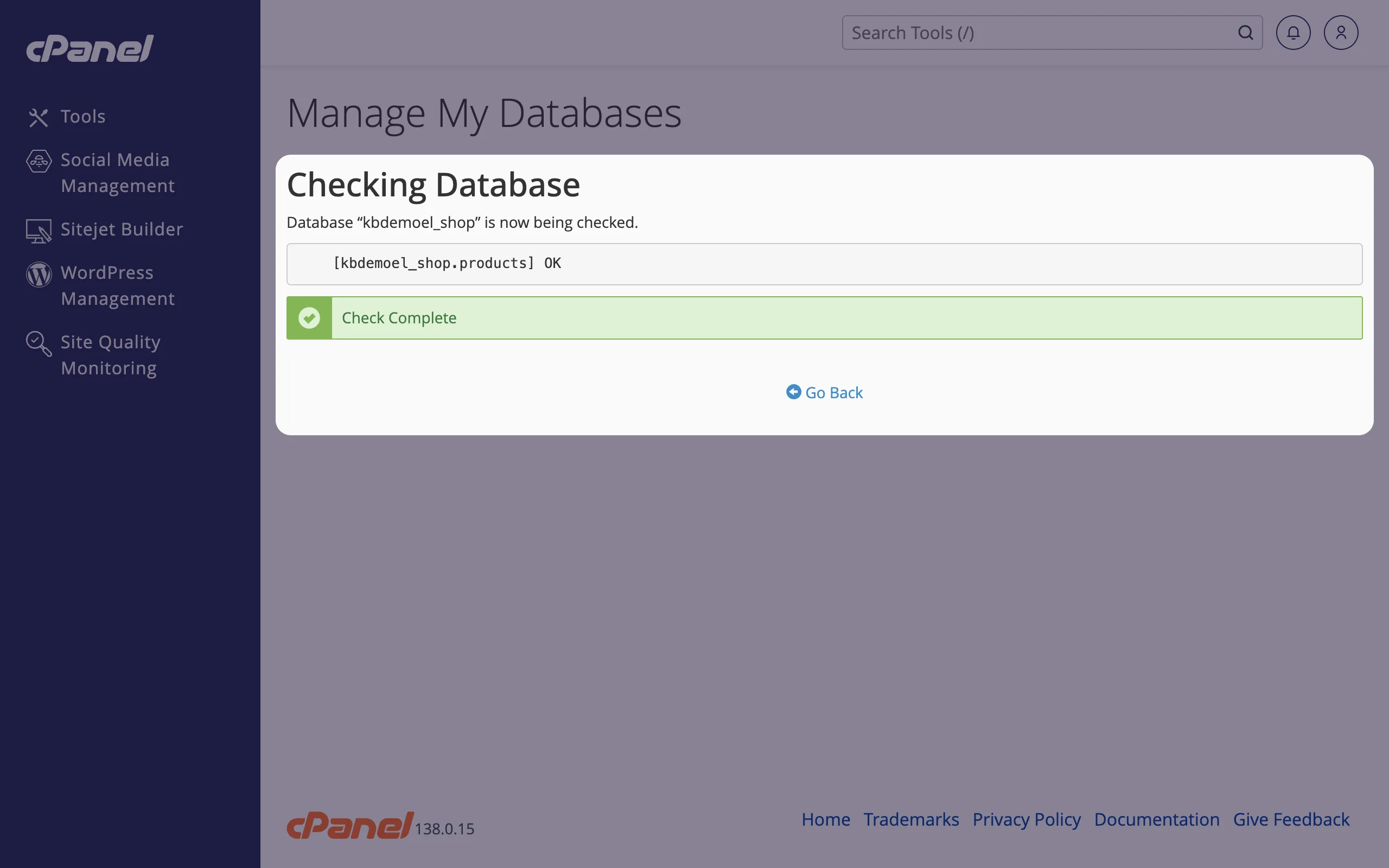
Common problems
The repair finishes but the site still shows an error
The cause may not be the database. "Error establishing a database connection" usually means a wrong user name or password (see Change a database user's password). For WordPress errors, see Fix "There has been a critical error on this website".
A table can't be repaired
Restore the database from your exported copy, or open a ticket with the database name and the message cPanel shows.
Related articles
Still stuck? Open a support ticket and we'll help.
