

Change the WordPress site address in Settings > General. After moving a site, use Update Site URL in cPanel's WordPress Management to fix the saved address.
When you need this
- Switching from
http://tohttps://after your SSL certificate works (see Free SSL: check and fix your certificate). - Switching between
www.yourdomain.comandyourdomain.com. - After you moved the site to a new domain, folder or server and it still points to the old address.
Change the address in Settings > General
Log in to WordPress (see Log in to your WordPress dashboard) and go to Settings > General.
Change both fields:
- WordPress Address (URL): where WordPress is installed, for example
https://yourdomain.com. - Site Address (URL): the address visitors type. Use the same address unless WordPress lives in a subfolder and you know why they differ.
Write the full address with
https://and without a slash at the end.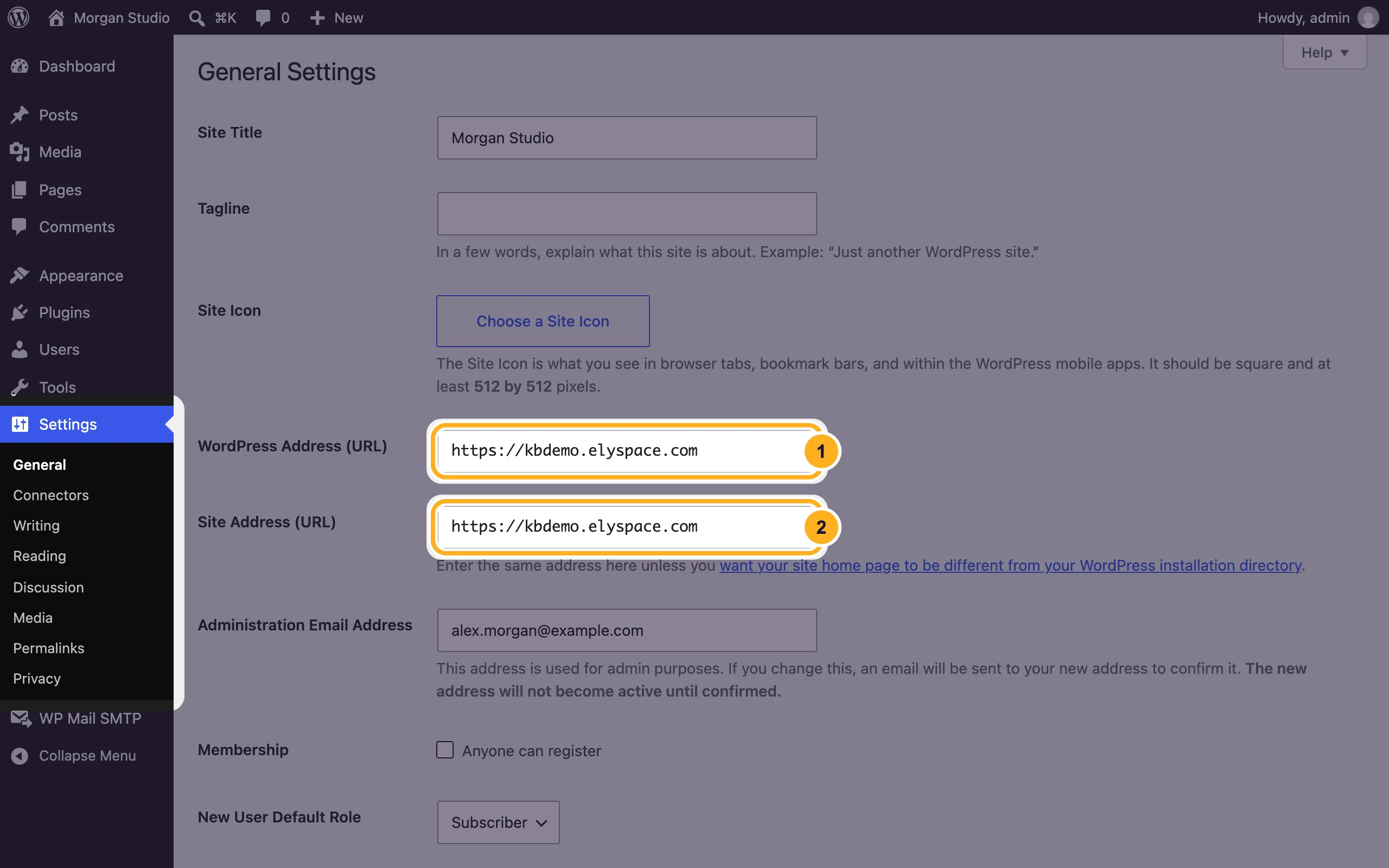
- WordPress Address (URL): where WordPress is installed, for example
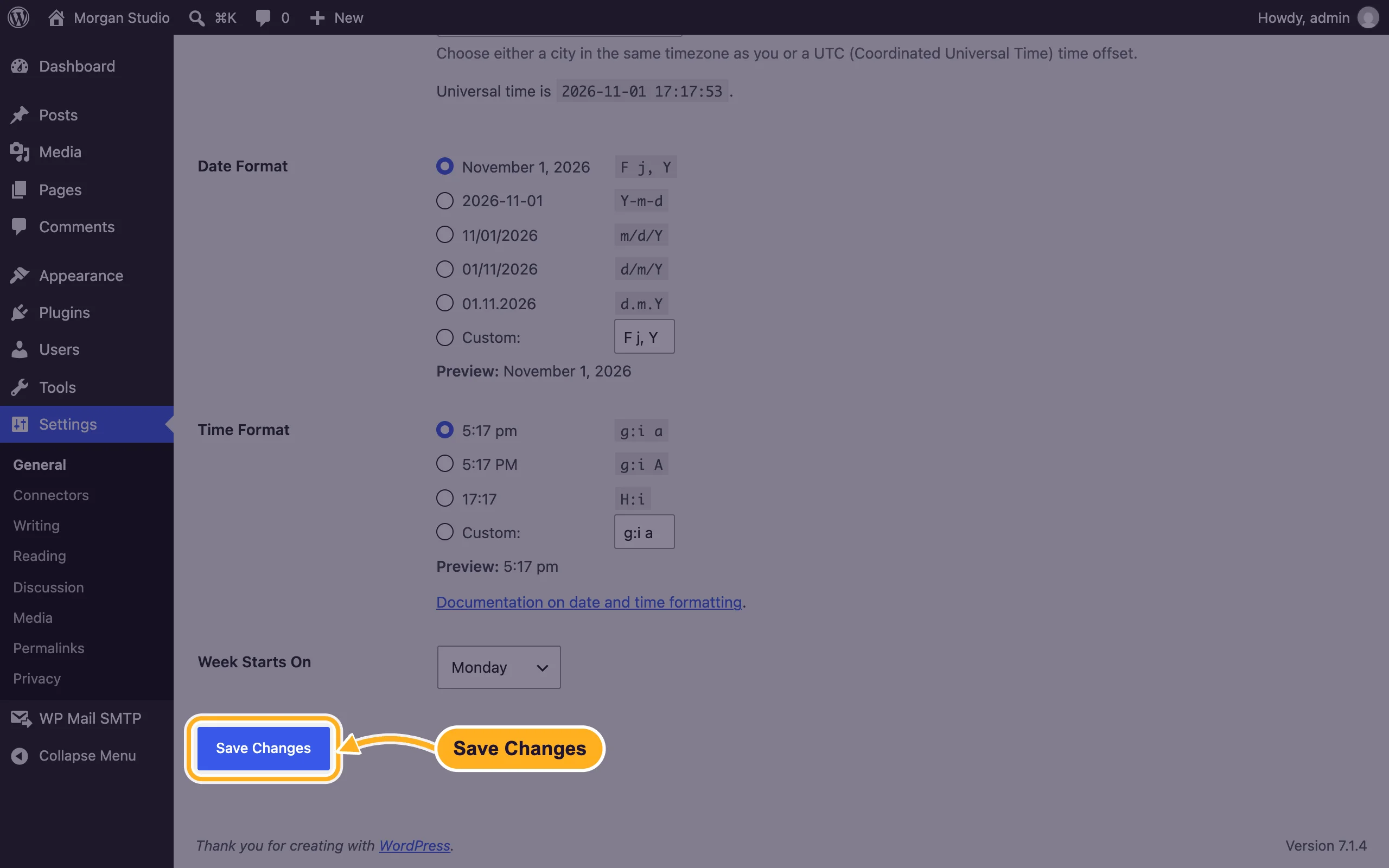
Scroll down and click Save Changes. WordPress logs you out and opens the login page on the new address.
Links inside your posts and pages keep the old address. They usually still work through a redirect, but for a clean result update them with a search-and-replace plugin, or ask us for help.
Fix the address after a move (Update Site URL)
When a site was copied from another server or domain, WordPress keeps sending visitors to the old address. WordPress Management compares the address saved in WordPress with the domain the site is now installed on and can correct it.
In cPanel, open WordPress Management. On your site, click the three dots on the right and choose Update Site URL.
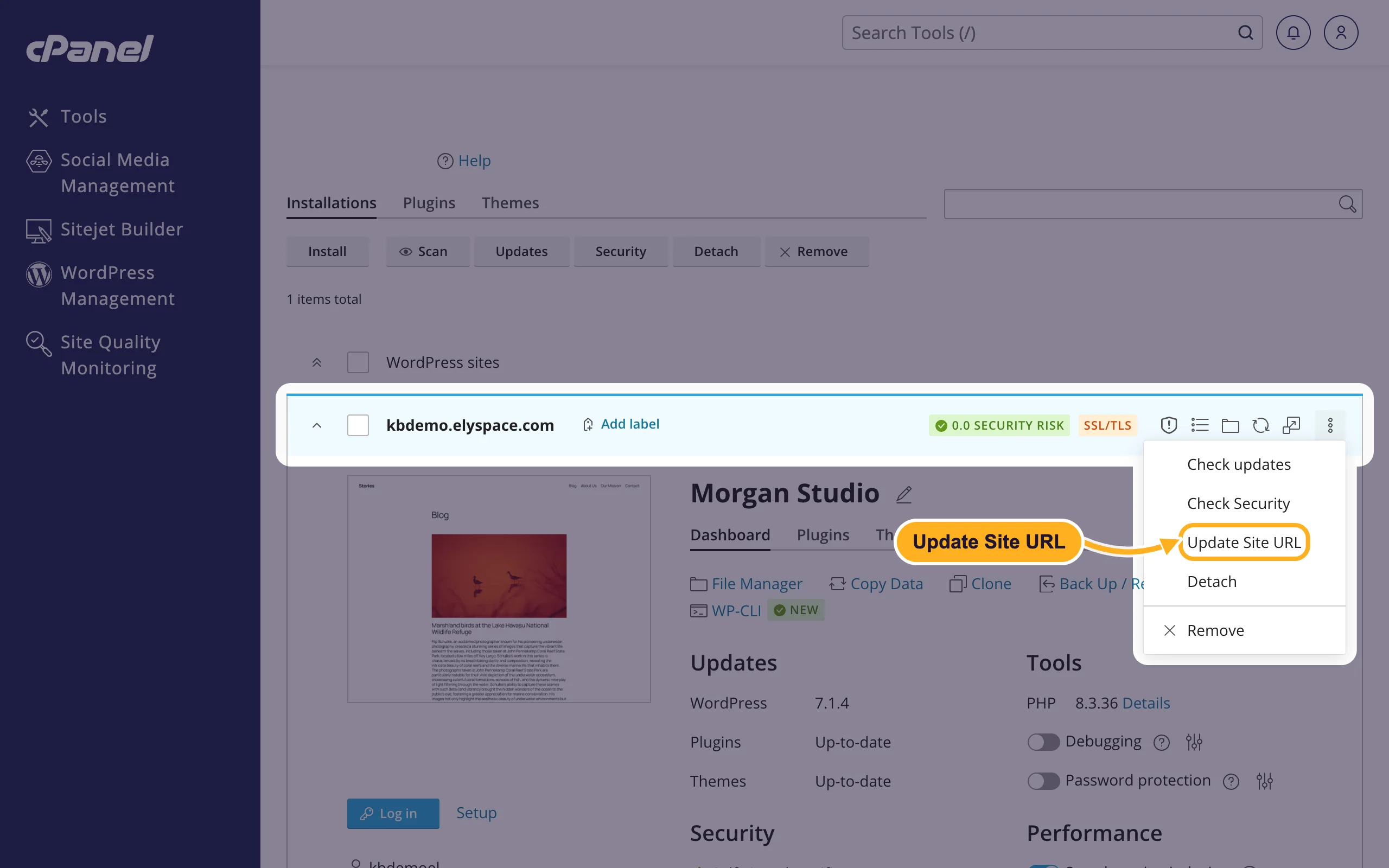
The dialog shows the Current site URL (saved in WordPress) and the New site URL (where the site is installed now). Check the new address and click Update. If both addresses are the same, the button stays grey: there is nothing to fix.
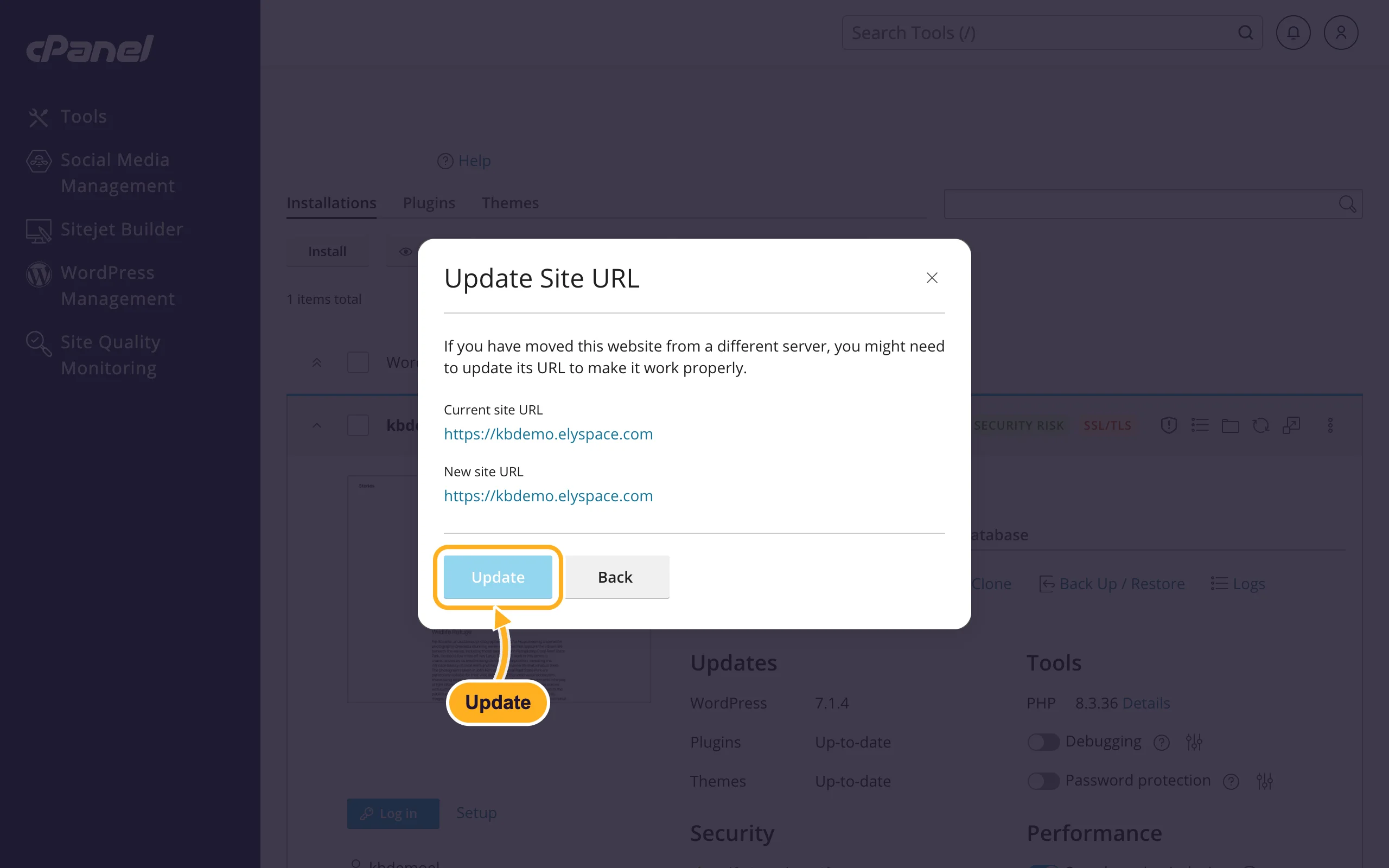
This is also the safe way out if a wrong address in Settings > General locked you out: Update Site URL sets WordPress back to the domain it's installed on.
Moving the site to a different domain
The new domain must be in your cPanel account and point to your ElySpace hosting. Then use Clone in WordPress Management with Use existing domain to copy the site there (see Make a staging copy of your site (clone)), check the copy, and remove the old site when you're happy. If your plan doesn't allow another domain, or you want to swap the main domain of your hosting, open a ticket and we'll help.
Common problems
After saving, the site shows errors or a redirect loop
Usually the address uses https:// but the SSL certificate isn't working yet, or www doesn't match your redirect rules. Use Update Site URL as shown above, then fix SSL first (see Redirect HTTP to HTTPS).
The fields are grey and can't be changed
The address is fixed in the file wp-config.php with the lines WP_HOME and WP_SITEURL. Change or remove those two lines in File Manager (see Manage files: edit, move, zip and set permissions).
Images still load from the old address
Their links are saved inside your posts. Replace the old address in the content with a search-and-replace plugin, after a backup.
Related articles
- Move a WordPress site to ElySpace
- Make a staging copy of your site (clone)
- Redirect HTTP to HTTPS
- Fix posts and pages that show 404 (permalinks)
Still stuck? Open a support ticket and we'll help.
