

Locked out of WordPress? In cPanel, open WordPress Management, click Setup on your site's card, type a new password and click Change. No email needed.
Set a new password in WordPress Management
Log in to cPanel (see Log in to cPanel from the client area) and click WordPress Management in the menu on the left.
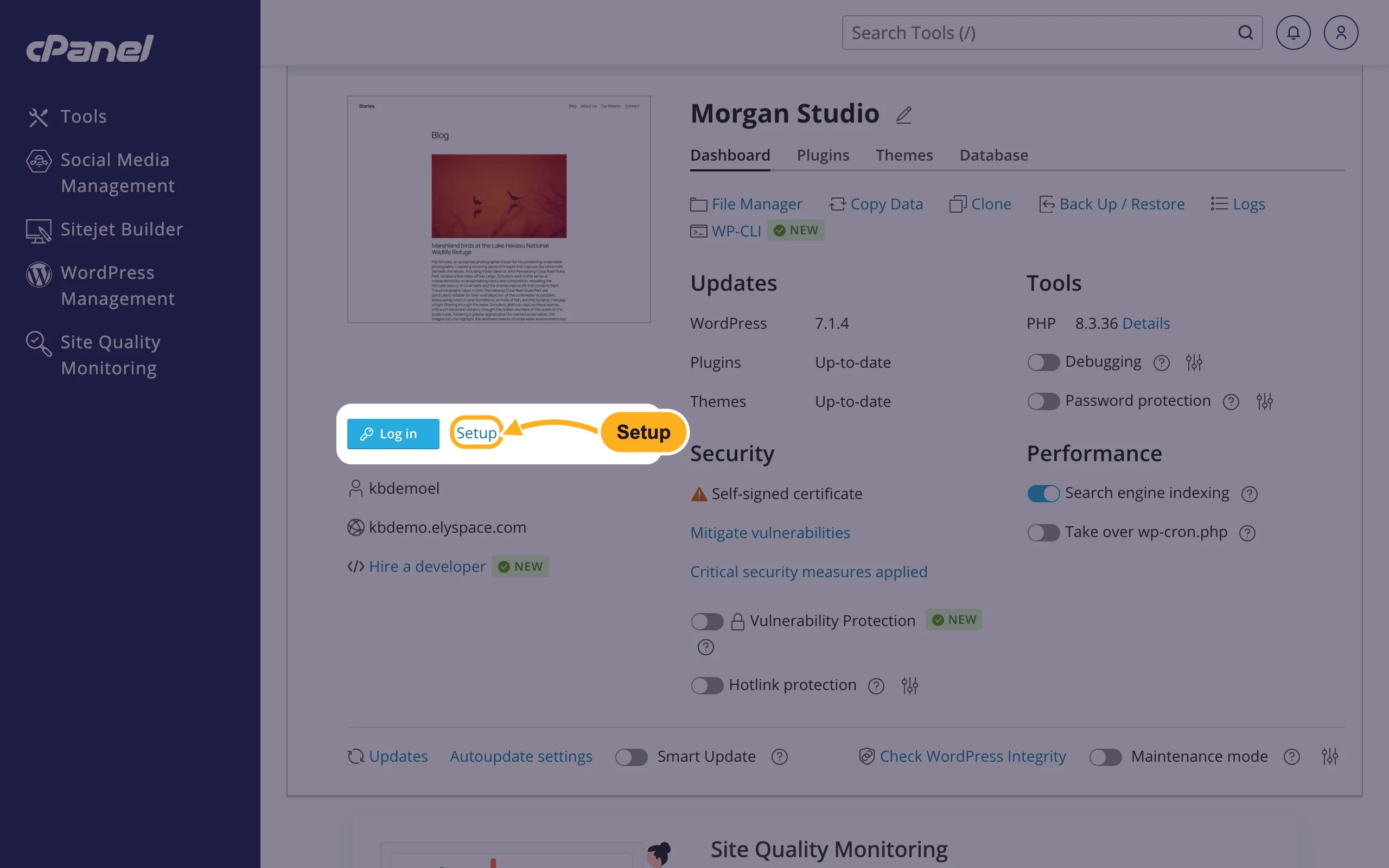
On your site's card, click Setup next to the Log in button. If the card is closed, click the arrow next to your domain to open it first.
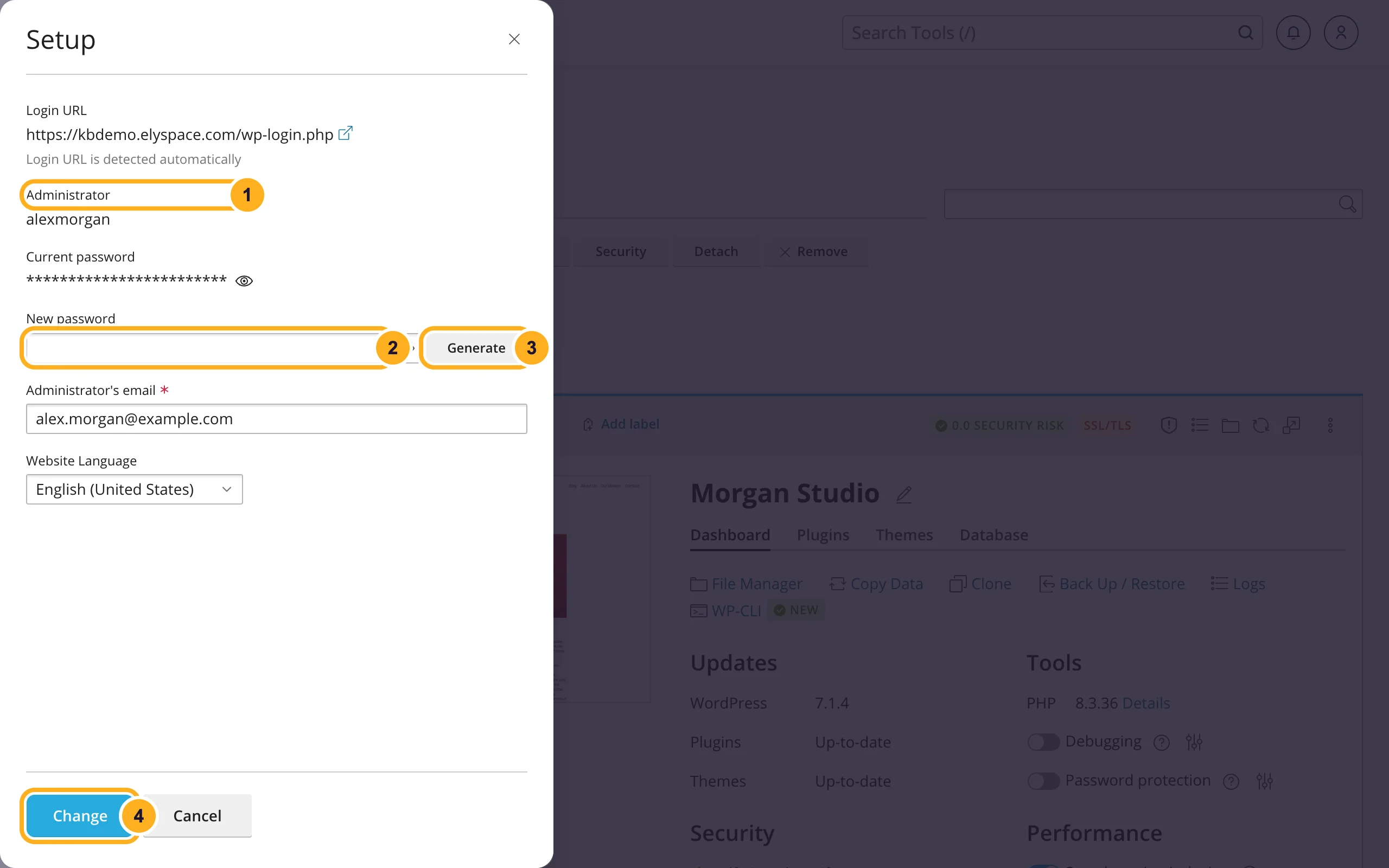
In the Setup panel:
- Administrator shows the WordPress username. Note it down: you need it, together with the new password, on the login page.
- Type a New password.
- Or click Generate for a strong random password. Click the eye icon in the field to see it, and save it in your password manager.
- Click Change.
Open
yourdomain.com/wp-adminand log in with the username and the new password. Or click Log in on the site card to open the dashboard without a password.
The same panel shows the Administrator's email. If it's an old address you can no longer read, correct it there too, so password reset emails reach you in the future.
Change the password inside WordPress
If you can still log in, you can also change the password in the dashboard:
Go to Users > Profile.
Under Account Management, click Set New Password. WordPress suggests a strong password; replace it with your own if you like. Then scroll down and click Update Profile.
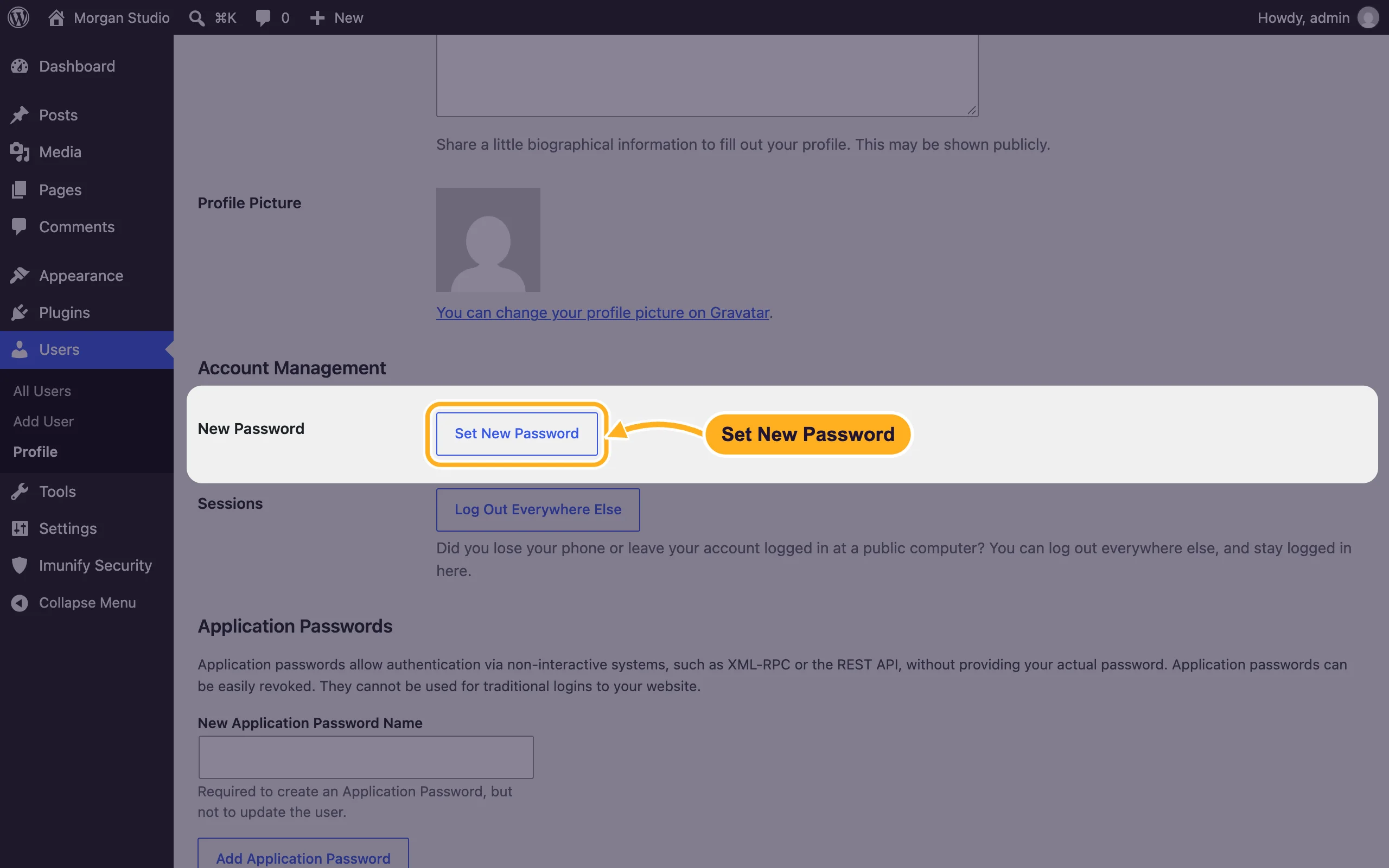
To set a new password for another user, go to Users > All Users, click Edit under the user's name and use Set New Password there. The Setup panel in cPanel only changes the administrator it shows.
Reset by email from the login page
On the WordPress login page, click Lost your password?
Enter your username or email address and click Get New Password. WordPress emails a reset link to the address saved for that user.
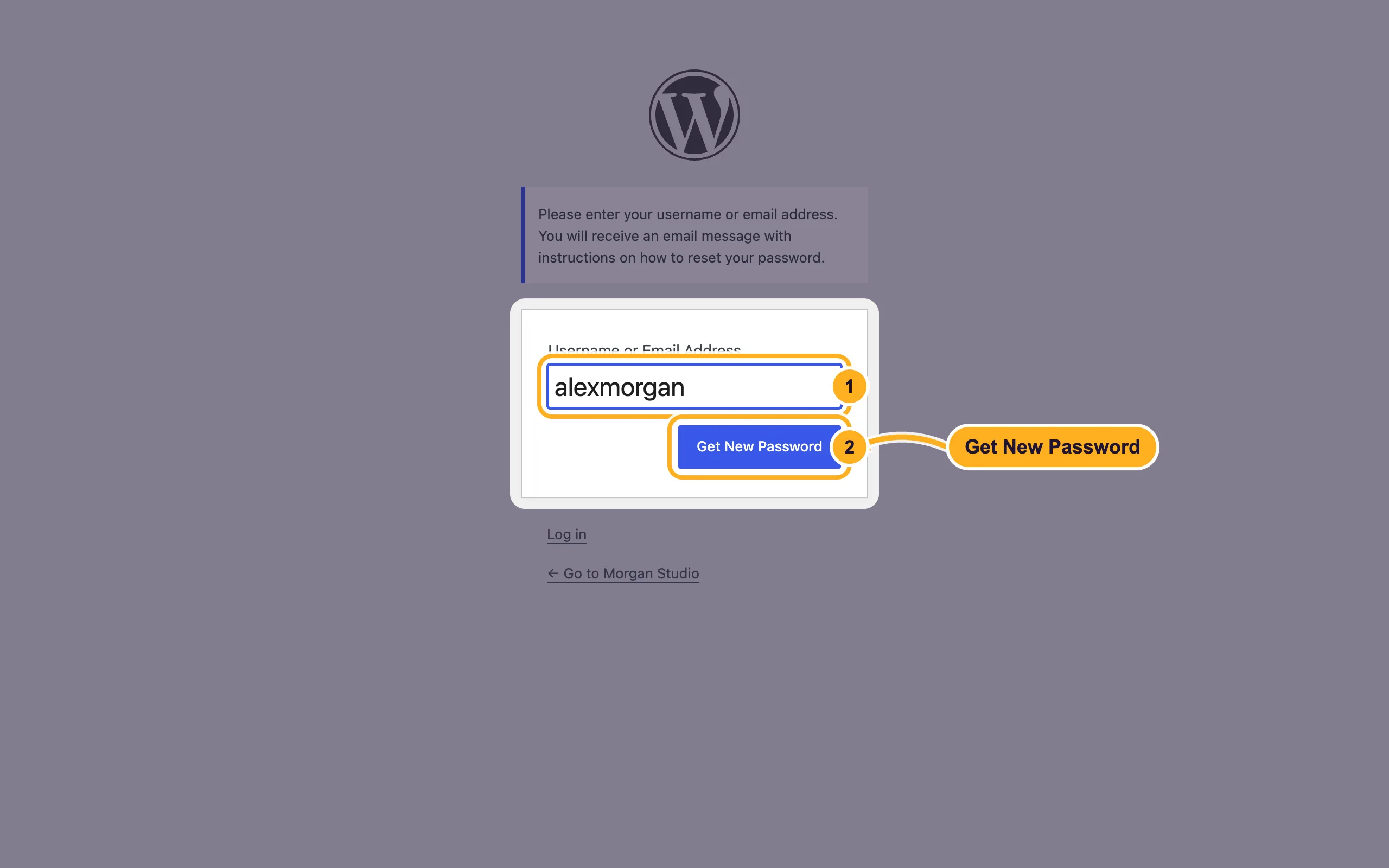
This only works if the email address in WordPress is correct and your site can send email. If no email arrives, use the cPanel method above.
Common problems
"The password you entered for the username is incorrect"
Check that you're using the WordPress username shown under Administrator in Setup, not your cPanel username or email login. Watch for Caps Lock and for spaces copied at the end of the password.
Your site isn't listed in WordPress Management
Sites copied in by hand are sometimes not detected yet. Click Scan above the list of sites; WordPress Management then looks for WordPress in your account and adds it.
You can log in, but the page sends you back to the login
The site address saved in WordPress may not match your domain. See Change your WordPress site address (URL).
You think someone else knows your password
Set a new password as shown above, then check Users > All Users for administrators you don't know. Also read Secure your WordPress site from cPanel.
Related articles
- Log in to your WordPress dashboard
- Secure your WordPress site from cPanel
- Change or reset your cPanel password
Still stuck? Open a support ticket and we'll help.
