

Create the same addresses in cPanel, copy your old mail across (our migration team, a mail app or webmail import), then point your domain's email to us.
The order that avoids lost mail
Create the mailboxes in cPanel with the same addresses you use today (see Create an email account; for many at once see Import many email accounts or forwarders at once). Your old provider keeps receiving mail until step 3, so nothing changes for your contacts yet.
Copy the old mail with one of the three ways below.
Switch the domain's email to us: point the nameservers to ElySpace, or change only the MX record if the domain's DNS stays with your current provider (see Point a domain from GoDaddy or another registrar and Add or change MX records). The change can take a few hours to spread.
Set up your devices with the new server settings (see Email server settings and ports).
Copy once more. A day or two after the switch, check the old mailbox for messages that still arrived there and copy them over. Then close the old account.
Way 1: let our team move it (free migration)
Our free migration service moves website files, databases and email accounts. Open a ticket in the Website Migration Request department and tell us the email addresses and how we can access the old mailboxes. See Move your website to ElySpace (free migration).
Way 2: copy with a mail app (any provider, any size)
This works with every provider that offers IMAP (Gmail, Outlook.com, Zoho, Yahoo and most hosts). Thunderbird is free for Windows, Mac and Linux.
Add the old mailbox to Thunderbird as an IMAP account, with your old provider's settings. Gmail and some others need an app password for this; see your provider's help.
Add the new ElySpace mailbox as a second IMAP account (see Set up email in Thunderbird). Until step 3 above is done, your domain still points elsewhere, so use your server name from cPanel, not mail.yourdomain.com.
Let Thunderbird download the old folders. Then select the messages in an old folder (Ctrl+A, on a Mac Cmd+A), right-click and choose Copy To, then the matching folder of the new account. To copy a whole folder, drag it onto the new account's name.
Wait until Thunderbird has uploaded everything (watch the status bar at the bottom), then compare the number of messages in both folders.
Way 3: import files in webmail (small amounts)
If your old provider gives you an export as .eml files (MIME) or an .mbox file, Roundcube can import it into a folder.
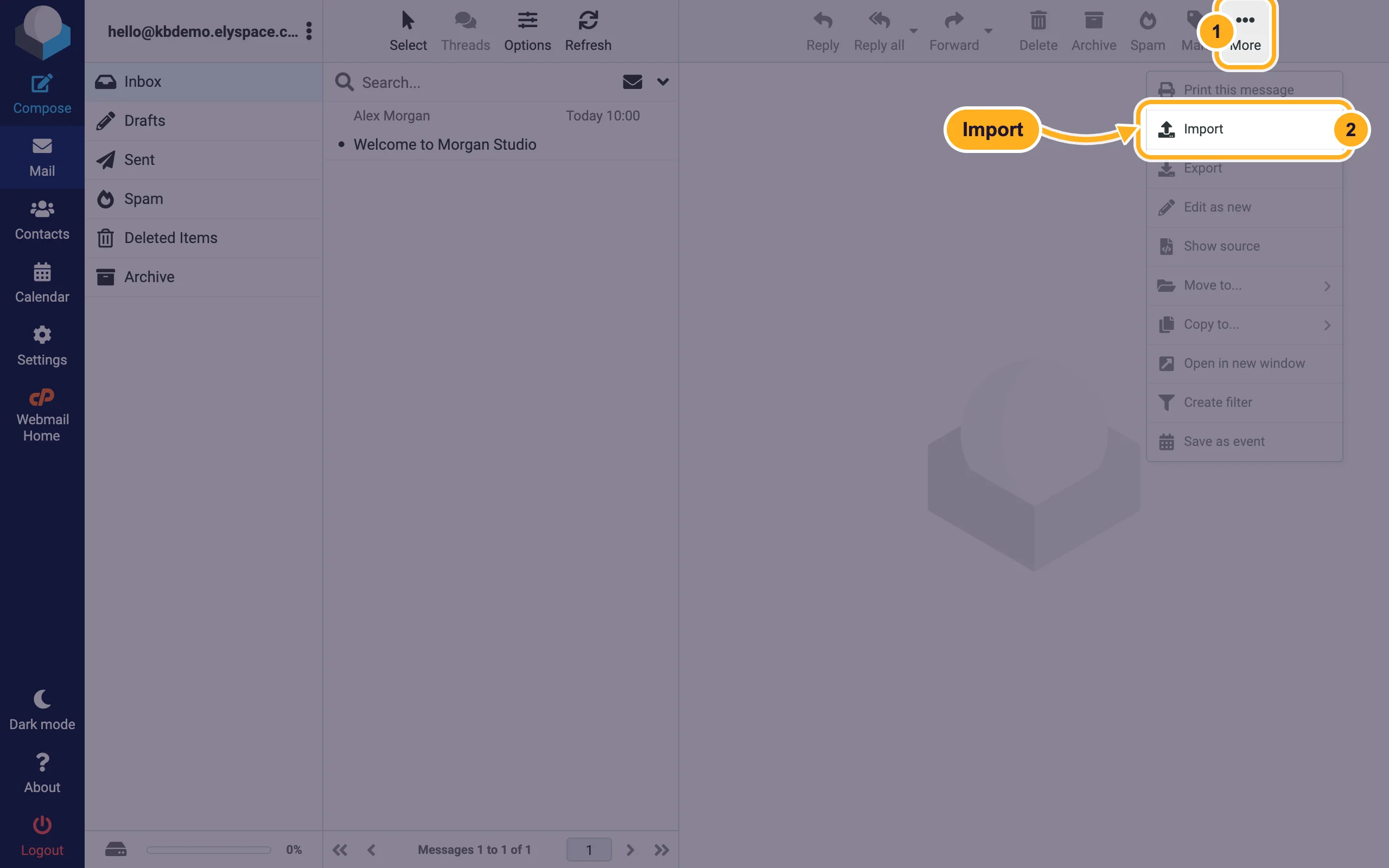
Log in to webmail (see Log in to webmail) and open the folder you want to fill, for example Inbox.
Click More in the toolbar, then Import.
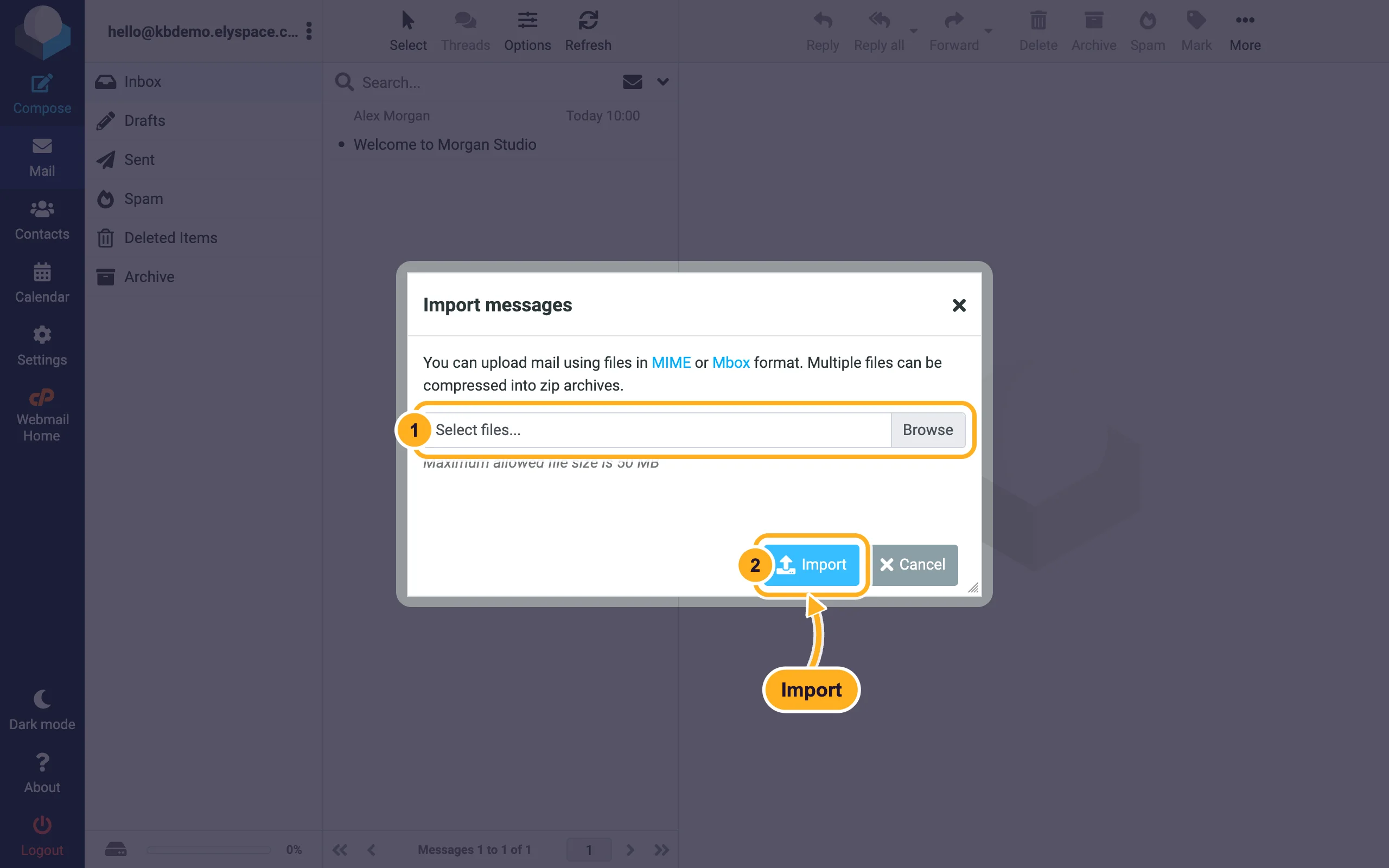
Click Select files... (or Browse), choose your files and click Import. You can pack several files into one zip archive. Each file can be up to 50 MB.
For larger amounts, use Way 2: it copies straight from the old mailbox, without files and without the 50 MB limit.
Common problems
New mail still arrives at the old provider
The DNS change is still spreading, or the MX record still points to the old provider. Check the MX record in cPanel's Zone Editor (see Add or change MX records) and wait a few hours.
The new mailbox is full after copying
Each mailbox has a storage limit, 1 GB by default. Raise it before you copy (see Change the storage space of a mailbox) or delete old mail you don't need.
Thunderbird stops in the middle of copying
Copy one folder at a time. If a folder fails, compare the message counts and copy the missing messages again; copying the whole folder again can create duplicates.
Contacts and calendars
Export contacts from the old provider as a vCard (.vcf) file and calendars as .ics files. In webmail, Contacts and Calendar each have an Import button for them. See also Sync calendars and contacts.
Related articles
- Move your website to ElySpace (free migration)
- Set up email in Thunderbird
- Add or change MX records
- Back up or export your emails
Still stuck? Open a support ticket and we'll help.
