

In Roundcube, go to Settings, Identities, click your address, type the signature in the Signature box and click Save. It's added to new messages.
Create the signature
Log in to webmail and open Roundcube (see Log in to webmail). Click Settings in the left menu.
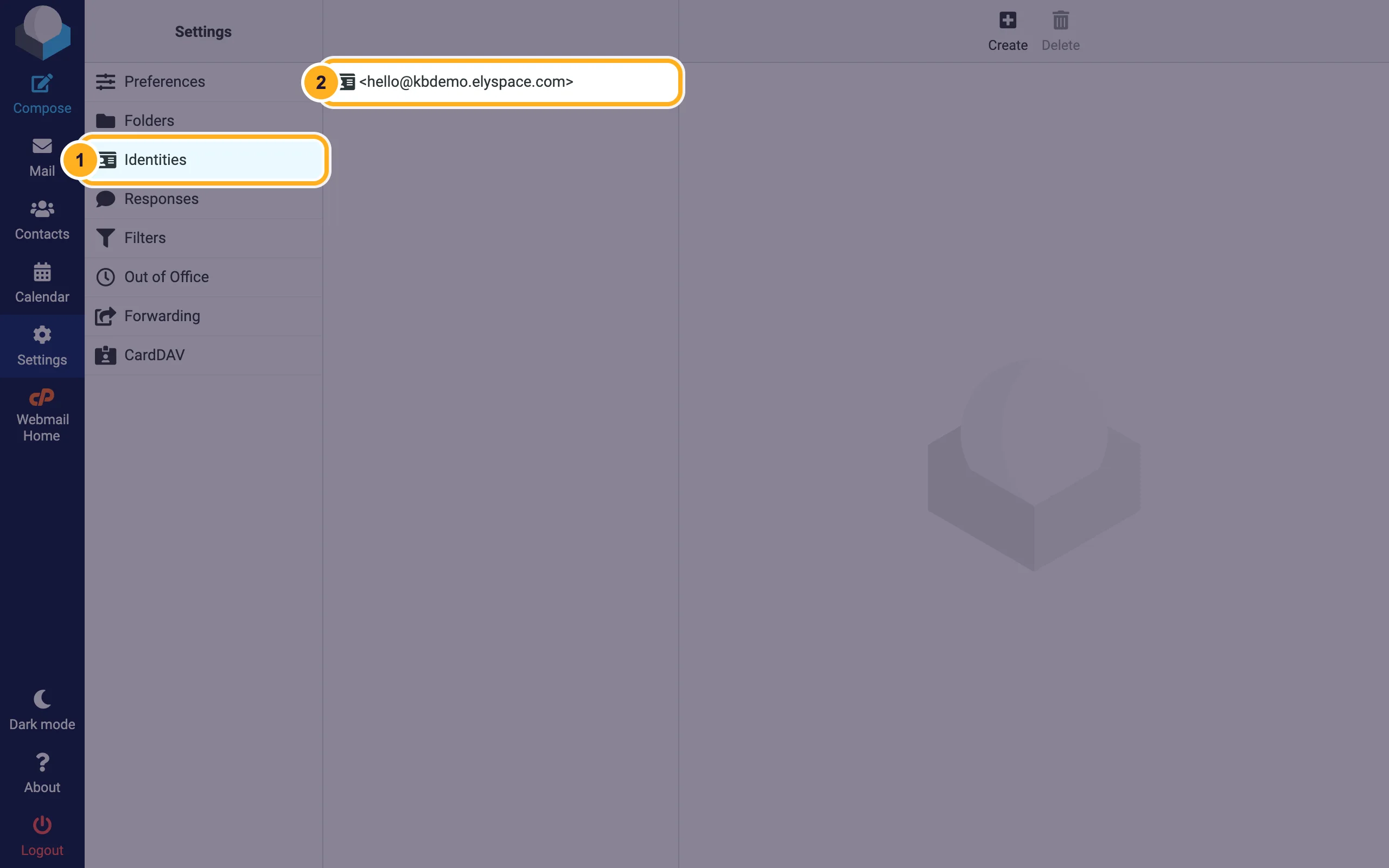
Click Identities, then your email address in the list.
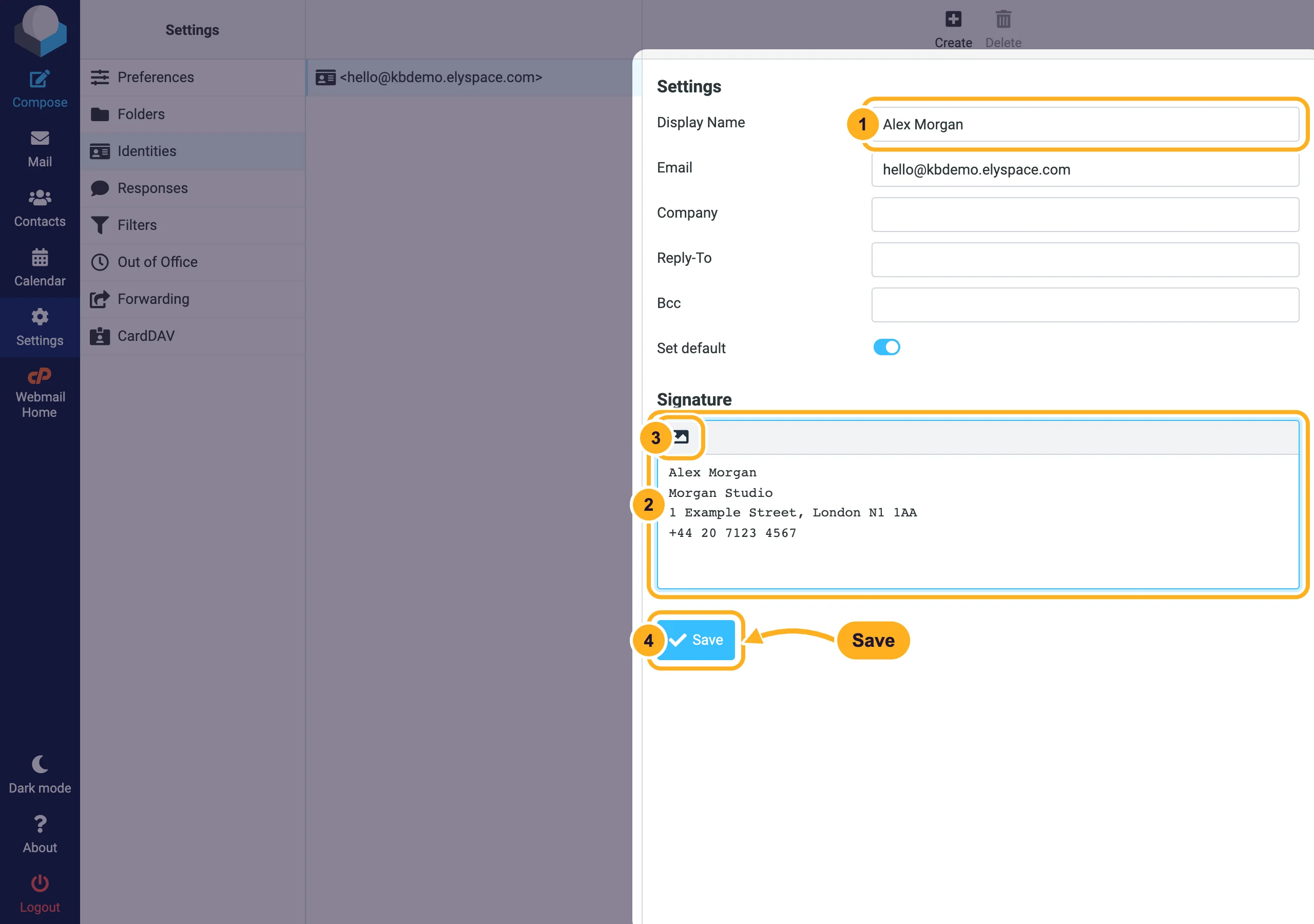
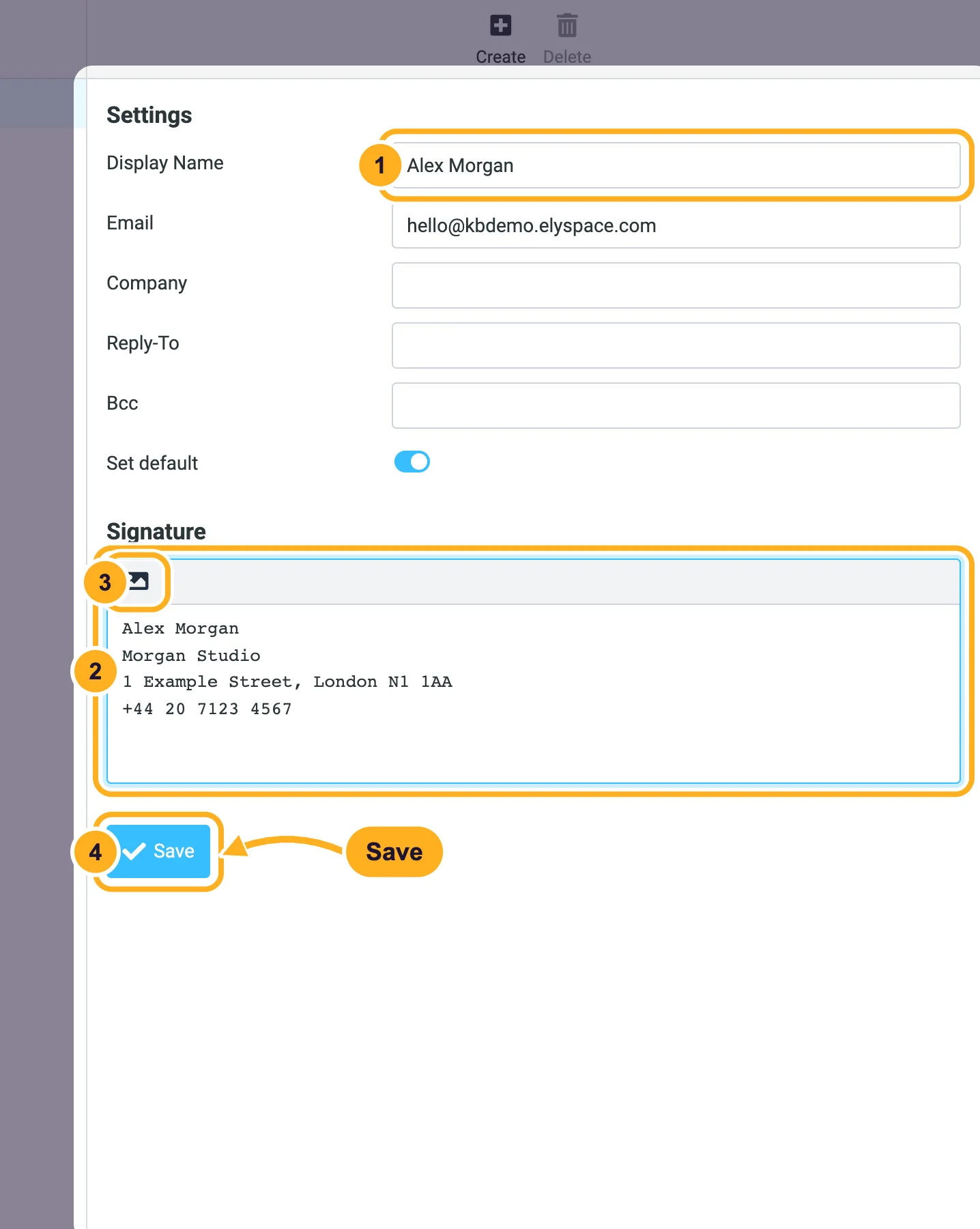
Fill in the form:
- Display Name: your name as people see it in their inbox. It's empty until you fill it in, so recipients see only your address.
- Signature: type your signature, for example name, company, address and phone number.
- The picture icon above the box switches to the HTML editor, where you can use bold text, links, colors and images. Leave it as plain text if you want the signature to look the same everywhere.
- Click Save.
With the default settings, Roundcube adds a line with two dashes (-- ) above the signature. Mail apps use it to recognize the signature, for example to leave it out of a reply.
Choose when the signature is added
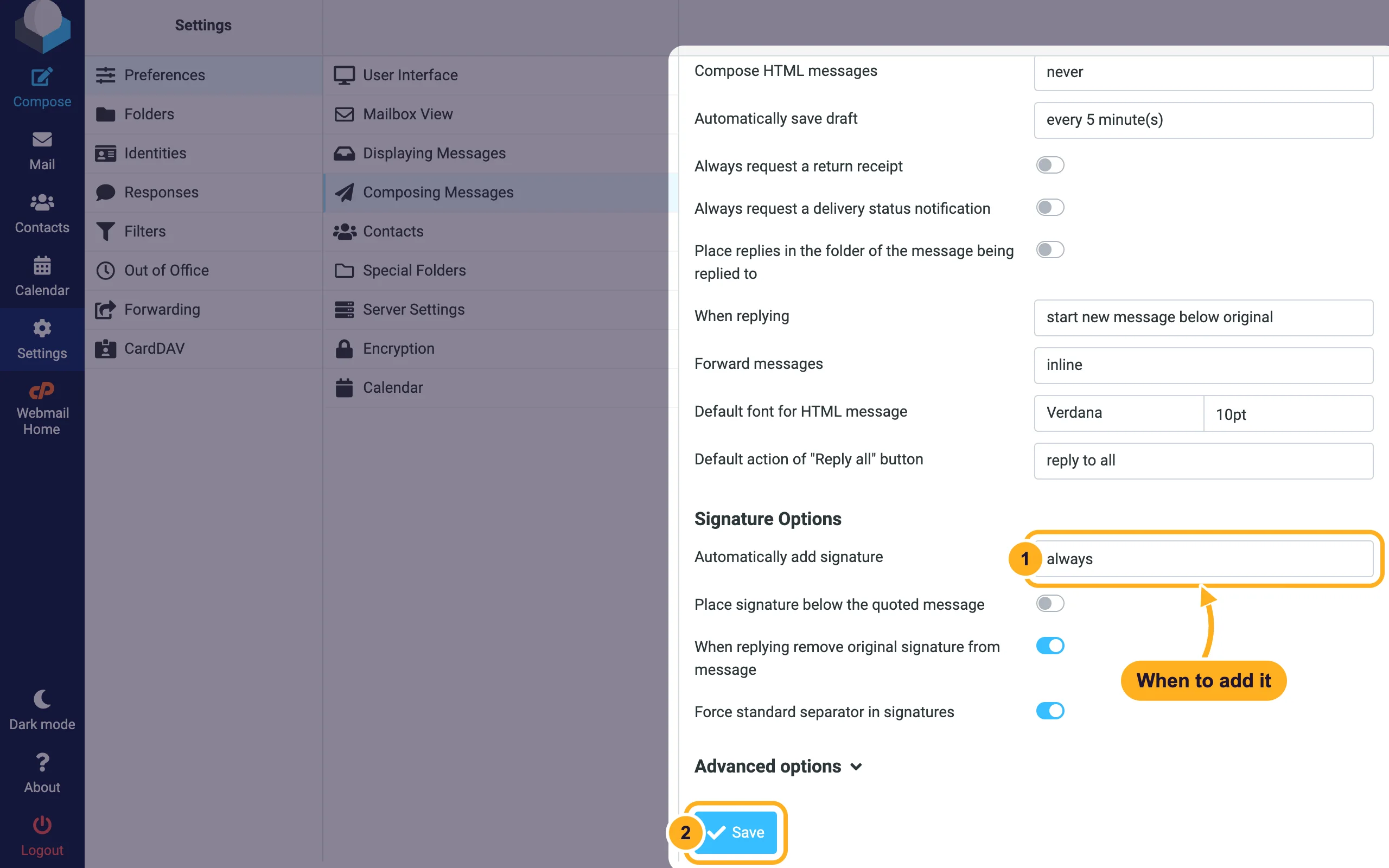
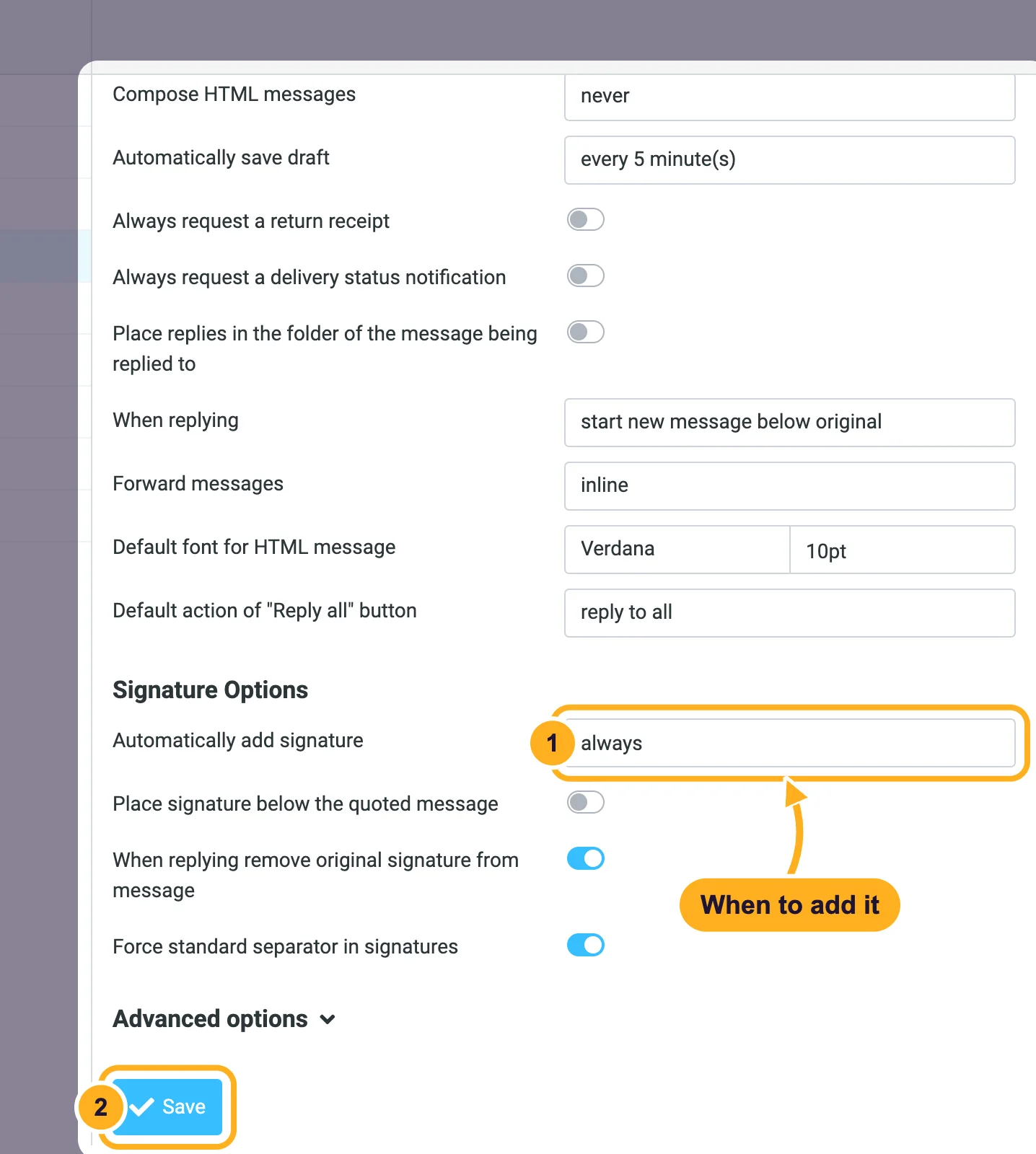
Go to Settings, Preferences, Composing Messages and scroll to Signature Options.
Set Automatically add signature: always (the default), new message only, replies and forwards only or never. The other switches there:
- Place signature below the quoted message: when you reply, the signature goes under the original message instead of under your answer.
- When replying remove original signature from message: leaves out the other person's signature in the quote.
- Force standard separator in signatures: always adds the
--line.
Click Save.
When Automatically add signature is set to never, you can still add it by hand: click Signature in the toolbar of the message you're writing.
Common problems
The signature doesn't appear
Check Automatically add signature (see above) and that the message's From is the identity that has the signature. Each identity has its own (see Send from another address in webmail).
The signature looks different in Outlook or on the phone
The webmail signature is used only for mail you write in webmail. Mail apps such as Outlook, Apple Mail or the phone's mail app have their own signature setting: add it there as well.
Images in the HTML signature don't show
Many mail apps hide images until the reader allows them. Keep important information (name, phone) as text, not inside a picture.
Related articles
- Send from another address in webmail (identities)
- Log in to webmail
- Use webmail on your phone
- Set up an autoresponder (out-of-office reply)
Still stuck? Open a support ticket and we'll help.
