

Clone your WordPress site to a subdomain such as staging.yourdomain.com, test changes there, then copy them back to the live site with Copy Data.
Create the copy
Log in to cPanel, click WordPress Management and, on your site's card, click Clone.
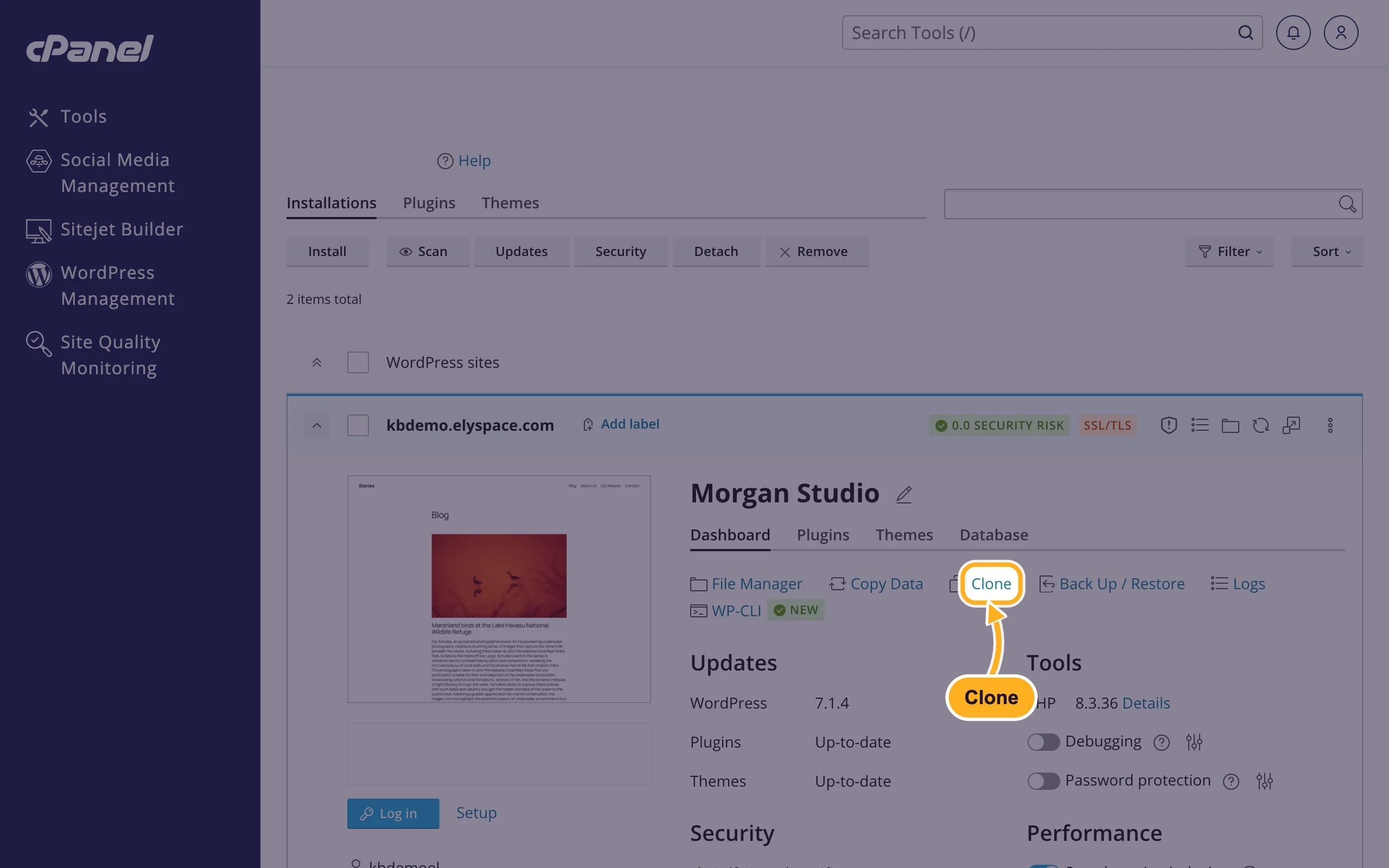
In the clone dialog:
- Create subdomain is selected with the name
staging, so the copy gets its own address such as staging.yourdomain.com. Change the name if you like. To use a domain you already have in cPanel, choose Use existing domain instead. - Click Start. The database name under Database is filled in for you.
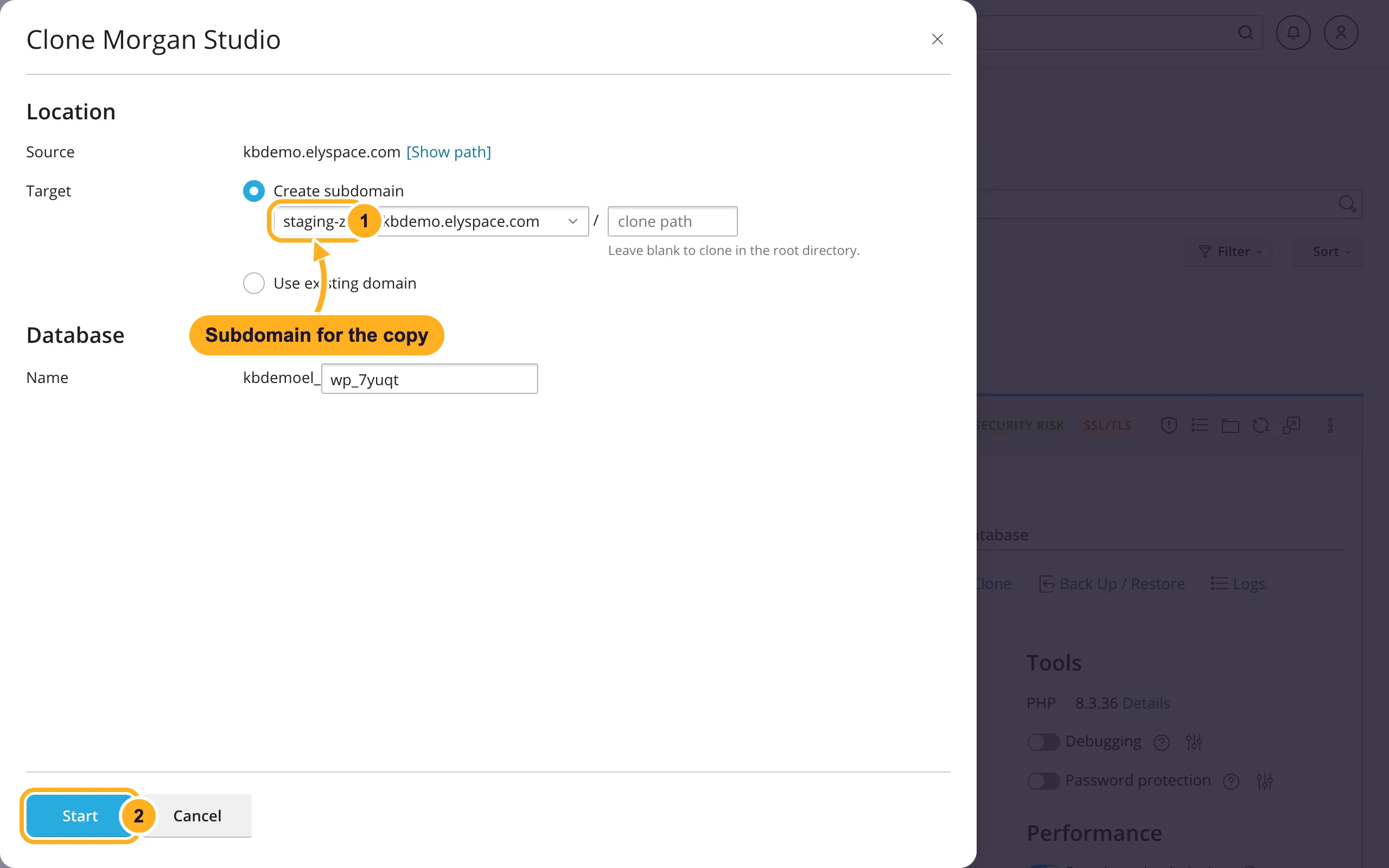
- Create subdomain is selected with the name
When the copy is ready, it appears as a second site in WordPress Management. Click it to open its card and use Log in to work on it.
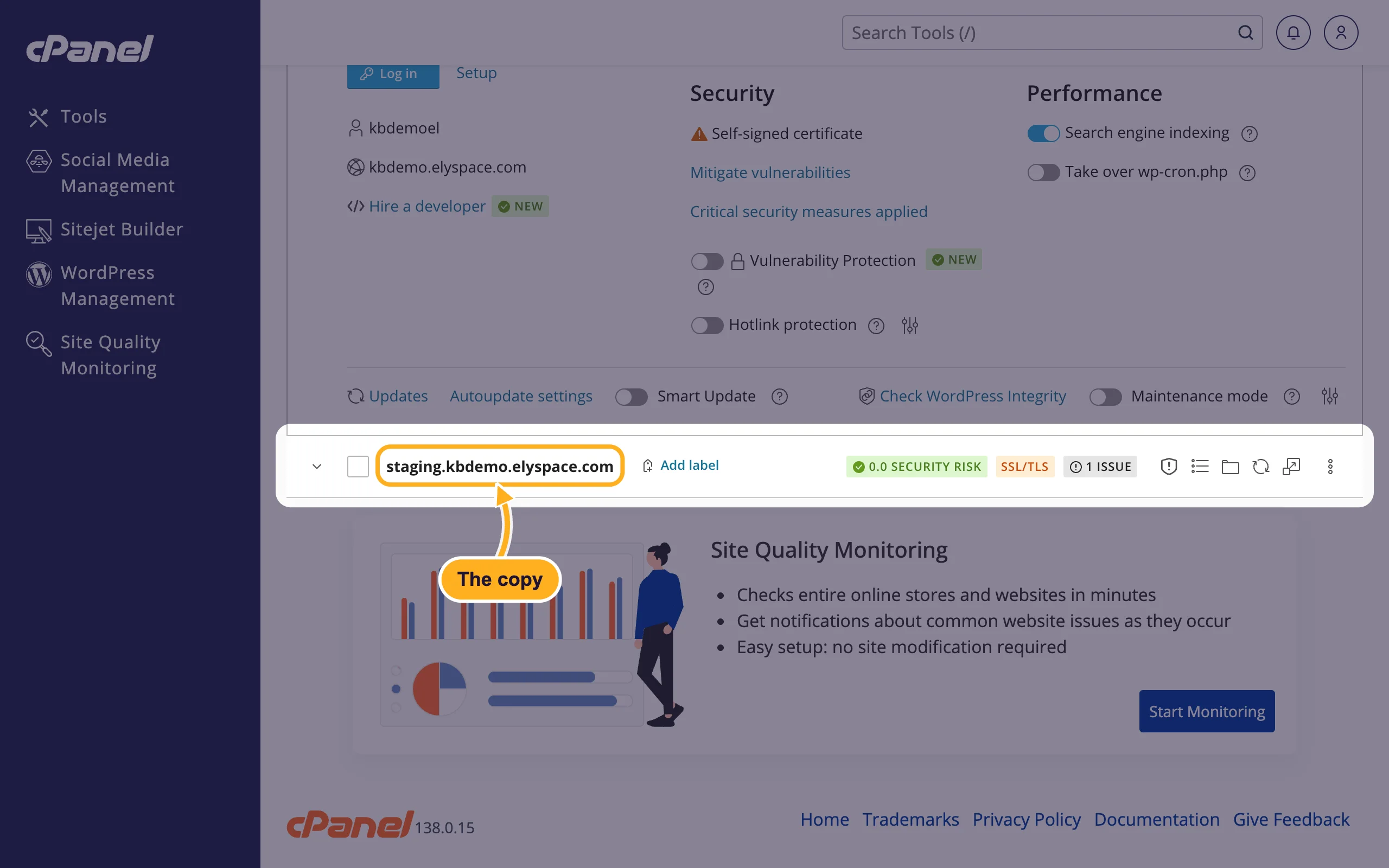
The copy also includes other files that are in your site's folder. To keep the copy out of Google, switch off Search engine indexing on the copy's card. To keep visitors out, switch on Password protection.
Copy your changes to the live site
Back up the live site first (see Back up and restore a WordPress site).
On the card of the copy, click Copy Data.
Choose what to copy:
- Target: select your live site.
- Data to Copy: Files and Database copies everything. Choose Files only after theme or plugin changes, or Database only for content. Under Database Tables, Exclude content-related tables keeps posts and comments that were added on the live site in the meantime.
- Leave Create a restore point ticked and click Start.
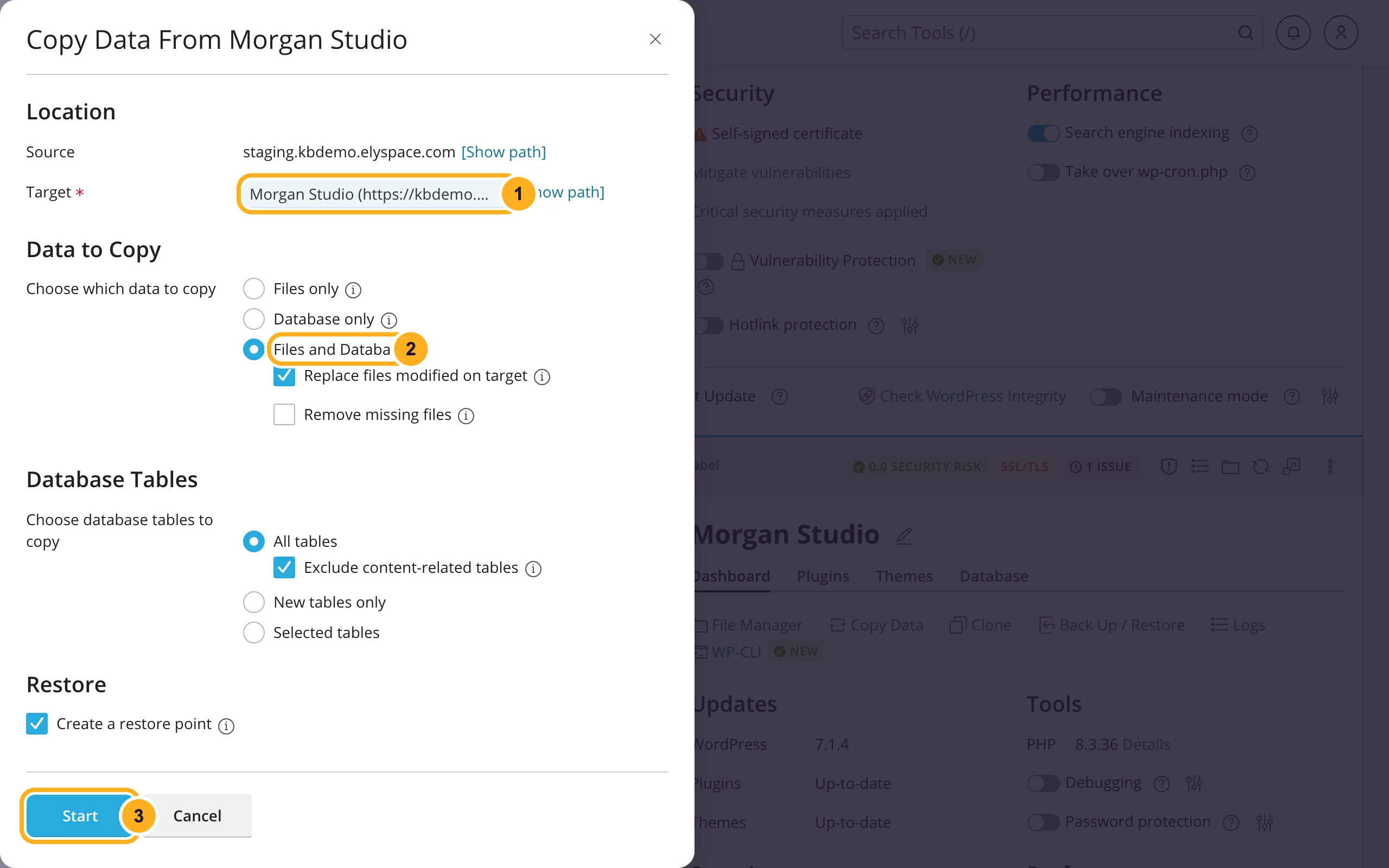
Copy Data works in both directions: use it on the live site's card to refresh the copy with the latest live content.
Remove the copy
On the copy's row, click the three dots on the right and choose Remove.
Leave the database and database user ticked so they are deleted too, and click Yes.
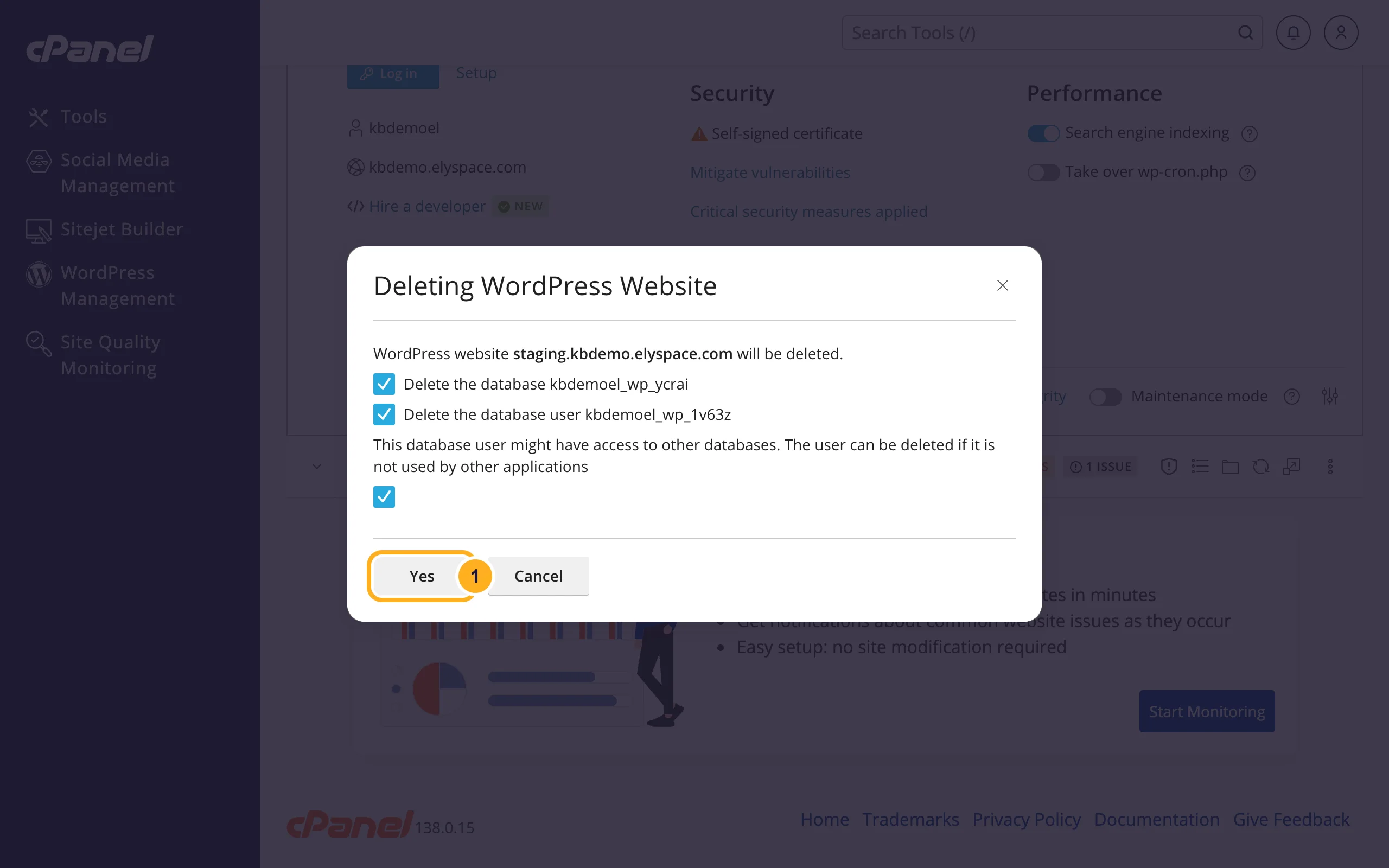
The subdomain itself stays in cPanel. Remove it under Domains (Manage next to the subdomain, then Remove Domain), and delete its folder in File Manager if it's still there.
Common problems
You can't create the subdomain
Your plan has a limit on subdomains and databases. Remove copies or subdomains you no longer need, or upgrade (see Upgrade or downgrade your hosting plan).
The copy shows a security warning in the browser
The new subdomain needs its own SSL certificate, which AutoSSL issues automatically once the subdomain resolves to our server. See Free SSL: check and fix your certificate (AutoSSL).
New orders or comments disappeared after Copy Data
Copying the whole database overwrites what visitors added to the live site after you made the copy. Restore the live site from the backup you made before copying, then copy again with Exclude content-related tables or Files only.
Related articles
Still stuck? Open a support ticket and we'll help.
