

Back up a WordPress site in cPanel's WordPress Management with one click, download the backup, and restore it if an update or a change goes wrong.
Make a backup
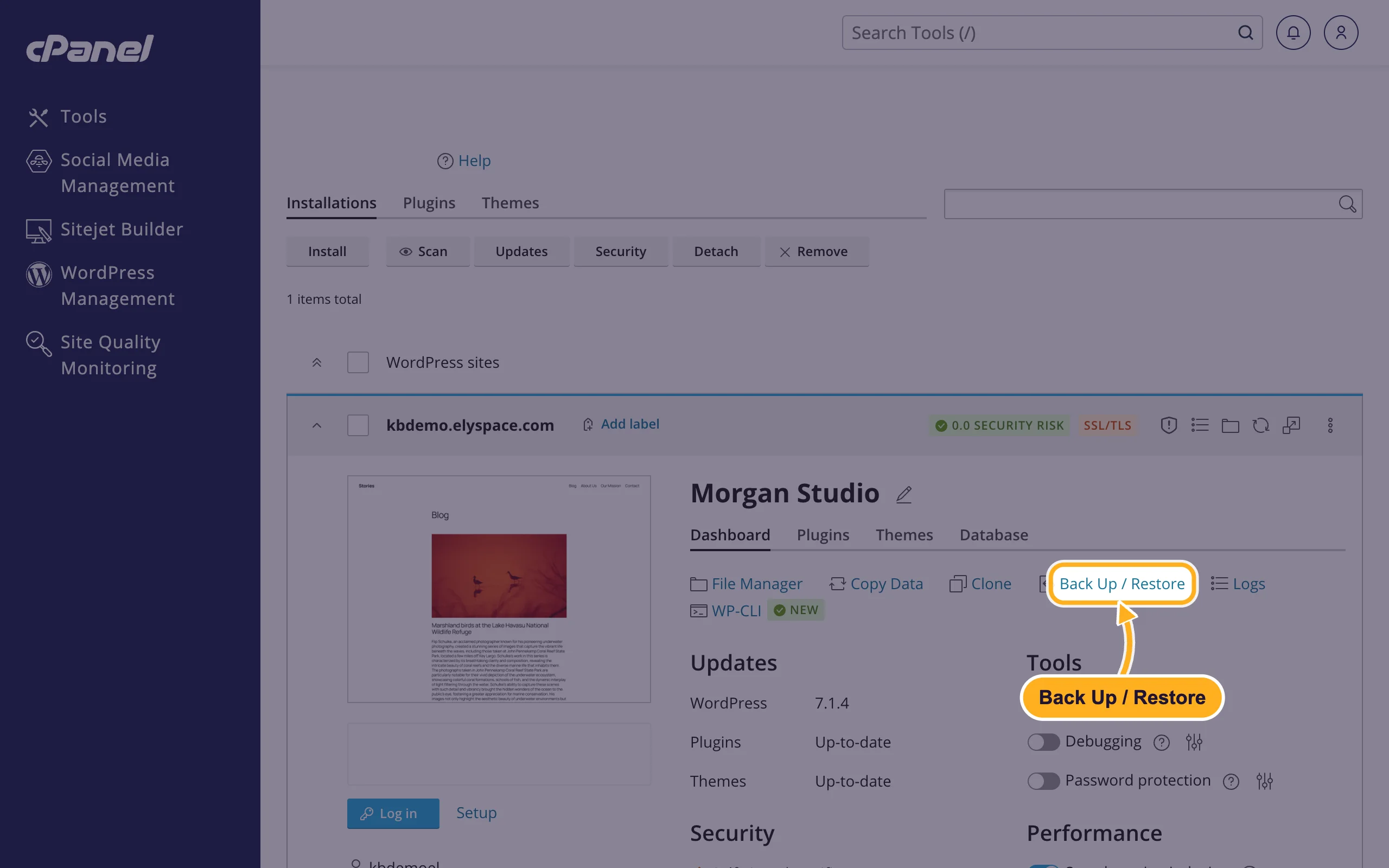
Log in to cPanel, click WordPress Management and, on your site's card, click Back Up / Restore.
In Backup and Restore:
- Click Back Up. The backup includes the site's files and its database. It can take a few minutes on a large site.
- The backup appears in the list with its date, size and file name. The icons on the right restore, download or delete it.
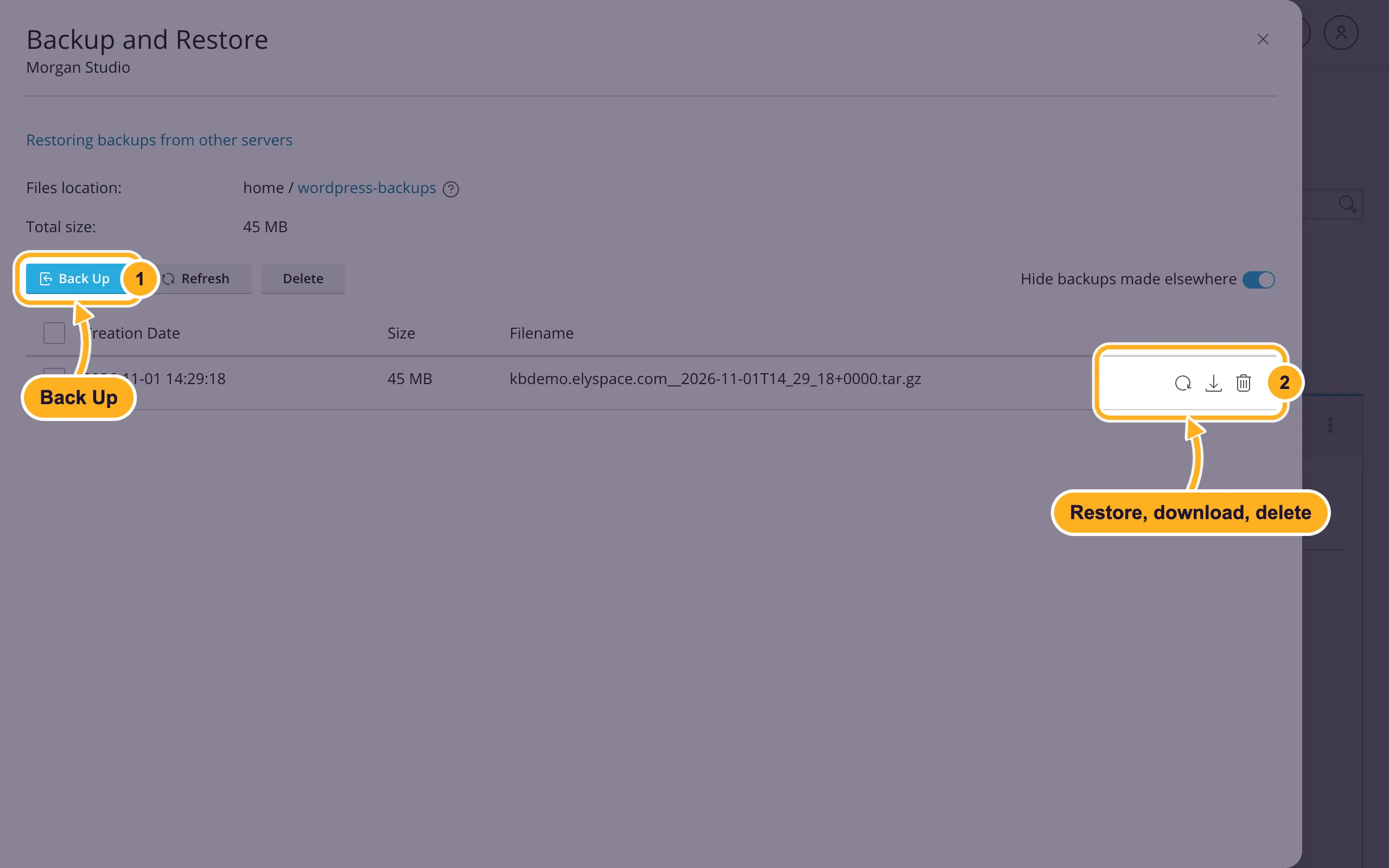
Files location shows where the backups are stored: the folder wordpress-backups in your home directory. The download icon opens that folder in File Manager, where you can download the file to your computer.
Restore a backup
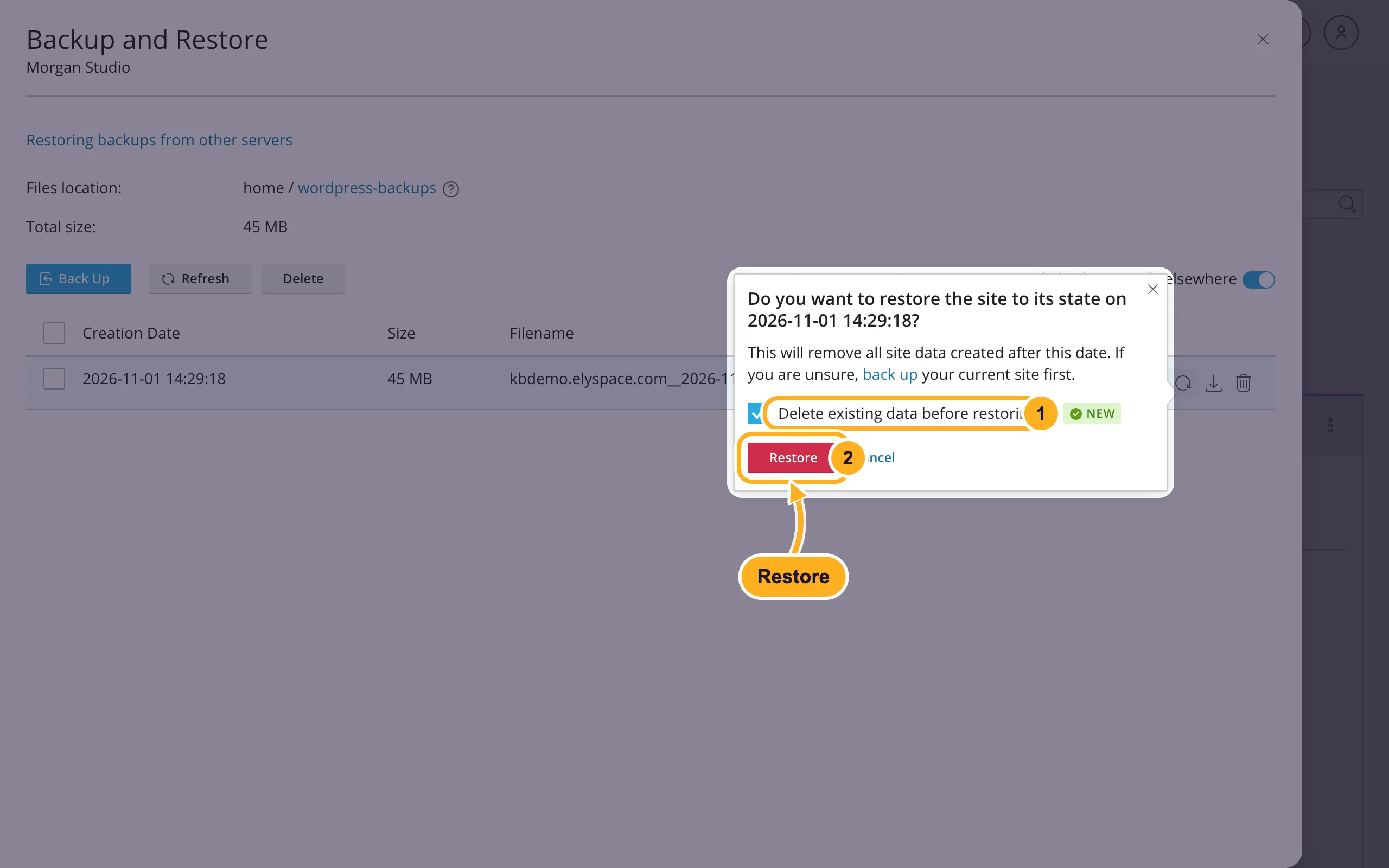
Open Back Up / Restore on the site's card and click the restore icon (the circular arrow) next to the backup you want.
WordPress Management asks Do you want to restore the site to its state on that date. Everything created on the site after that date is removed, so make a fresh backup first if you're unsure.
- Delete existing data before restoring is ticked: the current files and database are cleared before the backup goes back.
- Click Restore.
Tips
- Back up before every big change: a WordPress update, a new theme, or a new plugin you haven't tried yet.
- Delete old backups you no longer need. Select them in the list and click Delete. That frees disk space.
- Want to try changes without touching the live site? Use a copy instead: Make a staging copy of your site (clone).
Common problems
The backup fails or your account is full
A backup needs free disk space about the size of your site. See See what uses your disk space and delete old backups or files you don't need.
A backup you made is missing from the list
Backups that weren't made with this site's Back Up button are hidden. Switch off Hide backups made elsewhere at the top right of the list.
You want to restore a backup from another host
Ask us to do it: we move websites to ElySpace for free (see Move your website to ElySpace (free migration)).
Related articles
- Update WordPress, plugins and themes
- Make a staging copy of your site (clone)
- Fix "There has been a critical error on this website"
- Your website was hacked: what to do first
Still stuck? Open a support ticket and we'll help.
