

In cPanel, open Domains and click Create A New Domain. Don't share the document root for a separate site (addon domain); share it for an alias.
Addon domain or alias?
| Addon domain | Alias | |
|---|---|---|
| What visitors see | Its own website with its own files | The same website as your main domain |
| Use it for | A second business, a shop, a project site | Spelling variants or other endings (yourname.net, your-name.com) |
| Setting in cPanel | Share document root not ticked | Share document root ticked |
Both get their own email addresses, which you create under Email Accounts.
Before you start
The domain must be registered, and it must point to your hosting: set its nameservers to the ones on the Hosting Information tab of your service in the client area (see Find your server name, IP address and nameservers and Change your domain's nameservers). You can add the domain in cPanel first and change the nameservers right after.
Add the domain
Log in to cPanel and click Domains in the Domains section.
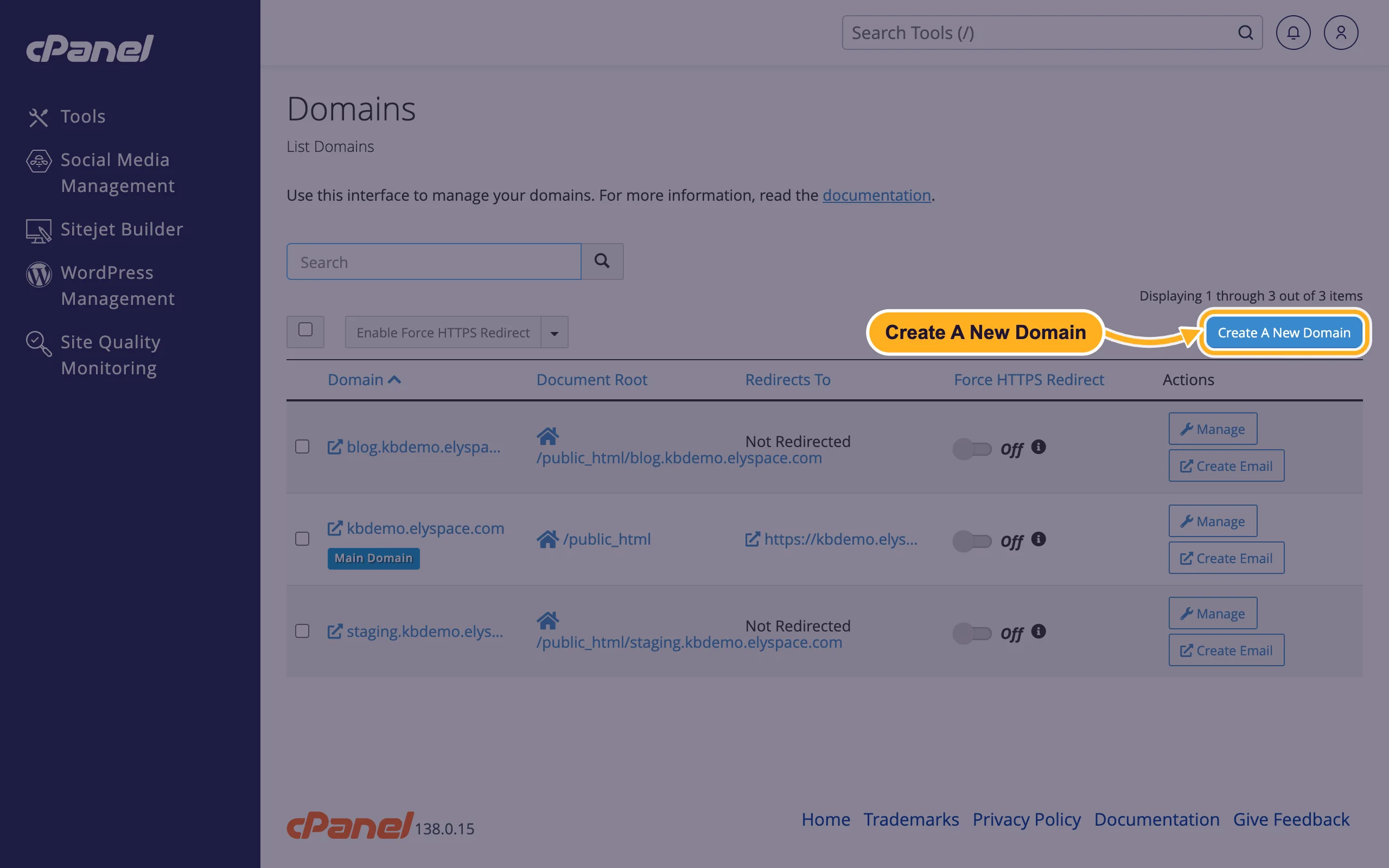
Click Create A New Domain.
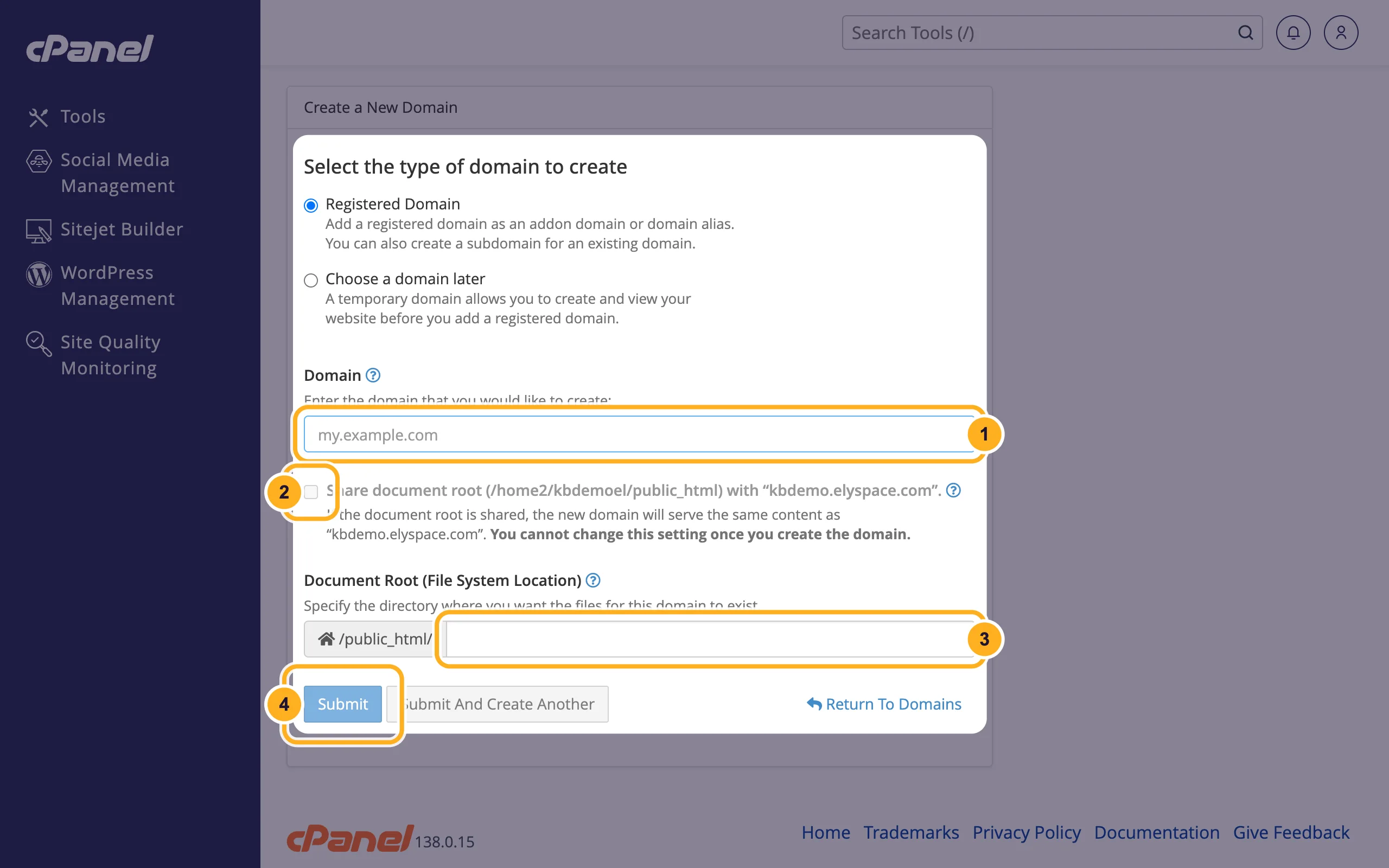
Leave Registered Domain selected and fill in the form:
- Domain: the new domain without www, for example
yourname.net. - Share document root: leave it unticked for an addon domain with its own website. Tick it for an alias that shows your main site. You can't change this setting later.
- Document Root (File System Location): for an addon domain, cPanel fills in a folder named after the domain inside public_html. That's where you upload the new site's files. You can keep it.
- Click Submit.
- Domain: the new domain without www, for example
The new domain then appears in the list on the Domains page. Upload the website into its document root with the File Manager, or install WordPress on it with WordPress Management.
Once the domain points to us, cPanel tries to get a free SSL certificate for it automatically. See Free SSL: check and fix your certificate.
Remove a domain
On the Domains page, click Manage next to the domain, then Remove Domain. cPanel removes the domain from your account but keeps the files in its document root. Delete them in File Manager if you no longer need them.
Common problems
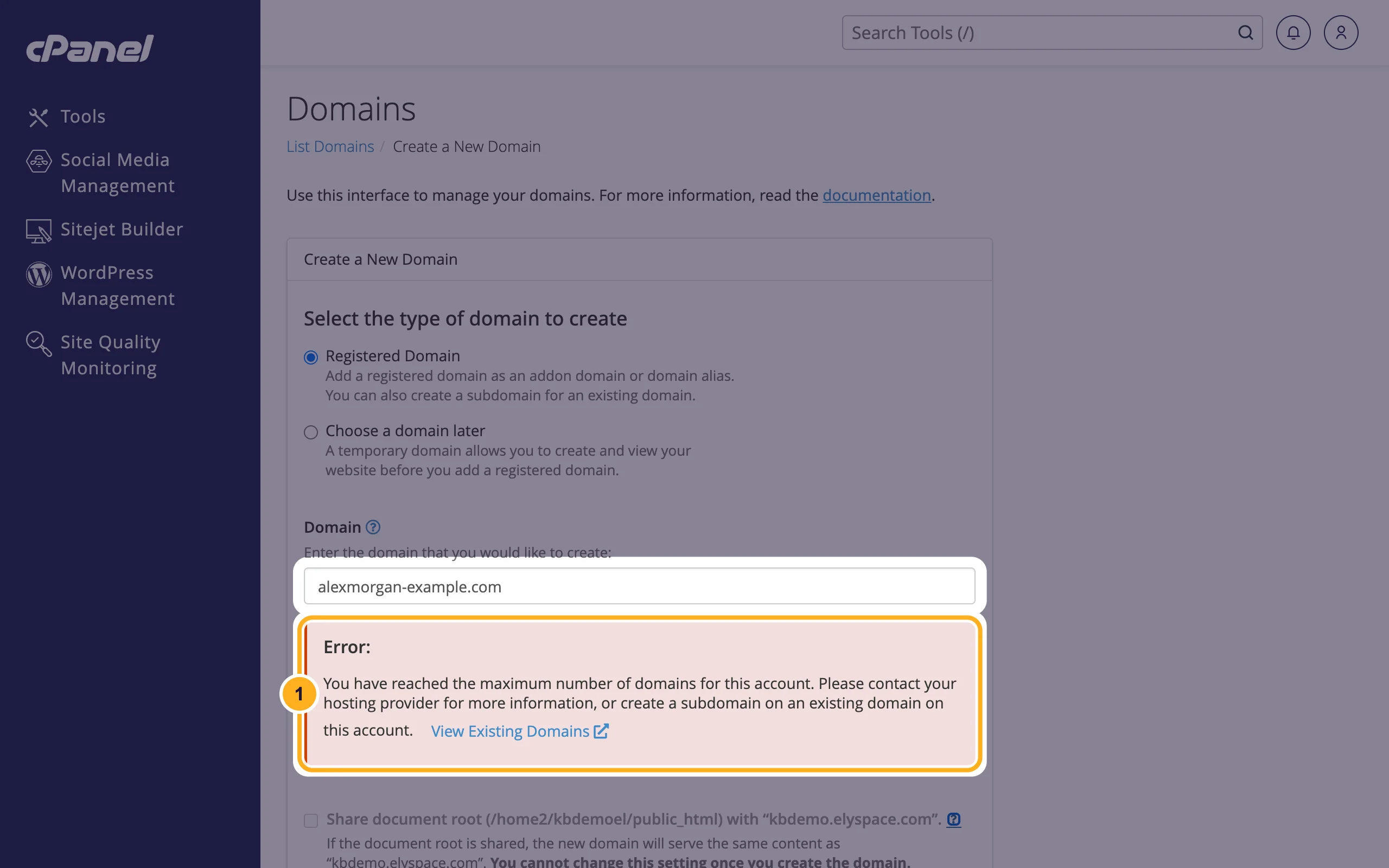
"You have reached the maximum number of domains for this account"
Your plan doesn't allow more domains. This is what you see on Starter S, or when you've used all domains of your plan. Upgrade your plan or remove a domain you don't use.
The new domain shows an error or someone else's page
The domain doesn't point to your hosting yet. Check its nameservers. After a nameserver change, it can take several hours until every network sees it.
The new domain shows your main website
It was added with Share document root ticked, as an alias. You can't switch it. Remove the domain and add it again without the tick.
Related articles
Still stuck? Open a support ticket and we'll help.
