

Add your mailbox to the Gmail app or Samsung Email on Android as a personal IMAP account, using the server name and ports shown in cPanel.
Gmail app
Open the Gmail app, tap your profile picture at the top right and tap Add another account.
Tap Other, type your full email address and tap Manual setup.
Choose Personal (IMAP) and tap Next. Enter the mailbox password and tap Next.
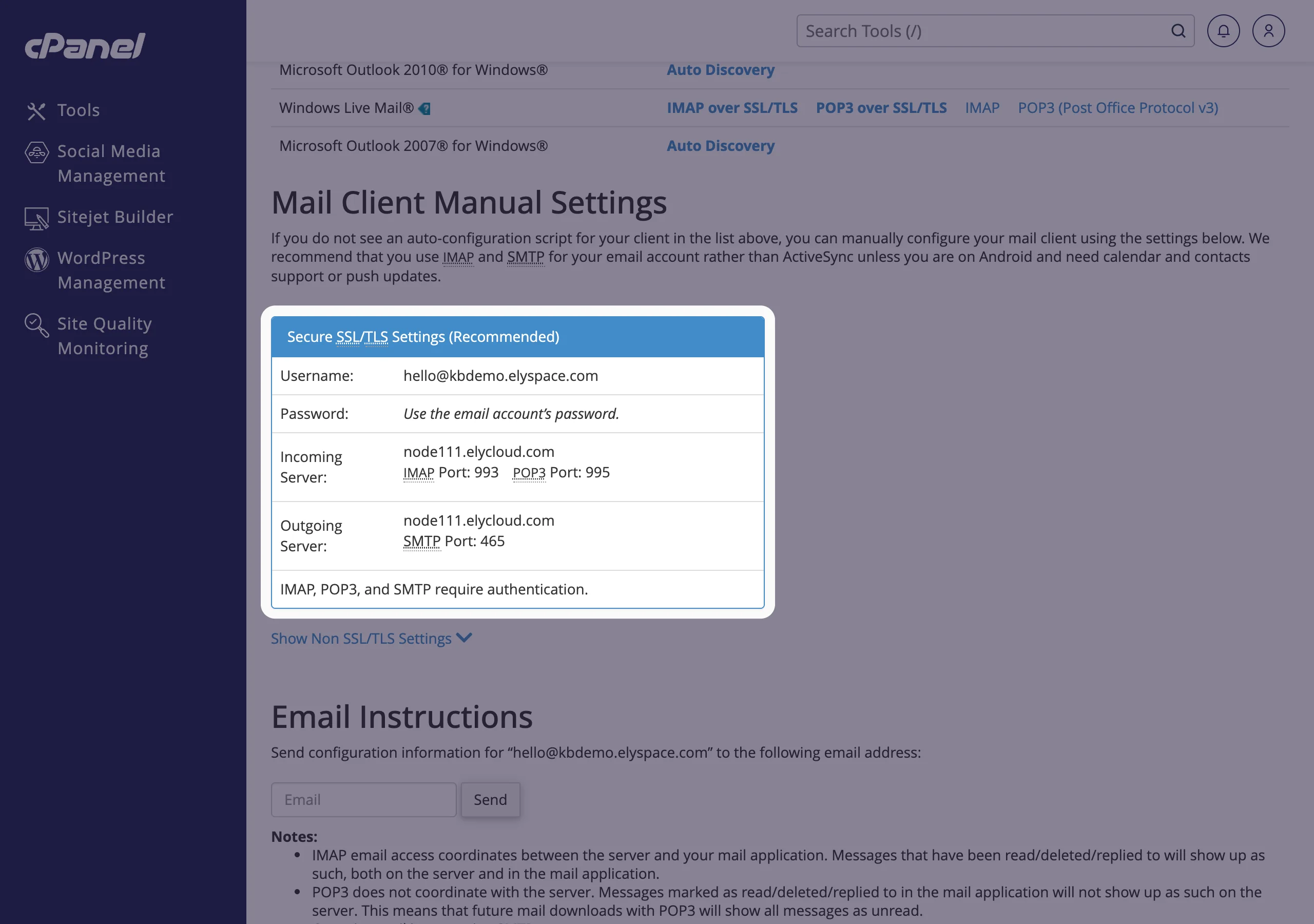
Incoming server settings:
- Username: your full email address
- Server: your server name, for example
node111.elycloud.com - Port:
993, Security type: SSL/TLS
Tap Next.
Outgoing server settings: keep Require sign-in on, enter the full email address and password, the same server name as SMTP server, port
465and security type SSL/TLS. Tap Next.Choose how often the app checks for mail, tap Next, enter the name shown to the people you write to and tap Next again.
Samsung Email
Open Samsung Email. On first start it asks for an account; otherwise open the menu, tap the gear icon and Add account.
Choose Other, enter your email address and password and tap Manual setup.
Choose IMAP account and fill in the incoming server (port
993, SSL) and the outgoing SMTP server (port465, SSL) with your full email address as username. Tap Sign in.
Common problems
"Couldn't open connection to server"
Check the server name, the port and the security type. Use your server name from cPanel, not mail.yourdomain.com, so the certificate matches.
"Username or password is incorrect"
The username is the full email address. Test the password in webmail and set a new one if needed (see Change an email account password).
Mail arrives but can't be sent
Make sure Require sign-in is on for the outgoing server. If your mobile network blocks port 465, use 587 with STARTTLS.
Related articles
- Email server settings and ports (IMAP, POP3, SMTP)
- Set up email on iPhone or iPad
- Set up email in Outlook
Still stuck? Open a support ticket and we'll help.
