

Add your mailbox to Outlook as an IMAP account: server name from cPanel, IMAP port 993 and SMTP port 465 with SSL/TLS, full email address as username.
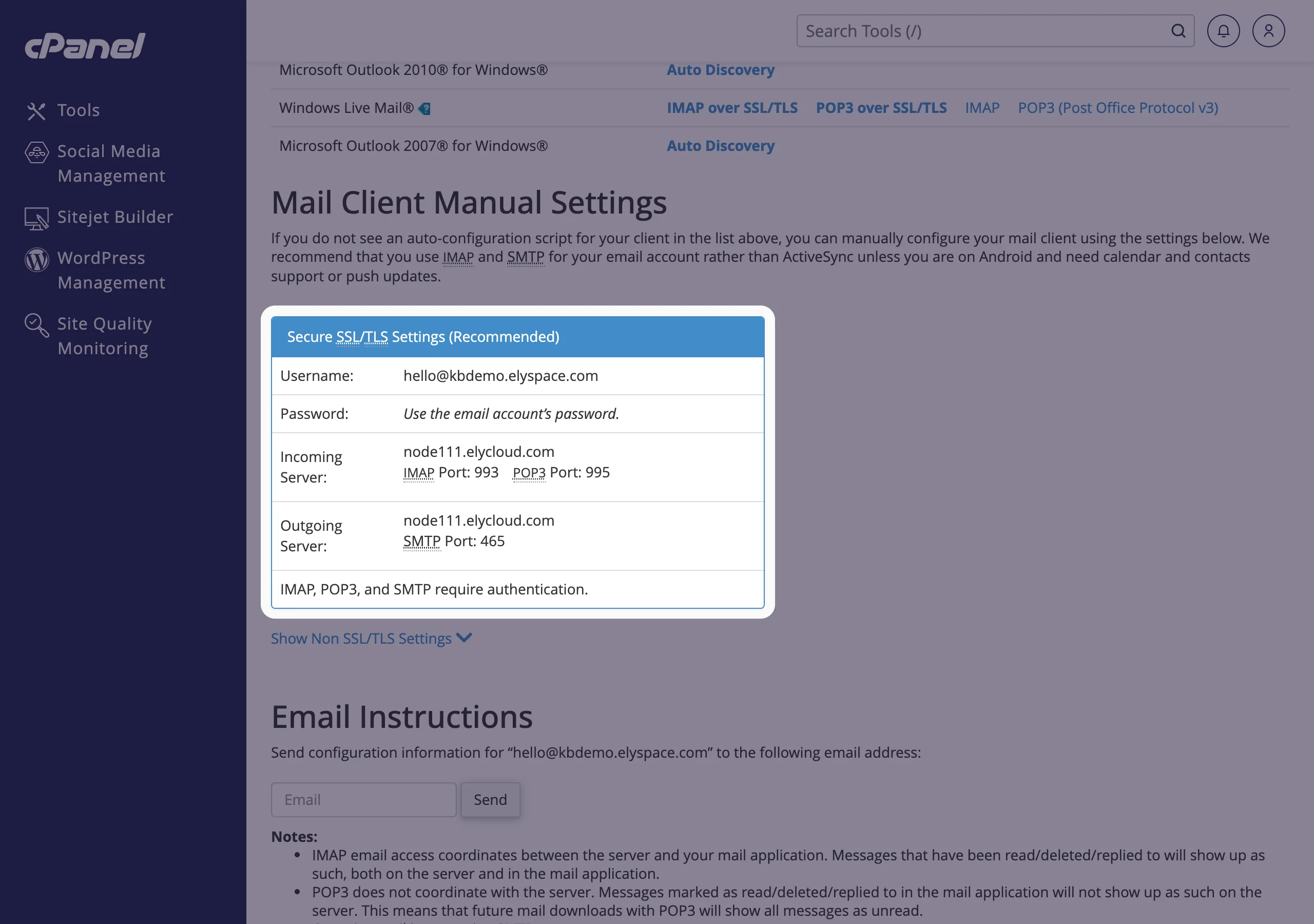
The values Outlook asks for
| Field | Value |
|---|---|
| Account type | IMAP |
| Incoming mail server | your server name, for example node111.elycloud.com, port 993, encryption SSL/TLS |
| Outgoing mail server (SMTP) | the same server name, port 465, encryption SSL/TLS |
| Username | your full email address |
| Password | the mailbox password |
Classic Outlook for Windows (Microsoft 365, Outlook 2021 and 2024)
Click File, then Add Account.
Type your email address, click Advanced options, tick Let me set up my account manually and click Connect.
Choose IMAP.
Under Incoming mail, enter the server name, port
993and encryption method SSL/TLS. Under Outgoing mail, enter the same server name, port465and SSL/TLS. Click Next.Enter the mailbox password and click Connect, then Done.
New Outlook for Windows
Click the gear icon (Settings), then Accounts, Email accounts and Add account.
Type your email address and click Continue. If Outlook asks which provider to use, choose IMAP.
Open the advanced settings (Show more) and fill in the IMAP incoming server with port
993and SSL/TLS, and the SMTP username (your full email address), password, outgoing server and port465with SSL/TLS.Click Continue. New Outlook may tell you that it syncs IMAP accounts through the Microsoft Cloud; confirm to finish.
Outlook for Mac
Click Outlook in the menu bar, then Settings, Accounts and the + button (New Account).
Type your email address and click Continue. If Outlook can't detect the provider, choose IMAP/POP.
Enter the full email address as user name, the password, and the incoming and outgoing server with the ports above, both with SSL. Click Add Account.
Remove an account from Outlook
Removing the account only removes it from this Outlook. The mailbox and its mail stay on the server, so you can still use it in webmail.
- Classic Outlook: File, Account Settings, Account Settings, select the account, click Remove and confirm with Yes. Mail that Outlook had stored on this computer is deleted from the computer.
- New Outlook: Settings, Accounts, Email accounts, then Manage next to the account and Remove.
Common problems
Outlook keeps asking for the password
Check that the username is the full email address for both servers and that the password is right (test it in webmail). If you changed the password recently, update it in Outlook too.
Sending fails, receiving works
In classic Outlook, open File, Account Settings, Server Settings and make sure the outgoing server uses the same username and password. If your network blocks port 465, use 587 with STARTTLS.
Certificate warning
You used mail.yourdomain.com. Change the incoming and outgoing server to your server name from cPanel.
Auto Discovery in cPanel
The Connect Devices page lists automatic setup files for Outlook 2007 and 2010. Current Outlook versions don't use them; set the account up by hand as described above.
Related articles
- Email server settings and ports (IMAP, POP3, SMTP)
- Set up email on iPhone or iPad
- Set up email on Android
- Change an email account password
Still stuck? Open a support ticket and we'll help.
