

See your disk space and bandwidth on your plan's Resource Usage tab in the client area, or in cPanel under Statistics, which also shows your plan's limits.
In the client area
Log in to the client area, go to Services > My Services and click Manage next to the plan.
Click the Resource Usage tab. It shows the Disk Space and Bandwidth you use.
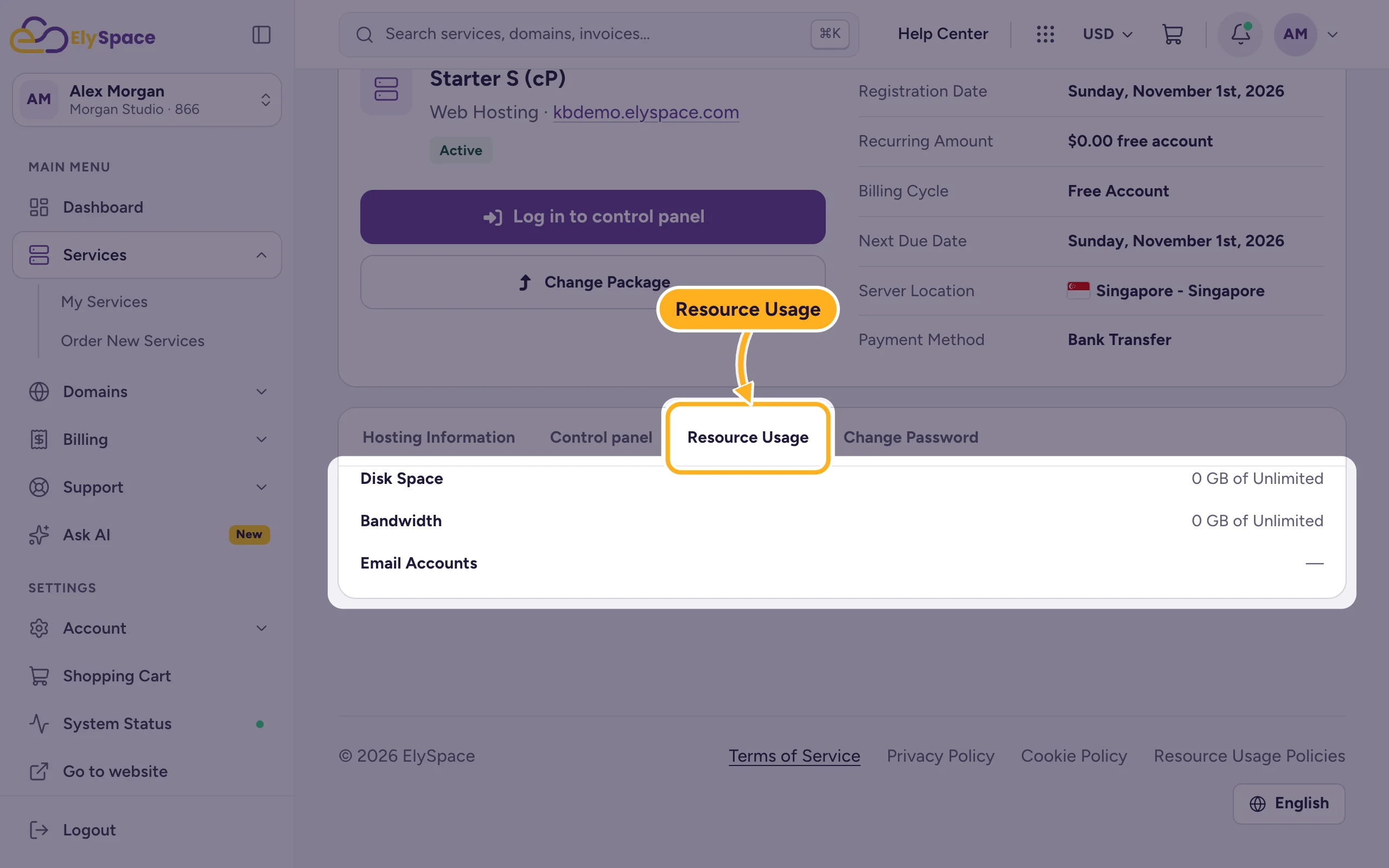
The Control panel tab has the same figures under Usage Statistics, with the time they were last updated. The client area updates them from the server from time to time, so they can be a little behind.
In cPanel (current figures and limits)
Click Log in to control panel on the service page. See Log in to cPanel from the client area.
On the cPanel home page, look at Statistics on the right. Each line shows what you use and your plan's limit:
- Disk Usage: the space your files and emails take.
- Bandwidth: the data sent to visitors this month.
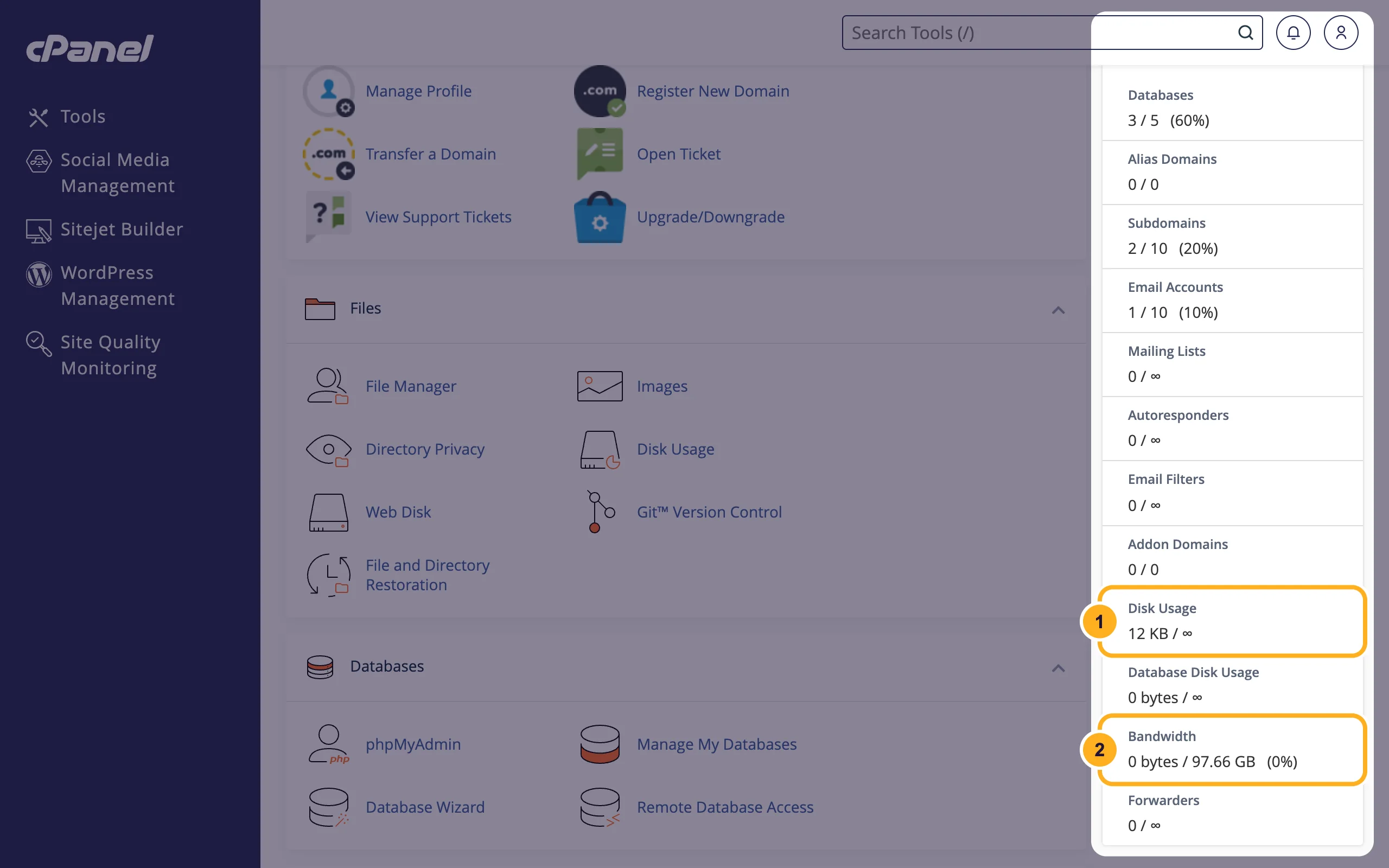
The same panel shows how many email accounts, databases and subdomains you use out of your plan's limit. The infinity sign (∞) means there's no fixed limit for that item.
Common problems
You're running out of disk space
Find what takes the space with the Disk Usage tool in cPanel and delete old backups, logs and unused files. See See what uses your disk space. Full mailboxes count too.
Bandwidth is nearly used up
Bandwidth resets every month. If you regularly need more, move to a bigger plan. See Upgrade or downgrade your hosting plan.
Related articles
- See what uses your disk space
- Upgrade or downgrade your hosting plan
- cPanel at a glance: the most-used tools
Still stuck? Open a support ticket and we'll help.
