

Your server name, IP address and nameservers are on your hosting plan's page in the client area, on the Hosting Information tab.
Look them up
Log in to the client area, go to Services > My Services and click Manage next to the plan.
Scroll down to the Hosting Information tab. It shows:
- Server Name: the server your account is on, for example
node111.elycloud.com. - IP Address: the IP address of your website.
- Nameservers: the two nameservers to enter at your domain registrar.
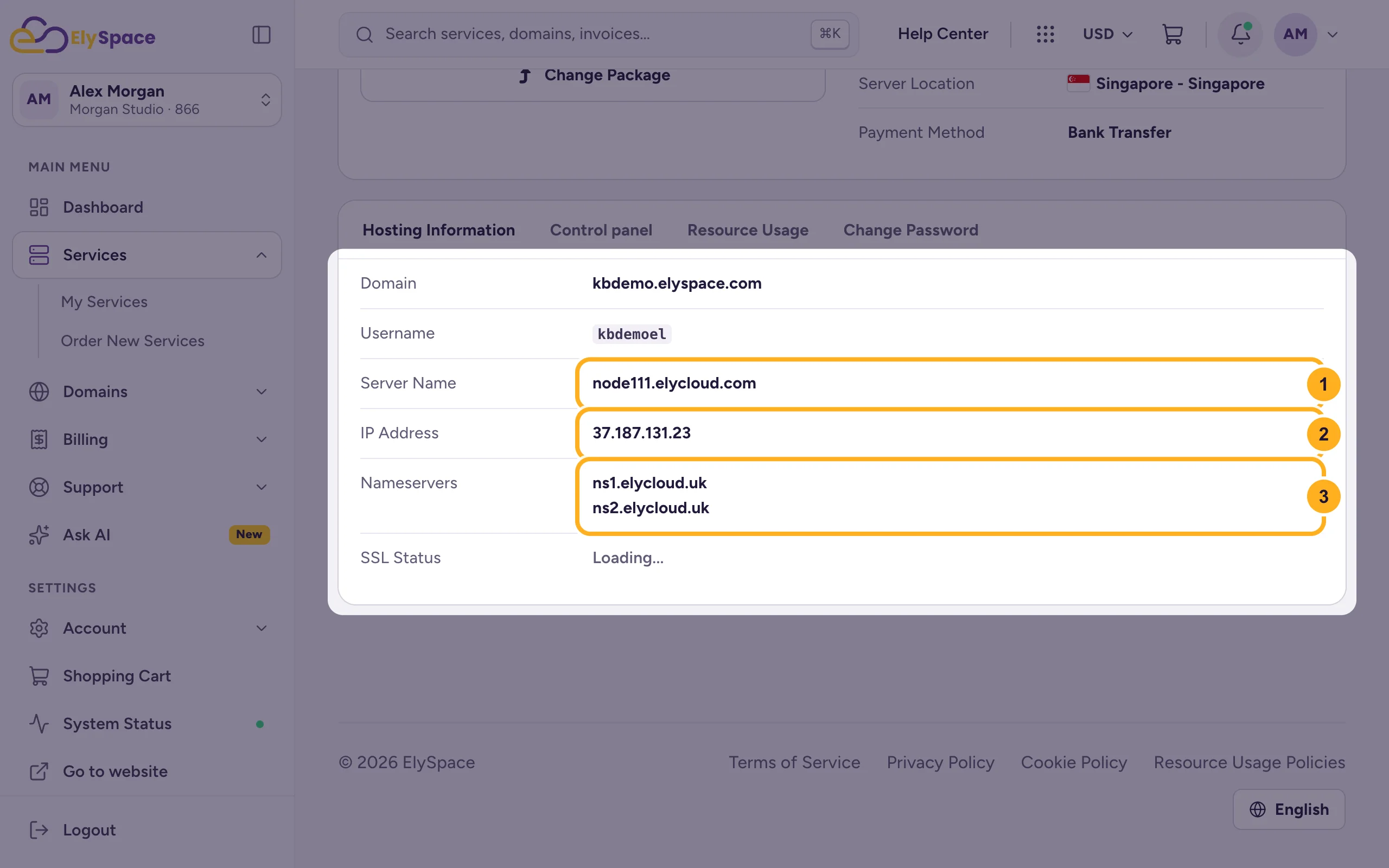
- Server Name: the server your account is on, for example
The tab also shows your Domain and your cPanel Username. cPanel shows the same IP address as Shared IP Address under General Information.
Good to know: these values differ between servers and plans. Always copy them from your own service page, not from an old email or another website.
Which one do you need?
- Your domain is registered elsewhere and you want the whole domain (website and email) on ElySpace: enter the two Nameservers at your registrar. See Point a domain from GoDaddy or another registrar.
- You only want to point the website and keep DNS somewhere else: create an A record with the IP Address.
- An app or support asks for the server or hostname: give the Server Name.
Common problems
The domain still shows the old website
DNS changes take a while to spread across the internet. See Clear your DNS cache (Windows, macOS, browsers).
The domain was registered with ElySpace
Then you can change its nameservers in the client area. See Change your domain's nameservers.
Related articles
Still stuck? Open a support ticket and we'll help.
