

Change the client area language with the language button at the bottom of every page. The currency is chosen when you sign up or order: USD, INR or GBP.
Change the language
Scroll to the bottom of any client area page and click the language button, which shows your current language, for example English.
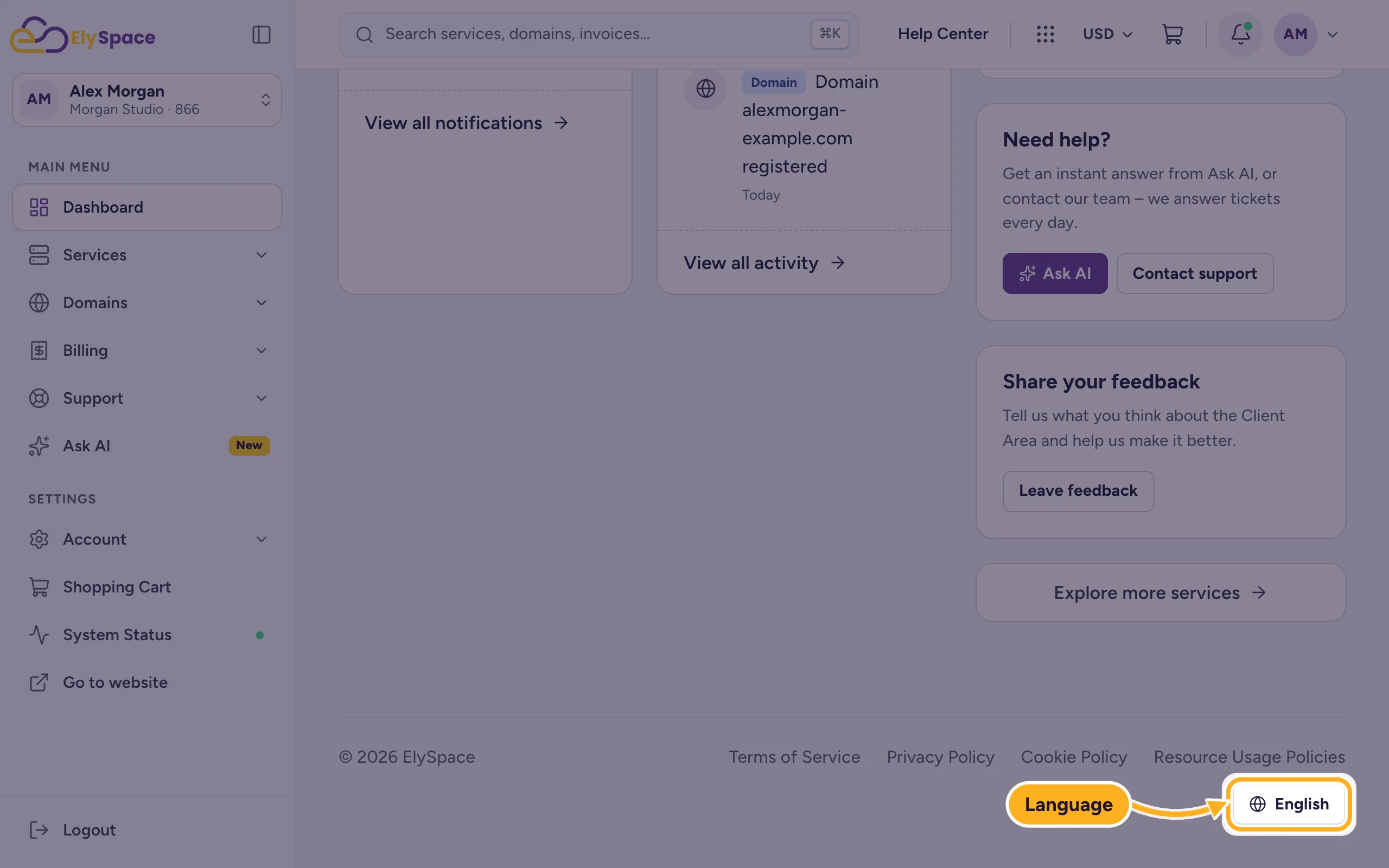
In Choose language, click your language and then Apply.
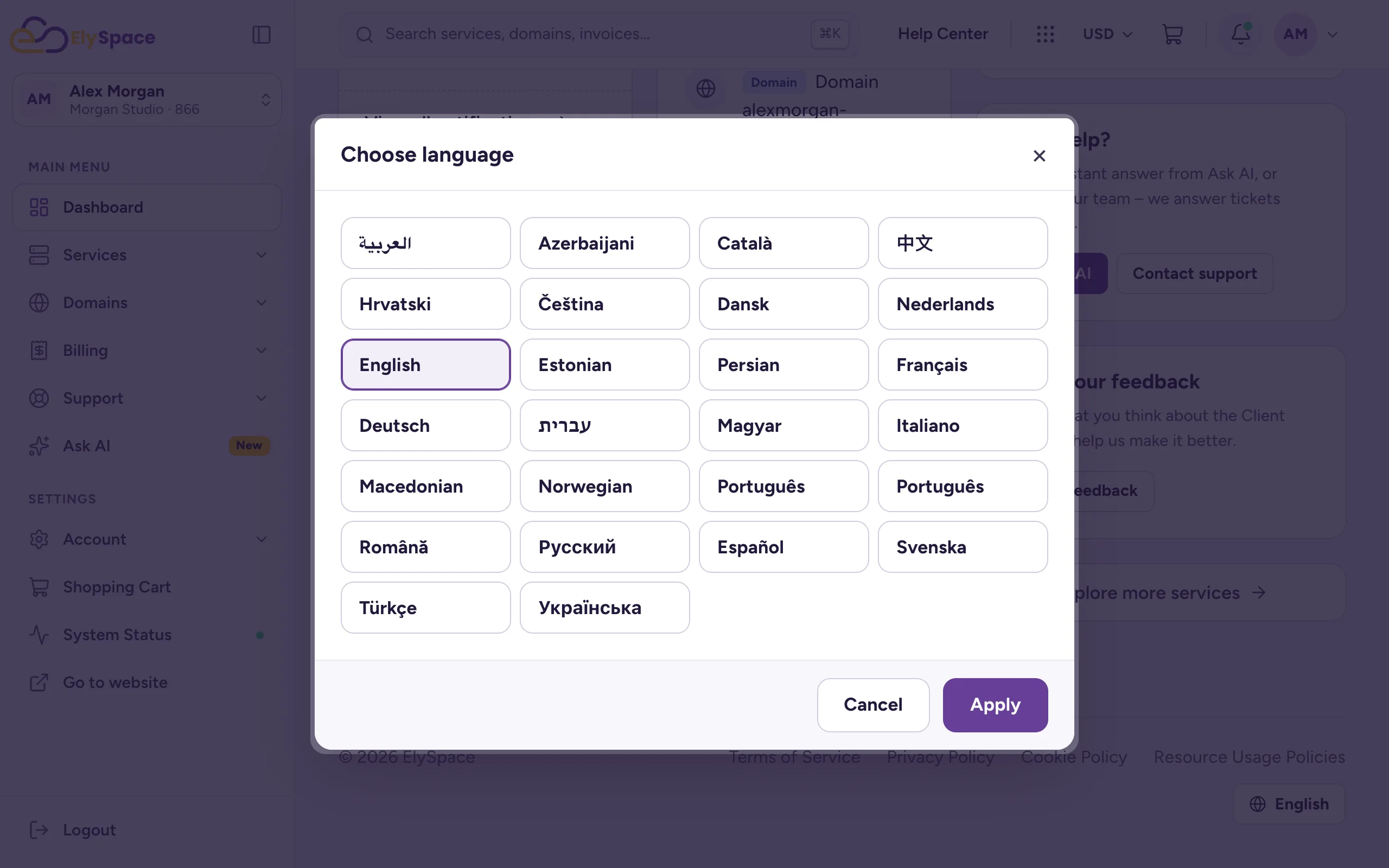
Your account currency
Your account has one currency: USD, INR or GBP. Prices, the cart and your invoices use it. To see it, click the currency at the top of the client area, for example USD.
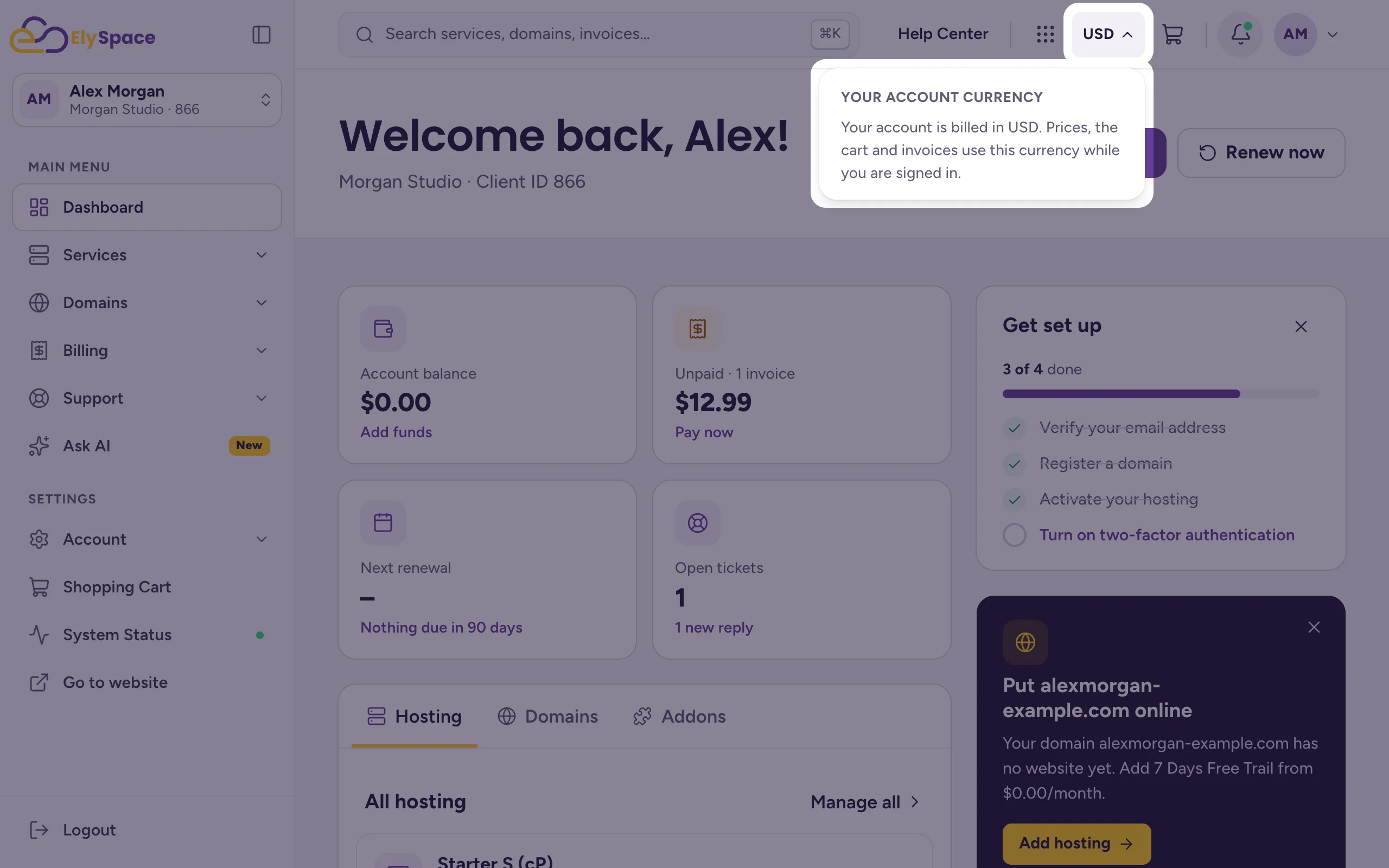
While you're logged in you can't switch the currency there. It's set once:
- on the sign-up form, under Choose Currency (see Create an ElySpace account), or
- in the store before your first order, when you're not logged in: click the currency at the top of the store and choose USD, INR or GBP.
Common problems
Your account has the wrong currency
Open a ticket in Sales Support and tell us the currency you need. Whether we can change it depends on your existing invoices and services, so ask before you place a new order.
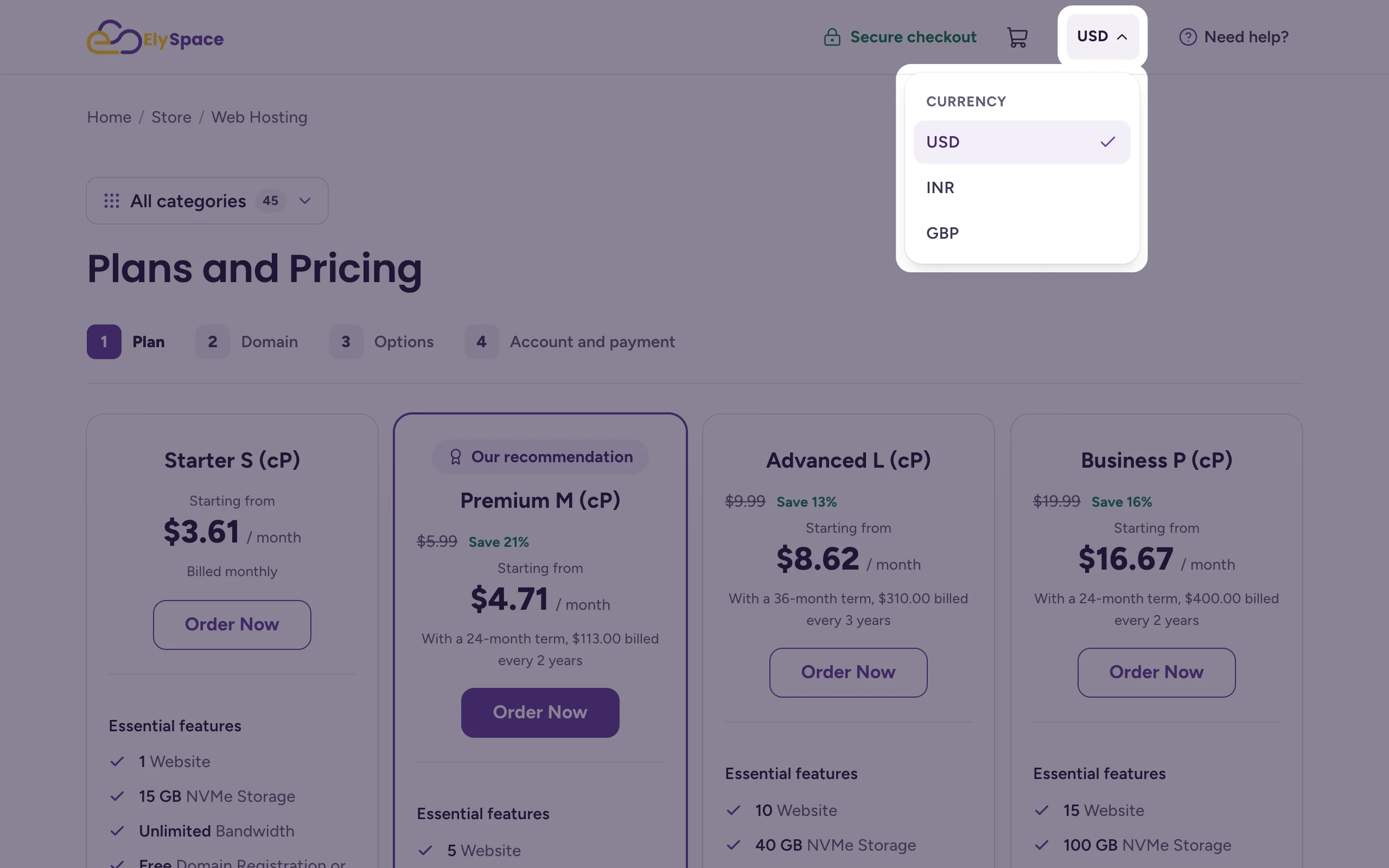
The store shows a different currency than your account
When you're logged out, the store can show another currency. Log in first: the cart then uses your account currency.
Related articles
- Create an ElySpace account
- Buy web hosting step by step
- Payment methods we accept
- The ElySpace client area at a glance
Still stuck? Open a support ticket and we'll help.
