

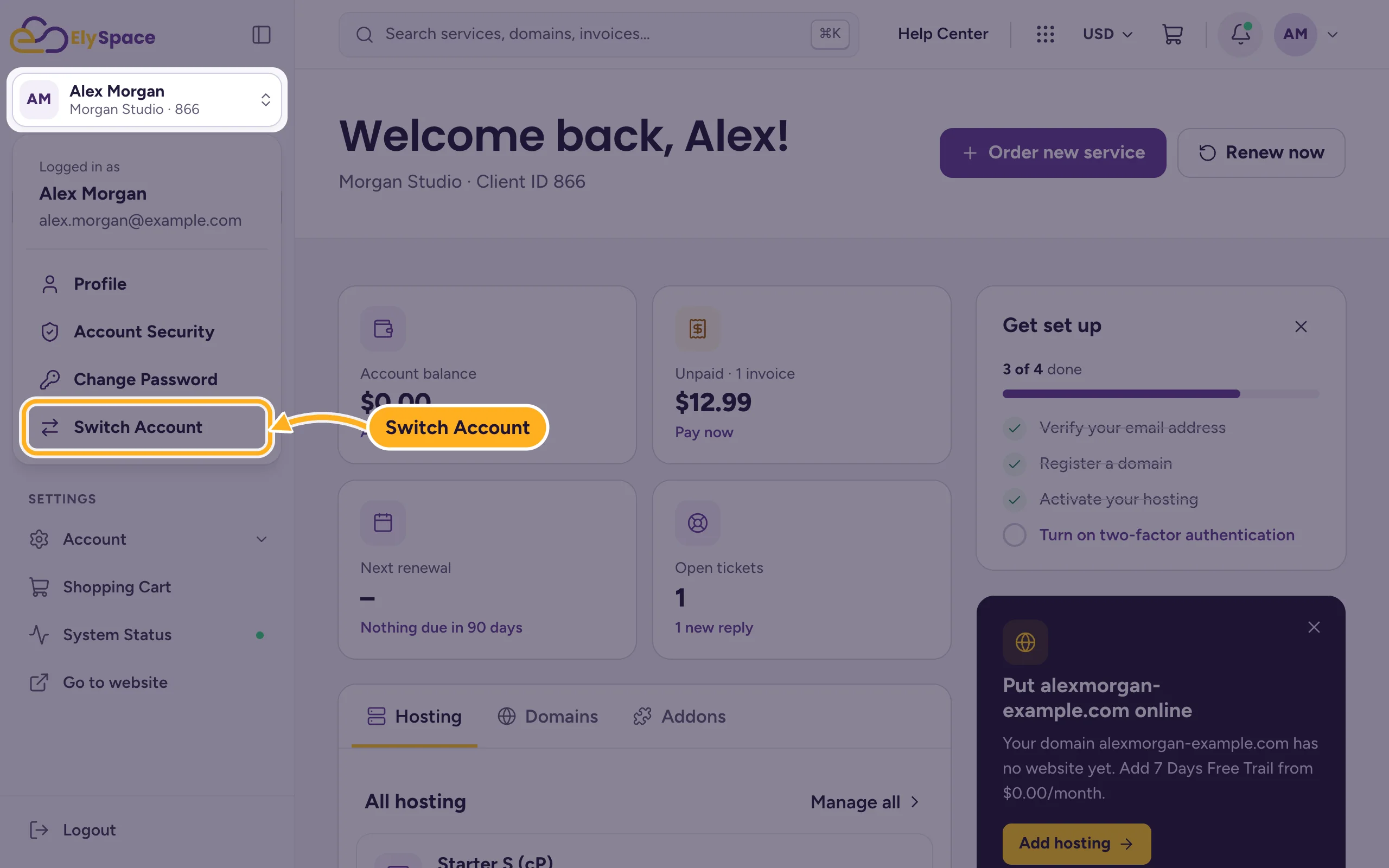
If your login has access to more than one ElySpace client account, click your name at the top of the left menu, choose Switch Account and pick the account.
One login can manage several client accounts, for example your own and a client's account that invited you as a user (see Give other people access to your account).
Switch to another account
Click your name at the top of the left menu, then Switch Account.
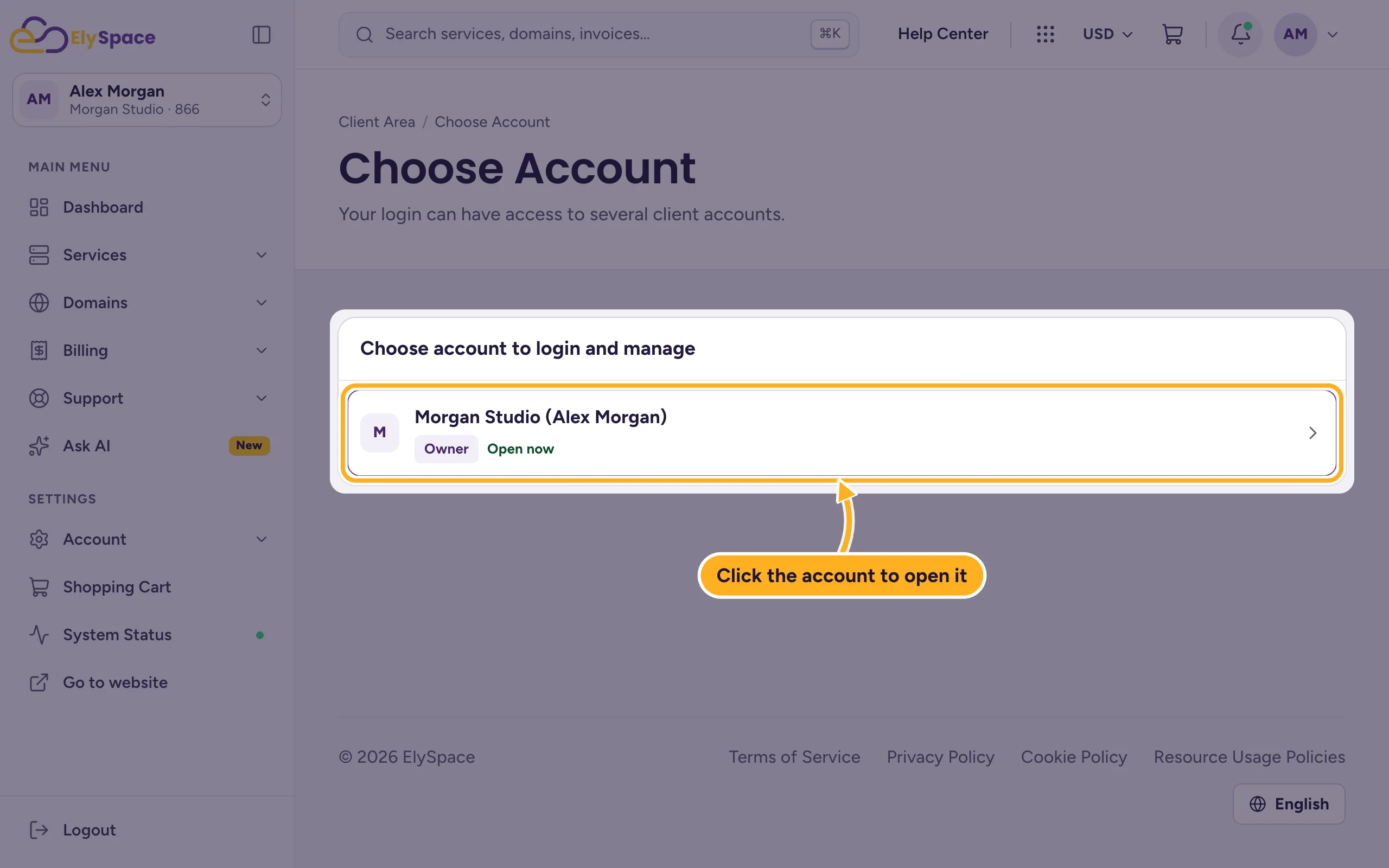
The page Choose Account lists every client account your login can open, with your role, for example Owner. Click the account you want to work in.
The client area now shows the services, domains, invoices and tickets of that account. The name under your initials at the top of the left menu shows which account is open.
In another person's account you can only do what they allowed. Pages you have no permission for are hidden or show a message.
Common problems
The account you need isn't listed
Ask the account owner to invite you under Account > User Management, using the email address you log in with. After you accept the invitation, the account appears in the list.
You only see one account
Then your login has access to one client account only, and there's nothing to switch.
You paid or ordered in the wrong account
Open a ticket from the account you meant to use and tell us the invoice or order number. We'll help you sort it out.
Related articles
- Give other people access to your account (users)
- The ElySpace client area at a glance
- Turn on two-factor authentication (2FA)
- Security tips for your ElySpace account
Still stuck? Open a support ticket and we'll help.
